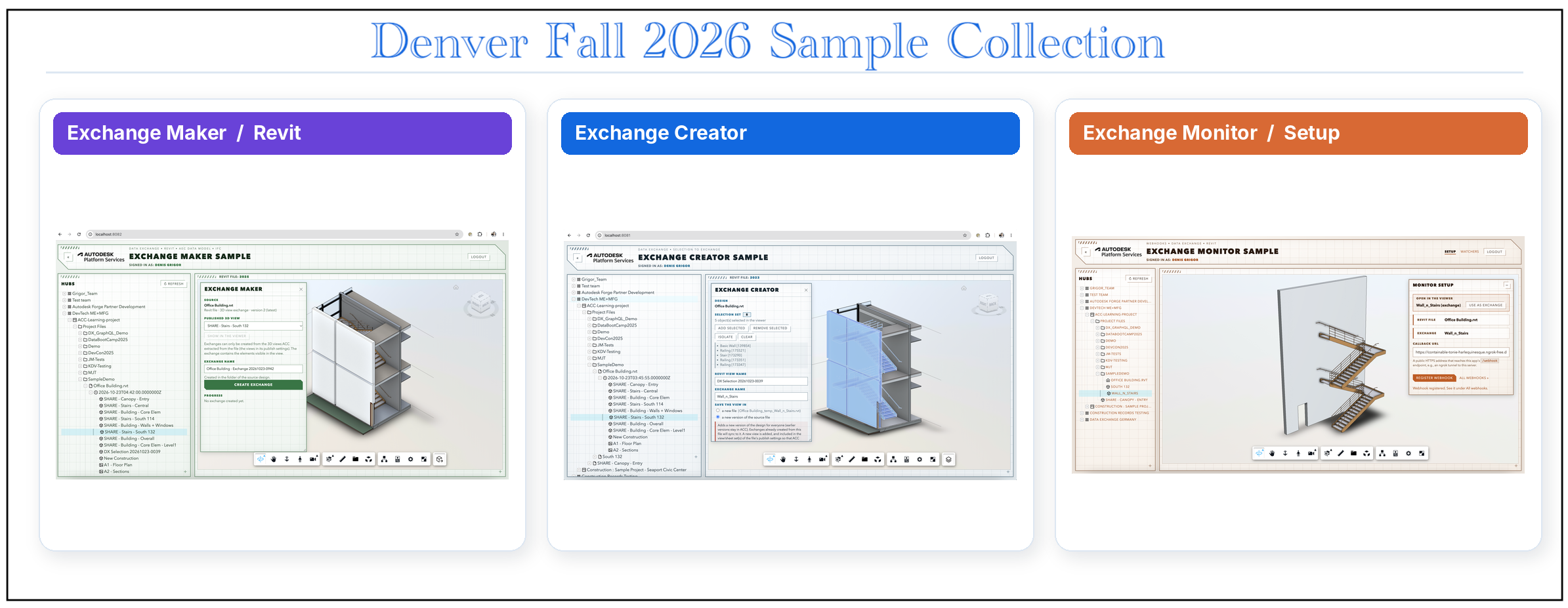
Every question a participant asked was also a small test of our documentation, our tutorials, and our samples, and the answers we gave in the room told us where those three fell short. This post looks at the outcomes from our side - some research topics, some new samples, some workflow ideas and all this primarily from a Data Exchange perspective.
Exchange Maker: from the design open in the Viewer
Usually, to illustrate the Data Exchange GraphQL workflow we use the Data Exchange Model Explorer tool, which is ok, as it shows the GraphQL call for the needed tasks, including how to create exchanges, but during discussions with some Accelerator participants we had to acknowledge that we don't really have a sample that shows how the workflow of exchange creation can be integrated into webapp.
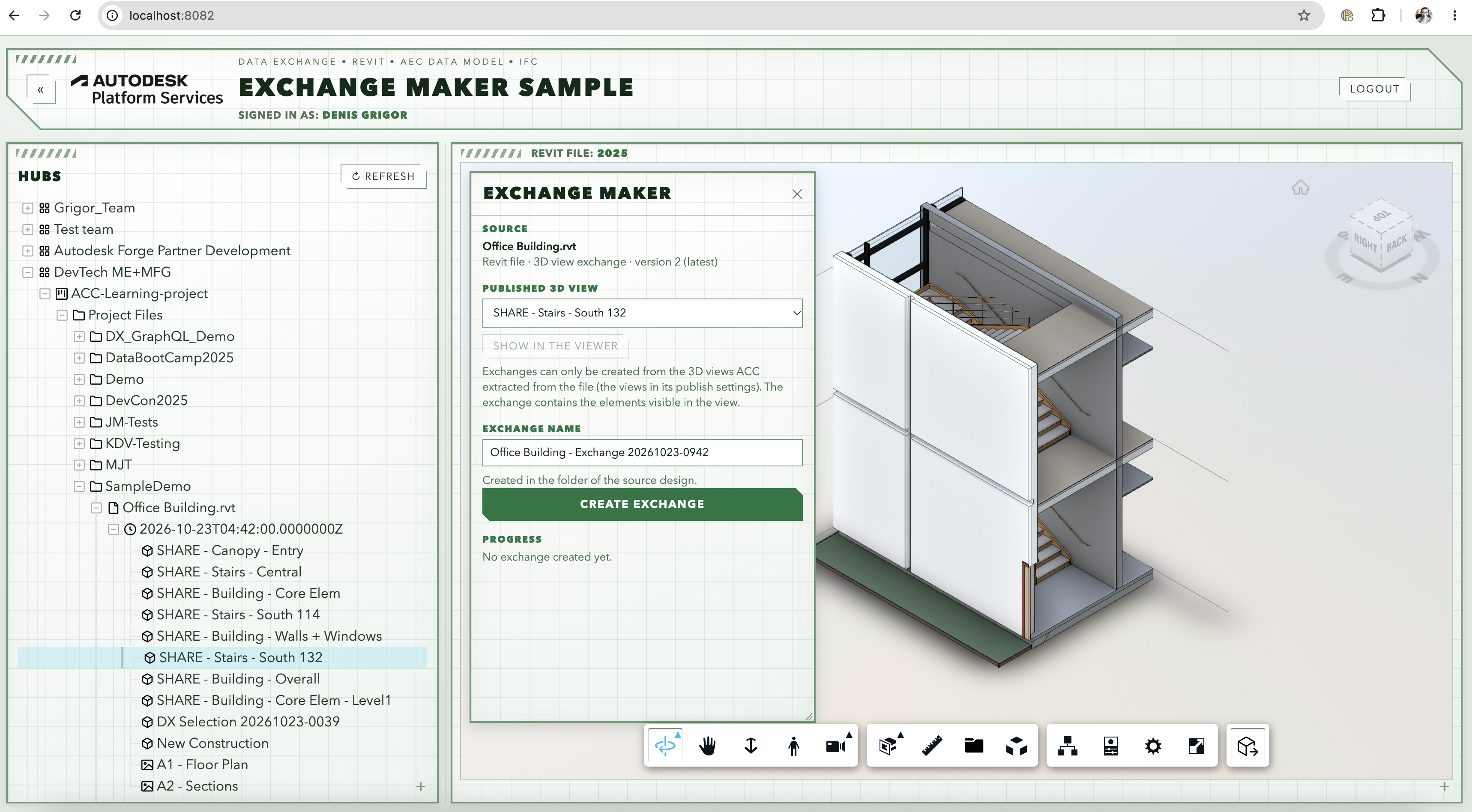
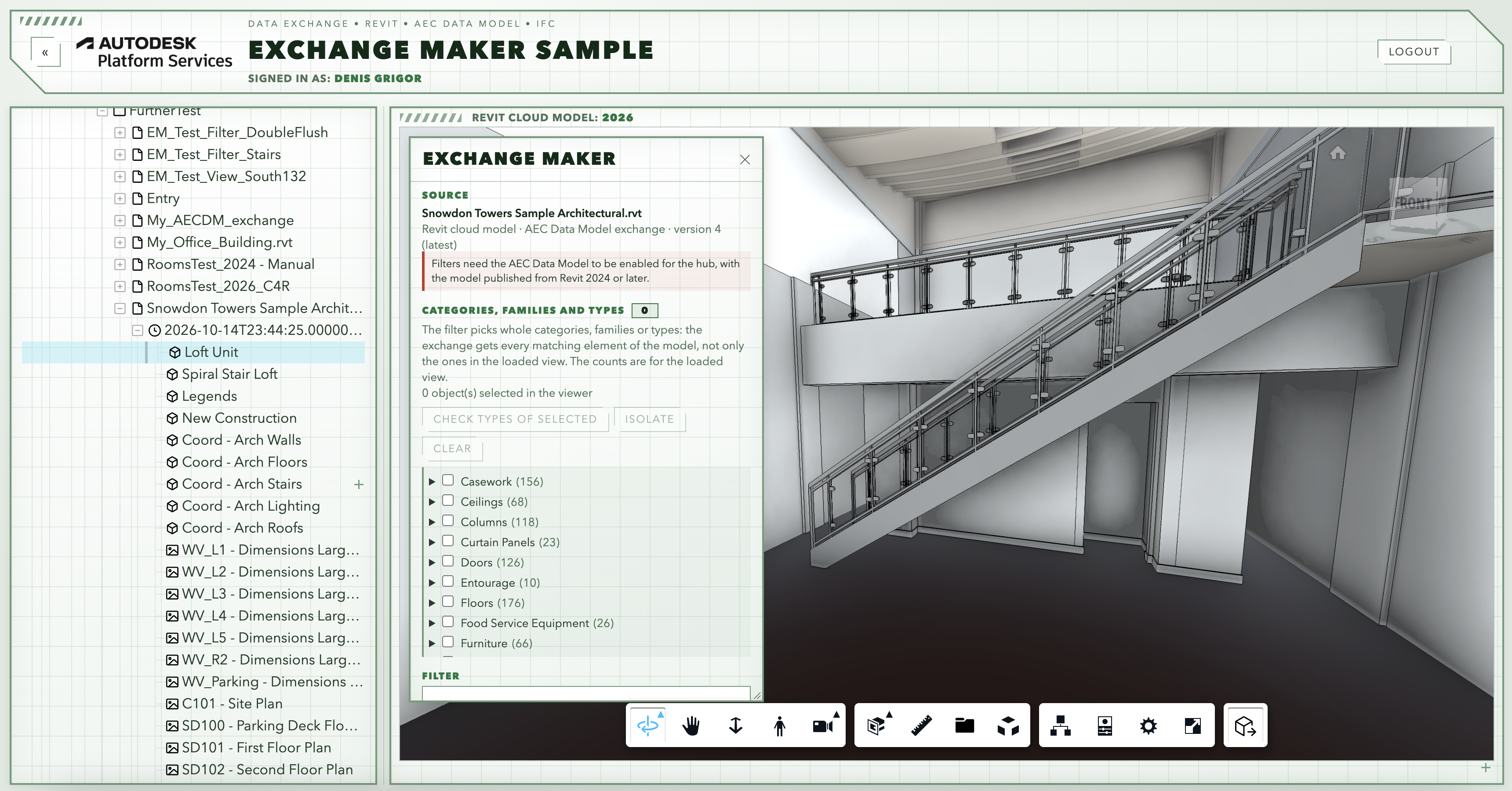
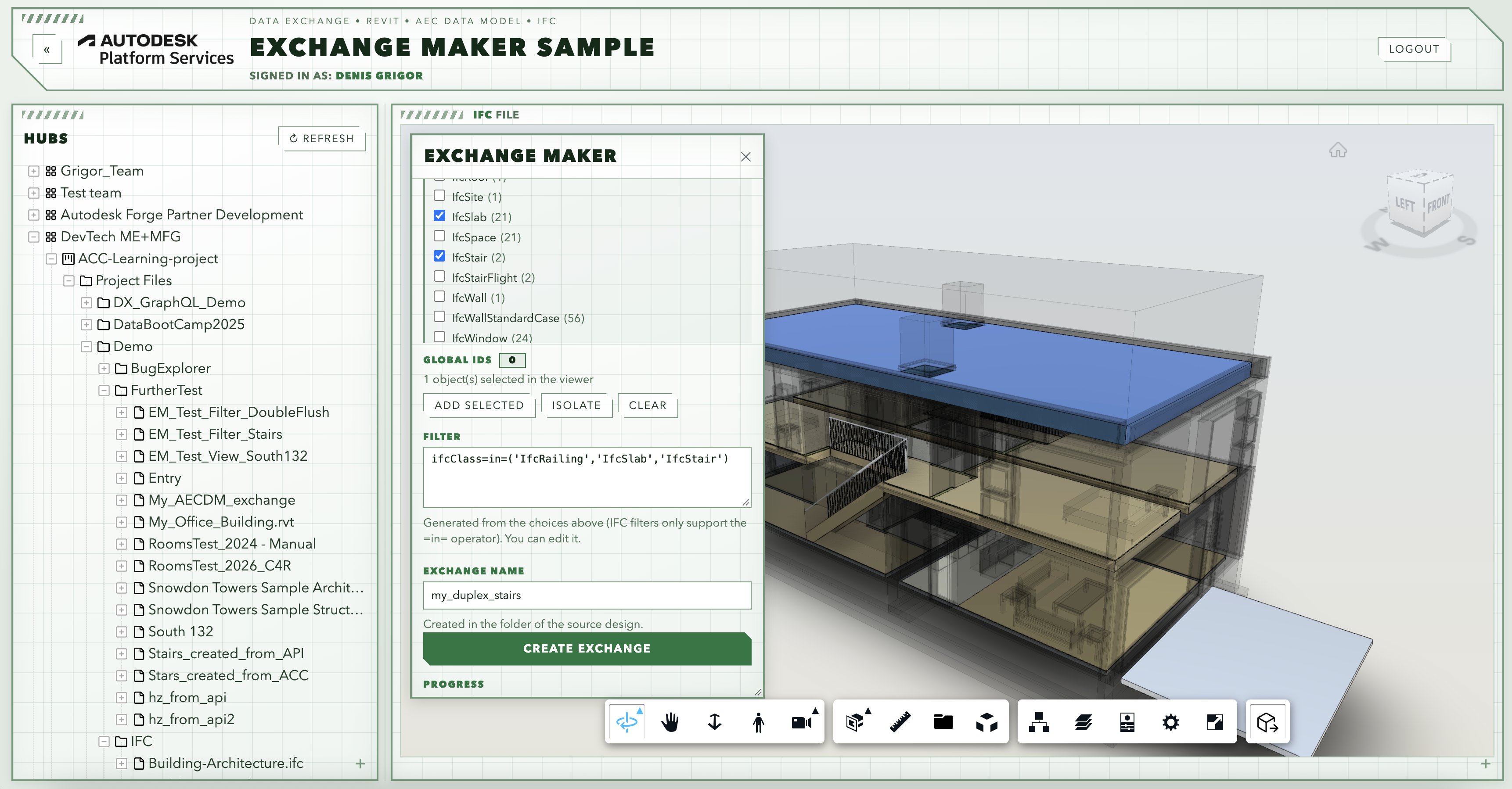
It might look trivial, but we should keep in mind that in its current state Data Exchange GraphQL API supports three sources for creating data exchanges and depending on design type, we need specific information: a Revit file uploaded to Autodesk Construction Cloud takes a published 3D view name, a Revit cloud model in the AEC Data Model takes a filter such as (category=='Windows'), while an IFC file takes a filter on IFC classes.
Exchange Maker puts them in one app. It detects what kind of design is open in the Viewer and shows the matching dialog, so you can read one codebase and see all three inputs at work:
Building it also surfaced some gaps:
- Data Exchange identifies folders and files by IDs built from their Data Management IDs, such as
fold~<hubId>~<projectId>~<folderUrn>, encoded in base64. The docs don't explain this mapping. - When an exchange from AECDM is created using filters, the result is not generating a new viewable, but it just assigns a default viewable. In this case you might end up with an exchange that has data on some elements (e.g. stairs), while its viewable shows only the front porch of the building (because that was the default view).
Exchange Creator: when the published view isn't enough
Exchange Maker works well when making exchanges from Revit views, but in case you need exchange with a selection of elements that are not defined in a view, then you have to open that design in Revit, create the view that you need, save that file and then create an exchange out of that new view.
Here is where Automation service can help: in the Viewer we can open the view that contains the elements that we need, select the elements that we need, the webapp will compile a list of external id for selected elements and (along with a bundle) will pass it to the Automation service that will load the source Revit file, create a view out of elements from the selection view and once it is saved in ACC, an exchange will be created from that very view:
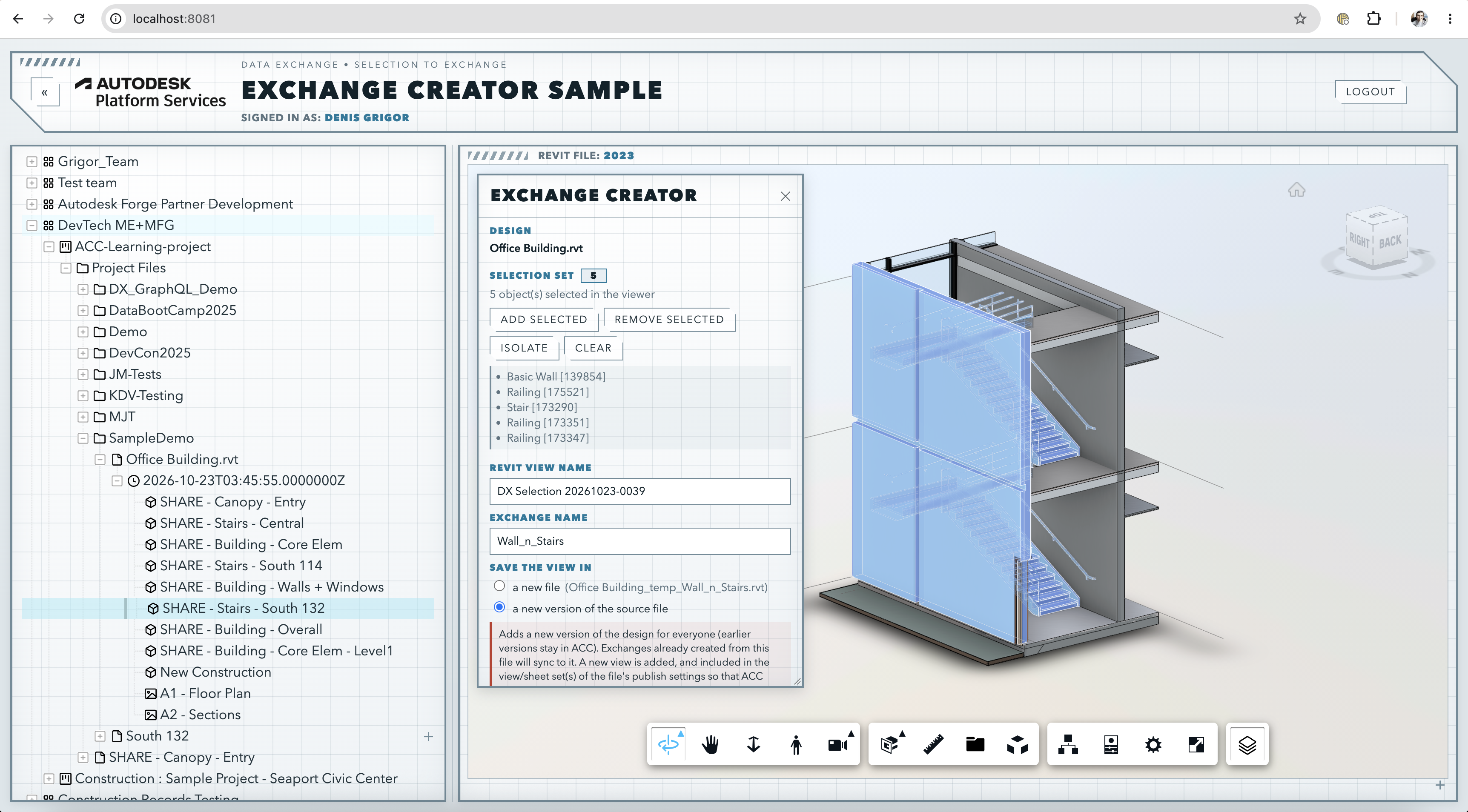
Exchange Maker also made one limit visible. For Revit files, Forma (former ACC) extracts only the views listed in the file's publish settings, and Data Exchange can only build an exchange from an extracted view. That meant if we want an exchange from an arbitrary selection of elements, there is no direct path, yet there is a workaround. A more detail explanation along with found workaround can be found in Understanding Revit publish settings and using Design Automation to make custom views available to Data Exchange blog post.
Exchange Monitor: knowing what changed
Some questions sparked workflow ideas that we needed to verify through quick proofs of concept and the following one is a very good example.
A webhook on a Revit file tells you that a new version arrived, and says little about what changed in it. Most of the time, the part of the design you care about hasn't changed at all, and checking by hand is wasted effort. Here came the excellent idea: an exchange is a subset of a design and gets automatically updated when design changes. Thus, if we are interested in monitoring if a certain parts of design changed:
- we create a Revit view with elements that we want to monitor
- create an exchange from that very view.
- register a webhook on that exchange
- when the design changes, the exchanges is automatically updated which triggers the webhook call
- we use the
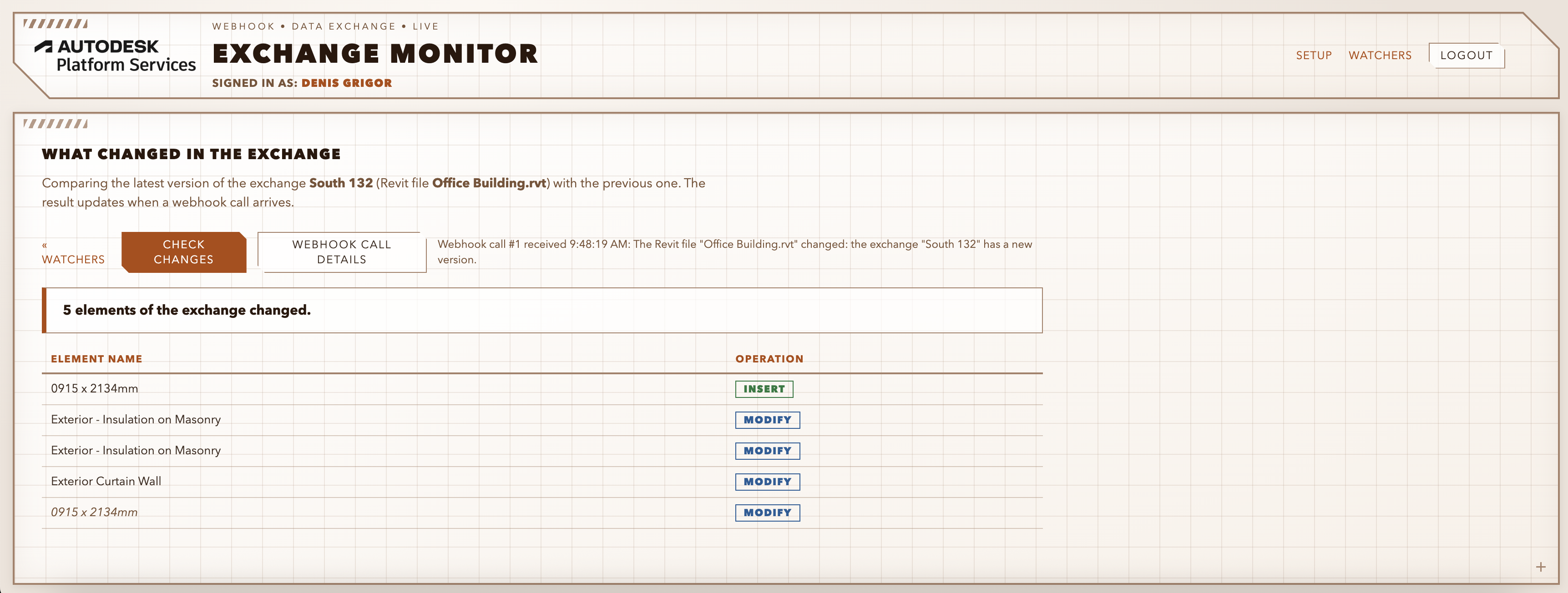
exchangeByVersionsquery of Data Exchange GraphQL API to get the difference between the latest version and the previous one - An empty result means your elements are untouched. Otherwise you get the elements that changed and how:
INSERT,MODIFY, orDELETE.
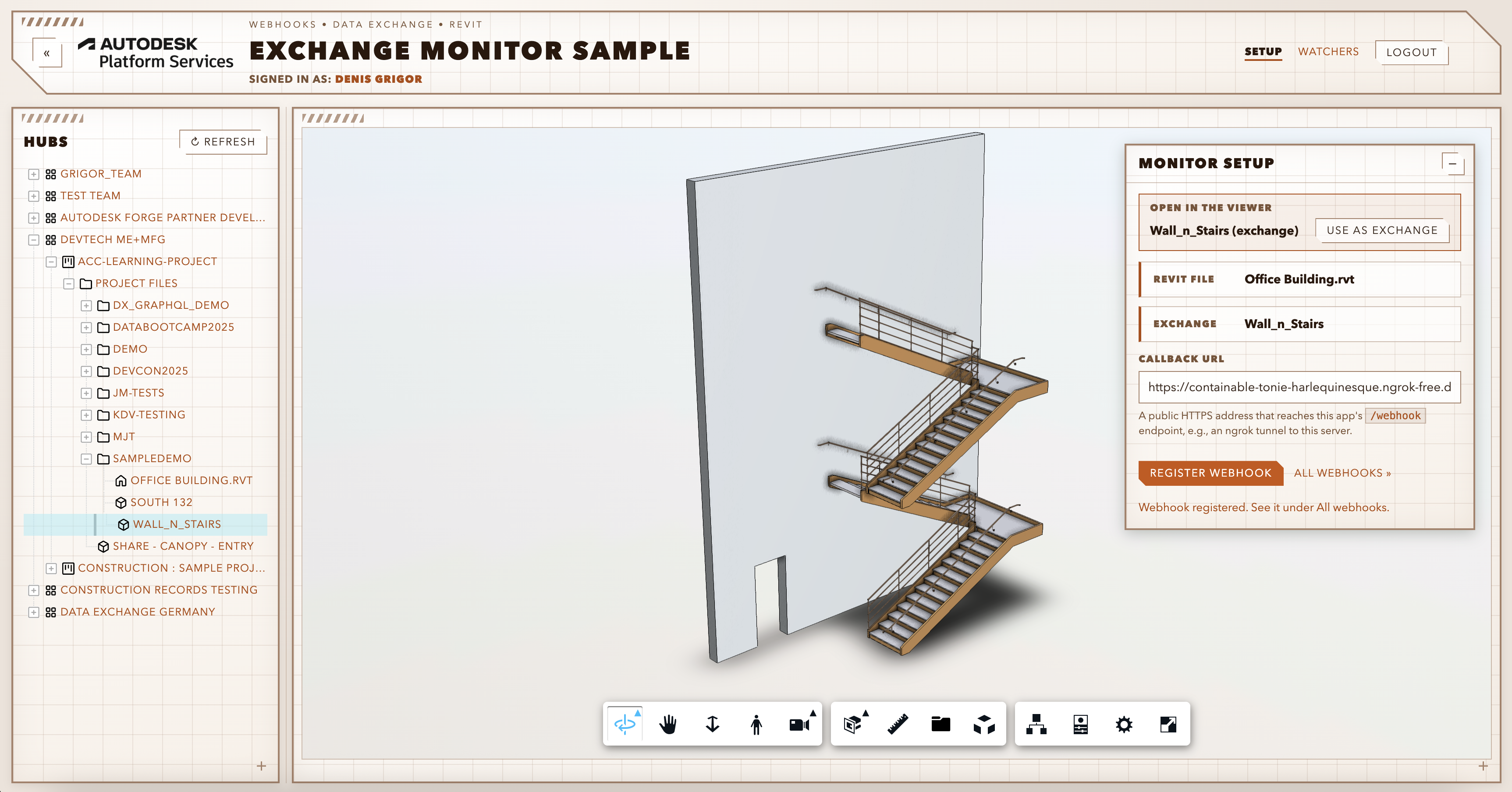
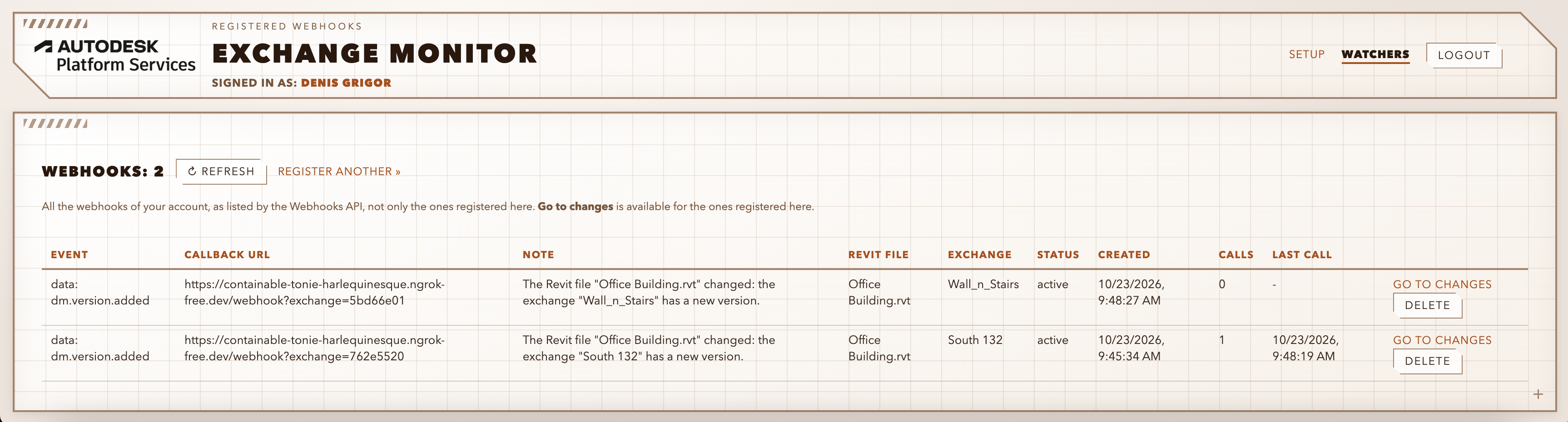
Exchange Monitor shows the whole loop:
Building it taught us things worth writing down, that might end up in a seprate blog post:
- the callback follows the exchange rather than the file, and in my tests it arrived about 3.5 minutes after the new Revit version;
- Webhooks API rejects a second webhook with the same event, folder, and callback URL with a
409duplicate error, which anyone monitoring two exchanges in one folder will meet.
Try it out
If you are building on Data Exchange, try the samples and tell us where they stop being useful. The three of them exist because developers in Denver asked questions we could not answer with a link.
Don't hesitate to ask questions: you will get an answer, might also trigger a research ending in a blog post or spark a idea for a sample.