


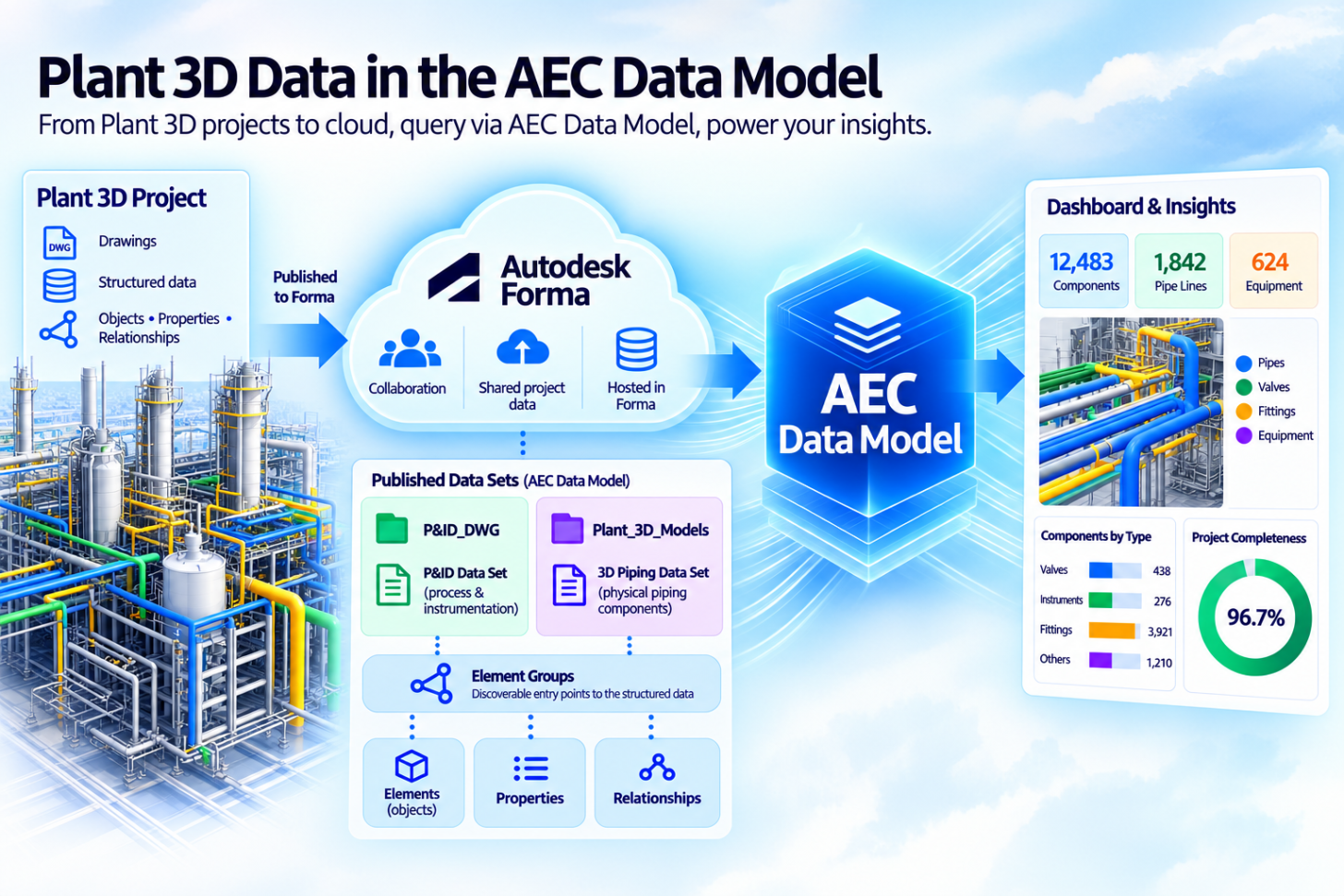
Traditionally, Plant 3D projects used a local SQLite database or a customer-managed SQL Server as the primary project database, enabling organizations to query project data directly for reporting and integrations. In Autodesk Construction Cloud (ACC) collaboration projects, the authoritative shared project data is hosted in ACC, while each workstation retains a local SQLite (.dccf) cache. Although that cache remains accessible, it reflects the state of the project at the most recent synchronization and may not include changes made by other users. This makes it less suitable as a centralized and consistently current source for enterprise workflows.
The AEC Data Model API addresses this gap by providing supported, programmatic access to shared Plant 3D project data. Autodesk announced public beta support for Plant 3D data in the AEC Data Model API at Autodesk DevCon in April 2026(blog). The API enables developers to query structured data from Plant 3D Collaboration projects, including separate data sets for P&ID and 3D piping information. Building on feedback and real-world use during the beta,Plant 3D support in the AEC Data Model API is now generally available, giving developers greater confidence to build production reporting, validation, dashboard, and integration of workflows.
How Plant 3D data reaches the AEC Data Model
A Plant 3D cloud collaboration project is more than a collection of DWG files. It contains structured engineering data including objects, properties, and relationships that may span multiple drawings and collectively describe the plant design. When published to the AEC Data Model, this information is organized into two primary data sets:
- P&ID data for process and instrumentation information
- 3D piping data for physical piping components and their properties
Publishing creates a P&ID Data Set file in the P&ID_DWG folder and a 3D Piping Data Set file in the Plant_3D_Models folder.
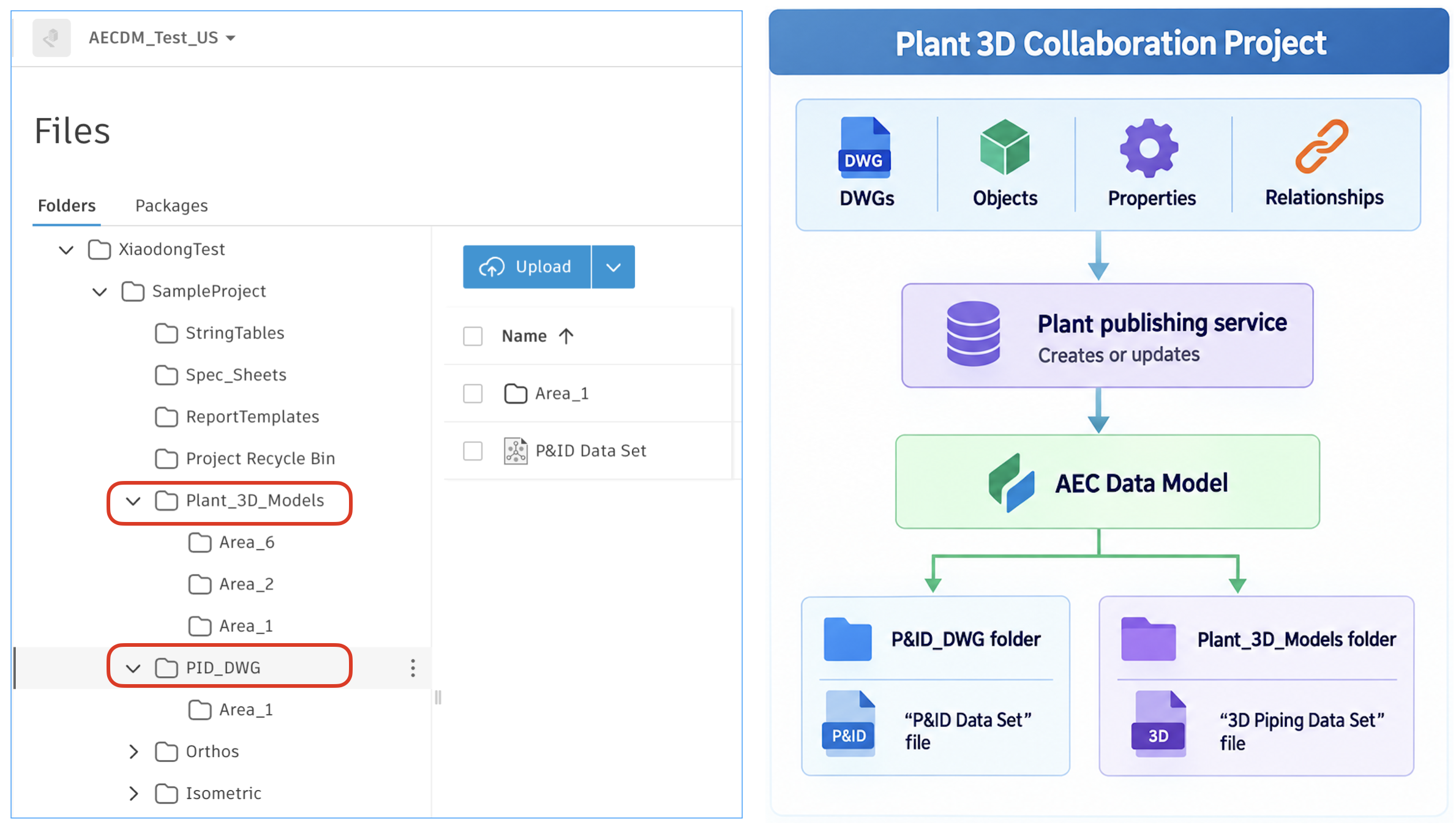
These files serve as discoverable entry points to the corresponding structured data in the AEC Data Model, as the Element Groups. Applications use the AEC Data Model API to locate them and query their associated elements, properties, and relationships.
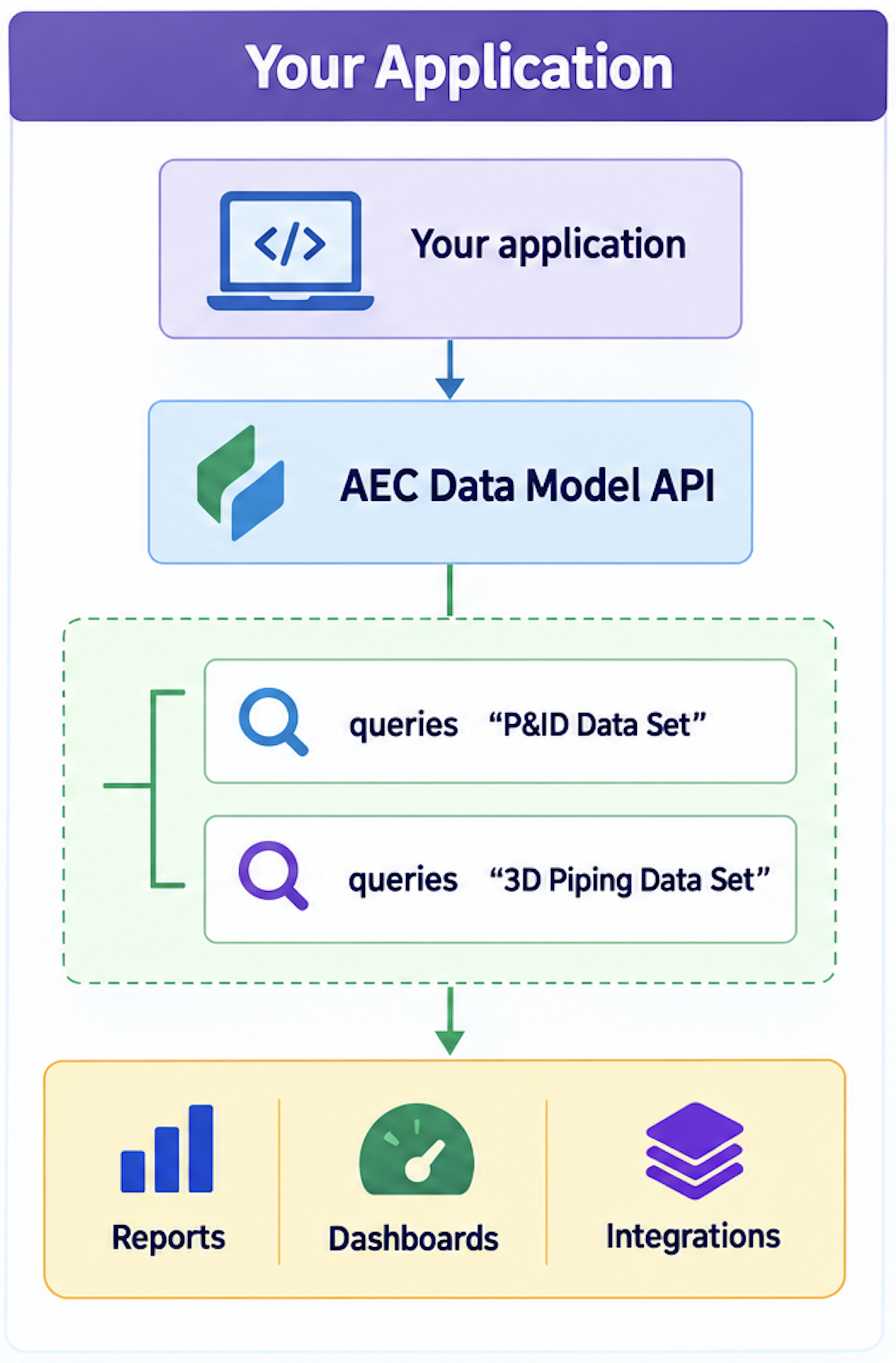
When a Plant project is published for the first time, the complete applicable project dataset is processed. This initial publishing may take some time as the data is prepared, uploaded, and synchronized with the AEC Data Model. Subsequent changes to the Plant project are published incrementally.
Plant prepares and uploads the data in batches. The update is committed to the AEC Data Model only after all batches have been processed, and the data synchronization is complete.
Locate the Design (Element Group)
The general approach when working with the AEC Data Model API is to retrieve the element groups (designs). When searching for Plant 3D element groups, this filter searchType=All must be included.
{
    "projectId": "{{YOUR_PROJECT_ID}}",
    "folderId": "{{YOUR_FOLDER_ID}}",
    "filter": {
        "searchType": "ALL"
    }
}
In addition, publishing a Plant 3D project typically generates a large number of files. Using the commonly used elementGroupsByHub or elementGroupsByProject queries may therefore result in a lengthy search process. In most cases, the ACC folder to which the Plant 3D project is published is known or can be identified relatively easily. Therefore, we recommend locating the folder first and then using elementGroupsByFolder to retrieve the Plant 3D element groups.
Query Plant 3D Data
AEC DM uses the same table, class, field definitions as the local Plant 3D database and follows the AEC DM Filter pattern when executing queries . Some commonly used parameters include:
| Parameter | ID | Description |
| tableNames | autodesk.plant3d.parameter:tableNames-1.0.0 | Class inheritance chain. Filters objects by type. |
| pnpClassName | autodesk.plant3d.parameter:pnpClassName-1.0.0 | Concrete class name. Queries relationship tables. |
| pnpId | autodesk.plant3d.parameter:pnpId-1.0.0 | ID of the object in the Plant 3D project database. |
| dwgId | autodesk.plant3d.parameter:dwgId-1.0.0 | On a PnPDataLinks element, the drawing the object is placed on. |
| rowClassName | autodesk.plant3d.parameter:rowClassName-1.0.0 | On a PnPDataLinks element, the class of the linked object. Selects an object type within a drawing. |
| rowId | autodesk.plant3d.parameter:rowId-1.0.0 | On a PnPDataLinks element, the pnpId of the linked object. |
| dwgName | autodesk.plant3d.parameter:dwgName-1.0.0 | File name of a drawing. |
| tag | autodesk.plant3d.parameter:tag-1.0.0 | Tag assigned to the object in Plant 3D. |
e.g. such filter will return all records in the table equipment and its child tables.
"query": "property.id.autodesk.plant3d.parameter:tableNames-1.0.0=contains=equipment" The filter will return all drawings of this design (either 2D or 3D).
"query": "property.id.autodesk.plant3d.parameter:tableNames-1.0.0=contains=pnpdrawings" The filter will return relationships of line & asset and line & nozzle.
"query": "property.id.autodesk.plant3d.parameter:pnpClassName-1.0.0=contains=LineInlineAsset
or property.id.autodesk.plant3d.parameter:pnpClassName-1.0.0=contains=LineNozzle"
AEC Data Model API also supports query custom properties. The pattern of a custom property definition is in such pattern: parameters.{hubId}:{propertyName}_{type}-{version} after it is published to AEC Data Model. So query a custom property, the filter would be like:
"query": "property.id.parameters.{{YOUR_HUB_ID}}:testnumeric_double-1.0.0==66" A detailed tutorial is available that explains how to use AEC Data Model API to query Plant 3D data.
Note: Plant 3D model data exposes each element’s class ancestry in the Table Names property as a comma-separated chain (leaf through ancestors), e.g. a P&ID gate valve is like below. That is why the filter by table name adopts =contains= , instead of exact match ==.
{
   "name": "Table Names",
   "displayValue": "GateValve,HandValves,InLineAssets,EngineeringItems",
   "definition": {
        "id": "autodesk.plant3d.parameter:tableNames-1.0.0",
        "name": "Table Names"
   }
}
Limitations
-
Schema Discovery
Currently, there is no API for listing the tables, classes, and fields available in a Plant 3D database. We are evaluating to expose this capability. In the meantime, refer to Autodesk’s knowledge article on the Plant 3D database structure for guidance on tables, fields, and relationships, with that you could workaround to fetch the available schema for AEC Data Model Filter specification.
-
Synchronization Status
There is currently no public API that indicates whether the data synchronization is in progress, completed, or failed. The usual AEC Data Model methods, elementGroupExtractionStatus, elementGroupExtractionStatusAtTip, and newly released GraphQL Subscriptions do not report the status for Plant 3D data.
We are evaluating to improve the APIs. We’d love to hear what you would expect from these limitations above and any suggestions you may have. Please fill out this form to share your feedback with us (the form link is coming soon).
Samples
-
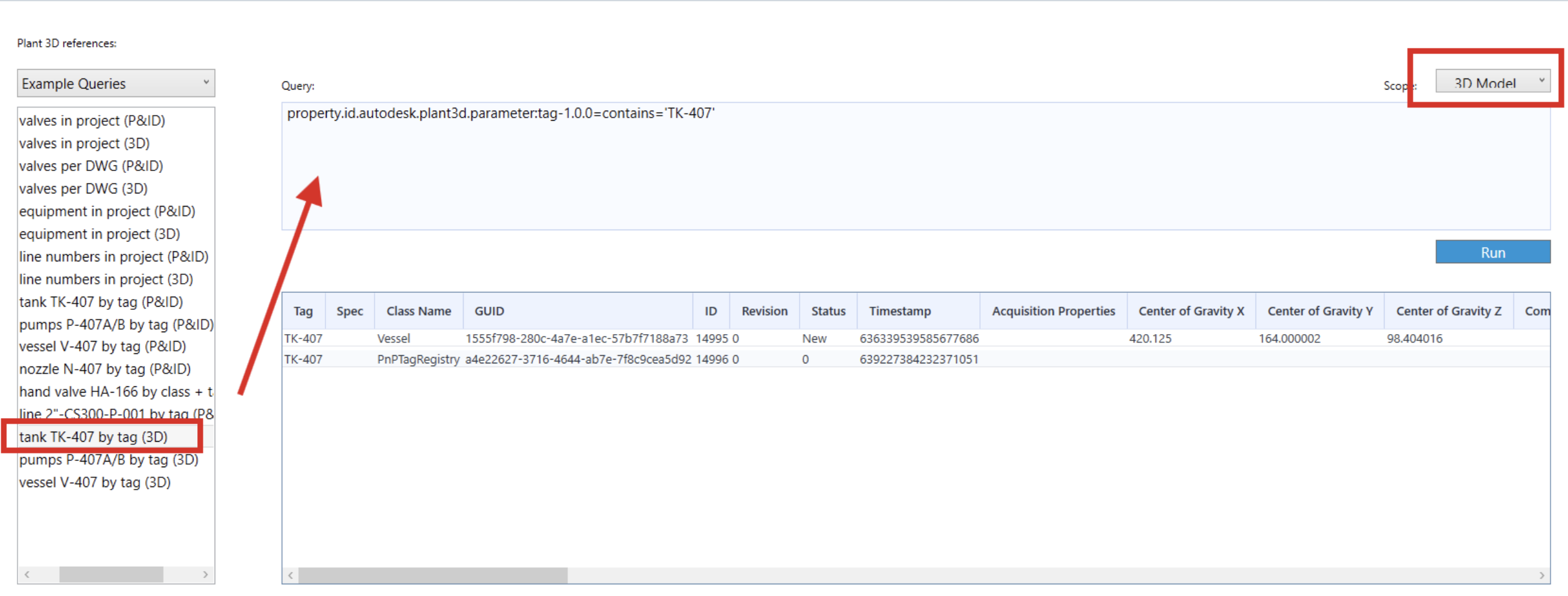
Plant 3D AEC Data Model Explorer: A WPF desktop tool for querying the Autodesk AEC Data Model (AECDM) GraphQL API against AutoCAD Plant 3D Collaboration projects. Sign in with Autodesk OAuth (PKCE), browse Accounts/Hubs/Plant Collaboration Projects, and run filter-based queries against P&ID and 3D Piping element data.
-
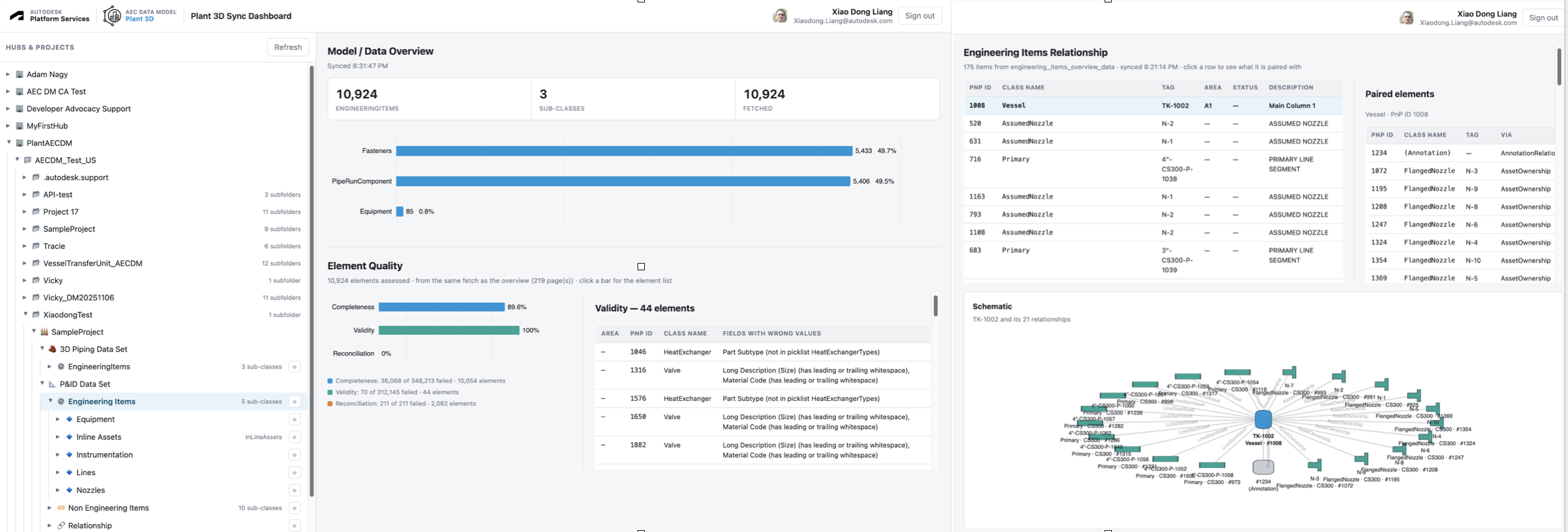
Plant 3D Sync Dashboard : A Node.js web application builds statistic of engineering items and breakdown view. It performs element quality checking by completeness, validity and reconciliation . It also gets all relationships and the relationships of given item & schematic view.
-
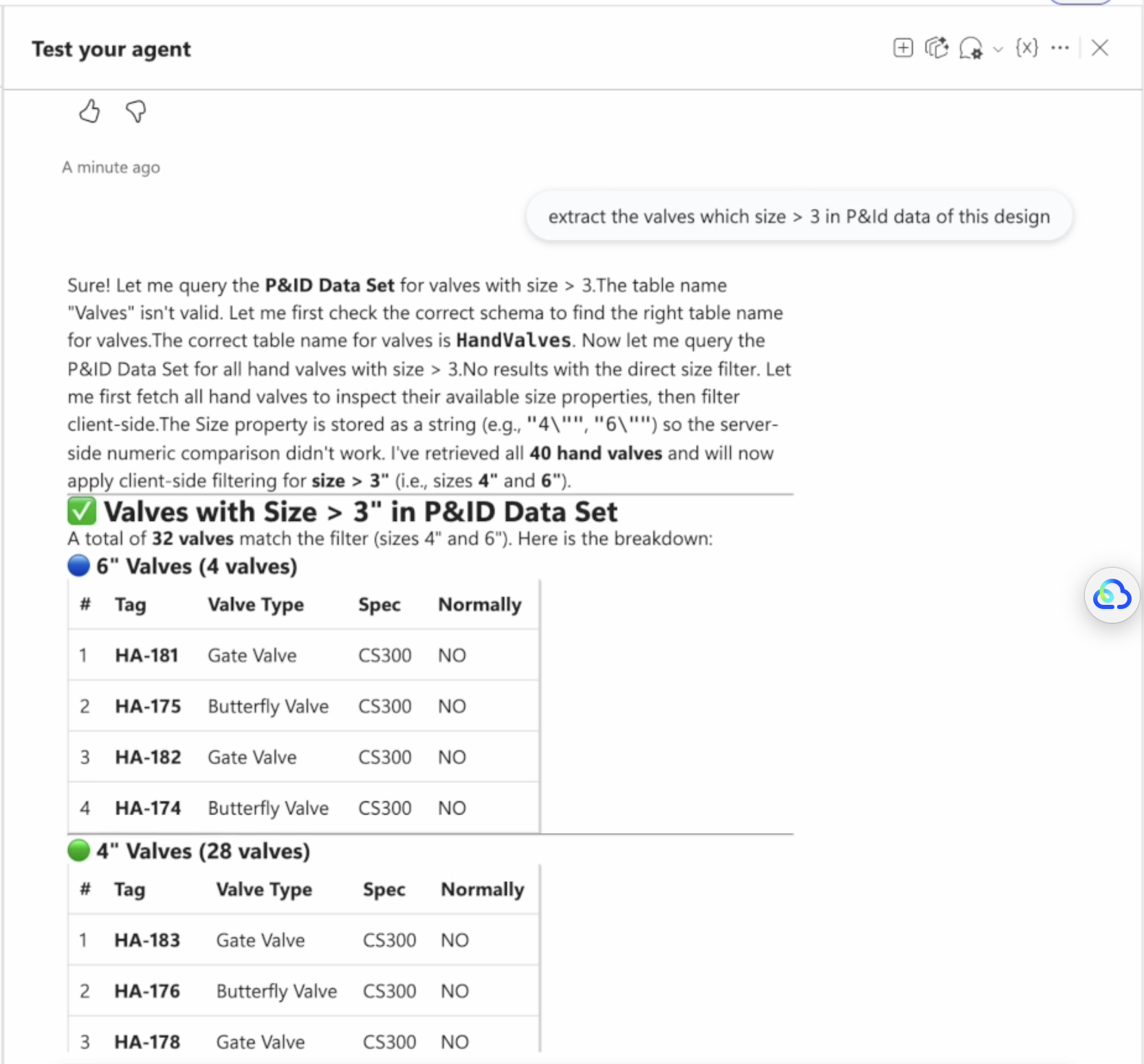
MCP tool of Plant3D Data: A MCP tool in Python that provides basic ability that allows AI agent could work with Plant 3D data such as search specific items, statistic of the design, get relationships of given item & & schematic view
Materials
Should you have any additional questions, please feel free to contact at https://aps.autodesk.com/get-help.
(Disclaimer: The cover illustration for this post was created using ChatGPT.)