
Keep Your Designs in Sync with Autodesk Data Exchange
Discover how to work with the latest design information across Revit, Rhino, Tekla Structures, Inventor, and other BIM tools—without repeatedly exchanging entire models.
A façade follows a floor edge. A steel beam must fit around an opening. Equipment needs enough space inside a plant room.
Different teams design these elements, often in different applications. But their decisions depend on one another.
When something changes, how do you keep your design aligned without constantly requesting new model exports?
Autodesk Data Exchange helps teams design around the latest shared information while continuing to work in their preferred tools.
Design together without sharing everything
Traditional model exchanges often involve transferring entire files, even when another team only needs a few elements.
Large models can be difficult to navigate, making it time-consuming to find exactly what you need. And because exported files are snapshots, they can become outdated as the original design evolves—without an obvious indication that a newer version is available.
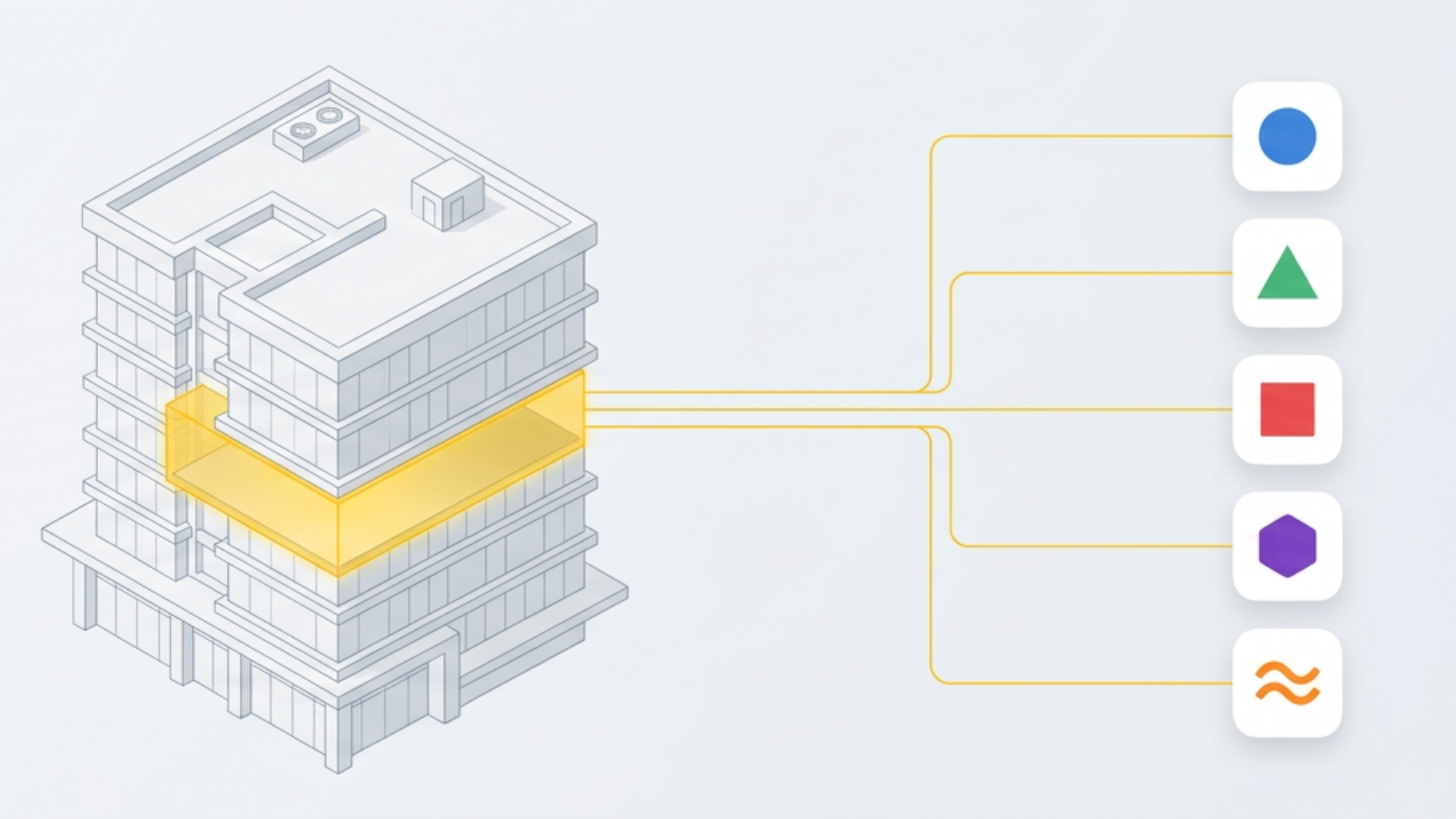
With Autodesk Data Exchange, you can share just the part of your model that matters—selected 3D geometry and supported properties relevant to another team's work.
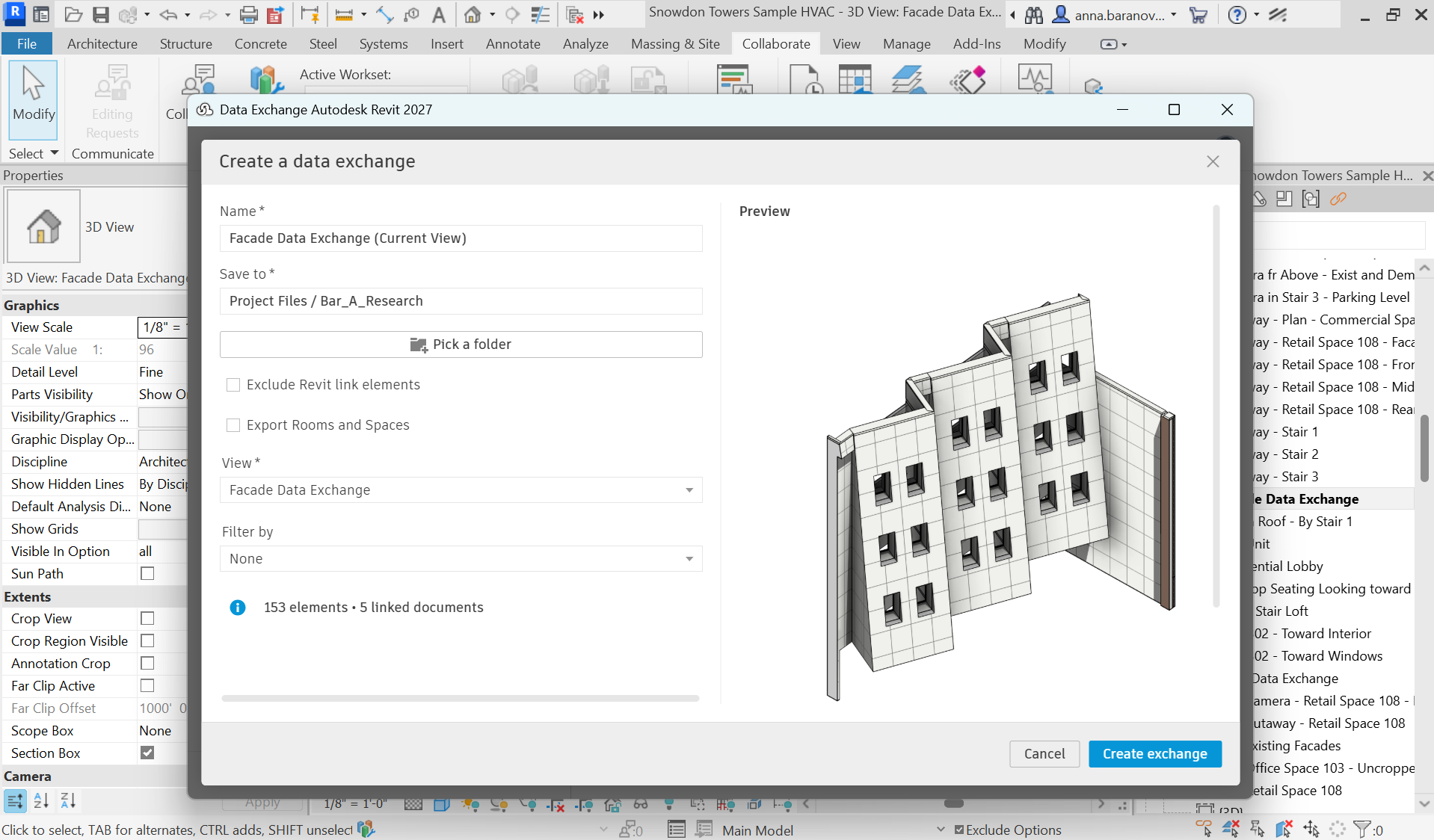
For example, a structural engineer may need the latest slab edges and openings from Revit, while a façade designer in Rhino needs the building geometry that determines panel positions.
Each team keeps ownership of its original design. The shared information becomes an updatable reference in the receiving application.
From shared geometry to connected design in four steps
-
Identify what your design depends on. Choose the geometry and properties another team needs, such as grids, openings, structural members, or equipment zones.
-
Create a focused Data Exchange. There are two ways to do it:
-
From your design application: Install the Data Exchange connector plugin for your specific application—Revit, Rhino, Tekla Structures, Inventor, or another supported application.
-
Directly in Forma: Create an exchange from supported Revit, IFC, or Civil 3D files in Autodesk Forma Data Management.
-
-
Bring the exchange into your design tool. Using the receiving application's connector, load the shared geometry as a reference. Check placement and coordinates, then continue developing your own design around it.
-
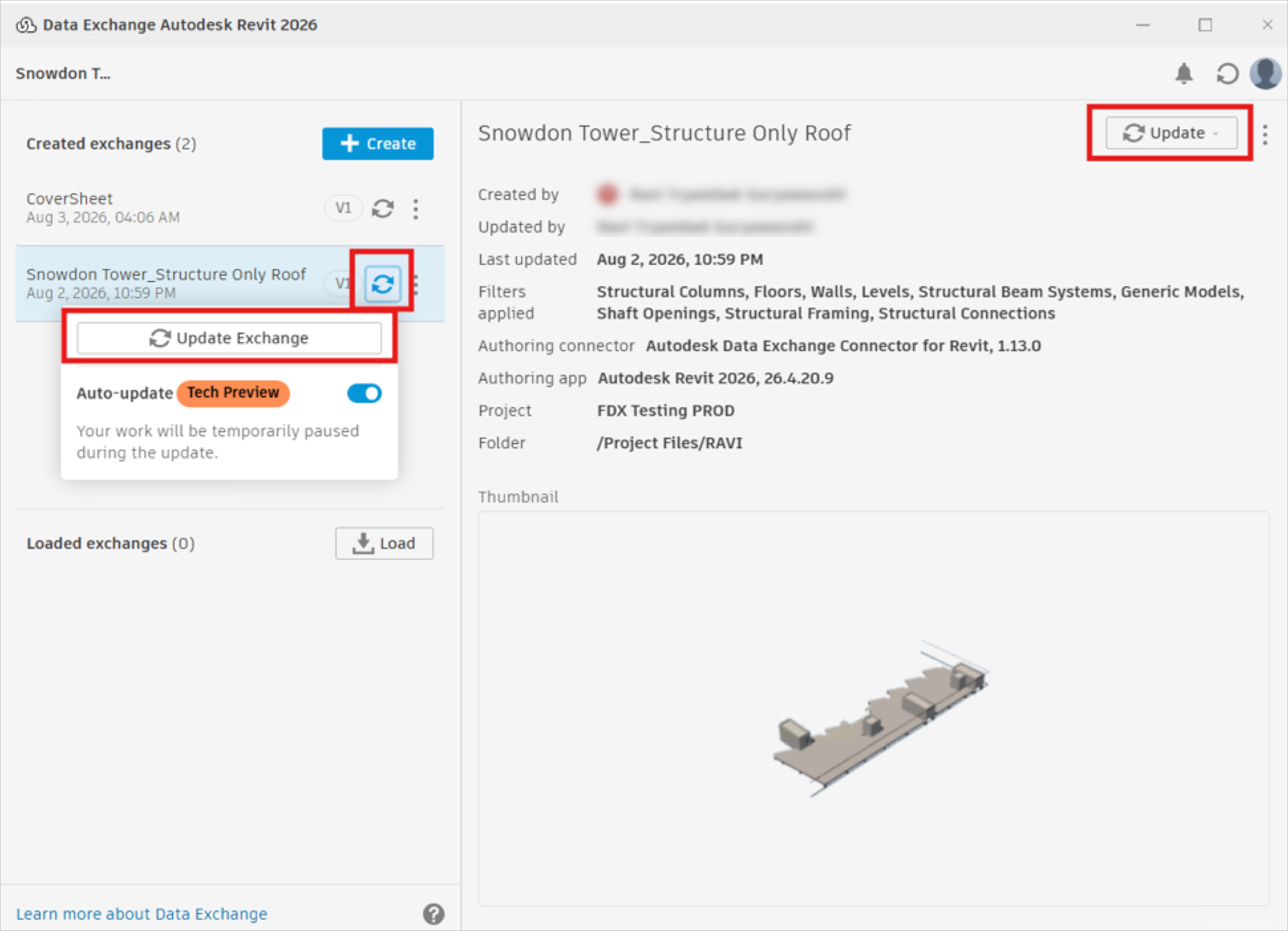
Load the latest version. When the original design is updated and its exchange is republished, load the latest reference and review how changes affect your work.
For supported cloud connectors, uploading a new version of the same source file to Forma automatically updates its exchange. The receiving designer still needs to load or refresh that exchange.
What could your team achieve?
Keep structural detailing aligned. Design steel connections and framing in Tekla against shared building grids, slabs, and openings.
Develop façades with confidence. Use current building geometry as a reference in Rhino when designing panels, canopies, or complex forms.
Coordinate equipment with its surroundings. Develop Inventor assemblies while referencing the building or structural conditions that affect installation.
Reduce repeated model exchanges. Work with focused references that can be updated as source designs evolve, without importing an entire model each time.
Stay connected to the design that matters
Create
Publish a selection from your app, or from a Revit, IFC or Civil 3D file in Forma.
Load
Colleagues open it with the connector for their own application.
Update
They see what changed and load the latest version when ready.
Working across different design tools doesn't have to mean working with disconnected information.
Start with one important design dependency. Share the relevant geometry, bring it into the application where it's needed, and keep that reference up to date.
Get started with Data Exchange
Choose your design application to find and install its Data Exchange connector plugin.