
Disclaimer: This post was written with the help of AI (Claude) and reviewed by the author.
Autodesk Platform Services can notify you when a Revit cloud model is published or synced. What it doesn't tell you is what changed. If your integration cares about something specific, say "a new model was just linked into the architectural host", the generic event isn't enough.
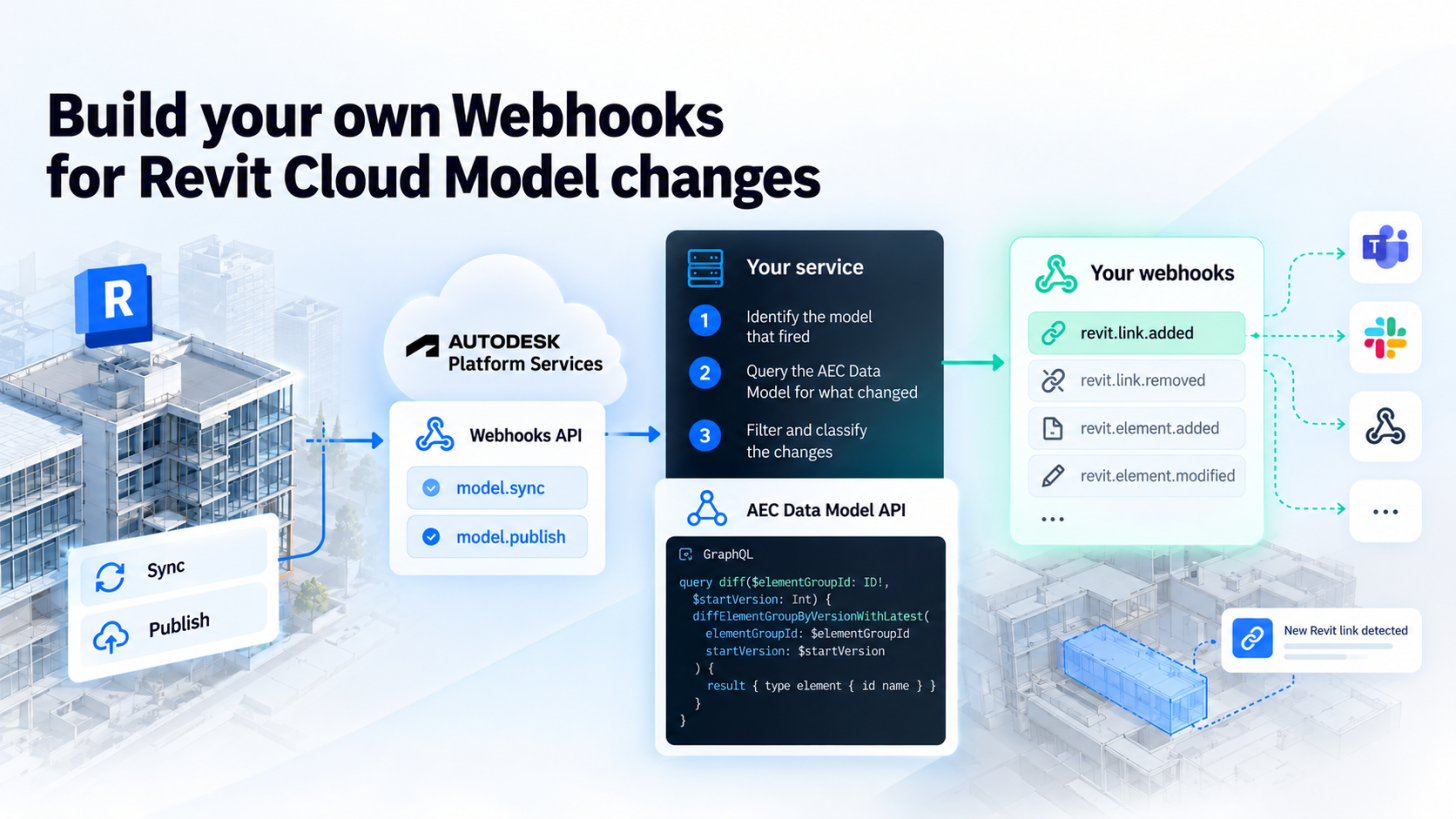
You can close that gap by building your own webhooks on top of two APIs:
- Webhooks API: the model
publishandsyncevents tell you when to look. - AEC Data Model API: a GraphQL API that lets you query a model's contents and diff versions, so you can work out what changed.
Your service sits in the middle. It listens to the APS events, queries the AEC Data Model, filters and classifies the changes, and then fires your own, more meaningful events (revit.link.added, or anything else you define) to whichever systems care.
This post uses a newly added Revit link as the running example, but the pattern works for any change you can describe in terms of model elements, as long as the AEC Data Model tracks it (more on that below).
The architecture
Revit publish / sync
        │
        ▼
APS Webhooks  (model.publish / model.sync)      "something happened to this model"
        │
        ▼
Your service
  1. identify the model that fired
  2. query the AEC Data Model for what changed
  3. filter + classify the changes
        │
        ▼
Your webhooks  (revit.link.added, …)            "this specific thing happened"
Part 1: Know when something happened (Webhooks API)
Revit cloud worksharing models emit two events through the Webhooks API, under the adsk.c4r system:
model.publish: a new published version of the cloud model is available.model.sync: a user synced their work to the central model (work in progress, not yet published).
You register a hook for an event with a callback URL and a scope. For these events the scope is a folder, so a single hook covers every model in that folder. Two practical consequences:
- The callback can be for any model in the folder. Your service needs to work out which model fired (the payload carries a reference to it) and ignore the ones nobody subscribed to.
- Share hooks. Keep one hook per (event, folder) and let many of your own subscriptions use it, instead of creating one per model. Delete the hook when the last subscription goes away.
Webhook callbacks expect a fast 2xx response. Don't do the AEC Data Model work inside the request. Match the event to your subscriptions, put a work item on a queue, return 200, and process it in the background.
Part 2: Find out what changed (AEC Data Model API)
The AEC Data Model API exposes the contents of a published model as element groups (one per model file), each made of elements with properties, and each with a version number.
Locate the model's element group
The API is hierarchical, so you walk down to the element group:
hubsprojects(hubId), each project exposesalternativeIdentifiers.dataManagementAPIProjectId, which is how you match it to the project ID you already have from the Data Management APIelementGroupsByProject(projectId, filter: { fileUrn }), where thefileUrnis the model's lineage URN andversion { versionNumber }gives you the latest published version
All of these are paginated (pagination { cursor }), so follow the cursor until it comes back empty.
Record a baseline when you subscribe
When someone subscribes a model to your webhooks, store a baseline: the element group's current version number. You'll need it later to know what's new. If it helps your classification, you can also record the IDs of the elements you care about (for links, the elements in the RVT Links category, which you can fetch with elementsByElementGroup and a filter such as property.name.category=='RVT Links').
Diff versions
When an event arrives, read the element group's latest versionNumber, then call diffElementGroupByVersionWithLatest with a startVersion:
query diffElementGroupByVersionWithLatest($elementGroupId: ID!, $startVersion: Int, $changeFilter: [DifferenceType], $pagination: PaginationInput) {
  diffElementGroupByVersionWithLatest(
    elementGroupId: $elementGroupId
    startVersion: $startVersion
    changeFilter: $changeFilter
    pagination: $pagination
  ) {
    pagination {
      pageSize
      cursor
    }
    result {
      type
      element {
        id
        name
        alternativeIdentifiers {
          revitElementId
          externalElementId
        }
        properties {
          results {
            name
            value
            definition {
              units {
                name
              }
            }
          }
        }
      }
      differences {
        pagination {
          cursor
          pageSize
        }
        results {
          type
          oldItem {
            name
            value
          }
          item {
            name
            value
          }
        }
      }
    }
  }
}
Use changeFilter to ask only for the difference types you care about (for example [ADDITION]). What you pass as startVersion depends on the event:
- On
model.publish: diff from the previous version to see what this publish introduced. - On
model.sync: diff from the latest published version to see how the work in progress differs from it.
Before you build: check that the change is tracked
Don't assume every kind of change in Revit shows up in the AEC Data Model diff. Before writing any classification code, test it:
- Make the change you want to track in a Revit cloud model (for example, link a model).
- Publish or sync the model.
- Run the diff query against the element group, with no
changeFilter, and look at what comes back. - Check that your change is there, as an
ADDITION,REMOVALorMODIFICATION, and see which elements and properties identify it.
If it appears, you know what to filter on and which difference type to use. If it doesn't, there is nothing for your webhook to detect, so pick a different signal. Adding a link, for example, shows up as an addition, which is why it's the example in this post.
Treat this as a quick experiment for every change you want to turn into an event.
Part 3: Filter and classify
The diff returns every difference, such as walls, doors, and so on. Your job is to keep only the ones that matter and turn them into a meaningful event.
For an added Revit link:
- Filter: an element is a link if its
Revit Category Type Idproperty isRVT Links(or itsFamily NameisLinked Revit Model). - Collapse duplicates: a single link appears as several elements, the linked file as a Type element and each placement as an Instance element. Group them by file name, so one linked file becomes one change, with a flag for whether the file itself was linked and a count of how many placements changed.
- Classify: an
ADDITIONof a link element becomesrevit.link.added.
After processing, advance your baseline to the new version, so the next event diffs from the right place.
For model.sync you will see the same unpublished change on every sync, so remember what you've already notified for that version, otherwise a user syncing repeatedly triggers repeated notifications.
Part 4: Fire your own webhooks
Now you have clean, domain-specific changes. Deliver them the way you'd want to receive a webhook:
- A versioned envelope: include an event name, a schema version, the model's identifier, a timestamp, and a payload (file name, versions diffed, counts, element IDs).
- A signature: let each target register a secret and send an HMAC-SHA256 of the exact request body in a header, so receivers can verify the sender.
- Retries and a delivery log: retry failed deliveries, and record the status of each attempt so subscribers can see what happened.
- Per-target event selection: let each target choose which of your events it wants.
{
  "version": "1.0",
  "event": "revit.link.added",
  "resourceUrn": "urn:adsk.wipprod:dm.lineage:…",
  "deliveredAt": "…",
  "payload": {
    "modelName": "…",
    "fileName": "MEP.rvt",
    "source": "model.publish",
    "fromVersion": 4,
    "toVersion": 5,
    "instanceCount": 1,
    "typeChanged": true,
    "elementIds": ["…"]
  }
}
Things to plan for
- Your callback must be publicly reachable over HTTPS (use a tunnel for local development).
- Work can be lost on restart if your queue is in memory. Use a durable queue in production.
- Don't store tokens in plaintext like a demo might. Use a secret store.
- The AEC Data Model may lag the event, since a model that was only just published may not be available yet. Handle "no element group yet" gracefully.
- Filters can be rejected. If a server-side filter is refused, you can fall back to paging everything and filtering client-side.
Note: Non-cloud Revit models
This approach also works for non-cloud-workshared Revit models uploaded to Autodesk Docs. Instead of subscribing to model.publish or model.sync, subscribe to the dm.version.added webhook to detect when a new file version is uploaded. From there, you can use the AEC Data Model API to compare versions, identify changes, and trigger your own custom webhooks, just as described below.
See it working
There's a complete sample implementation in .NET Blazor that follows this approach, with UI to subscribe models, add outgoing targets and inspect the event log: aps-dotnet-blazor-samples. Look at the Revit Webhooks module.
Where to take it next
- Run the "is it tracked?" experiment for other changes, and build events for the ones that are.
- Apply the same pattern to other element categories, such as levels, sheets or rooms.
- Fan events out to Teams, Slack, or your own workflow engine.