
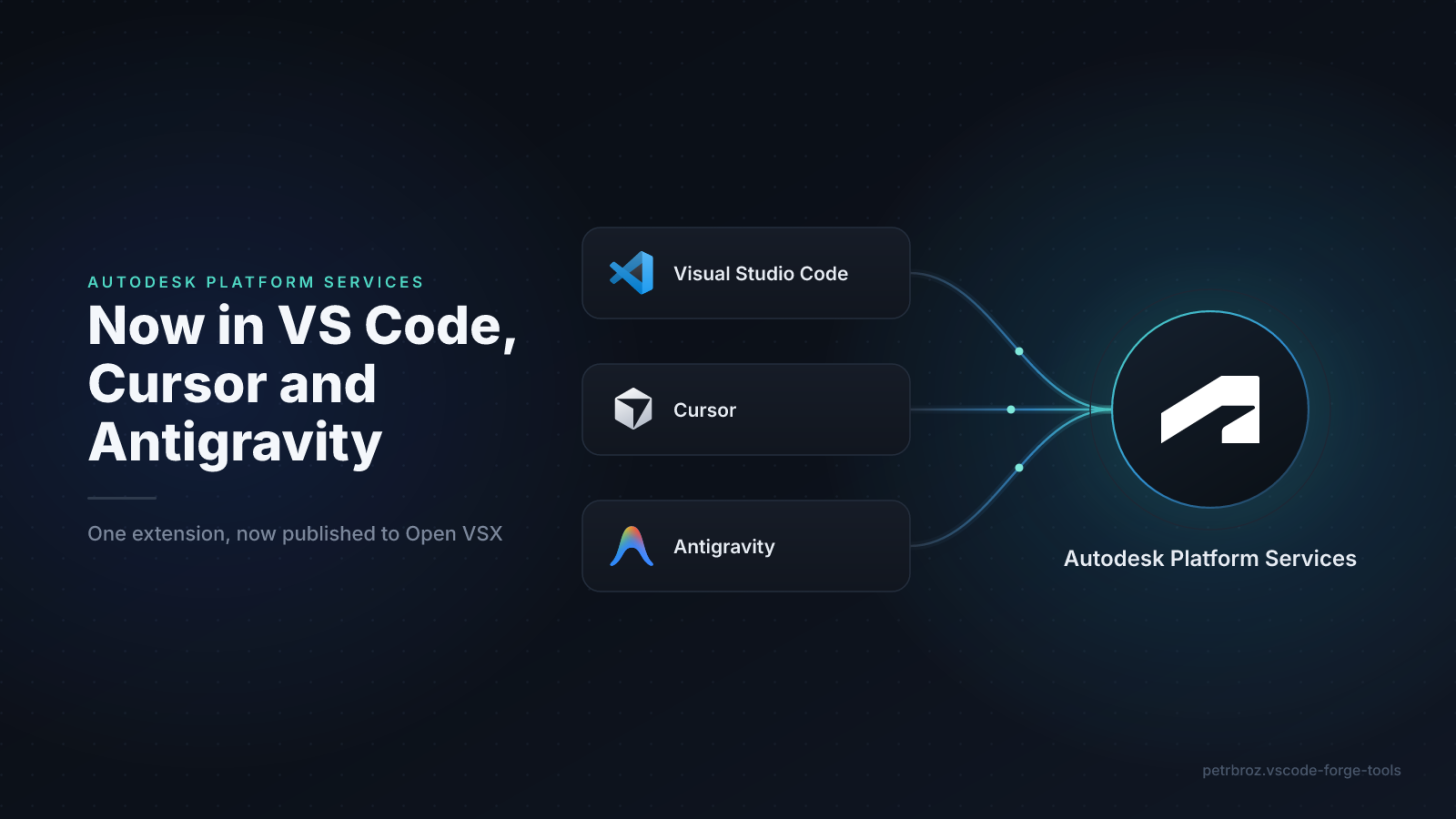
Our extension for Visual Studio Code has had a busy few releases. Since version 3.0.0 it's gained flexible authentication, new ways to browse your data, and a long list of reliability fixes. And it's now published to both the Visual Studio Marketplace (link) and Open VSX (link), so it works in Cursor and Antigravity as well.
Here's a tour of what changed, and how to get going in whichever editor you use.
What's new since 3.0.0
Sign in the way that fits your app
We've added proper support for every APS authentication mechanism, not just the classic 2-legged flow:
- 3-legged OAuth (confidential client)
- 3-legged OAuth with PKCE (public client, no secret required)
- Secure Service Account sign-in, using a service account's private key
- A pasted access token obtained from another APS application
Sessions now persist per environment in VS Code's encrypted secret storage, so you stay signed in across window reloads, and 3-legged/PKCE tokens refresh automatically in the background. Views that need a signed-in user show a simple "Sign in to APS" button until you are.
Note: all views now include "(app)" or "(user)" in their title to differentiate between 2-legged and 3-legged access respectively.
New things to browse
Issues
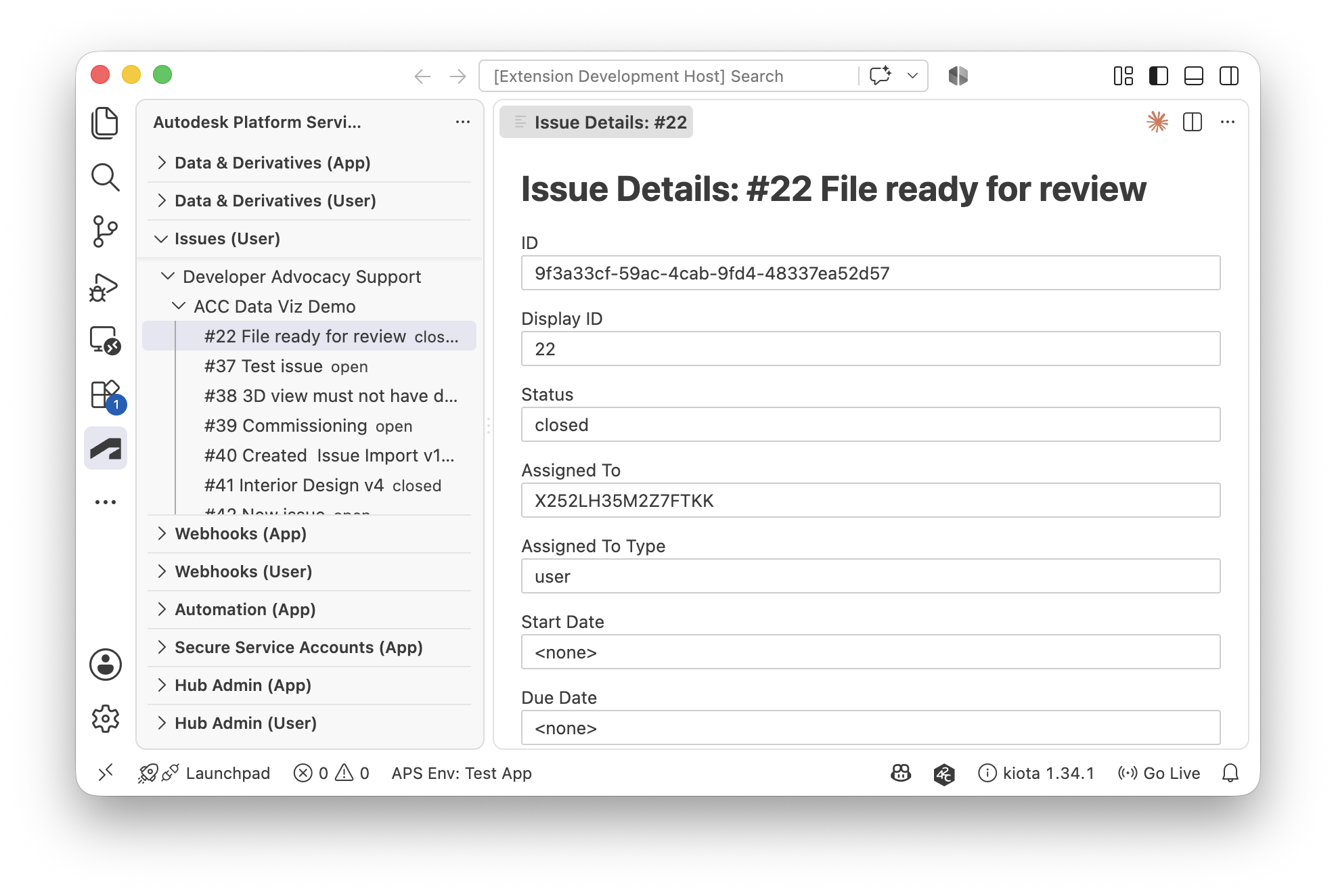
A brand-new Issues (user) view for browsing Autodesk Forma issues in a hub → project → issue tree, complete with a details panel and comments.
Hub Admin
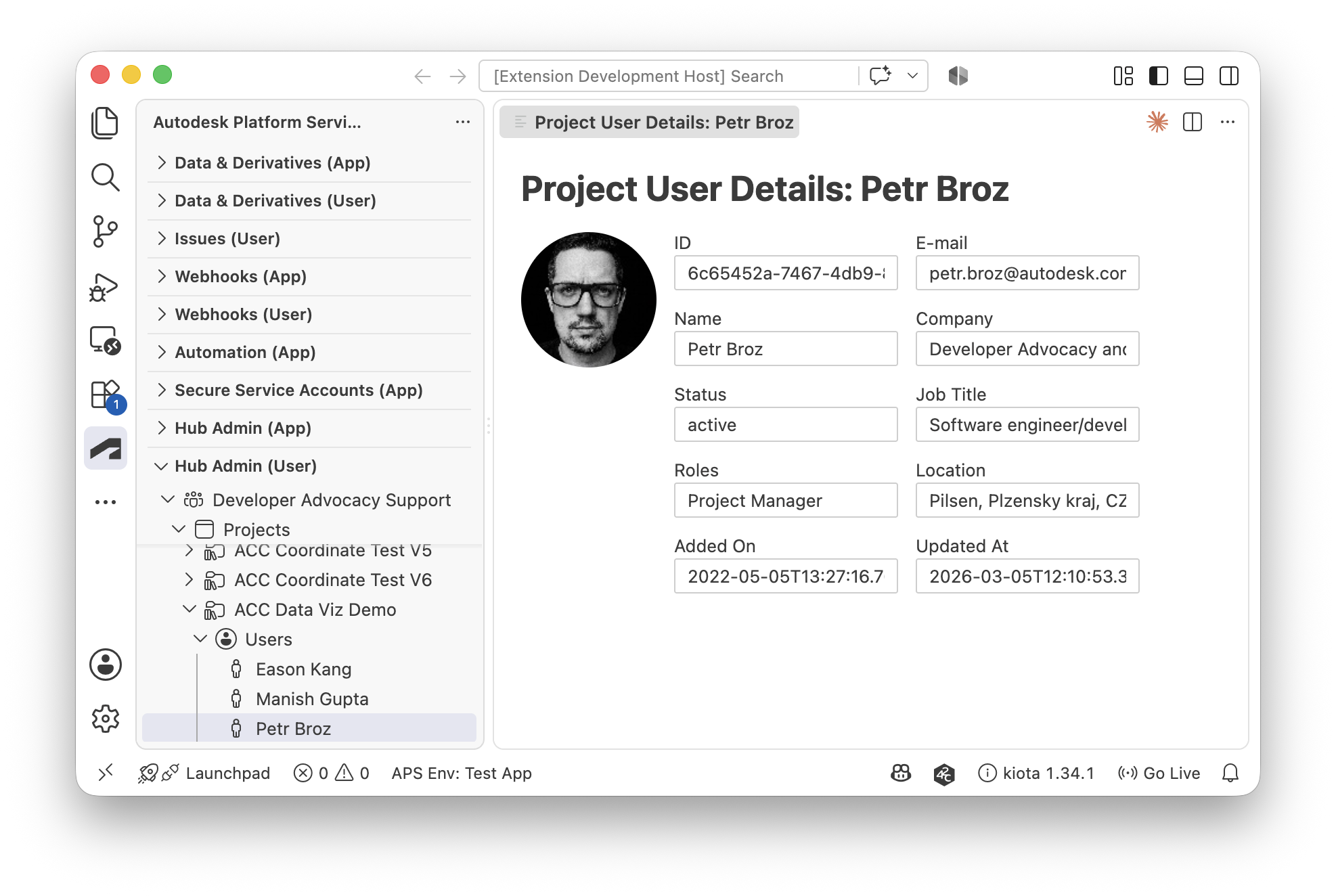
Hub Admin (app) and Hub Admin (user) views for browsing a hub's users, projects, and companies, with dedicated "View Details" panels.
Webhooks
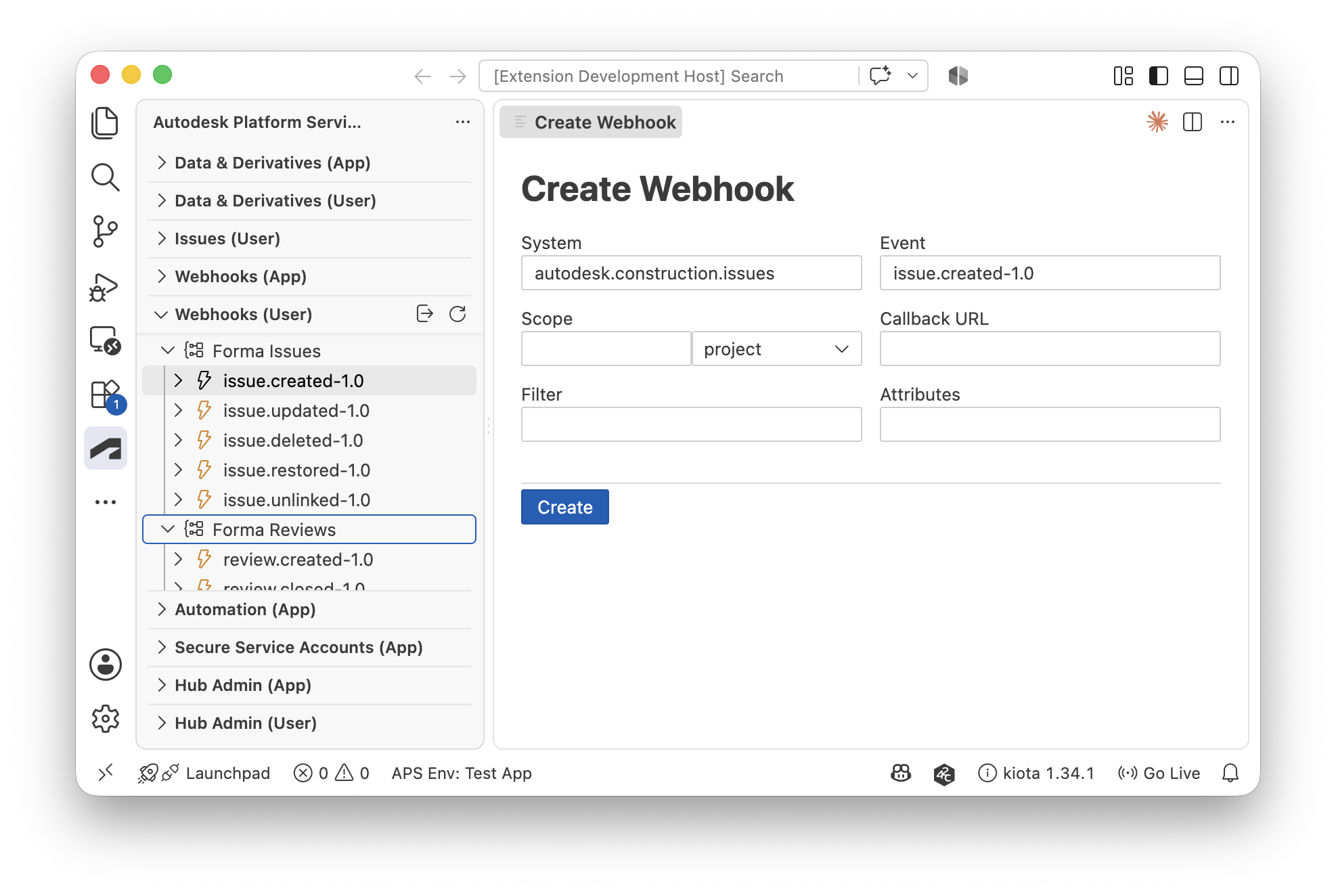
Webhooks are now split into separate (app) and (user) views, and the webhook catalog grew to cover Cost Management, Forma Reviews, and Autodesk Tandem events.
Pagination and filtering
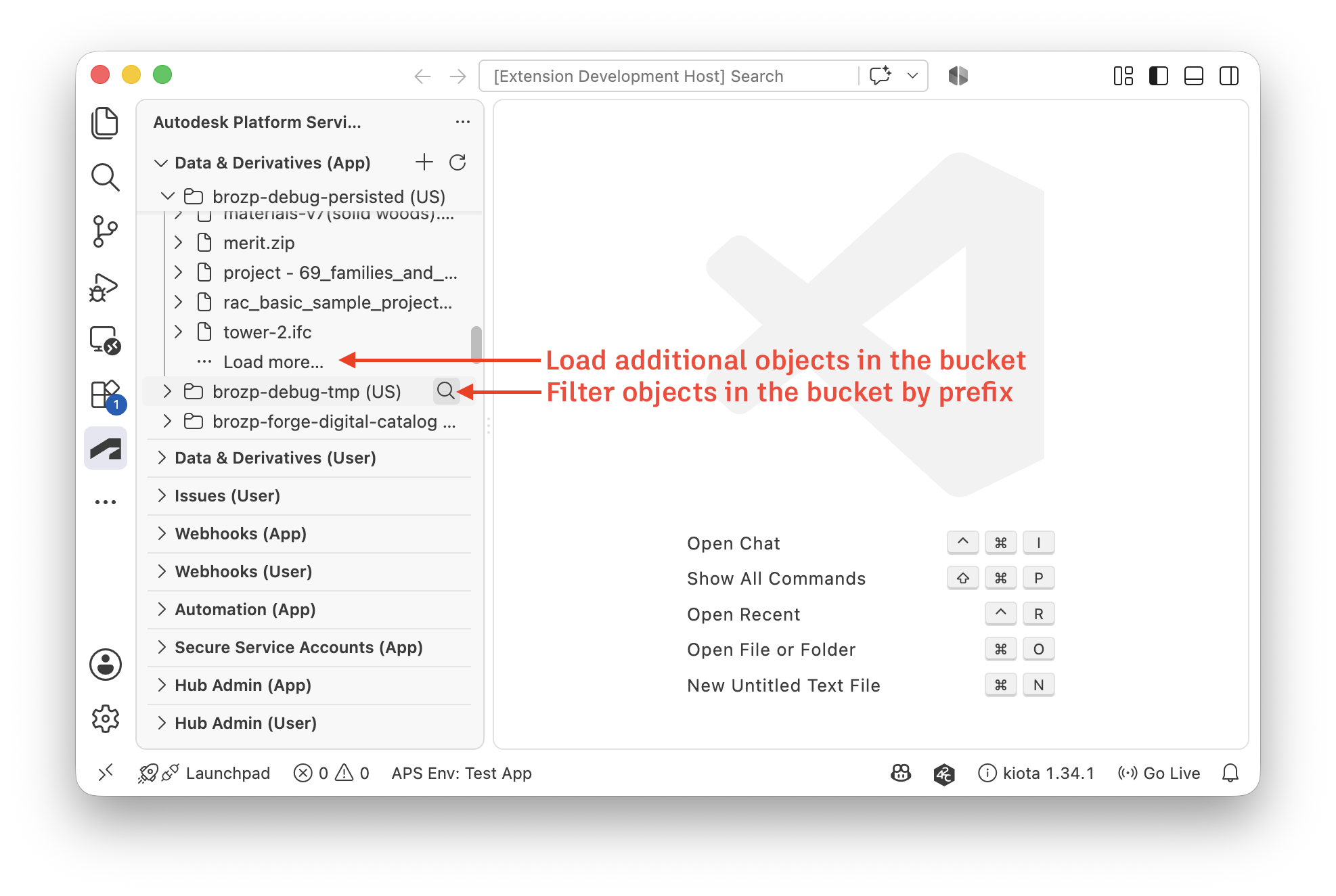
For the OSS and Hubs tree views (autodesk.forge.data.pageSize, autodesk.forge.data.hubsPageSize), plus "Filter Objects by Prefix" / "Clear Object Filter" commands, so large buckets and hubs stay usable.
Advanced translation options
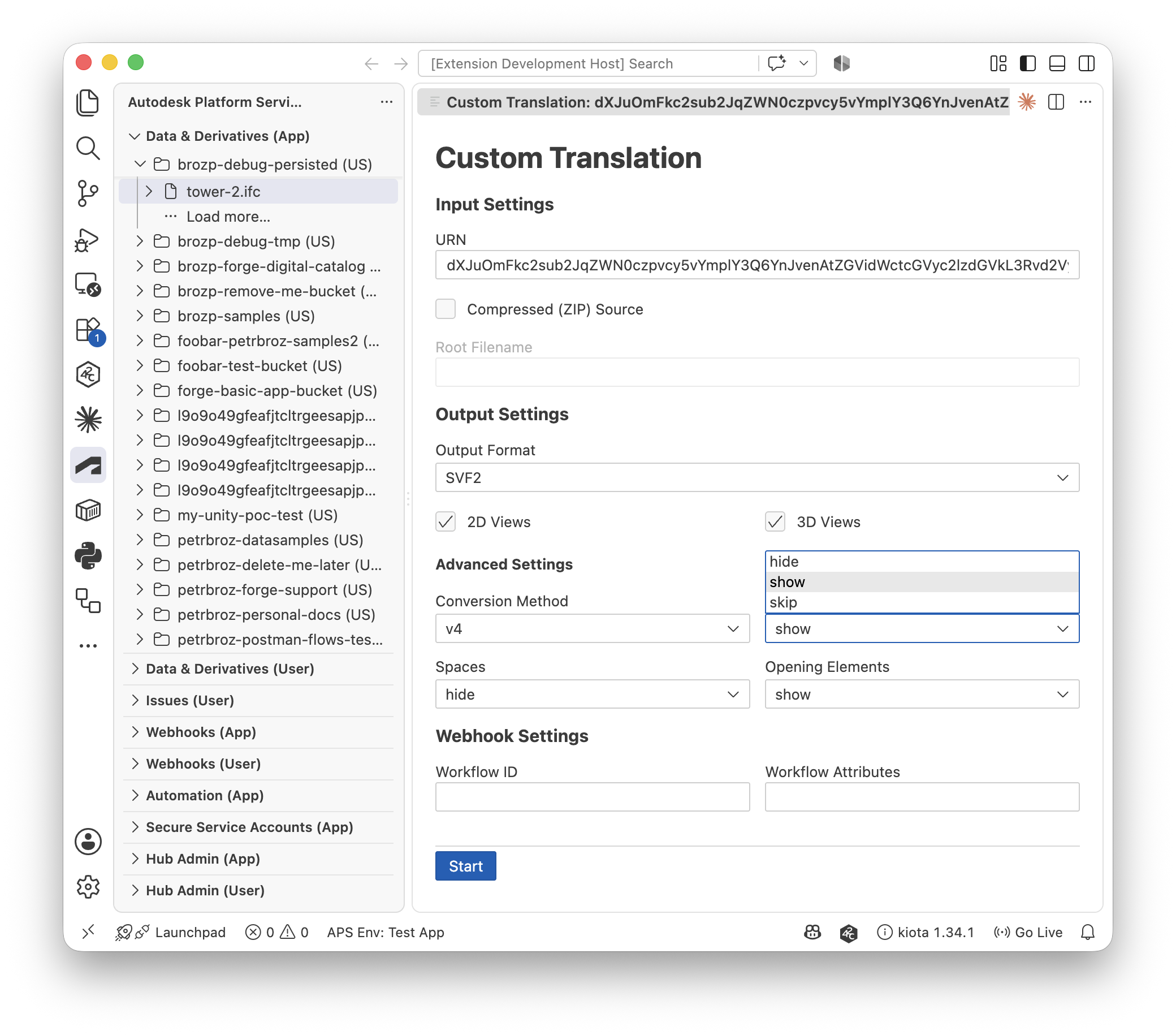
The full set of documented advanced translation options for "Translate Object (Custom)", and the full list of OSS regions in the region picker instead of just US/EMEA/APAC.
Drag-and-drop upload
Drop files straight onto a bucket in the Data & Derivatives (app) view.
Smoother day to day
A steady stream of fixes and polish landed alongside the bigger features:
- Every command that calls an APS API now shows progress feedback, so long-running operations no longer look stuck.
- Downloading an OSS object no longer produces a truncated file.
- Context menus were reorganized into "View", "Actions", "Model Derivative", and "Manage" submenus so busy tree items stay readable.
- Bucket, Design Automation engine, app bundle, and environment pickers now default to your most recently used choice.
- New "Get Started" walkthroughs guide first-time users through setup, for both the standalone app and the Forma extension.
Now available on Open VSX, too
The extension has always been on the Visual Studio Marketplace. It's now also published to Open VSX, the open-source extension registry used by VS Code-based editors that don't have access to Microsoft's Marketplace. Same extension, same identity (petrbroz.vscode-forge-tools), same release cadence, just available wherever you're actually working.
Using it in Cursor and Antigravity
Since the extension is on Open VSX, installing it in Cursor or Antigravity works exactly like installing any other extension there: open the Extensions sidebar, search for Autodesk Platform Services, and install.
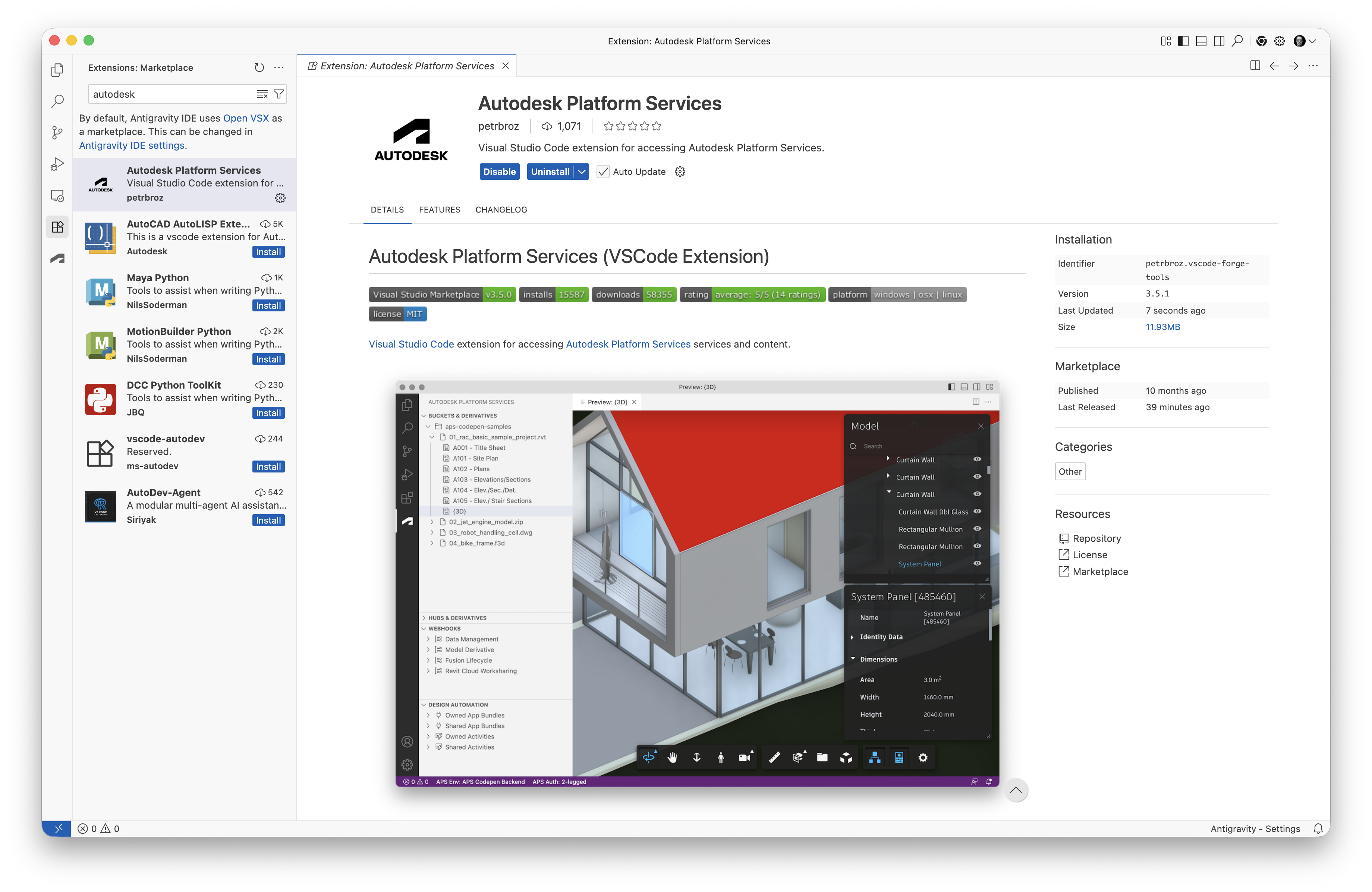
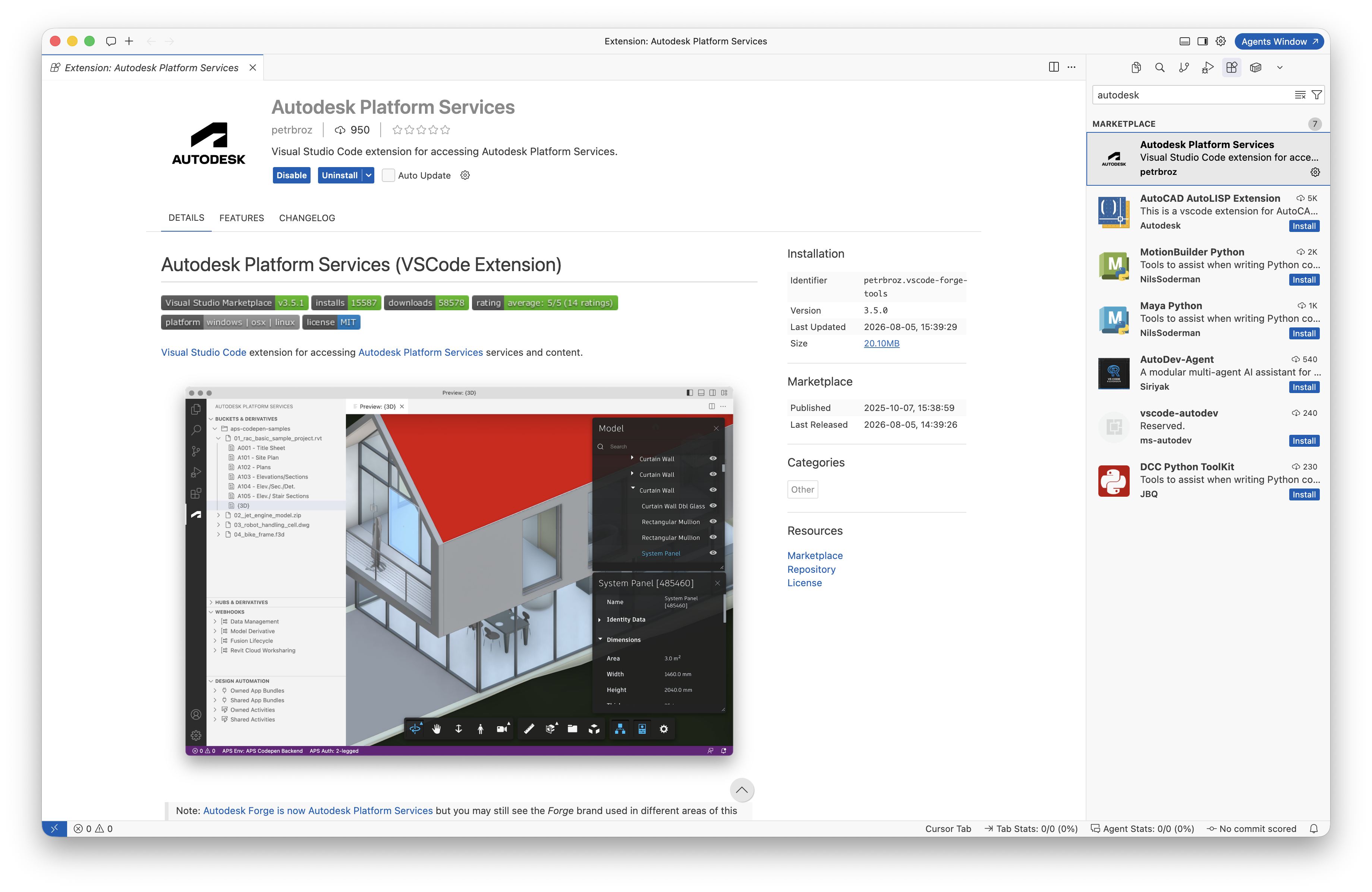
One thing to know if you plan to sign in with 3-legged OAuth or PKCE: the sign-in flow redirects back into your editor via a custom URI, and each editor registers its own URI scheme:
| Editor | Callback URL to register |
|---|---|
| Visual Studio Code | vscode://petrbroz.vscode-forge-tools/callback |
| Cursor | cursor://petrbroz.vscode-forge-tools/callback |
| Antigravity | antigravity-ide://petrbroz.vscode-forge-tools/callback |
You need to register the URL matching your editor as a callback URL for your app on https://aps.autodesk.com/myapps, otherwise sign-in fails with a redirect URI mismatch. You don't have to guess: the extension shows you the exact URL to register, with a "Copy URL" action, the first time you use one of these sign-in methods.
Note: if you're working in a remote/SSH, Codespaces, or web context, the callback URL may differ again; register whatever the extension actually shows you.
Everything else - the tree views, commands, webviews - behaves identically across all three editors.