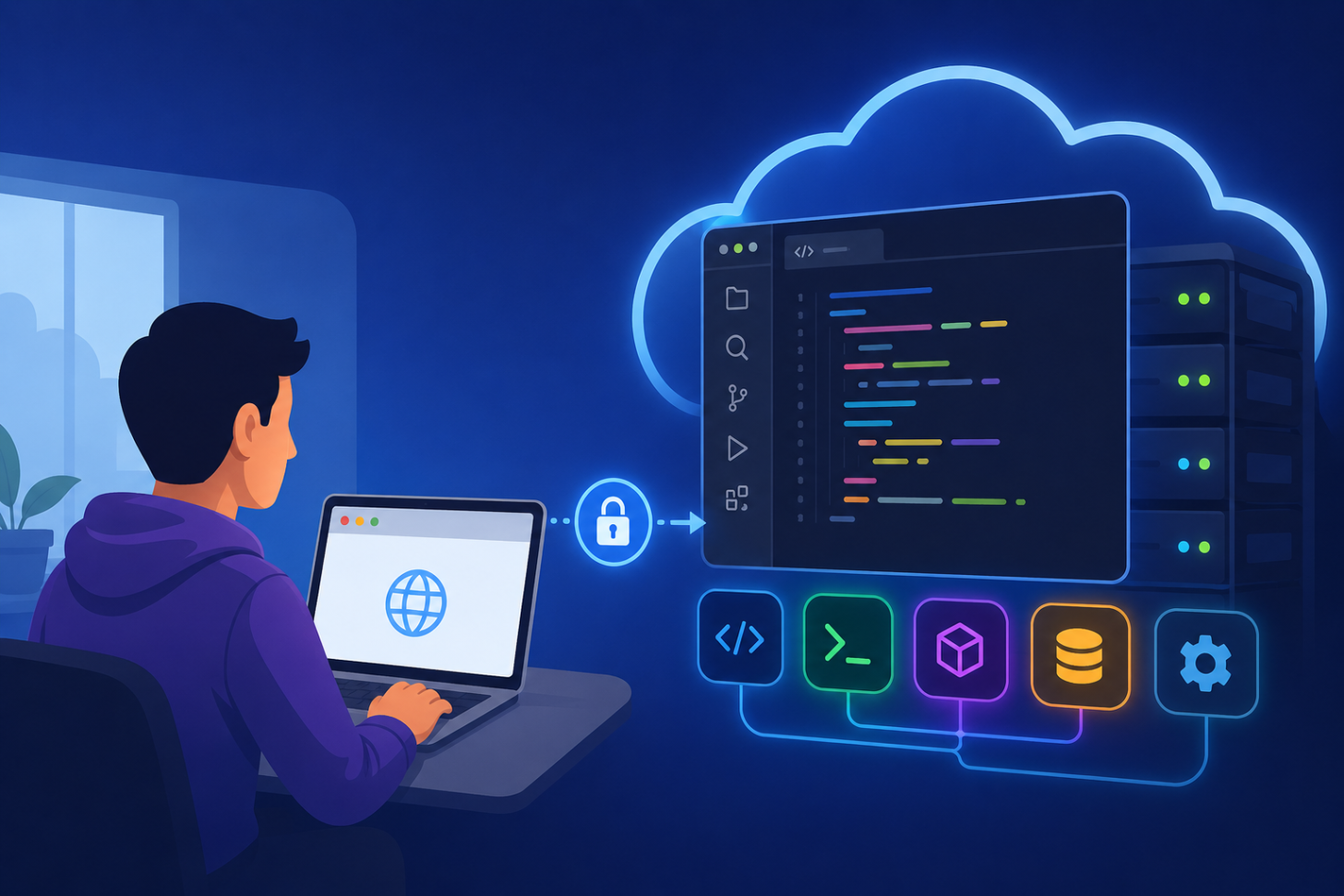
Sometimes you just want to spin up an existing APS app quickly (to debug it, explore how it works, or make it temporarily available to someone else for review) without installing anything on your machine. Remote development environments make that possible. In this post we'll look at what they are, the main options available today, why they're a great fit for APS development, and a quick end-to-end walkthrough using one of our samples.
What is a remote development environment?
A remote development environment is a full, ready-to-code workspace that runs on a server somewhere in the cloud instead of on your system. You connect to it from your browser or from your local editor (VS Code, JetBrains, etc.), but the code, the runtime, the terminal, and the running app all live on the remote machine.
The benefits are immediate:
- Zero local setup: no need to install Node.js, Git, SDKs, or even an editor. A browser is enough.
- Reproducibility: everyone gets the same environment, defined in code. "Works on my machine" stops being a thing.
- Disposable: spin one up to try something, throw it away when you're done. Nothing pollutes your laptop.
- Power on demand: run heavy builds or many-core jobs on cloud hardware regardless of what your local machine can handle.
- Easy sharing: many platforms let you expose the running app behind a temporary URL, so you can show work in progress to a colleague or client without deploying anything.
Dev containers: the standard underneath
Most modern remote dev platforms are built on the Dev Container specification (often shortened to devcontainers). A dev container is simply a Docker container configured specifically for development, described by a devcontainer.json file that lives in your repository.
That JSON file declares everything the environment needs:
- the base image or
Dockerfile(e.g. a Node.js 20 image), - features to layer on (Git, GitHub CLI, language runtimes, etc.),
- VS Code extensions to pre-install,
- settings, forwarded ports, and
- lifecycle commands like
postCreateCommandto runnpm installautomatically.
Because the definition is checked into the repo, the environment becomes part of the project. Anyone who opens the repo, whether in GitHub Codespaces, in VS Code's Dev Containers extension locally, or in another compatible tool, gets an identical, pre-configured workspace. The spec is open and vendor-neutral, which is why you'll see it supported across the tools below.
The main options
Here's a quick comparison of popular remote dev platforms. Pricing changes often, so always confirm on the vendor's pricing page before relying on these numbers.
GitHub Codespaces
Cloud dev environments tightly integrated with GitHub repositories, running VS Code in the browser (or connected to your desktop VS Code / JetBrains IDE). First-class dev container support.
- Free tier: Personal accounts include a monthly free allowance of roughly 120 core-hours and 15 GB-months of storage (that's about 60 hours on a 2-core machine). Plenty for learning and demos.
- Paid: Usage-based beyond the free allowance, billed per core-hour of compute and per GB-month of storage. Larger machines (4, 8, 16, 32 cores) cost proportionally more.
- Best for: Anyone whose code already lives on GitHub. Lowest-friction option for the APS samples, which are all hosted on GitHub.
Note: A
devcontainer.jsonis not required. If a repo doesn't include one, GitHub spins up a default dev container with the typical tools and runtimes preinstalled (Node.js, Python, Git, the GitHub CLI, and more). That's exactly what happens in the walkthrough below: the Simple Viewer repo has no custom dev container, so the default image is more than enough to run it.
CodeSandbox
Browser-based environments originally focused on rapid web/front-end prototyping, now offering full container-based dev environments and on-demand cloud VMs (with VS Code support).
- Free tier: A free plan with a monthly credit allowance suitable for experimentation and public sandboxes.
- Paid: Subscription tiers (Pro and up) that increase available credits, VM size, and private-project limits.
- Best for: Quick prototyping and shareable demos, especially front-end-heavy work.
Gitpod
Open, standards-based remote dev environments (browser or desktop) that work across GitHub, GitLab, and Bitbucket. Strong dev container support; also offers self-hosted options.
- Free tier: A monthly free allowance of usage hours for personal use.
- Paid: Usage- and seat-based plans for teams, plus enterprise/self-hosted deployments.
- Best for: Teams that want a vendor-neutral option or need to span multiple Git hosts.
Honorable mentions
- Replit: beginner-friendly, instant cloud IDE with a generous free tier; great for teaching and quick experiments.
- VS Code Dev Containers (local): not a hosted service, but worth knowing: the same
devcontainer.jsonruns locally on Docker Desktop, giving you reproducibility without the cloud bill.
Why this matters for APS development
APS apps tend to have a few moving parts that make remote environments especially attractive:
-
A consistent runtime. Most APS samples are Node.js apps with specific dependency versions. A dev container pins all of that, so the "it only works with Node X" problem evaporates for you, your teammates, and anyone you're helping debug.
-
Secrets handled safely. APS apps need a Client ID and Client Secret. Platforms like Codespaces let you store these as encrypted secrets that are injected as environment variables at startup, so they're never committed to the repo, and never sit in a
.envon a shared machine. -
Instant public URLs for sharing. APS apps are typically web apps. Remote environments can forward a port and hand you a temporary public URL, so you can share a live, running app with a colleague or client, with no deployment and no infrastructure.
-
Frictionless onboarding and demos. Want to show a customer how the Model Derivative or Viewer APIs work? Fork a sample, open a Codespace, and you have a running app in minutes, from any machine, even a locked-down one where you can't install software.
-
Reproducible support and bug reports. Because the environment is defined in code, reproducing an issue is as simple as opening the repo in a fresh environment. No more chasing local configuration differences.
Walkthrough: running the Simple Viewer in GitHub Codespaces
Let's put it together with the Simple Viewer sample.
Tip: Use a Chromium-based browser (Chrome or Edge). GitHub recommends these for browser-based VS Code; Safari and Firefox can be flaky.
Prerequisites
- An APS account (sign up) and an APS app created at aps.autodesk.com/myapps. No callback URL needed. Keep your Client ID and Client Secret handy.
- A GitHub account (Codespaces is included in the free tier).
- A design file to test with (a Revit
.rvt, AutoCAD.dwg, Inventor.ipt, or any format the Model Derivative API supports).
Steps
-
Fork the repo. Go to aps-simple-viewer-nodejs and click Fork to copy it into your own account, which lets you store secrets and commit changes.
-
Create a Codespace. On your fork, click Code ▸ Codespaces ▸ Create codespace on develop (in this case we're working with the
developbranch). Wait for the container to build; VS Code opens in your browser. To prove you're running in the cloud, open the integrated terminal and runcat /etc/os-release, and you'll see the Linux container, not your host OS. -
Install dependencies. In the terminal in VS Code, run:
npm install -
Add your secrets. On the forked repo, go to Settings ▸ Secrets and variables ▸ Codespaces ▸ New repository secret and add two secrets:
APS_CLIENT_IDAPS_CLIENT_SECRET
Secrets are injected as environment variables when the Codespace starts and never get committed. After adding them, reload the codespace when prompted, and verify that the environment variables exist with
echo $APS_CLIENT_ID. -
Run (and optionally debug) the app. Start it with:
npm startOr use the Run and Debug panel to launch with breakpoints; full step-through debugging works in the browser. The app listens on port
8080, which the Ports tab picks up automatically. -
Upload a model and view it. Open the app via the forwarded URL in the Ports tab. Use the upload control to push your design file to an OSS bucket and queue it for translation. When translation finishes, select the model and it renders in the viewer.
-
Share it (optional). In the Ports tab, right-click port
8080▸ Port Visibility ▸ Public, then copy the forwarded URL (looks likehttps://<your-codespace>.app.github.dev). Anyone with the link can open the live app and browse the model, with no APS account needed on their end, since the token is server-side. Note that the URL is tied to the codespace and will not be available anymore once the codespace is stopped. -
Clean up. Stop the Codespace when you're done (it auto-stops after 30 minutes idle) and delete it if you won't return, to stay within the free-tier quota.
Watch the walkthrough
Prefer to follow along on video? Watch a short walkthrough here:
Wrapping up
Remote development environments take the setup pain out of building APS apps, give you a reproducible workspace defined in code, and make sharing a running app as easy as flipping a port to public. Whether you reach for GitHub Codespaces, CodeSandbox, Gitpod, or run dev containers locally, the same devcontainer.json-driven workflow carries across them all. Fork a sample, spin up an environment, and you're building against the APS APIs in minutes, from any machine, anywhere.