
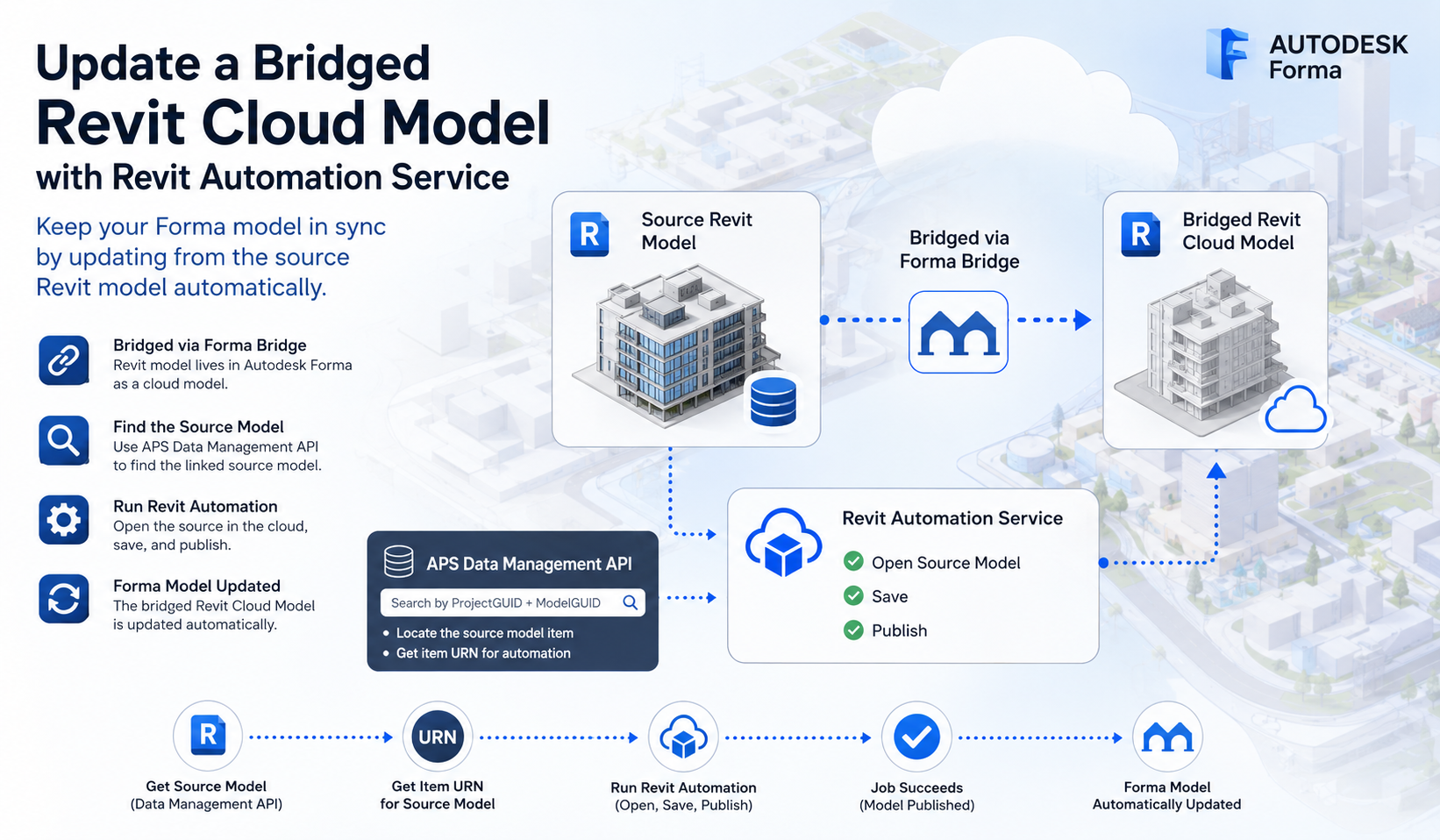
Bridged Revit Cloud Workshared (RCW) models are commonly used in Autodesk Forma workflows to share project data across teams and downstream systems such as Autodesk Tandem.
This article demonstrates how to successfully update a bridged Revit Cloud Model using APS Revit Automation. Although opening and modifying the bridged model is straightforward, publishing the changes requires a specific workflow: the publish operation must target the original source model item rather than the bridged item itself.
In this post, we will walk through the complete workflow:
-
Open a bridged Revit Cloud Model through APS Revit Automation
-
Retrieve the underlying
ProjectGUIDandModelGUID -
Locate the original source model
-
Publish modifications successfully back to the source cloud model
The workflow described here was validated with Revit Cloud Workshared models hosted in Autodesk Forma.
Workflow Overview
Assume the following setup:
-
Project A contains the original Revit Cloud Workshared model
-
Project B receives the model through Forma(formerly ACC) Bridge
-
Autodesk Tandem or another downstream workflow consumes the bridged model from Project B
-
APS Revit Automation is used to update model properties automatically
The target workflow is:
-
Open the bridged model
-
Modify model data automatically
-
Synchronize the changes back to the cloud model
-
Let downstream bridged environments receive the updated model automatically
However, directly publishing against the bridged item will fail. The key is understanding how bridged models are internally mapped to the original Revit cloud model.
Understanding Bridged Revit Cloud Models
When a Revit Cloud Workshared model is bridged into another ACC project:
-
The bridged model is effectively a mirrored representation
-
Forma(formerly ACC) Bridge preserves the underlying Revit Cloud identifiers
-
The bridged model still references the original cloud model internally
Using APS Data Management API, developers can inspect:
-
ProjectGUID -
ModelGUID
For a bridged model, these GUIDs still point to the original source model.
This means:
-
APS Revit Automation can open the bridged model because the underlying Revit Cloud identifiers are valid
-
But publishing requires the original source model context
-
Publishing against the bridged model
itemIdis not supported
Key Discovery
The critical point is:
APS Revit Automation must publish using the original source model
itemId, not the bridged modelitemId.
Once the workflow switched to the original source model itemId, publishing succeeded.
Recommended Workflow
The recommended workflow is:
-
Find the bridged model in Project B
-
Retrieve its
ProjectGUIDandModelGUID -
Search the source project for the original model
-
Match the original model using the GUIDs
-
Use the original source model
itemIdfor publish operations
The automation process then becomes:
Bridged Model (Project B)
        |
        |  Read ProjectGUID + ModelGUID
        v
Search Original Project (Project A)
        |
        |  Find matching source model
        v
Use Original itemId
        |
        |  Open / Modify / Publish
        v
Successful RCW Publish
Step 1 – Retrieve Model Metadata
Use APS Data Management API to inspect the bridged model.
Example:
GET https://developer.api.autodesk.com/data/v1/projects/:projectId/items/:itemId
Inside the response, inspect:
{
  "extension": {
    "data": {
      "projectGuid": "...",
      "modelGuid": "..."
    }
  }
}
These GUIDs uniquely identify the underlying Revit cloud model.
Step 2 – Search the Source Project
Currently, Forma/Data Management APIs do not provide a direct API to:
-
Detect whether an item is bridged
-
Retrieve the original source item automatically
-
Resolve bridge relationships directly
Therefore, the practical workaround is:
-
Search the known source project
-
Compare
ProjectGUIDandModelGUID -
Find the matching original model
You can use the Data Management Search API:
GET /projects/:project_id/folders/:folder_id/search
Reference:
Pseudo workflow:
const bridgedProjectGuid = bridgedItem.projectGuid;
const bridgedModelGuid = bridgedItem.modelGuid;

for (const candidate of searchResults) {
    if (
        candidate.projectGuid === bridgedProjectGuid &&
        candidate.modelGuid === bridgedModelGuid
    ) {
        originalItem = candidate;
        break;
    }
}
Once the original model is identified, keep:
-
Original project ID
-
Original item ID
These must be used for publishing.
Step 3 – Open the Model with Revit Automation
Use the Revit Cloud Model path APIs inside Design Automation for Revit.
Typical flow:
ModelPath modelPath = ModelPathUtils.ConvertCloudGUIDsToCloudPath(
    region,
    projectGuid,
    modelGuid
);

Document doc = app.OpenDocumentFile(modelPath, openOptions);
Because the underlying GUIDs are identical, the model can still be opened successfully even if discovered through the bridged representation.
Step 4 – Publish Using the Original itemId
This is the most important part.
When saving or publishing changes:
-
Do NOT use the bridged model
itemId -
Use the original source model
itemId
Using the bridged item will result in:
C4R: Failed to publish model
Using the original source model item works correctly.
Limitations and Current Gaps
At the time of writing, APS Data Management and Forma APIs do not expose bridge relationship metadata directly.
Developers currently cannot:
-
Query whether a model is bridged
-
Retrieve source item information directly
-
Resolve bridge lineage automatically
The current workaround is GUID comparison using:
-
ProjectGUID -
ModelGUID
An internal feature request was filed to improve bridge-aware APIs.
Important Considerations
Before implementing this workflow, keep several architectural considerations in mind.
Bridged Models Are Intended as Shared Representations
ACC Bridge is primarily designed for sharing and coordination workflows.
If the source model is updated later:
-
The bridged representation may refresh
-
Downstream workflows may need re-synchronization
-
Derived automation outputs may require regeneration
Validate Version Compatibility
Make sure:
-
The Revit Automation engine version matches the cloud model version
-
ACC projects are configured for the correct RCW release
A mismatch can produce errors such as:
The cloud model is not saved in current release of Revit.
Conclusion
Although bridged Revit Cloud Models appear as independent Forma items, internally they still reference the original Revit Cloud Workshared model.
This leads to an important implementation detail:
-
Opening and editing can work using bridged model metadata
-
Publishing must target the original source model item
The practical solution today is:
-
Read
ProjectGUIDandModelGUIDfrom the bridged model -
Locate the original source item in the host project
-
Publish using the original source
itemId
This workflow enables fully automated APS Revit Automation updates even in bridged ACC environments.
If you have any questions or feedback, please don't hesitate to contact us through our APS support channel.