Before You Begin
To use the Informed Design API, you’ll need an Autodesk account and an application registered with Autodesk Platform Services (APS). You will also need a Secure Service Account (SSA) to obtain a 3-legged access token for authenticating your API requests.
The instructions on this page will walk you through the essential setup process for:
- Creating an Autodesk account
- Registering an app
- Obtaining a Client ID and Client Secret for the app
- Obtaining a 3-legged token
- Identifying Forma project and Folder to work with
Step 1: Register an App, Obtain ClientID and Client Secret
The first step to using the Informed Design API is to create an APS application (Server-to-Server App) on the Autodesk Platform Services (APS) portal.
Follow the instructions in the Before you begin topic of the Get Started with SSA walkthrough, to create an app on APS and obtain a Client ID and Client Secret.
Step 2: Create an SSA and Provision to a Hub
After obtaining your Client ID and Client Secret, you’ll need to:
- Create an SSA
- Provision the SSA to a Forma or BIM 360 hub
Step 3: Obtain a 3-legged token
After you have set up your SSA and integrated it with a Forma or BIM 360 hub, you need a 3-legged token. This token is required to authenticate your requests to the API.
To retrieve the 3-legged token, you need to first generate a JWT assertion, then exchange the JWT assertion for a token. You also need to specify the scopes for the token data:read data:write data:create account:read.
Task 3 of the SSA How-to-Guide explains this in more details.
Step 4: Identify a Forma project and Folder
As explained in the Authentication section of the Developer’s Guide, the Informed Design API enforces an authentication and authorization layer to ensure the safety and security of data.
You need to identify a Forma project and folder as the access mechanism for your product and other resources related to the product.
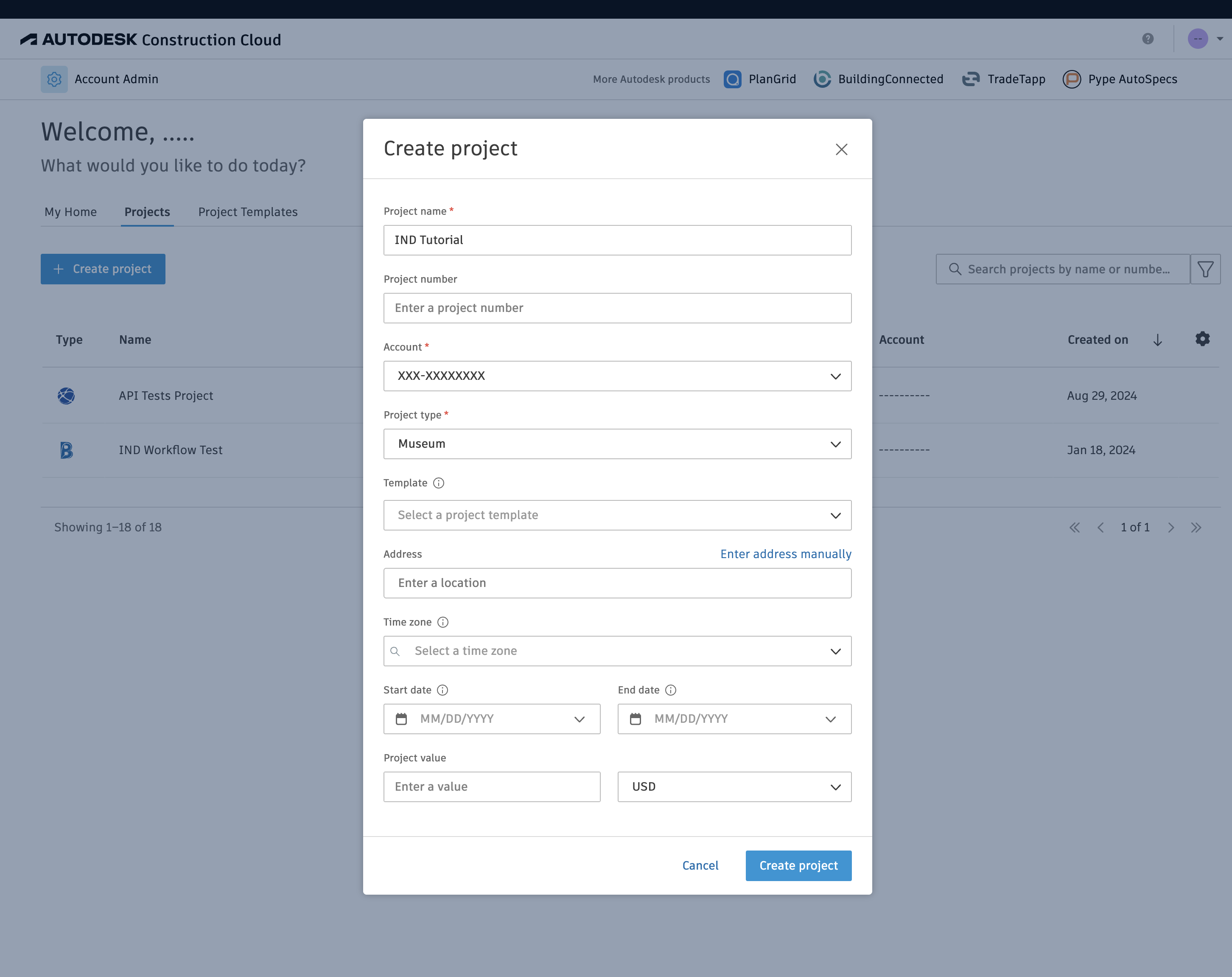
If you have not already done so, lets create a project and folder for this walkthrough.
- Go to your Forma, BIM 360, or Fusion Team admin console.
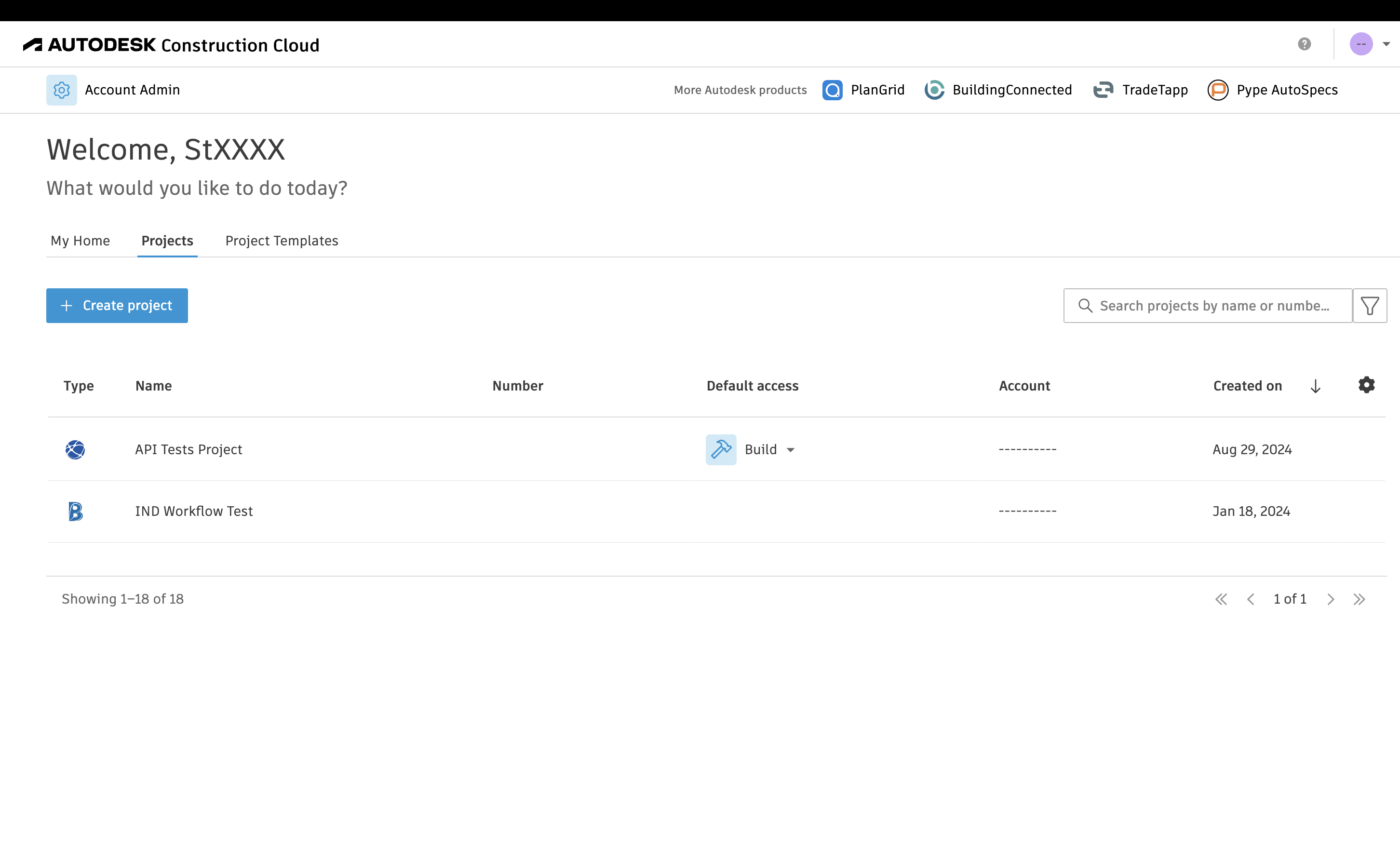
- Create a project and record the projectId
- Your project ID is the GUID (xxxxxxxx-xxxx-xxxx-xxxx-xxxxxxxxxxxx) after ‘/projects/’ in the url path of your browser
- Create a folder and record the folder urn