Using Forma HTTP APIs from embedded views
If your embedded view needs to use Forma’s or other APS HTTP APIs, you will need to obtain a three legged access token from APS. This can be done by using the OAuth 2.0 Authorization Code Grant flow with PCKE.
This can more easily be done by using the Forma.auth module provided by the SDK. In this
tutorial we will show how to obtain a three legged access token for your embedded view.
Use Forma.auth to obtain a three legged token
The Forma.auth module is a token manager that initializes the OAuth PKCE flow,
as well as managing the APS access token. We recommend using this package to ensure that a token has the correct claims and gets refreshed when needed.
Before we start, we need to set up a simple extension. We will use the extension that was created in the getting started tutorial.
You also need to make sure you have created an APS application that uses Authorization Code grant type with PKCE. Here is a guide for how to do that.
1. Add your APS app as a service account for your extension
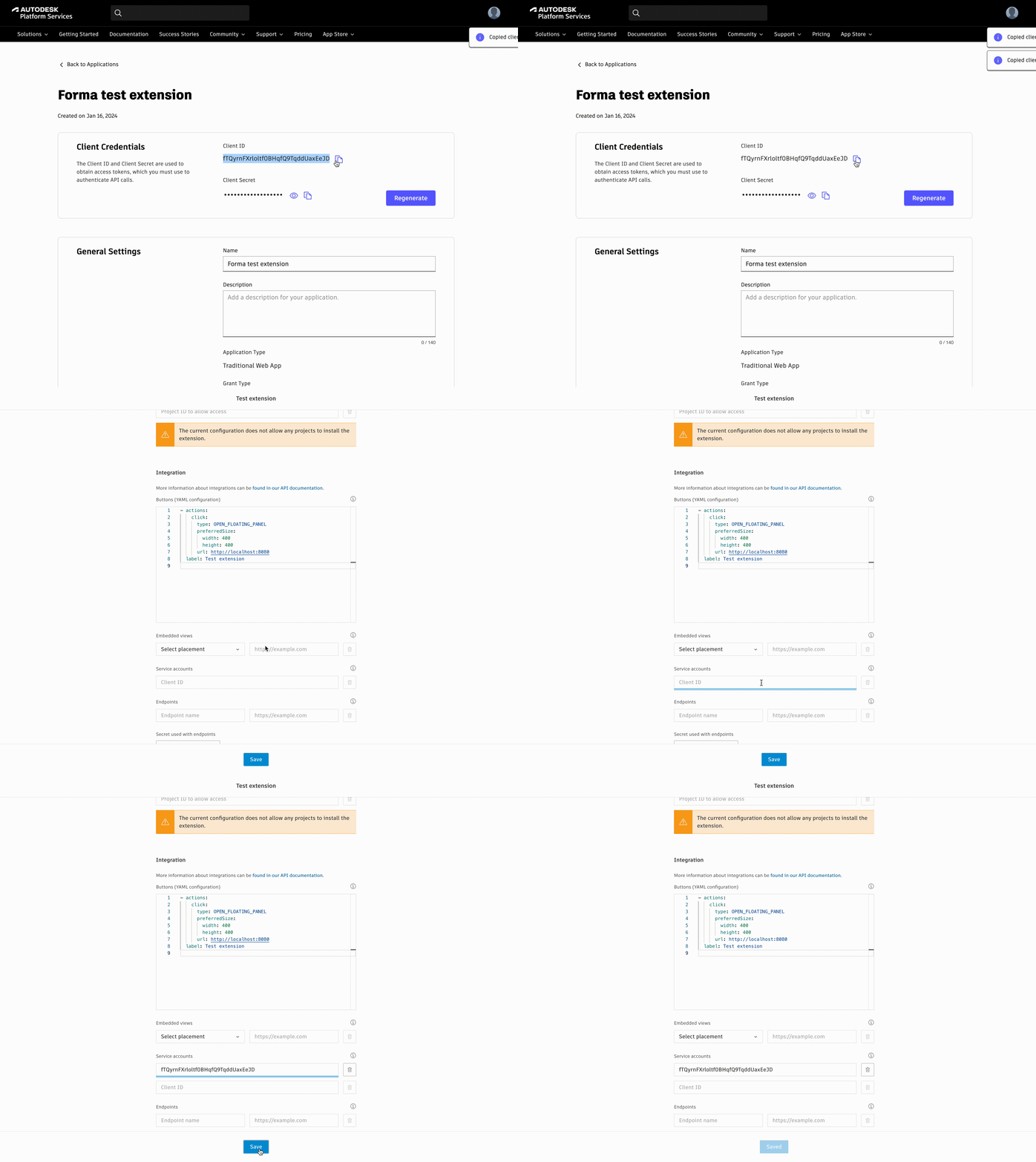
To be able to call Forma Site Design APIs from your extension you’ll need to add your APS app’s clientId as a service account in your Forma Site Design extension.
2. Create a HTML document to serve your callback
To get a token you need a url where APS can redirect you after the user authorizes your application. We recommend creating a blank html page here.
At the root level of your extension create an empty auth.html file.
The page should now be available at http://localhost:<YOUR_PORT>/auth
We can now start our server again with
npx http-server ./ --port <YOUR_PORT> --cors -c-1
You can verify that the new html file is being served by navigating to http://localhost:8080/auth in your browser. This should simply be a blank page.
3. Configure the callback url in your APS app’s configuration.
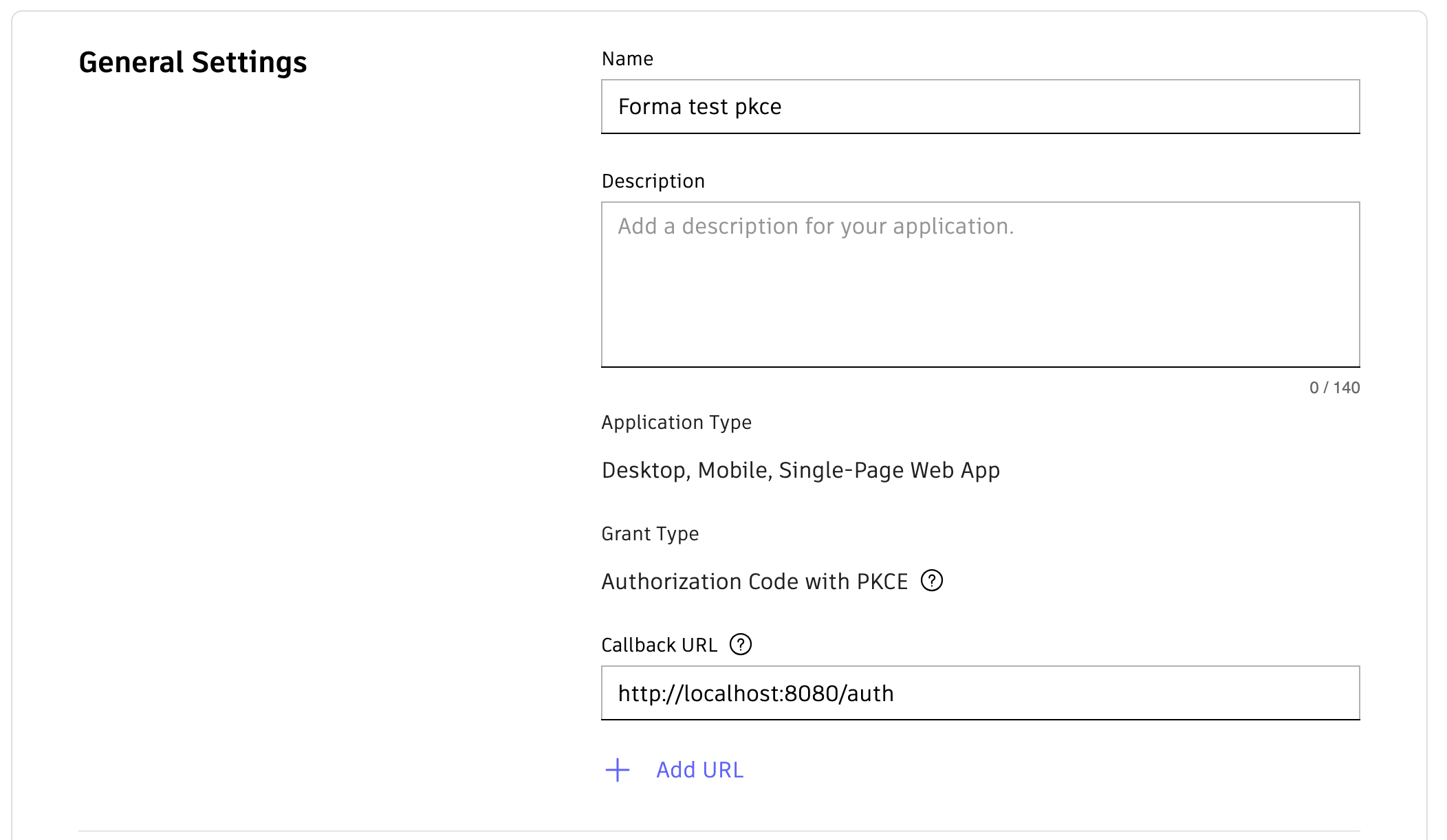
Now that we have a url than can serve as a callback for the authorization flow we need to add it to your APS app’s allow list of trusted callback URLs. This is done in the APS app portal.
4. Configure your token requirements in Forma.auth
Inside the script in index.html we can now configure the token requirements needed. This includes your clientId, scope and the callbackUrl to of your APS app. The most common scopes for the Forma Site Design APIs are data:read and data:write. Read more about the different scopes you can set here.
Add the following code inside the script tag with the following configuration.
...
<script type="module">
  import { Forma } from "https://esm.sh/forma-embedded-view-sdk/auto"

  Forma.auth.configure({
    clientId: "YOUR_CLIENT_ID",
    callbackUrl: "http://localhost:<YOUR_PORT>/auth",
    scopes: ["data:write", "data:read"],
  })
  ...
</script>
...
5. Acquire a token
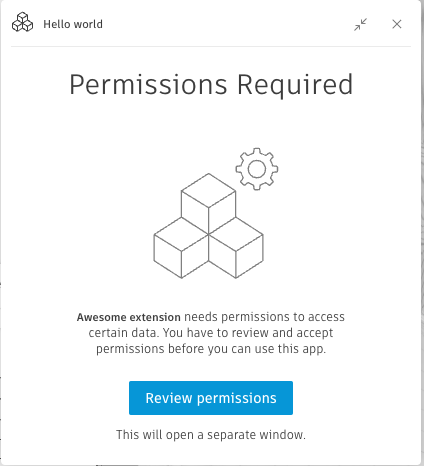
We can now acquire a token. We will use Forma.auth.acquireTokenOverlay here. acquireTokenOverlay
will render an overlay explaining that your app needs permissions if there’s no token already available.
The overlay has a button that will open a popup to perform the authorization flow and
returns the access token if the user authorizes your application.
Add the following to your extension code.
<script type="module">
  import { Forma } from "https://esm.sh/forma-embedded-view-sdk/auto";

  Forma.auth.configure({
    clientId: "YOUR_CLIENT_ID",
    callbackUrl: "http://localhost:<YOUR_PORT>/auth",
    scopes: ["data:write", "data:read"],
  });

  Forma.auth.acquireTokenOverlay().then((tokenResponse) => {
    console.log(`Here's my new token: ${tokenResponse.accessToken}`)
  })
  ...
</script>
...
This should render this overlay
You should now see the newly acquired token in the developer console
6. Call the Forma Site Design API
Now that we have a token, let’s make a request to the Forma Site Design Project API and add the response to the DOM.
...
<script type="module">
  ...
  Forma.auth.acquireTokenOverlay().then(async (tokenResponse) => {
    console.log(`Here's my new token: ${tokenResponse.accessToken}`)
    const projectRes = await fetch(
      `https://developer.api.autodesk.com/forma/project/v1alpha/projects/${encodeURIComponent(Forma.getProjectId())}`,
      {
        headers: {
          authorization: `Bearer ${tokenResponse.accessToken}`,
          "x-ads-region": Forma.getRegion(),
          accept: "application/json",
        },
      }
    )
    if (!projectRes.ok) {
      console.error(`Failed to get project data: ${projectRes.status} - ${projectRes.statusText}`)
      return
    }
    const projectData = await projectRes.json()
    const projectElement = document.createElement("div")
    projectElement.innerText = JSON.stringify(projectData)
    document.body.appendChild(projectElement)
  })
</script>
...
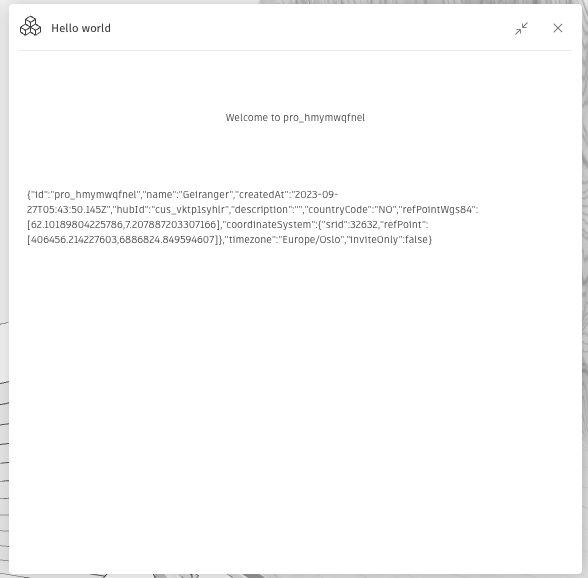
The resulting (very pretty page) should look something like this
You should now be ready to use all the Forma Site Design APIs you want. For more information about the specific APIs take a look at the HTTP reference.