Getting started
This guide describes the required steps to get started developing extensions in Forma. If you do not have a Forma license already, go here to start your free trial.
1. Create an extension
In the context of a Forma project, go to the extension menu, click “Add extension”. Then, in the pop-up modal, click the settings menu icon and select “Create extension” to start creating a new extension.
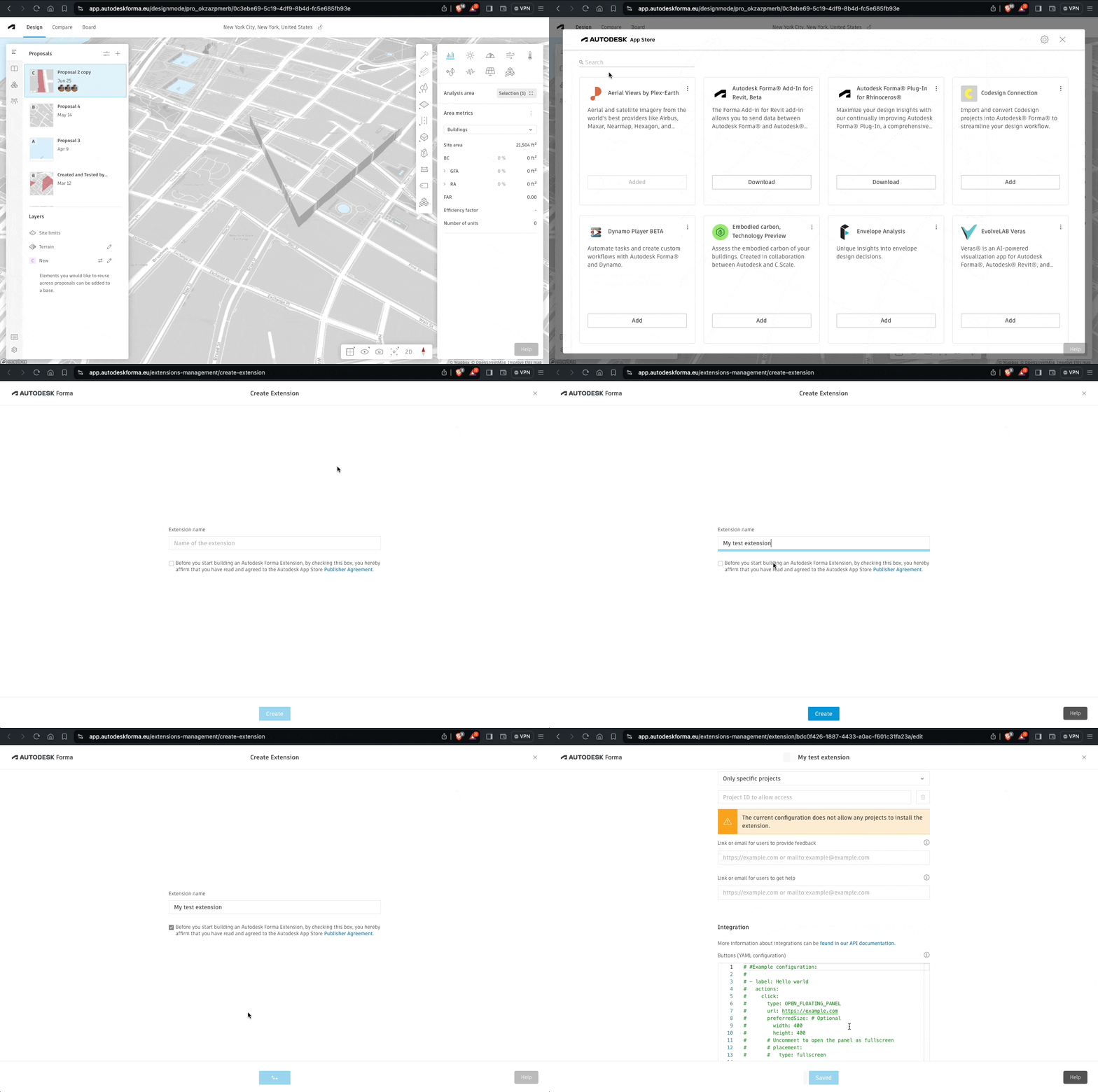
On the top, you will see a warning that the extension is not connected to an APS application. This can be ignored and how to connect it is described in the Share your extension guide.

2. Configure extension
In this section, the minimal configuration to get started with your extension is described.
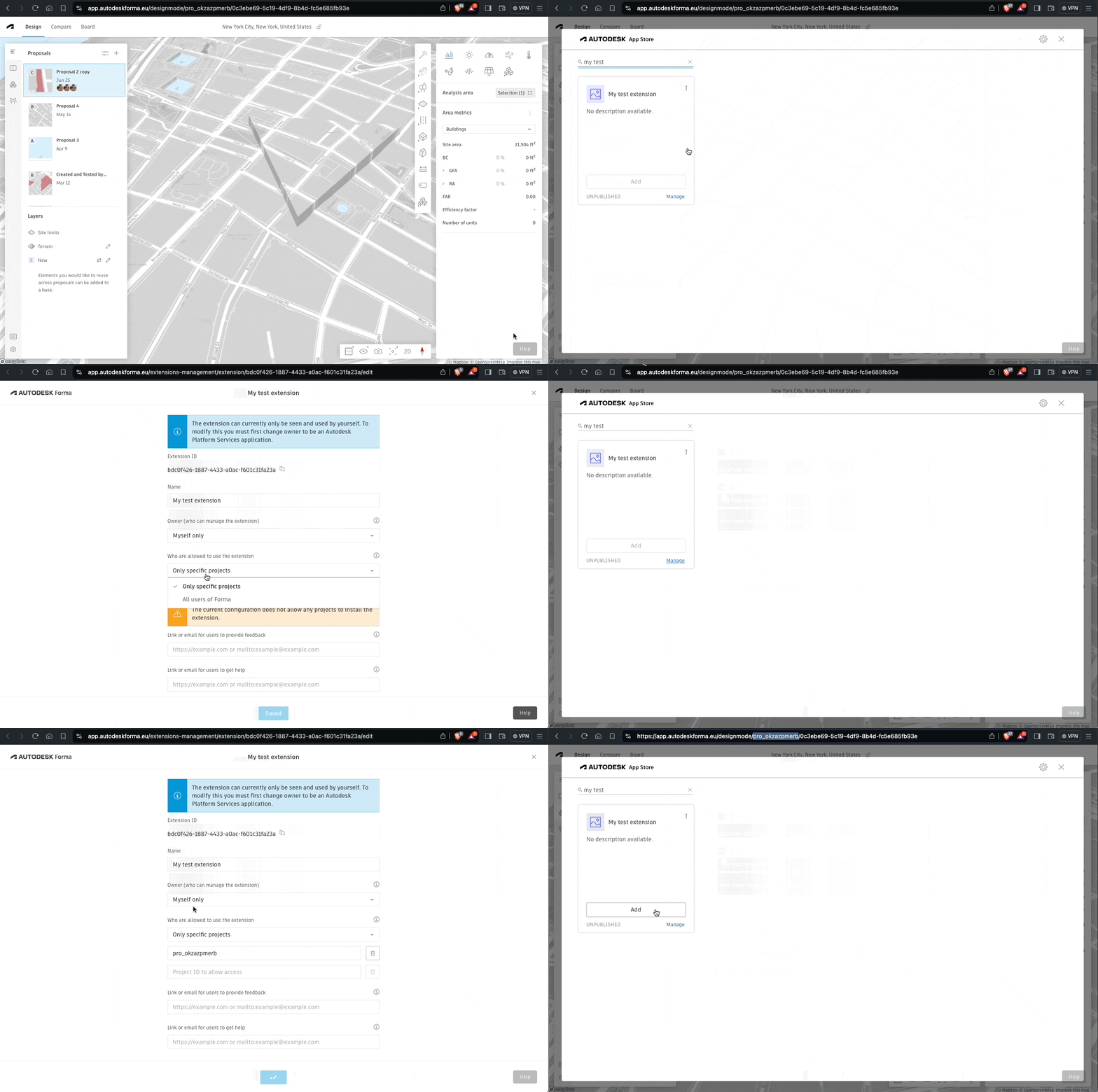
Allow an extension to be installed on your project
To be able to install the extension on your Forma project, you need to allow it to be installed on your project. You can
either select “All users of Forma” or add your project to the list of allowed project IDs. You can find the project ID
by going into the Forma project and looking at the URL. The project ID is the word starting with pro_....
Integration
As explained in Extension types, there are multiple ways to extend Forma. Here we show how to create an Embedded View extension with a floating panel. In the Buttons (YAML configuration) in the integration section, add the following:
- label: Hello world
  actions:
    click:
      type: OPEN_FLOATING_PANEL
      url: http://localhost:5173/
      preferredSize: #Optional
        width: 400
        height: 400
This will load http://localhost:5173/ inside a floating panel when clicking your extension in Forma.
3. Install an extension in your Forma project
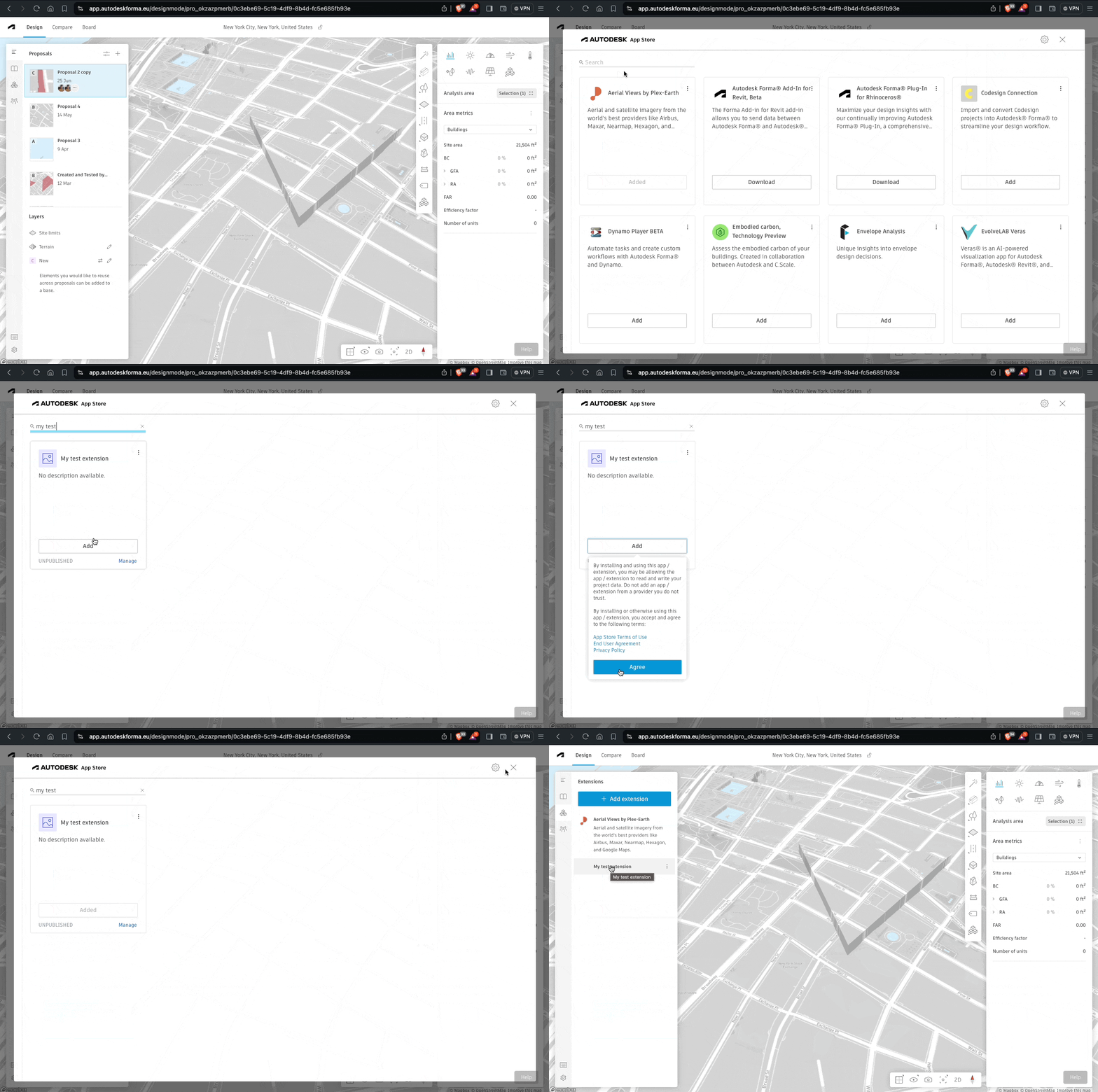
Return to the Forma application and once again, navigate to the extension menu. Select the option that says “Add extension”. This will prompt a model, that will be showcasing all public extensions as well as any extensions that you own or have been shared with you.
Please note, all private extensions will be listed after the public ones. You have the option to search for a specific extension by its name.
To install an extension, simply click “Add”, followed by “Agree”. Once you’ve done this and closed the extension menu, you should be able to see your newly installed extension. It will be listed among the other installed extensions in the menu on the left side of your screen.
4. Local development
Now that we have the extension set up, let’s make sure everything is working as expected.
Create an index.html file on your computer and paste the following:
<!doctype html>
<html lang="en" xmlns="http://www.w3.org/1999/html">
  <head>
    <link
      rel="stylesheet"
      href="https://app.autodeskforma.eu/design-system/v2/forma/styles/base.css"
    />
    <style>
      div {
        display: flex;
        height: 100px;
        align-items: center;
        justify-content: center;
      }
    </style>
    <script type="module">
      import { Forma } from "https://esm.sh/forma-embedded-view-sdk/auto";

      const element = document.createElement("div");
      element.innerHTML = `Welcome to ${Forma.getProjectId()}`;
      document.body.appendChild(element);
      window.Forma = Forma;
    </script>
  </head>
  <body></body>
</html>
Now we can serve our file with
npx http-server ./ --port 5173 --cors -c-1
You should see something like this when you open your extension.
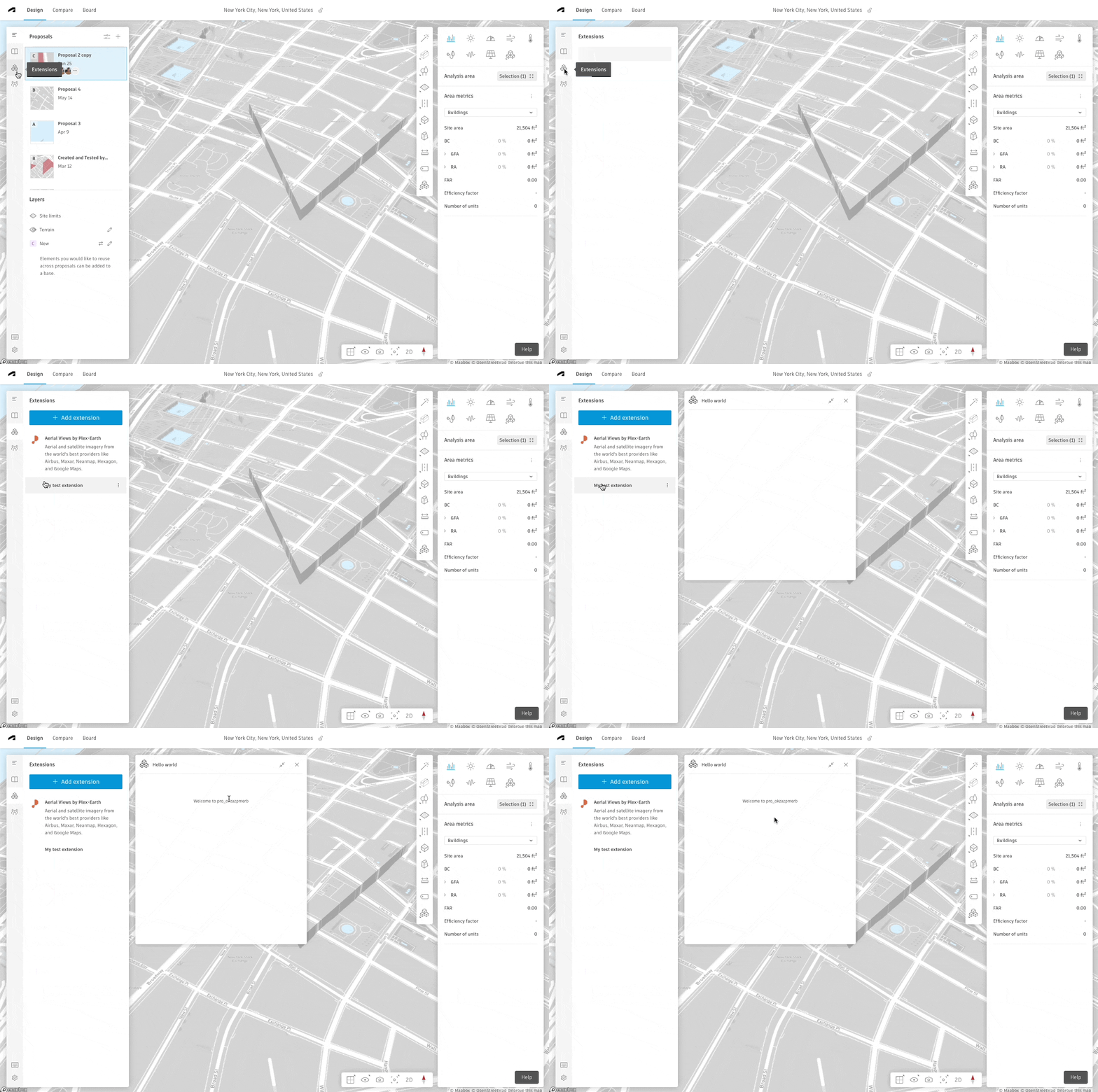
Since we added Forma to the window object, you can also go to the browser window, open the console in inspect mode and
type Forma to explore the functionality exposed by the SDK.
Make sure you to select the console corresponding to localhost.
Next steps
Now you are set up to do local development of your extension. Take a look at the Forma SDK documentation to see the available functionality or follow the step-by-step tutorial to build your first embedded view extension.
For more information on making your extension available to others, see this guide on deployment and sharing.