Tutorial
In this tutorial we’ll create an embedded view extension in a floating panel that will allow you to select a set of buildings and color them with any color. The resulting code after following this tutorial can be found here.
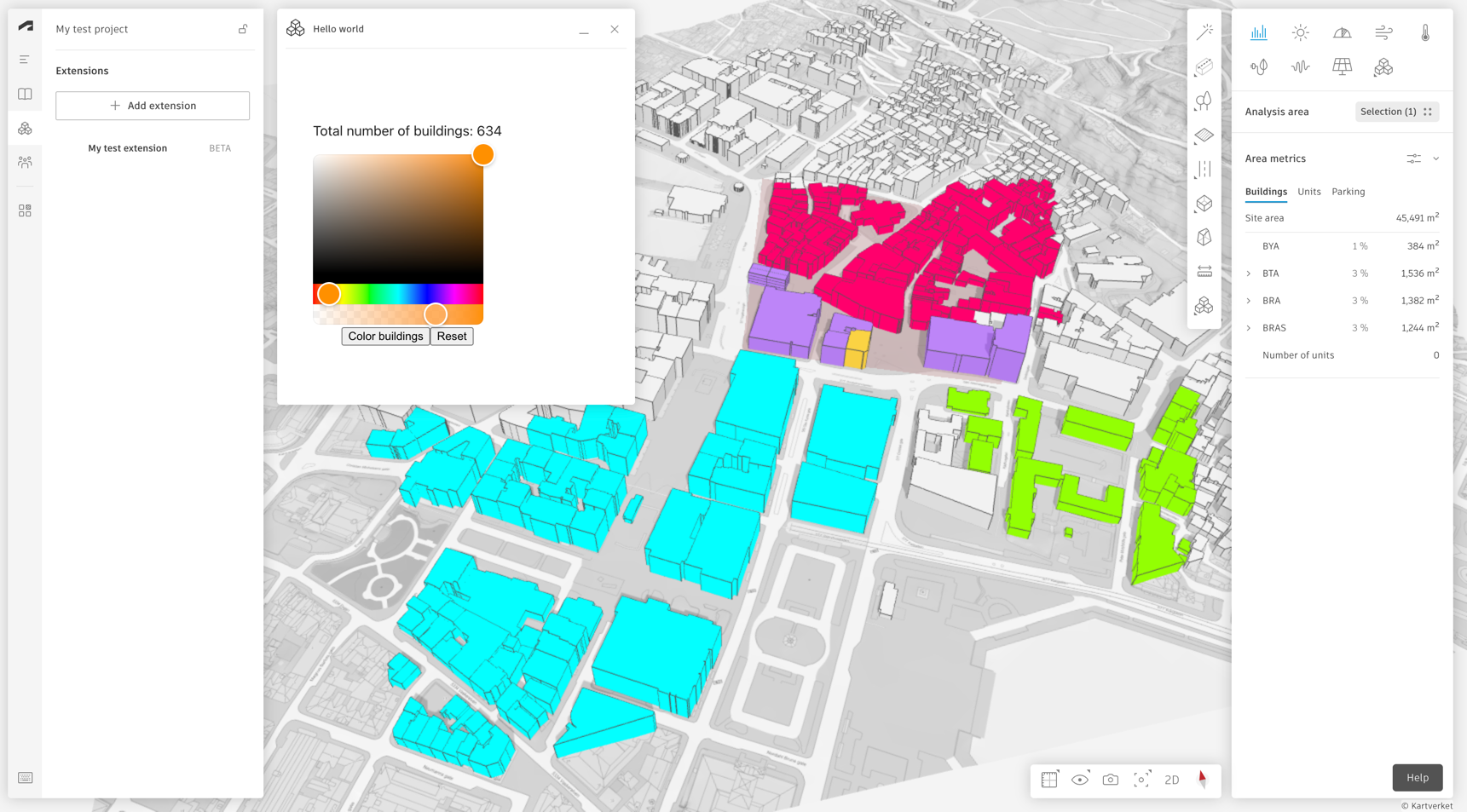
By following this tutorial, you will end up with something like this:
1. Getting started
First, follow the steps in Getting started. This guides your through creating an embedded view extension with a floating panel and installing it on your Forma project.
2. Create Vite application
Now that the extension is configured and installed in your Forma project, you can start developing the extension. There are many ways to create a web application, but here is one example to get started using Vite with Preact and TypeScript.
Create a Vite-Powered Preact App by running the following command in your terminal and follow the instructions. We recommend using TypeScript as project language.
npm init preact
Navigate to the created directory and install the forma-embedded-view-sdk:
cd my-forma-extension
npm install forma-embedded-view-sdk
Start the development server:
npm run dev
Now, open src/index.tsx and replace the template code with the following:
import {render} from 'preact';
import './style.css';
import {Forma} from "forma-embedded-view-sdk/auto";

export function App() {
    return (
        <>Welcome to {Forma.getProjectId()}</>
    )
}

render(<App/>, document.getElementById('app'));
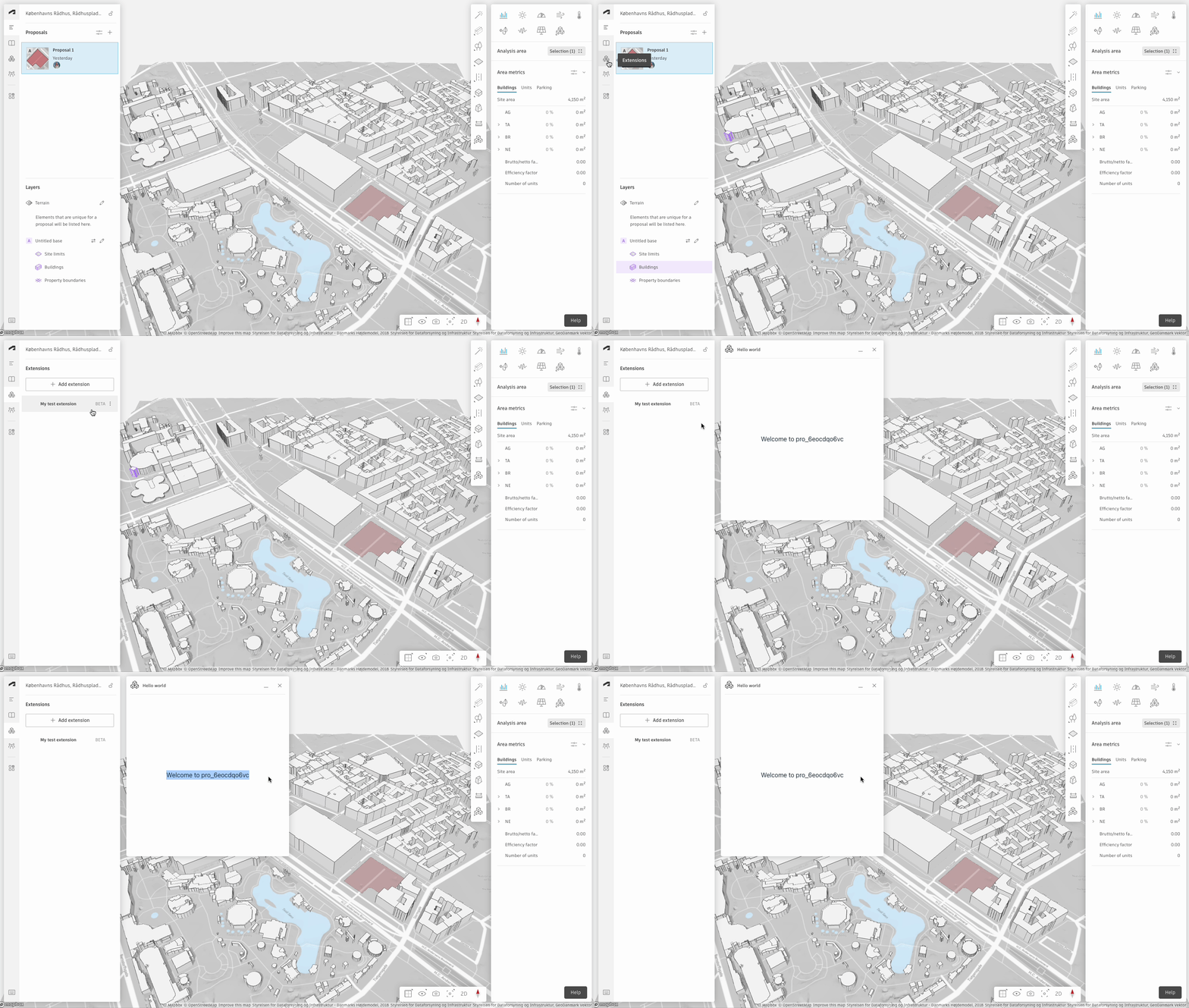
Now, go back to Forma and click on your extension in the left menu. This should open a floating panel with the text “Welcome to <YOUR_PROJECT_ID>”.
Note: make sure the localhost port pointed to by the extension in the configuration is the same as being hosted by your
web app, and if not, update one of them. You can specify the preferred port for your Vite application in
the vite.config.ts:
// https://vitejs.dev/config/
export default defineConfig({
    plugins: [preact()],
    server: {
        port: <YOUR_PORT>,
    }
})
3. Count the buildings in the proposal
Now that we have a running environment inside the Forma client, let’s interact with the project by fetching all the buildings in the project. We use the Geometry API to get the path to all building elements in the proposal.
Go to src/index.tsx and replace the code with the following:
import {render} from 'preact';
import './style.css';
import {Forma} from "forma-embedded-view-sdk/auto";
import {useState, useEffect} from "preact/hooks";

function App() {
    const [buildingPaths, setBuildingPaths] = useState<string[]>([]);

    useEffect(() => {
        const fetchData = async () => {
            Forma.geometry
                .getPathsByCategory({category: "building"})
                .then(setBuildingPaths);
        };
        fetchData();
    }, []);

    return (
        <>
            <div class="section">
                <p>Total number of buildings: {buildingPaths?.length}</p>
            </div>
        </>
    );
}

render(<App/>, document.getElementById('app'));
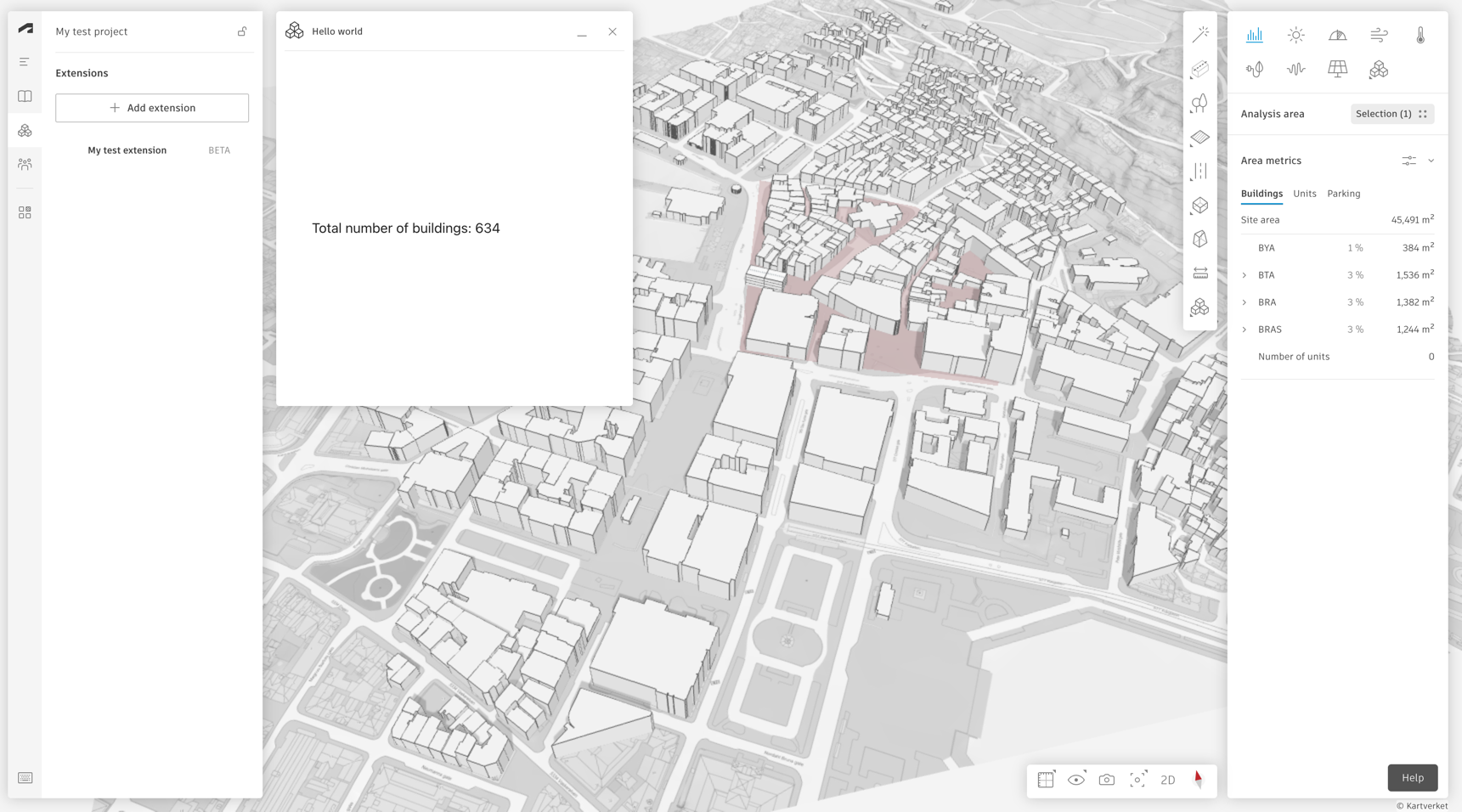
You will now see how many buildings there are in your proposal.
4. Color all buildings in the proposal
Now that we have the path of all buildings in the proposal, we can get their geometry and color them. For convenience as
we are working with colors, we install the powerful-color-picker package:
First, we install the package:
npm install powerful-color-picker
Create a state variable selectedColor, and a function for coloring the buildings.
...
import {RgbaColor} from "powerful-color-picker";

const DEFAULT_COLOR = {
    r: 0,
    g: 255,
    b: 255,
    a: 1.0,
};

function App() {
...
    const [selectedColor, setSelectedColor] = useState<RgbaColor>(DEFAULT_COLOR);
...
    const colorBuildings = async () => {
        for (let path of buildingPaths) {
            const position = await Forma.geometry.getTriangles({
                path,
            });
            const numTriangles = position.length / 3;
            const color = new Uint8Array(numTriangles * 4); // each triangle needs rgba values
            for (let i = 0; i < numTriangles; i += 1) {
                color[i * 4 + 0] = selectedColor.r;
                color[i * 4 + 1] = selectedColor.g;
                color[i * 4 + 2] = selectedColor.b;
                color[i * 4 + 3] = Math.round(selectedColor.a * 255);
            }
            const geometryData = {position, color};
            Forma.render.updateMesh({id: path, geometryData});
        }
    };
...
}
We also want to be able to reset the colors, and to do that we call the cleanup function from the render API. We also set the color back to the default color.
function App() {
...
    const reset = () => {
        Forma.render.cleanup();
        setSelectedColor(DEFAULT_COLOR);
    }
...
Now, we add two buttons to enable calling the functions we defined above.
function App() {
...
    return (
...
    <div class="section">
        <button onClick={colorBuildings} disabled={!buildingPaths}>Color buildings</button>
        <button onClick={reset}>Reset</button>
    </div>
...
)
}
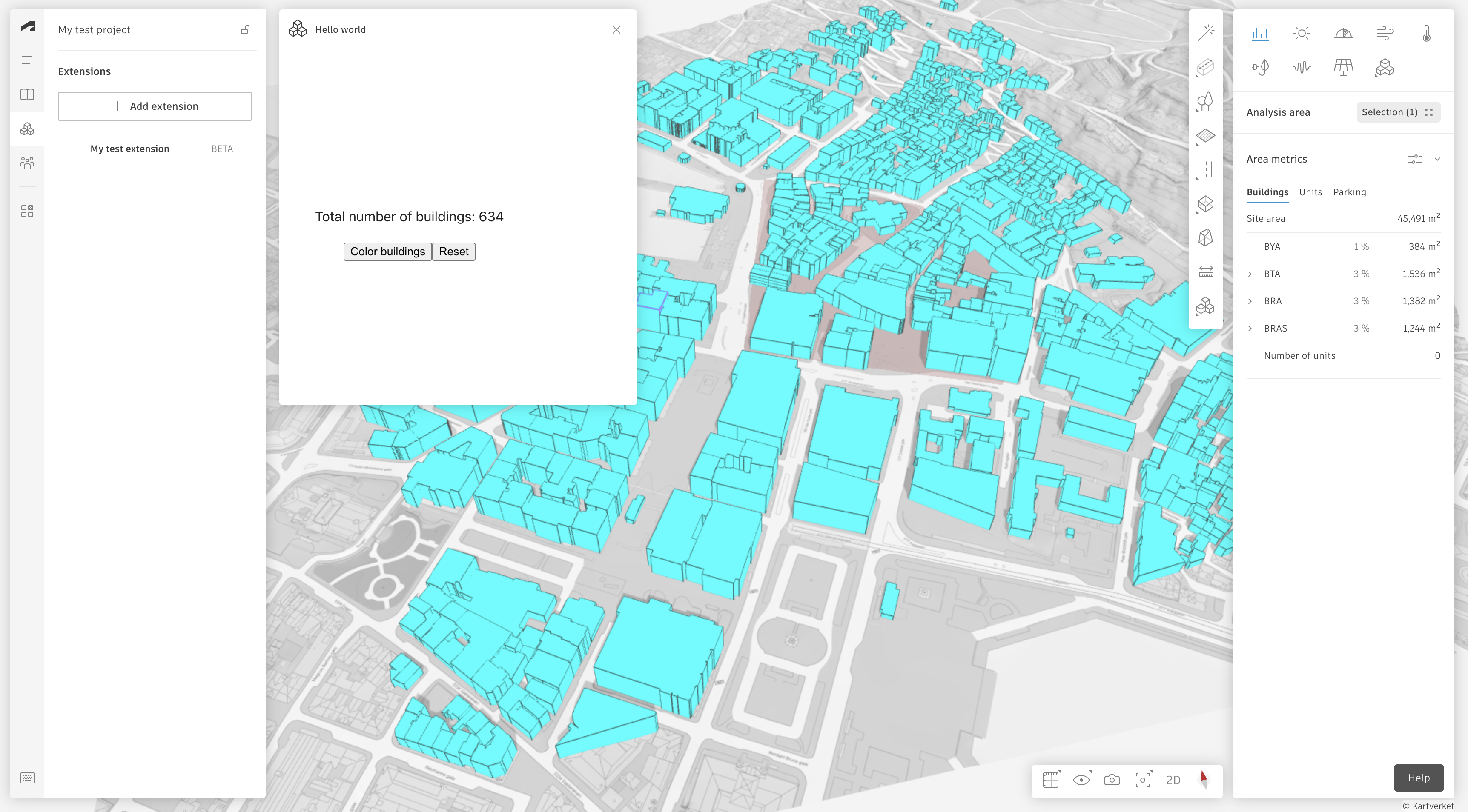
When we click the “Color buildings” button, we will color all the buildings blue. Your extensions should now look something like this:
5. Add selection
Now that we’re able to color all the buildings, let’s select some buildings and color only those. To do that we use the Selection API to retrieve the selected elements in the scene.
Inside the colorBuildings function, first get the current selection and the loop over the selected paths instead of
all the building paths. We then check if the selected element is a building, and if it is we color it.
function App() {
...
    const colorBuildings = async () => {
        const selectedPaths = await Forma.selection.getSelection()
        for (let path of selectedPaths) {
            if (buildingPaths.includes(path)) {
                const position = await Forma.geometry.getTriangles({
                    path,
                });
                const numTriangles = position.length / 3;
                const color = new Uint8Array(numTriangles * 4); // each triangle needs rgba values
                for (let i = 0; i < numTriangles; i += 1) {
                    color[i * 4 + 0] = selectedColor.r;
                    color[i * 4 + 1] = selectedColor.g;
                    color[i * 4 + 2] = selectedColor.b;
                    color[i * 4 + 3] = Math.round(selectedColor.a * 255);
                }
                const geometryData = {position, color};
                Forma.render.updateMesh({id: path, geometryData});
            }
        }
    };
...
}
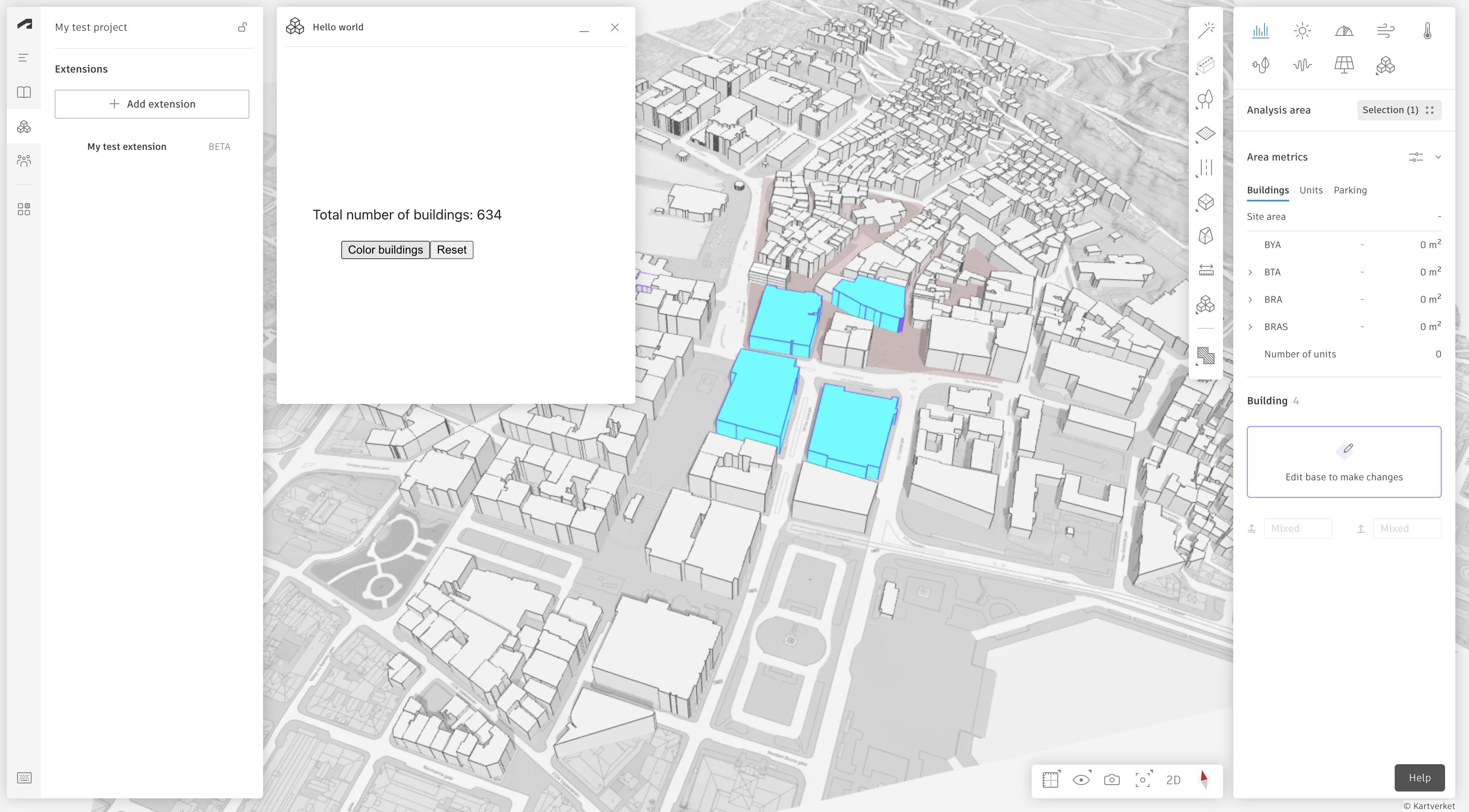
If you now select some buildings in the scene and then click the “Color buildings” button, you should see something like this:
6. Add a custom color
Now that we can select a set of buildings, let’s make it a little more interesting by coloring the buildings with any
color. Use the RgbaColorPicker from the powerful-color-picker package to add a color picker to the extension.
...
import {RgbaColor, RgbaColorPicker} from "powerful-color-picker";

function App() {
...
    return (
        <>
            ...
            <RgbaColorPicker color={selectedColor} onChange={setSelectedColor}/>
            ...
        </>
    )
...
}
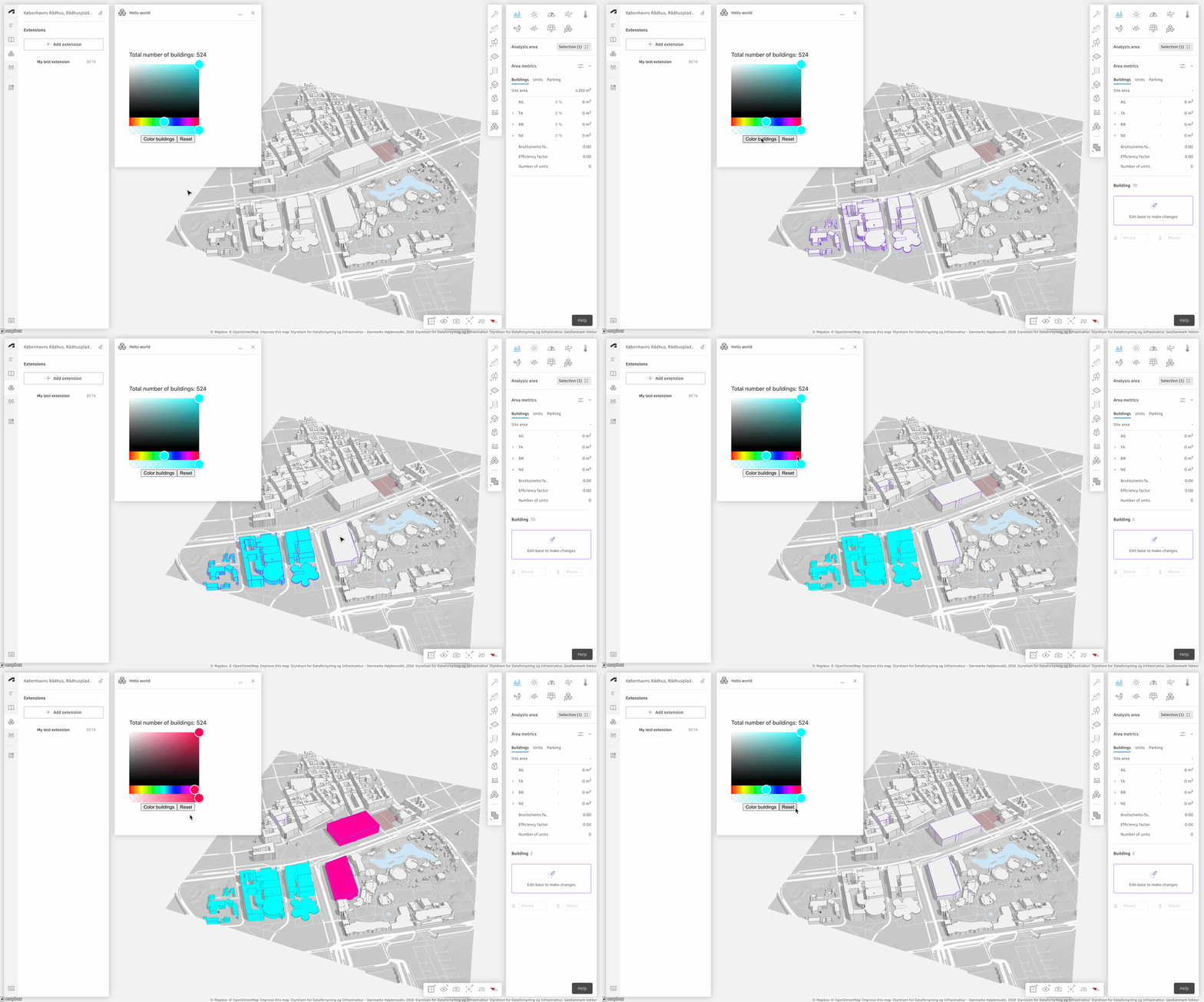
You can now select different buildings and color them with different colors.
Congrats! You have now written your first Forma extensions. For more in-depth examples that solve real user problems, please have a look here.