
When working with Revit Cloud Workshared (RCW) models in Automation API for Revit, model opening time can have a significant impact on the overall execution time of a workitem.
By default, Revit loads all worksets, including linked models and all associated content. For many automation workflows, that is not necessary. If your application is extracting data, validating models, or running analysis, you may be able to reduce execution time considerably by controlling which worksets are loaded when the model opens.
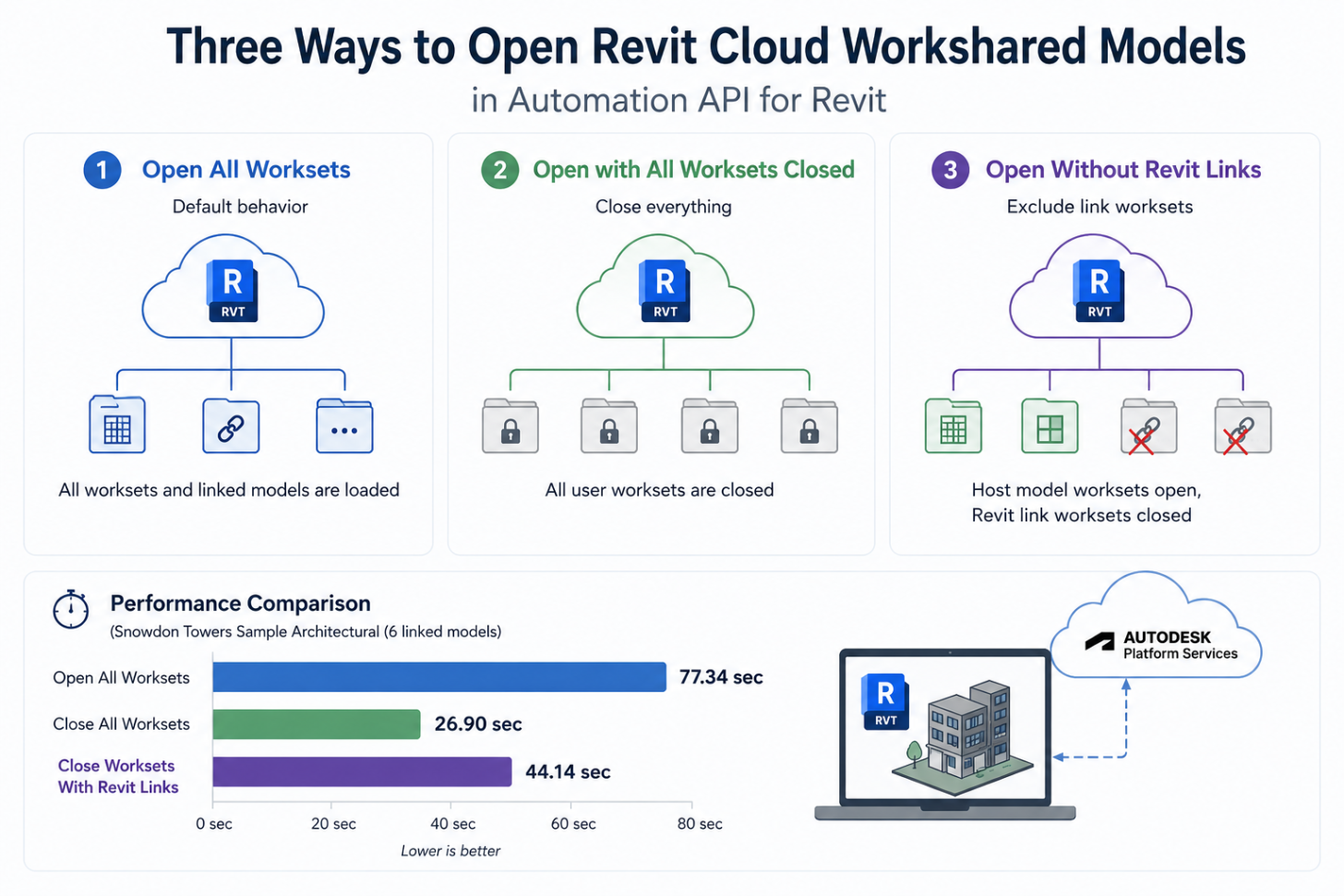
In this post, I'll compare three approaches for opening a cloud workshared model:
-
Open all worksets (default behavior)
-
Open with all worksets closed
-
Open without Revit links by excluding the worksets that contain them
I'll also share performance results from a real cloud workshared model.
Opening a Revit Cloud Workshared Model
The first step is the same for all approaches. Create a cloud model path using the region, project GUID, and model GUID.
var cloudModelPath = ModelPathUtils.ConvertCloudGUIDsToCloudPath(
    modelConfig.Region,
    modelConfig.ProjectGuid,
    modelConfig.ModelGuid);
Once the cloud path is created, we can choose how Revit loads the model.
Option 1: Open All Worksets
This is the default behavior and requires no special configuration.
var doc = revitApp.OpenDocumentFile(
    cloudModelPath,
    new OpenOptions());
Revit opens the model exactly as a user would, loading all Worksets and all linked models.
This approach is appropriate when your automation requires access to the complete project and all linked content.
The downside is performance. Large projects with multiple linked disciplines can take a considerable amount of time to open.
Option 2: Open with All Worksets Closed
If your workflow only needs limited information from the model, opening with all Worksets closed can dramatically reduce loading time.
var openOptions = new OpenOptions();

openOptions.SetOpenWorksetsConfiguration(
    new WorksetConfiguration(
        WorksetConfigurationOption.CloseAllWorksets));

var doc = revitApp.OpenDocumentFile(
    cloudModelPath,
    openOptions);
With this configuration, Revit opens the model without loading any user Worksets.
This approach is useful for workflows that need project metadata, model information, or other lightweight operations that do not require model geometry.
The main limitation is that geometry contained in closed Worksets are not available.
Option 3: Open Without Revit Links
A common scenario is needing access to the host model while avoiding the overhead of loading linked models.
There is no direct "Open Without Links" option for RCW models, but we can achieve a similar result by identifying the Worksets that contain Revit links and keeping those Worksets closed.
The process consists of two steps.
First, open the model with all Worksets closed.
var openOptions = new OpenOptions();

openOptions.SetOpenWorksetsConfiguration(
    new WorksetConfiguration(
        WorksetConfigurationOption.CloseAllWorksets));

var doc = revitApp.OpenDocumentFile(
    cloudModelPath,
    openOptions);
Next, collect all user Worksets and all RevitLinkType elements.
var allUserWorksets = new FilteredWorksetCollector(doc)
    .OfKind(WorksetKind.UserWorkset)
    .ToWorksets()
    .ToList();

var linkTypes = new FilteredElementCollector(doc)
    .OfClass(typeof(RevitLinkType))
    .Cast<RevitLinkType>()
    .ToList();
Each Revit link belongs to a Workset. We can identify those Worksets and exclude them when reopening the model.
var linkWorksetIds = new HashSet<int>();

foreach (var linkType in linkTypes)
{
    int worksetId =
        linkType.get_Parameter(
            BuiltInParameter.ELEM_PARTITION_PARAM)
        ?.AsInteger() ?? -1;

    linkWorksetIds.Add(worksetId);
}
Build a list containing only Worksets that do not host Revit links.
var worksetsWithoutLinks = allUserWorksets
    .Where(ws => !linkWorksetIds.Contains(ws.Id.IntegerValue))
    .Select(ws => ws.Id)
    .ToList();
Finally, reopen the model using those Worksets.
var config = new WorksetConfiguration(
    WorksetConfigurationOption.CloseAllWorksets);

config.Open(worksetsWithoutLinks);

var openOptions = new OpenOptions();
openOptions.SetOpenWorksetsConfiguration(config);

doc.Close(false);

doc = revitApp.OpenDocumentFile(
    cloudModelPath,
    openOptions);
The result is a model where host-model content is available, while linked models remain unloaded.
Performance Comparison
To compare these approaches, I tested them against the Autodesk sample RCW model Snowdon Towers Sample Architectural.
This model contains six linked Revit models:
-
Snowdon Towers Sample Facades
-
Snowdon Towers Sample Structural
-
Snowdon Towers Sample Plumbing
-
Snowdon Towers Sample HVAC
-
Snowdon Towers Sample Site
-
Snowdon Towers Sample Electrical
The following measurements were captured from Automation API workitem logs.
| Opening Strategy | Time |
|---|---|
| Open All Worksets | 77.34 sec |
| Close All Worksets | 26.90 sec |
| Close Worksets With Revit Links | 44.14 sec |
The difference is significant.
Opening the model with all Worksets closed reduced the opening time by approximately 65%.
Opening the model while excluding Revit link worksets reduced the opening time by approximately 43%.
The link-filtering approach requires opening the model twice:
First open completed in 35.05 seconds
Revit link types found: 6
Second open completed in 8.59 seconds
Total time: 44.14 seconds
Even with the additional open operation, the total time remains substantially lower than loading all Worksets and all linked models.
Which Option Should You Use?
The best option depends on the requirements of your automation.
If you need access to the entire project, including linked models, open all Worksets.
If you're only collecting metadata or running lightweight checks, opening with all Worksets closed provides the best performance.
If you need host-model content but do not need linked models, excluding link Worksets provides a good balance between performance and model accessibility.
Conclusion
Opening strategy can have a major impact on Automation API execution time when working with Revit Cloud Workshared models.
In the test model used for this article:
-
Open All Worksets: 77.34 seconds
-
Close All Worksets: 26.90 seconds
-
Close Worksets With Revit Links: 44.14 seconds
For automation workflows that do not require linked models, controlling Workset loading can significantly reduce model opening time and improve overall Workitem performance.