
Introduction
A sheet is ready for approval. It lives in Forma, next to the rest of the project.
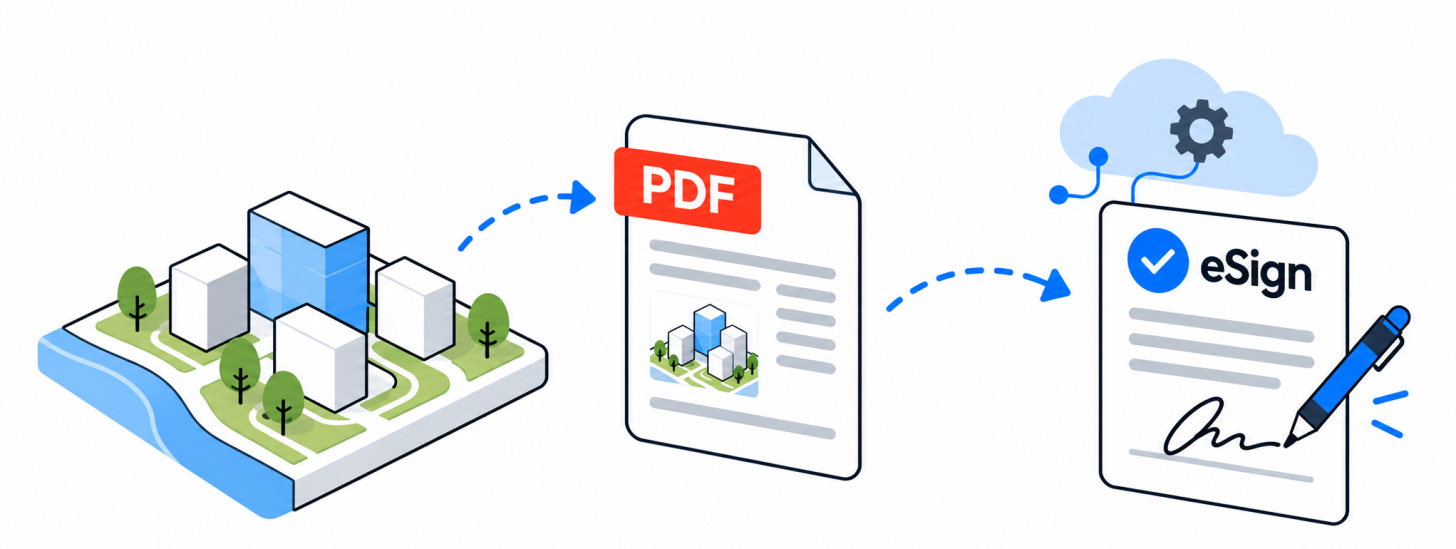
Getting it signed usually goes like this: export the sheet as a PDF, download it, upload it to your e-sign tool, type in the signer's email, wait, download the signed copy, then upload it back to the right Forma folder. Every step is manual, and every step is a chance to sign the wrong version or save the result in the wrong place.
The data is already in the cloud: the sheet, the project users, and the folder the signed copy should go to. The same is valid for e-sign services like Docusign and Adobe Acrobat Sign, which have their own REST APIs.
In this blog post you'll see the aps-forma-pdf-esign sample connecting everything together.
Prerequisites
- An APS app provisioned in your Forma account.
- A developer account for your e-sign service: Acrobat Sign Developer Edition or Docusign developer account.
- .NET 10 SDK.
The signer doesn't need an e-sign account. They sign from the email link.
How it works
The sample lets you:
- Browse your Forma projects and pick a DWG, RVT or PDF file.
- Choose a 2D view and a signer from the project's users.
- Click Send for signature. The signer gets an email from Acrobat Sign or Docusign.
- Follow the status in My submissions.
- When it's signed, download the PDF or save it back to the same Forma folder.
For DWG and RVT files, the PDF of each 2D view comes straight from Model Derivative, as described in Download your Revit 2D views as PDFs, so no export is needed.
You can find both workflows in the videos below.
Docusign
Adobe Acrobat Sign
Conclusion
A signature shouldn't mean a round trip through your downloads folder.
With APS, the sheet, the signer and the destination folder are all a few API calls away, and the e-sign service handles the rest.
This is a sample: it checks the signature status by polling. For production, use webhooks and do the write-back to Forma on the server.
Give it a try, and let us know what you build with it.