
Disclosure: parts of this post were produced with the assistance of AI tools, then reviewed and edited by the author.
Loading more than one model into the APS Viewer and getting them to line up is a common ask — architecture, structure and MEP models coming from different disciplines, or a Revit model paired with an IFC export for coordination. But making them actually sit in the same place turns out to require you to know a lot of things you’d rather not have to think about:
- Do the models share the same origin, or does each one carry its own?
- What’s the
globalOffsetthe Viewer picked for each model, and how do you apply it consistently? - Was the Revit model published using Shared Coordinates, or project-internal ones?
- If it’s an IFC file, which Coordinate Base was it exported from Revit with — Internal, Survey Point, or Project Base Point?
Get any of these wrong and your models don’t just look slightly off — they can be tens of meters apart, in different orientations, at different scales.
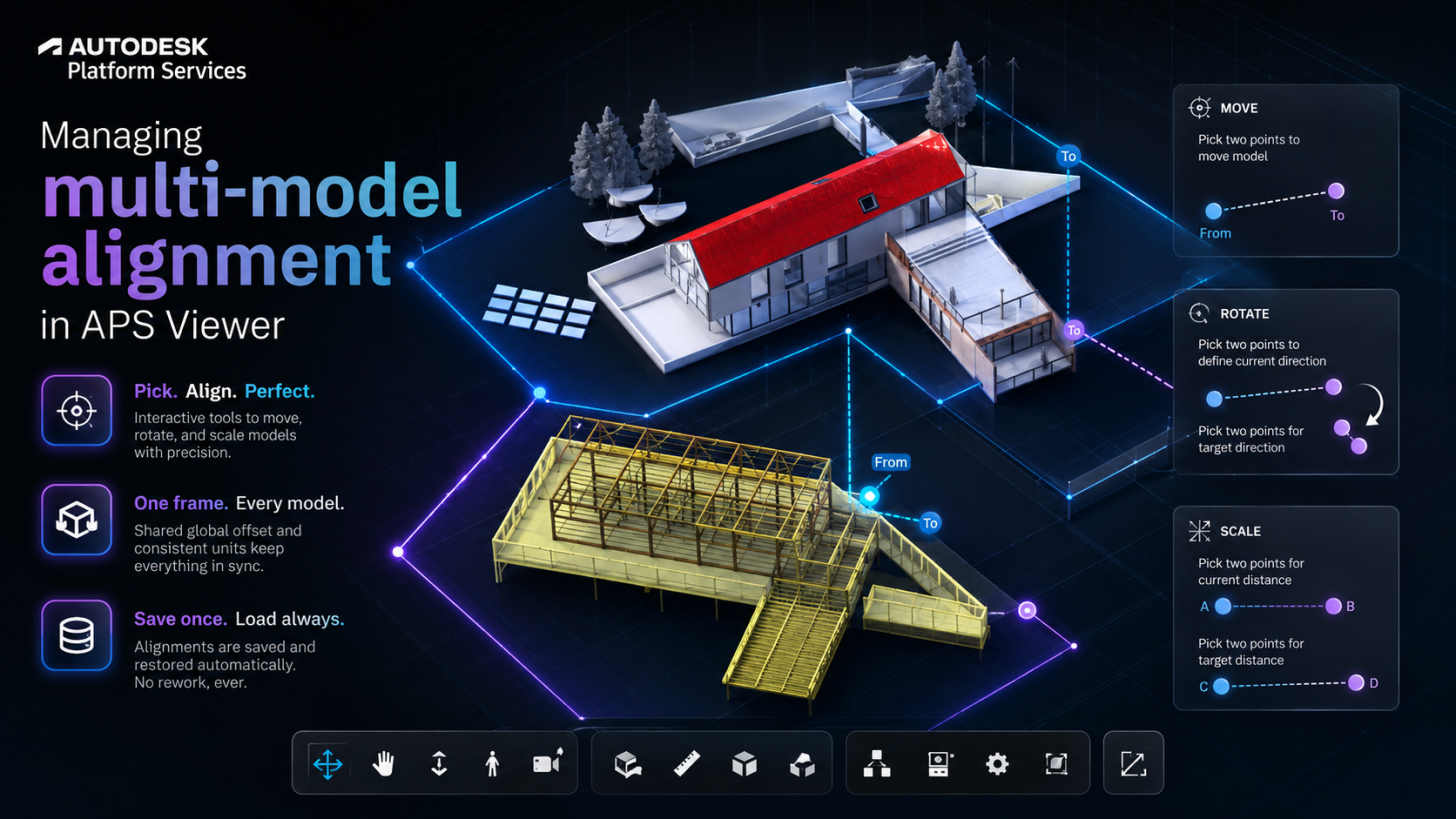
aps-model-alignment is a sample built to make this a non-issue. Instead of reasoning about offsets and coordinate systems ahead of time, you load your models into the Viewer and align them interactively — pick points, rotate, scale — right there in the scene, save the result, and move on.
A note on workflow: this sample is not intended to replace existing coordinate management workflows such as Revit Shared Coordinates or IFC georeferencing. When source models are properly coordinated and the required metadata is available, those approaches remain the preferred solution.
However, in real-world APS integration scenarios, customers may not always have the authority or ability to modify the original RVT or IFC source models. This is especially common when combining models from different teams, organizations, or external partners. In these situations, an interactive alignment workflow can provide an alternative way to inspect, validate, and resolve spatial relationships at the integration or visualization layer without changing the source data.

A note on scope: this sample is primarily a showcase for the ModelAlignmentExtension itself — the interactive picking/aligning experience in the Viewer. The Node.js/Express backend that stores alignment records is a prototype to make the sample runnable end to end; if you adopt this in a real app, you’ll likely want to reimplement that persistence layer in your own preferred backend framework or language.
What the extension does
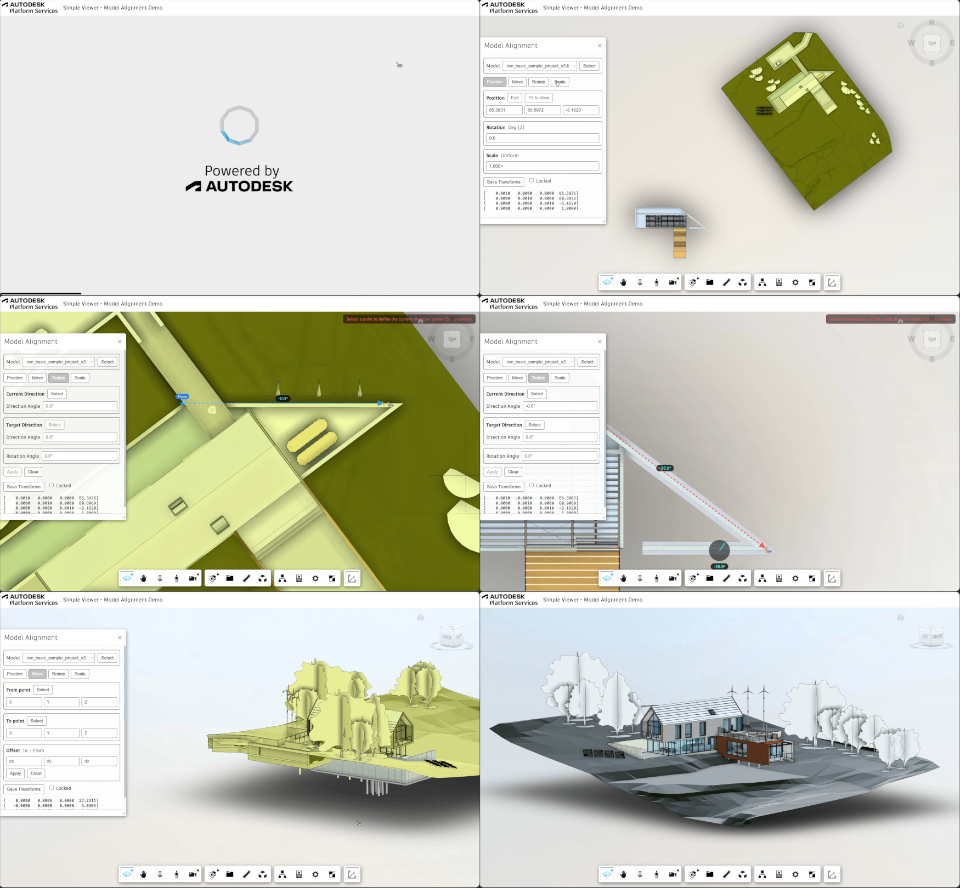
The sample ships a custom Viewer extension, Autodesk.DeveloperAdvocacySupport.ModelAlignmentExtension, that adds a docking panel with three guided, click-to-pick workflows for aligning a selected model against another model already in the scene:
- Move — pick a “from” point on the model and a “to” point elsewhere in the scene, then translate the model by the vector between them.
- Rotate — pick two points that define a current direction on the model (the first point doubles as the pivot), then two more points that define the target direction. The model rotates around that pivot to match.
- Scale — pick two points that define a known distance on the model (
A → B, withAstaying fixed as the pivot), then two more points anywhere in the scene defining the target distance (C → D). A live preview box tracks the target as you move towardD, so you can see where the model lands at the resulting scale factor (|CD| / |AB|) before committing.


Once you’re happy with the result, the alignment is saved and restored automatically the next time the models load — no re-aligning on every page refresh.
Under the hood: keeping models in one coordinate frame
Before offsets even come into play, every model has to agree on scale. The sample’s default pair is genuinely mixed-unit — a foot-authored Revit model and an mm-authored IFC — and loaded as-is, they’d render at wildly different physical sizes even if perfectly positioned. aps-model-alignment forces every model to a common display unit at load time via the Viewer’s applyScaling option:
const VIEWER_UNITS = 'm';
// ...
viewer.loadDocumentNode(doc, viewable, {
applyScaling: VIEWER_UNITS,
...options
});
This has to cover every model, not just some of them — it describes the scene, not any one model, the same reasoning that applies to the globalOffset inheritance below.
With scale settled, there’s still the matter of position. The Viewer picks a globalOffset for every model it loads, to keep floating-point precision under control far from the origin. Left alone, it picks a different offset per model — which means two models loaded independently, even at the exact same real-world position, land in different coordinate frames in the scene.
The fix is simple once you know it needs to happen: load the first model without specifying an offset (let the Viewer choose one), then have every subsequent model inherit that same offset.
const options = loaded === 0
? {}
: { keepCurrentModels: true, globalOffset: viewer.model?.getGlobalOffset()?.clone() };
await loadModel(viewer, urn, options);
A couple of details matter here:
- This has to apply to every model after the first, not only the ones with a saved alignment — otherwise the frame silently depends on which models happen to have one, and saving an alignment on a single model would shift it by the entire offset.
- The offset is inherited, not pinned to
(0, 0, 0). The Viewer folds a model’s placement transform into its ownglobalOffset, so if you later move the base model, every model sharing its offset moves together with it. Pin to zero instead, and the base model would appear frozen in place while everything else silently drifts out of alignment. - It’s
clone()d because the getter returns the Viewer’s live vector — without cloning it, every model sharing the offset would hold the same instance, and mutating it anywhere would shift the frame under all of them at once.
Get this one piece right, and the rest of the alignment problem — Revit shared coordinates, IFC coordinate base, unit mismatches — stops mattering, because every model you load is already in the same frame before a single point gets picked.
Under the hood: a preview box that actually fits the model
The Scale tab’s live preview needs a bounding box to show you where the model lands as you drag toward the target distance. Using the Viewer’s axis-aligned bounding box (AABB) works, but it’s misleading the moment the model isn’t rotated to match the world axes — the box balloons well past the model’s real footprint.
aps-model-alignment instead computes an oriented bounding box (OBB) fitted to the model’s actual geometry, only solving for yaw (rotation around the vertical axis) since architectural models don’t tip over. The core of it is a classic result: the minimum-area rectangle enclosing a 2D point set always has one side collinear with an edge of the point set’s convex hull — so you only need to test hull edge directions, not scan every angle.
// A minimum-area enclosing rectangle always has one side collinear
// with a hull edge, so only hull edge directions need to be tried.
for (let i = 0; i < hull.length; i++) {
const a = hull[i];
const b = hull[(i + 1) % hull.length];
const length = Math.hypot(b[0] - a[0], b[1] - a[1]);
if (length < 1e-12) continue;
const ux = (b[0] - a[0]) / length;
const uy = (b[1] - a[1]) / length;
const extents = extentsAt(ux, uy); // rotate hull into this edge's frame, measure the box
if (!best || extents.area < best.area) {
best = extents;
bestYaw = Math.atan2(uy, ux);
}
}
// A tilt is only taken when it saves enough area to be worth it —
// otherwise stick to the axis-aligned box. See MinAreaGainRatio.
const gainRatio = axisAligned.area > 0 ? 1 - (best.area / axisAligned.area) : 0;
const useRotated = gainRatio >= minGainRatio;
One deliberate guardrail: the tilted box is only used when it saves at least 20% of the axis-aligned area (MinAreaGainRatio). Without that threshold, an L- or T-shaped building’s minimum-area rectangle ends up tilted 30-40° off its own walls to shave a little area off a concave shape — which reads as a broken, skewed preview on an otherwise ordinary, square building. The threshold keeps the box wall-parallel unless the model is genuinely oblique.
The full implementation — the convex hull, the OBB caching per model, and how it’s applied at each preview frame — lives in ModelObb.js and ObbMath.js in the repo if you want to see how it all comes together.[Thumbnial-4]

Saving and restoring alignments
Alignment results don’t just live in memory — a separate extension, ModelAlignmentServiceExtension, persists them through a small backend API (/api/alignments) and fetches them back the next time the models load, so restored models never draw in their unaligned position for even a frame. If you’d rather not stand up a backend, the sample also supports downloading the alignment as a local JSON file. The persistence layer isn’t the focus of this post, but it’s all there in the repo if you want to see how the save/restore/lock flow is wired up.
See it in action
Try it yourself
The full source, including the backend, the extension, and all three picking workflows, is on GitHub:
https://github.com/yiskang/aps-model-alignment
Enjoy it!