
Disclosure: parts of this post were produced with the assistance of AI tools, then reviewed and edited by the author.
We are pleased to announce that the Autodesk Forma Naming Standards API is now generally available (GA)!
The API has been in public beta for a long time, and we want to thank everyone who tried it out and sent feedback. With GA, the beta label is gone and the endpoint is ready for production use.
What is the Naming Standards API?
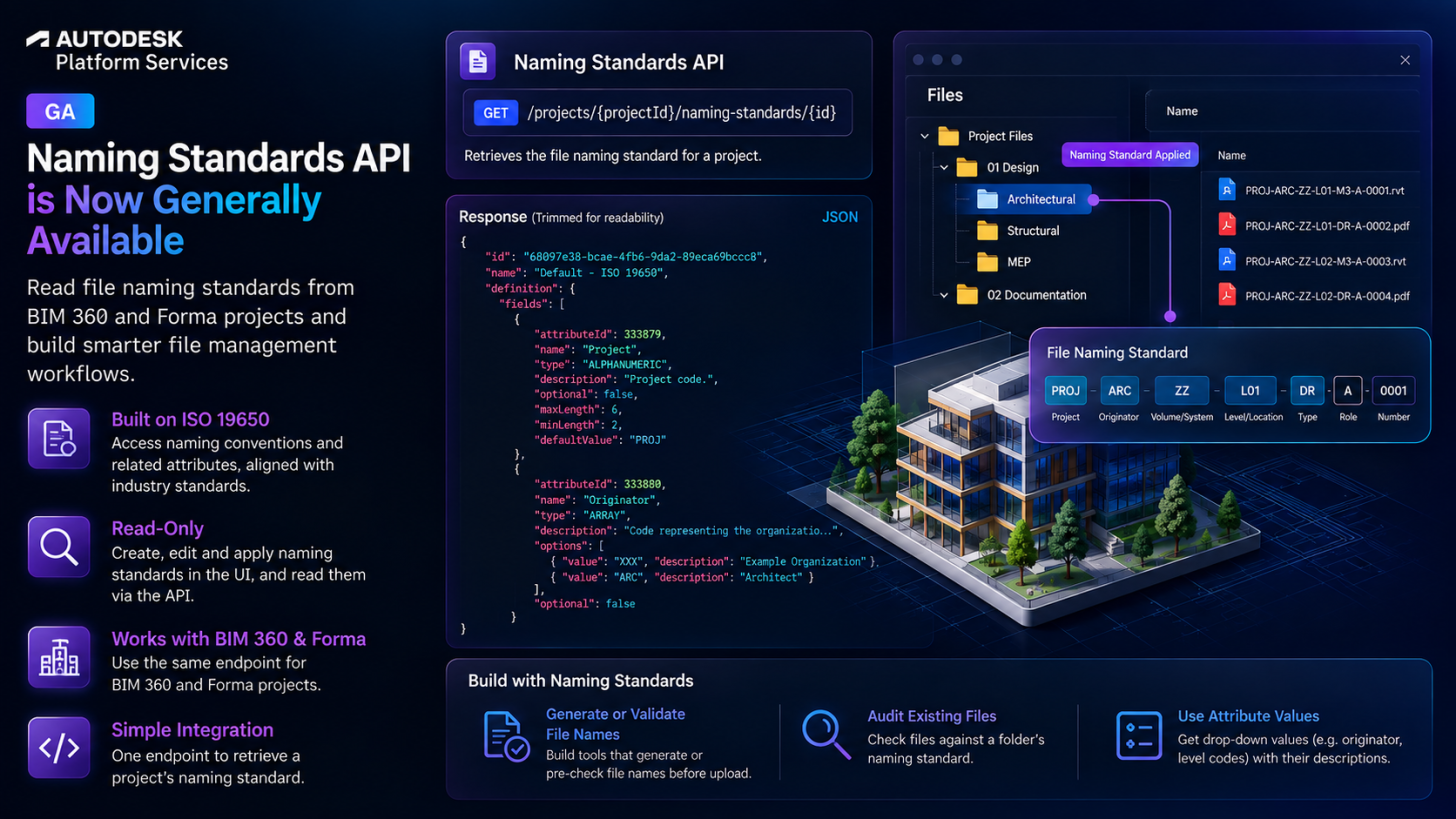
A file naming standard is a consistent set of rules for naming files, so team members can find and identify files without opening them. It is built on the ISO 19650 series of standards and consists of two kinds of attributes:
- Naming convention attributes: their values form the file name, and are always required. The ISO 19650 template, for example, uses Project, Originator, Volume/System, Level/Location, Type, Role and Number.
- Related attributes: details such as status, revision and classification, which don’t appear in the file name.
You create naming standards in the Files tool (Settings > Compliance > Naming Standards) and apply them to folders, so files added to those folders must comply. Different folders can use different naming standards. See the product help for details: File Naming Standards, Create Naming Standards and Apply Naming Standards to Folders.
The API lets your application read a naming standard, so you can build things like:
- A tool that generates or pre-checks file names before upload.
- A checker that audits existing files against a folder’s naming standard.
- A form that shows drop-down values (for example originator or level codes) with their descriptions.
Endpoint
- GET projects/:projectId/naming-standards/:id: Retrieves the file naming standard for a project.
A few things worth knowing:
- Read-only. You create, edit and apply naming standards in the UI, not through the API.
- A project can have up to 50 naming standards, and each folder has at most one applied. The endpoint returns one naming standard by ID.
- Works with both BIM 360 and Forma projects.
- Required scope:
data:read. Both two-legged and three-legged tokens (including SSA) are accepted. - The
fieldsarray comes back in the same order as the fields you set in the UI.
How to use it
1. Find the naming standard ID. The ID is stored on the folder the naming standard is applied to. Read it from data.attributes.extension.data.namingStandardIds in the response of one of these Data Management endpoints:
- Project files folder: GET hubs/:hub_id/projects/:project_id/topFolders
- Subfolders: GET projects/:project_id/folders/:folder_id/contents
- A specific folder: GET projects/:project_id/folders/:folder_id
2. Get the standard.
curl --request GET \
  --url 'https://developer.api.autodesk.com/bim360/docs/v1/projects/{projectId}/naming-standards/{id}' \
  --header 'Authorization: Bearer {access_token}'
The response describes the delimiter, each field of the file name, and the related attributes that don’t appear in the name (trimmed for readability):
{
  "id": "68097e38-bcae-4fb6-9da2-89eca69bccc8",
  "name": "Default - ISO 19650",
  "definition": {
    "fields": [
      {
        "attributeId": 333879,
        "name": "Project",
        "type": "ALPHANUMERIC",
        "description": "Project code.",
        "optional": false,
        "maxLength": 6,
        "minLength": 2,
        "defaultValue": "PROJ"
      },
      {
        "attributeId": 333880,
        "name": "Originator",
        "type": "ARRAY",
        "description": "Code representing the organization creating the file.",
        "options": [
          { "value": "XXX", "description": "Example Organization" },
          { "value": "ARC", "description": "Architect" }
        ],
        "optional": false
      }
    ]
  }
}
Field type can be ALPHANUMERIC, NONNUMERIC_TEXT, NUMERIC or ARRAY (a drop-down list). Related attributes can also be CLASSIFICATION.
Documentation
- Reference Guide: GET naming-standards/:id.
- Product help: File Naming Standards, Create Naming Standards, Apply Naming Standards to Folders
If you have any questions or feedback, please contact us through our APS support channel.