V2 Changelog
Version 2.17
Release Date: 2017-08-22
Changed
Default Memory Management
We introducted the memory management options feature in Viewer v2.15 where we allowed users to specify a memory budget for the Viewer to work with in order to address the problem with browser crashing when it doesn’t have enough memory access to allocate for BIM 360 construction models containing too much geometry data.
This release includes a default memory limit.
How it works?
By default, the memory limit for the Viewer is set to:
| Desktop | 600 MB |
| Mobile | 195 MB |
Developers can override these values:
|
In addition, we are exposing a URL parameter that overrides all other memory limit settings:
Use the viewer.getMemoryInfo() method to check whether the Viewer makes use of the memory limit.
If it returns null, the specified memory limit is enough to contain all the geometry data in the memory. Otherwise, it will return an object with additional memory data, such as:
|
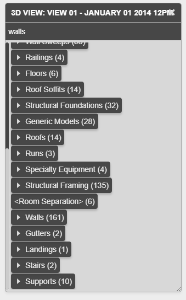
Model Browser UI
The look and feel of the Model Browser remains the same. However, changes have been made under the hood.
|
Reduced Memory Consumption
This change aims at reducing memory consumption on very large models.
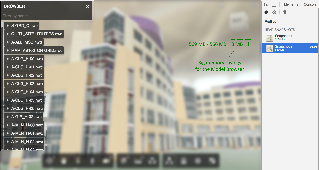
Here’s an example of a model that has 1,582,736 nodes available on the Model Browser.
| Before | Now | |
| Memory Consumption | 212 MB | 3 MB |
| Image | 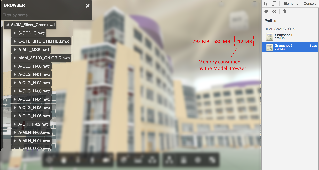
|
|
UX Changes
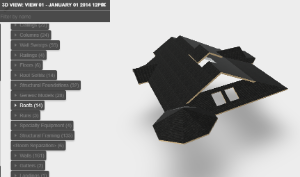
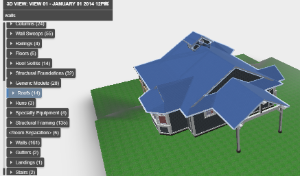
Clicking on nodes in the Model Browser now produces different results.
| Before | Now |
|
|
| 
|
You can still get Isolation by right clicking anywhere on
the canvas to open the Context Menu, then select Isolate. |
Some other changes include:
- Removed the root node of the Model Browser.
- To access properties of the root node, open the Property Panel without any selection.
- Opening the Context Menu retains everything you select. Clicking outside the Context Menu closes the menu but retains everything you select.
Fixed
- Fixed issue where Fusion 360 background color would not propagate correctly to the Viewer.
- Fixed issue where the Properties Panel would not update its content after changing model selection.
- Fixed issue where measurement precision was incorrectly rounding up.
- Reduce excessive analytics requests during model initialization.
Version 2.16
Release Date: 2017-07-26
Changed
Decoupled MarkupsCore Extension from the Main Bundle
In our previous release notes for Viewer v2.15, we introduced a change to decouple some of the extension code from the main build artifact (viewer3D.min.js) into their own ones.
With Viewer v2.16, the MarkupsCore extension is supported with independent build artifact.
Note, code using the MarkupsCore extension will have to be updated to accommodate this change.
| Before |
|
| Now |
|
Added
New First Person Walk Experience
This release includes a new version of the First Person Walking tool called the New First Person Walking tool.
The New First Person Walking tool has additional features such as, floor detection, navigation between floors, teleportation (use double-click) and a new UI to display changes in speed.
How to use it
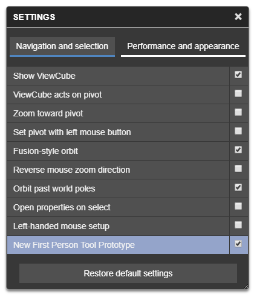
The New First Person Walking tool can be enabled by end users through the Navigation Settings checkbox:
|
The checkbox settings will persist across sessions.
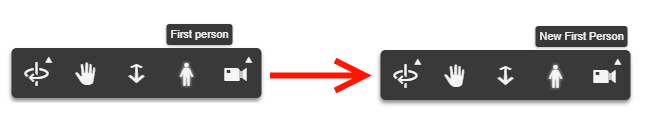
From there, the same Toolbar icon will now enable the New First Person Walking tool. The tooltip will be different:
|
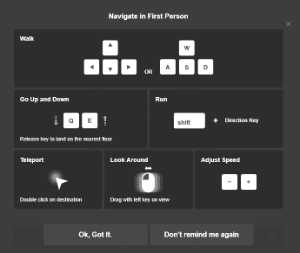
On first usage, end users will be prompted with a navigation guide to them get started:
|
You can access the guide any time by pressing the top right info button while the New First Person Walk tool is active:

|
Markup Editing API
In an effort to continue supporting BIM Docs, the Markup extension API has been extended to support editing of loaded markups.
How it works
The MarkupsCore extension exposes the enterEditMode() method, which has been enhanced to allow editing a layer that contains loaded markups.
Show More |
With this change, an end user will be able to modify markups!
Developers can get the modified markups data by doing the following:
|
You can revert all the changes done to the loaded set of markups using the markupsExt.revertLayer("layerA"); method
|
ViewCube Triad
A new method has been added to the the ViewCube, to display labeled axis lines. This code is available at the GuiViewer3D level:
|
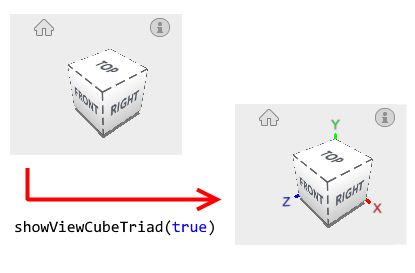
|
ViewCube Reflects Camera Projection
The ViewCube will get rendered using the same camera projection as the Viewer
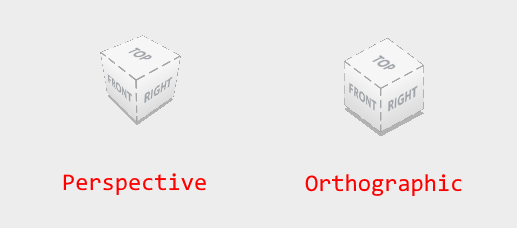
|
Pivot Customization
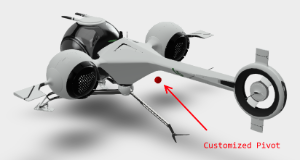
Whenever a user orbits (rotates) the camera, it is centered at a point called the “pivot point”. This pivot point is displayed as a green dot (small sphere) while the rotation is taking place. With Viewer v2.16, new functions have been added to customize the pivot point.
| Customization | Code | Notes |
| Size | viewer.utilities.setPivotSize(2) | A size of 1 maps to the default size. |
| Color | viewer.utilities.setPivotColor(0xFF0000, 1) | Separate arguments for RGB-color and opacity |
Below is an image comparing the default pivot with a customized pivot using the functions mentioned above.
| Before | Now |
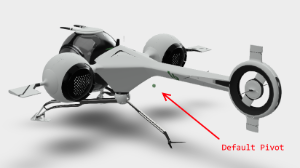
| 
|
Added Support for Run-time Loaded Locale Files
A new function is being exposed, to allow 3rd party extensions to add additional localization strings for the Viewer to use.
You can make use of this function extendLocalization() in your extension code.
| Usage |
Show More |
Fixed
- Fixed some issues with z-fighting
- Fixed missing info button.
- Fixed navigation issue where a pan command would result in very big jumps.
- Fixed issue with sectioning where the 3D UI would incorrectly change size.
- Fixed issue where some transparent objects disappear on zoom.
- Fixed issue where some transparent objects would display as opaque right after loading the model.
- Fixed issue in iOS where rotating the phone while in Fullscreen mode would result in an inconsistent state.
- Fixed issue where turning ambient shadows on would result in some faraway geometry to disappear.
- Fixed some rendering issues related to ambient occlusion.
Version 2.15
Release Date: 2017-06-08
Changed
Extension Decoupling
Up until now all extensions were bundled with the main build artifact: viewer3D.min.js. We have begun to decouple extension code from the main build artifcact, starting with the InViewerSearch.min.js extension. We will decouple more extensions for future releases.
Note that as a result of this change, the viewer.loadExtension() function now returns a promise instead of a boolean value.
| Before |
|
| Now |
|
Note that we have not changed the viewer.getExtension() and viewer.unloadExtension() methods.
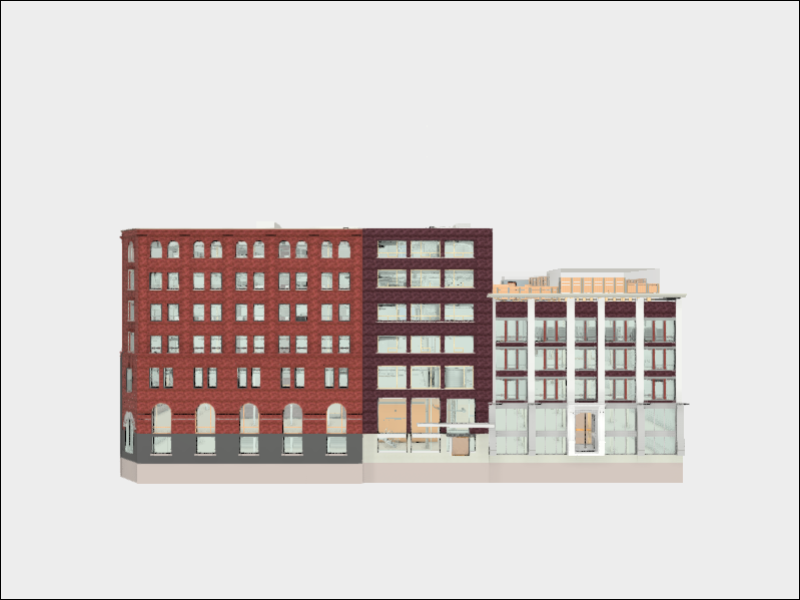
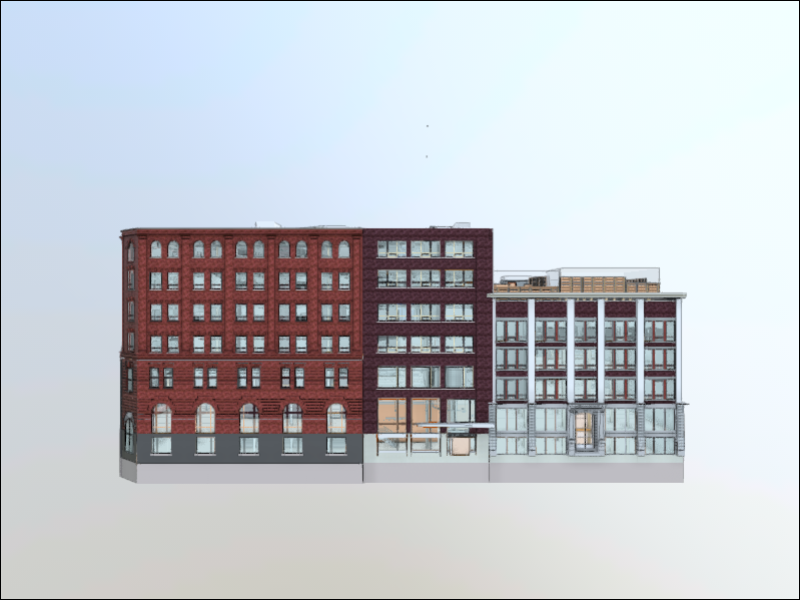
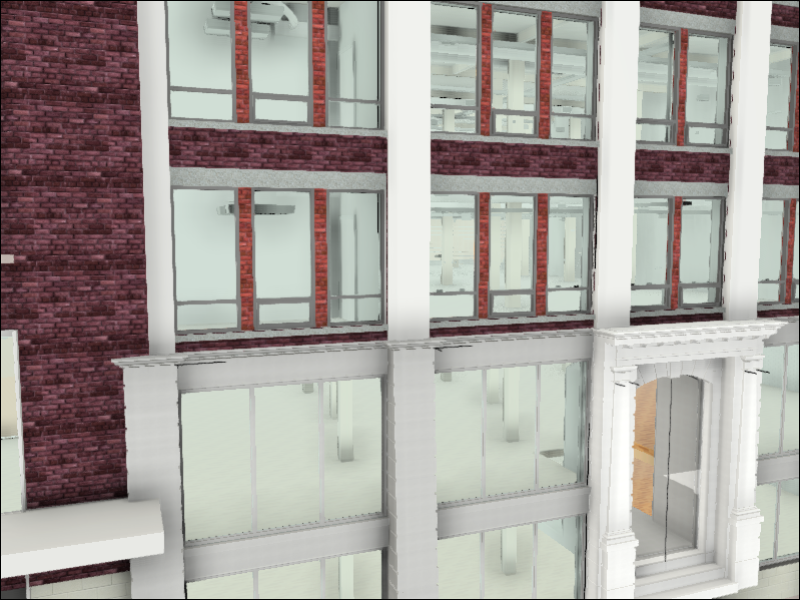
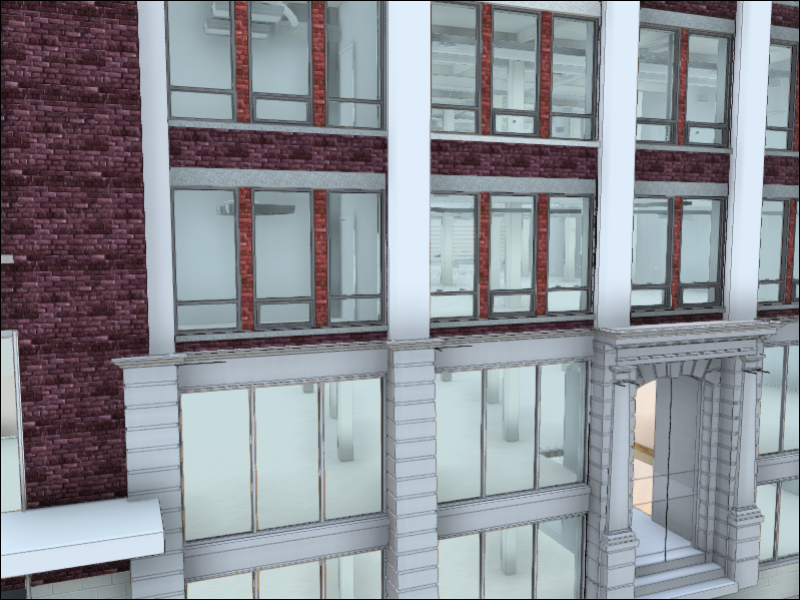
New Default Lighting for AEC Models
BIM 360 models now have a new default lighting.
| Before | Now / New! |
| 
|
| 
|
Added
Memory Management Options
You can set your browser to allocate enough memory for displaying all the 3D geometry for a 3D design. s online so that all the 3D geometry.
Note that this feature is disabled by default.
Here’s how to enable the feature:
| Usage |
|
Another way of enabling the feature on a per-design basis, is to append a viewermemory=<value> string parameter to the browser’s URL.
Note that the query string parameter will override memory limitations you define in the code.
You can check if the feature is active or not, using the new viewer.getMemoryInfo() method, that is available in the Viewer instance.
|
This method will return null when the feature is not enabled.
ViewingApplication Enhancements
The ViewingApplication class is a utility class that we recommend using when initializing the Viewer from a manifest (converted file).
This version includes 3 enhancements:
- setDocument() - new method
You can now pass a plain JavaScript object to the ViewingApplication: setDocument() method to initialize the Viewer, rather than using a URN.
| Usage |
Show More |
- selectItem() - enhancement
selectItem() now supports BubbleNode objects.
| Usage |
|
- getNamedViews() - new method
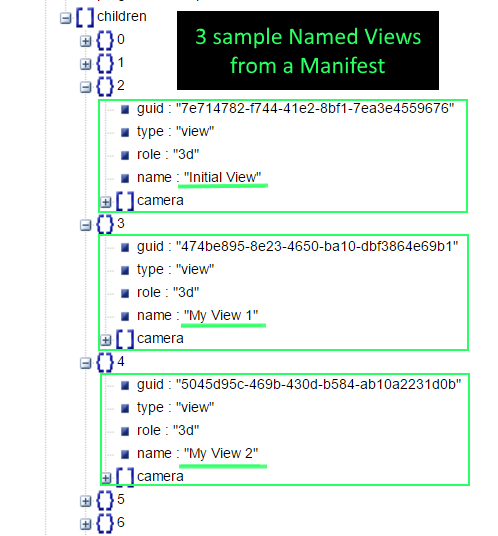
This helper method can be used to get all the named views from a 3D viewable. Named views are obtained from the document’s manifest which contains camera information and a string identifier.
| Usage |
|
Here’s how named views shows up in the manifest:
|
Edge Rendering
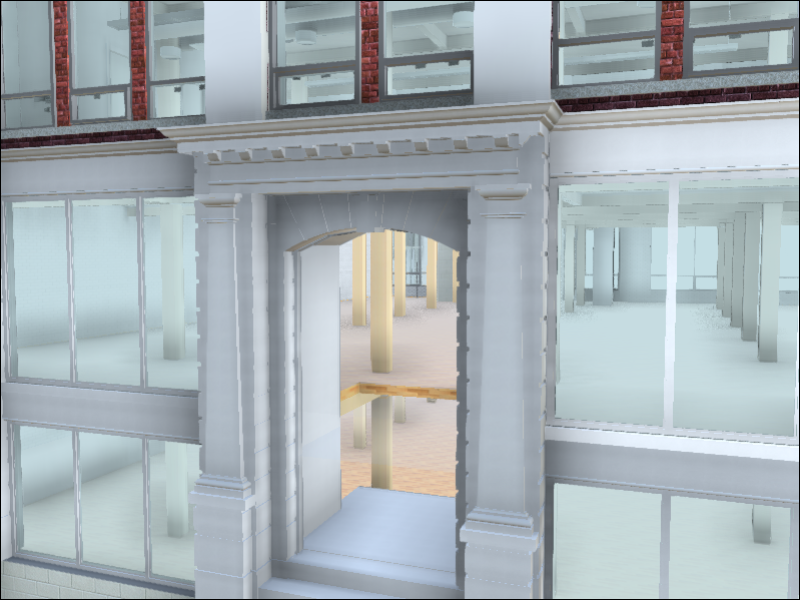
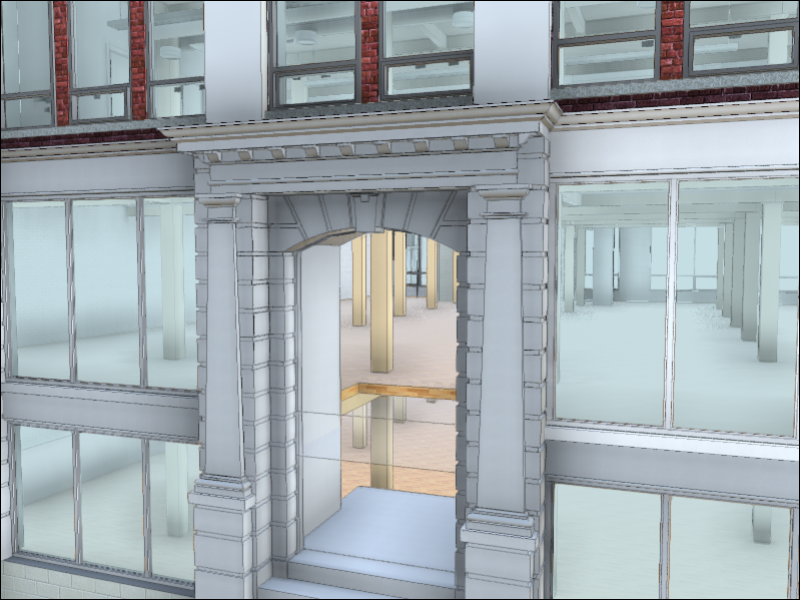
The viewer.setDisplayEdges(true) method renders all the edge-related parts of the model, such as borders and frames.
| 
|
Fixed
- Fixed decal rendering issues.
- Fixed issue affecting rendering of arcs and circles in 2D models.
- Fixed full screen issues that were occuring in several browsers.
- Fixed issue where end users would sometimes be unable to select transparent objects.
- The Measure, calibration dialog now closes when you press the ESC key.
- Fixed issue where environment background would flip orientation when reflections were turned on.
- Fixed issue where a rectangle markup would render in the wrong place when created from a snapped location.
- Fixed issue where
viewer.search()would not work on 2D Models with properties. - Updated WebVR polyfill to comply with latest Chrome version.
- Fixed iOS issue where a pinch gesture would result in a full page zoom.
- Fixed issue where the CSS rule .header would affect the functionality of the Properties panel.
Version 2.14
Release Date: 2017-05-28
Changed
Improved Time To First Pixel for Fusion Models
Fusion models typically contain topology data that is used for precise measuring and snapping.
A new method (viewer.model.fetchTopology()) has been added to the model object, which delays downloading topology data until after the measure tool opens. This enables end users to perform non-topology related measurements while they are waiting for the topology data to download, and speeds up the process of downloading the model to the Viewer.
It is invoked by the measure extension.
// returns a promise that resolves when the topology data is available in memory
viewer.model.fetchTopology();
Note that you can use the viewer.model.hasTopology() method to verify whether the topology data is available in the Viewer.
Added
Model Derivative API Support
Developers can now set up the Viewer to communicate directly with the Model Derivative API.
Example:
var initOptions = Autodesk.Viewing.createInitializerOptions();
initOptions.api = 'modelDerivativeV2';
Autodesk.Viewing.Initialize( initOptions.api, onSuccess );
The following code snippet is an example of setting a secure proxy.
var initOptions = Autodesk.Viewing.createInitializerOptions();
initOptions.api = 'modelDerivativeV2';
initOptions.endpoint = window.location.origin + '/lmv-proxy';
Autodesk.Viewing.Initialize( initOptions.api, onSuccess );
Why should you use it?
Since the Model Derivative API supports loading models referenced by the Data Management API, developers do not need to add the following request headers when the Viewer retrieves referenced model data.
// no longer needed for accessing models referenced by the Data Management API.
Autodesk.Viewing.HTTP_REQUEST_HEADERS['x-ads-acm-namespace'] = 'WIPDM';
Autodesk.Viewing.HTTP_REQUEST_HEADERS['x-ads-acm-check-groups'] = 'true';
Fixed
- Fixed issue where
config.wantInfoButtonhad no effect. - Fixed issue where the measure snapper and the markup snapper (green big dot) would snap to the Viewer’s edges.
- Fixed issue with consolidated geometry where point and line primitive types didn’t render correctly.
- Fixed null pointer reference issue when unloading a model.
- Fixed issue where a section plane would remain visible when isolation was active.
- Fixed issue in the measure panel where the measurement’s precision would sometimes not match the one specified.
- Fixed first person drag mode dialog message.
- Fixed issue with setting “Reverse mouse zoom direction”.
- Fixed issue where undoing an arrow markup would invert its direction.
- Fixed issue where loading the
Autodesk.Viewing.ZoomWindowextension would result in having 2 Zoom buttons in the toolbar UI. - Fixed issue where reflections would render partially when “Progressive model display” settings option was active.
- Fixed issue with the
Autodesk.Viewing.ZoomWindowextension where it would incorrectly zoom when there was no geometry at the rectangle’s center point. - Fixed issue with the measure panel where the cursor changed to a text icon when hovering over UI elements.
- Fixed issue in IE11 where the exact position on the animation timeline was not selectable.
Version 2.13
Release Date: 2017-02-07
Changed
WebVR Extension
The VR extension is now narrowing down its support for mobile cardboard usage. As such, we will no longer fully support Vive and Oculus headsets. However, given that the extension uses the browser’s webVR API, those devices may still benefit from the extension’s functionality.
The VR extension was renamed from Autodesk.Viewing.webVR to Autodesk.Viewing.WebVR.
The extension will now automatically download the WebVR polyfill when needed. The downloaded polyfill is hosted along with the Viewer.
Added
Supported Configuration Values
To help developers customize the Viewer new static methods have been added that show which configuration options are available.
The following shows the default values for those configurations:
| Method |
|
| Usage Example |
Show More |
Object initOptions |
|
| Method |
|
| Usage Example |
Show More |
Object config |
Show More |
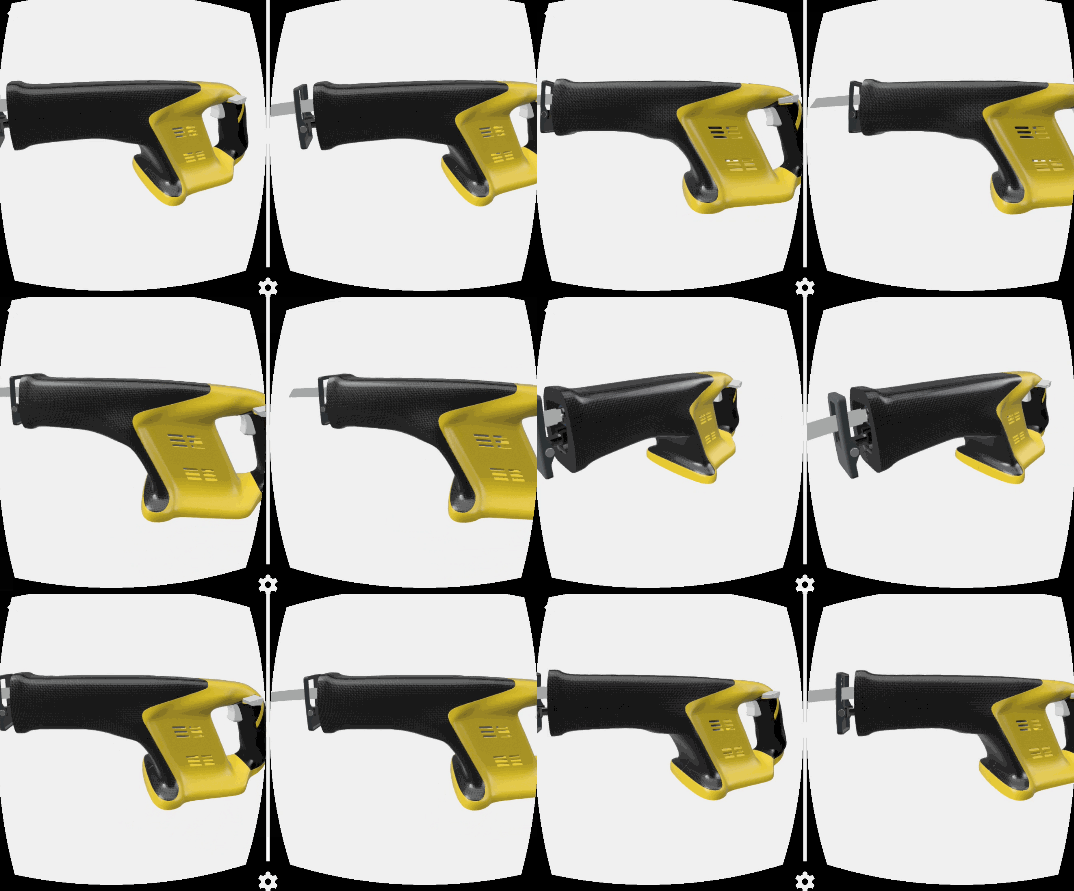
WebVR Extension Experimental Feature Orbit
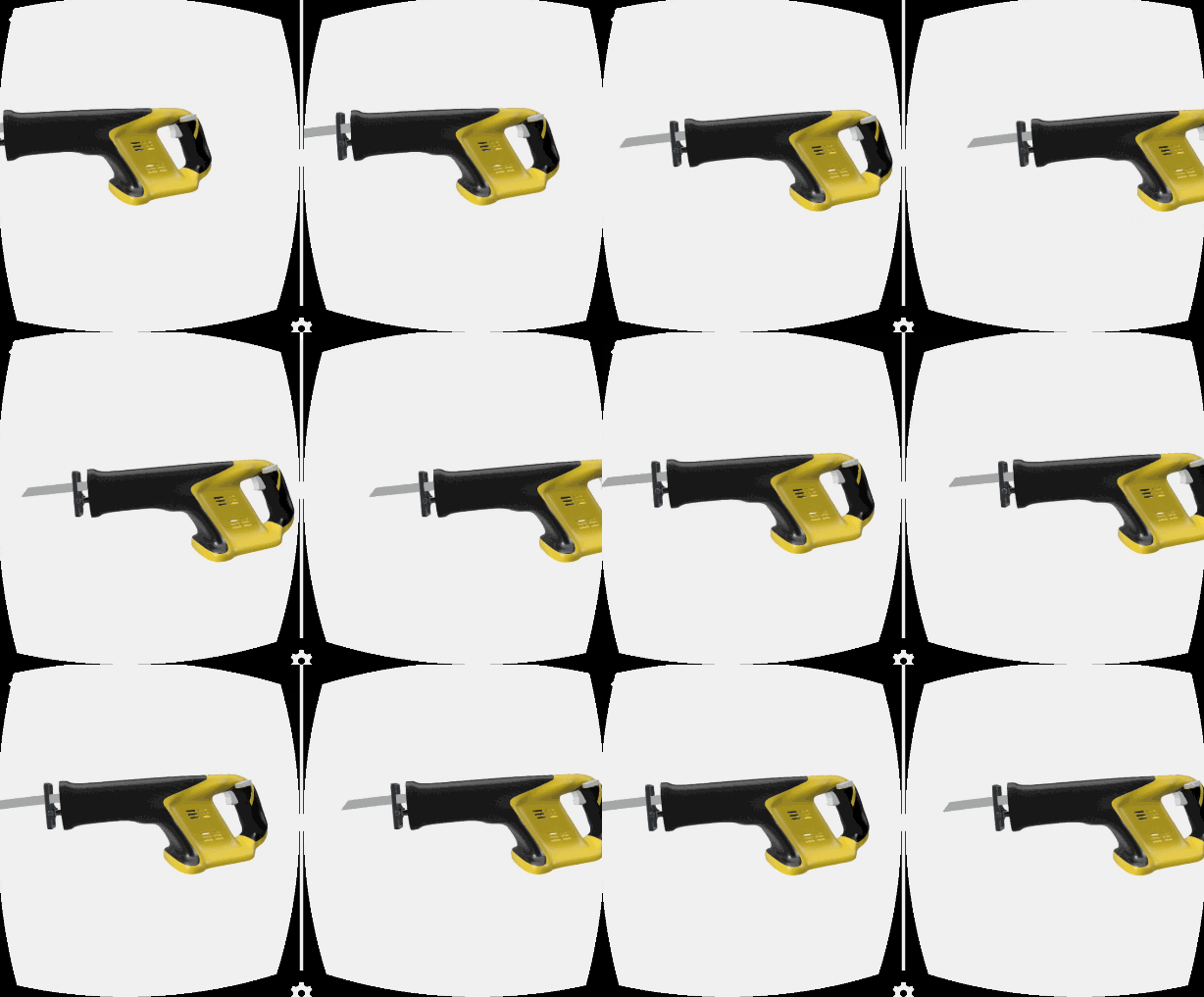
The experimental flag enables the VR extension to change behavior so that moving the cardboard goggles will result in the VR camera orbiting around the model.
How to use |
|
|
|
| Default VR experience | With webVR_orbitModel flag enabled |
| 
|
Usability Warning
This experimental feature may result in a negative experience for end users, given that the real world head motion will not match the virtual one.
Support
We may drop support for the experimental flag in upcoming versions, in favor of a non-experimental mechanism to enable it.
Measure Calibration
The Calibration feature allows you to specify the exact distance between two points. Subsequent measurements get adjusted based on the specified calibration.
| Calibration Button |
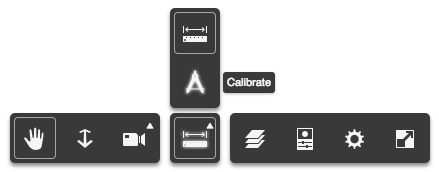
You can find it in the panel that opens when selecting the Measure button. |
| Usage |
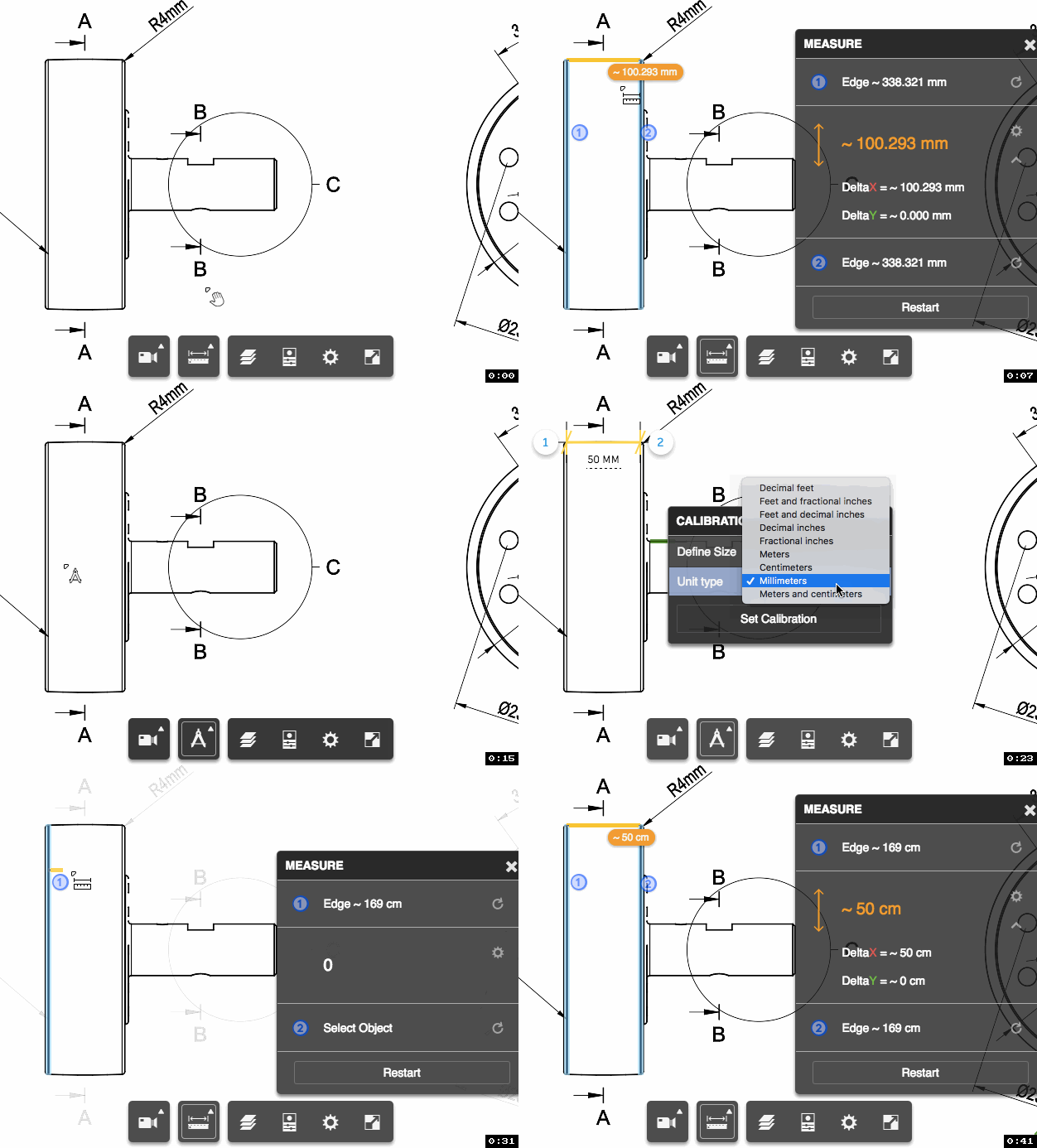
In this example a user measures a distance between two points that measures 100mm. However, the user knows that the actual distance is 50cm. The user can use the calibration tool to specify the correct value. |
Support
This feature is available for 2D and 3D models.
Limitations
Calibration is only available with the Measure tool.
Multi-Model Fast Show/Hide
New methods have been added to fully hide/show a model in the scene. This is specially useful in multi-model scenarios.
// Hide model using id
viewer.hideModel( model.id );

// Show model using id
viewer.showModel( model.id );
This feature removes the need to invoke viewer.hide() to every node in the model.
Others
PROGRESS_UPDATE_EVENThas a new attribute, state, with a value fromAutodesk.Viewing.ProgressStateSHOW_EVENTandHIDE_EVENThave a new attribute, model, useful for multi-model scenarios.
Fixed
General
- Fixed crash on Microsoft Edge browser.
- Fixed issue where viewing a 3D model from the bottom when ground reflections is active resulted in ghosted objects not rendering.
- Fixed issue where reflections would disappear when the 3D model was viewed from certain angles.
- Fixed issue in the circular orbit UI where the camera roll operation was incorrect.
- Fixed issue where fit-to-view operations would get delayed soon after changing between orthographic and perspective cameras.
- Fixed issues with fit-to-view in 2D models.
- Fixed issue where materials would not get loaded/rendered when loading a model hosted in AWS S3 (or similar static hosting).
Mobile
- Fixed issue where
viewer.model.isLoadDone()would never return true, even after the model was fully loaded. - Fixed issue where transparent objects would render incorrect dark reflections.
- Fixed issue where the ViewCube would get rendered while the model was being loaded.
Version 2.12
Release Date: 2017-08-10
Changed
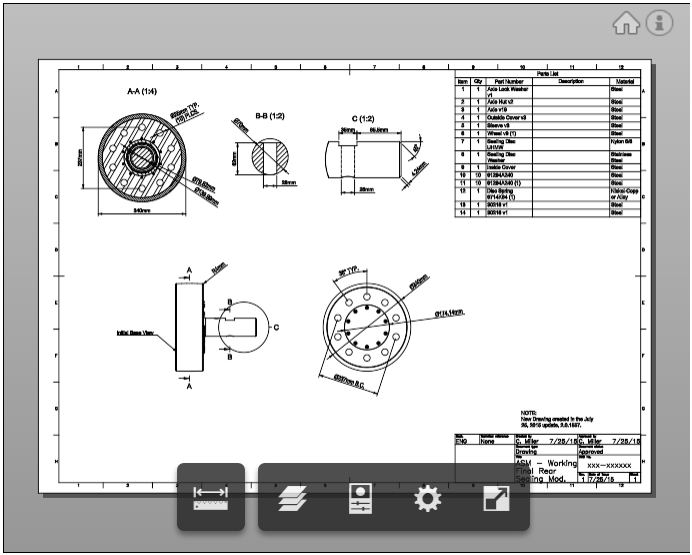
The Fit-To-View action has been changed to make 2D models cover more canvas surface area.
| Before | Now |
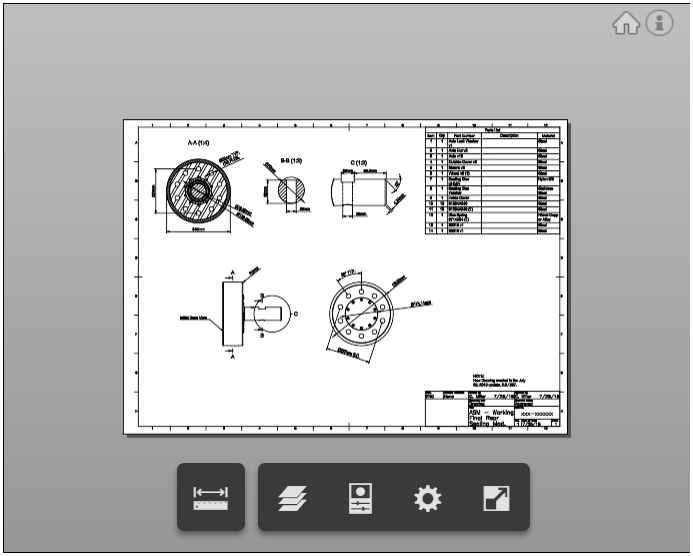
| 
|
Added
WebVR Extension
With the webVR extension, users will be able to visualize 3D models in a virtual reality scene from their desktop and mobile browsers.
To use, developers will have to load the extension Autodesk.Viewing.webVR.
Example:
var initializerOptions = {
    env: 'AutodeskProduction',
    extensions: [ 'Autodesk.Viewing.webVR' ]
}
Autodesk.Viewing.Initializer( initializerOptions, function() {
    // ...
});
HTML running in browsers that have not yet conformed to the webVR spec will have to include a polyfill.
For mobile VR usage, the minimum recommended devices are:
- iPhone 5s
- Samsung Galaxy S6
| Click the VR button on the toolbar… |
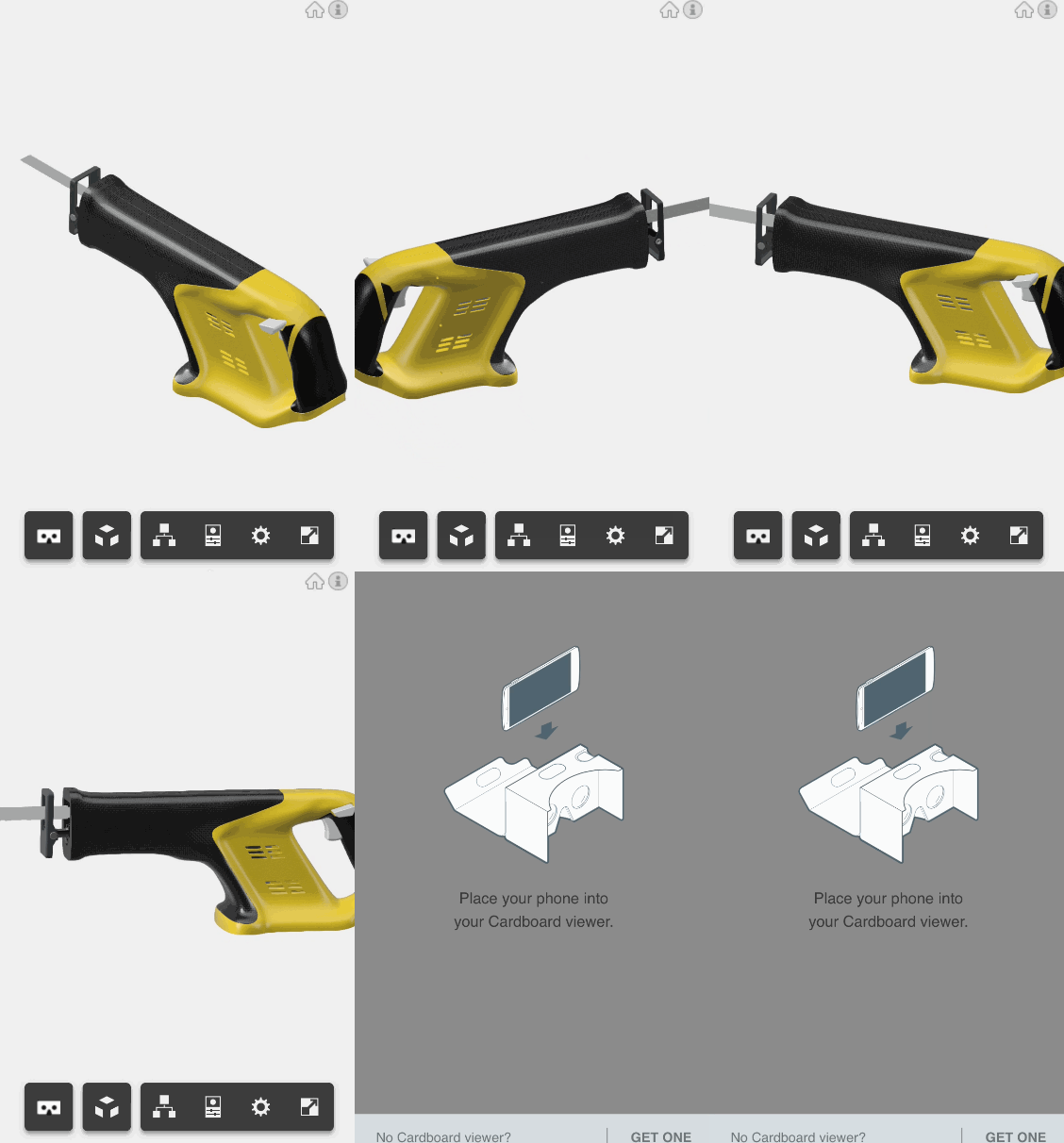
|
| …then change phone orientation to landscape. |
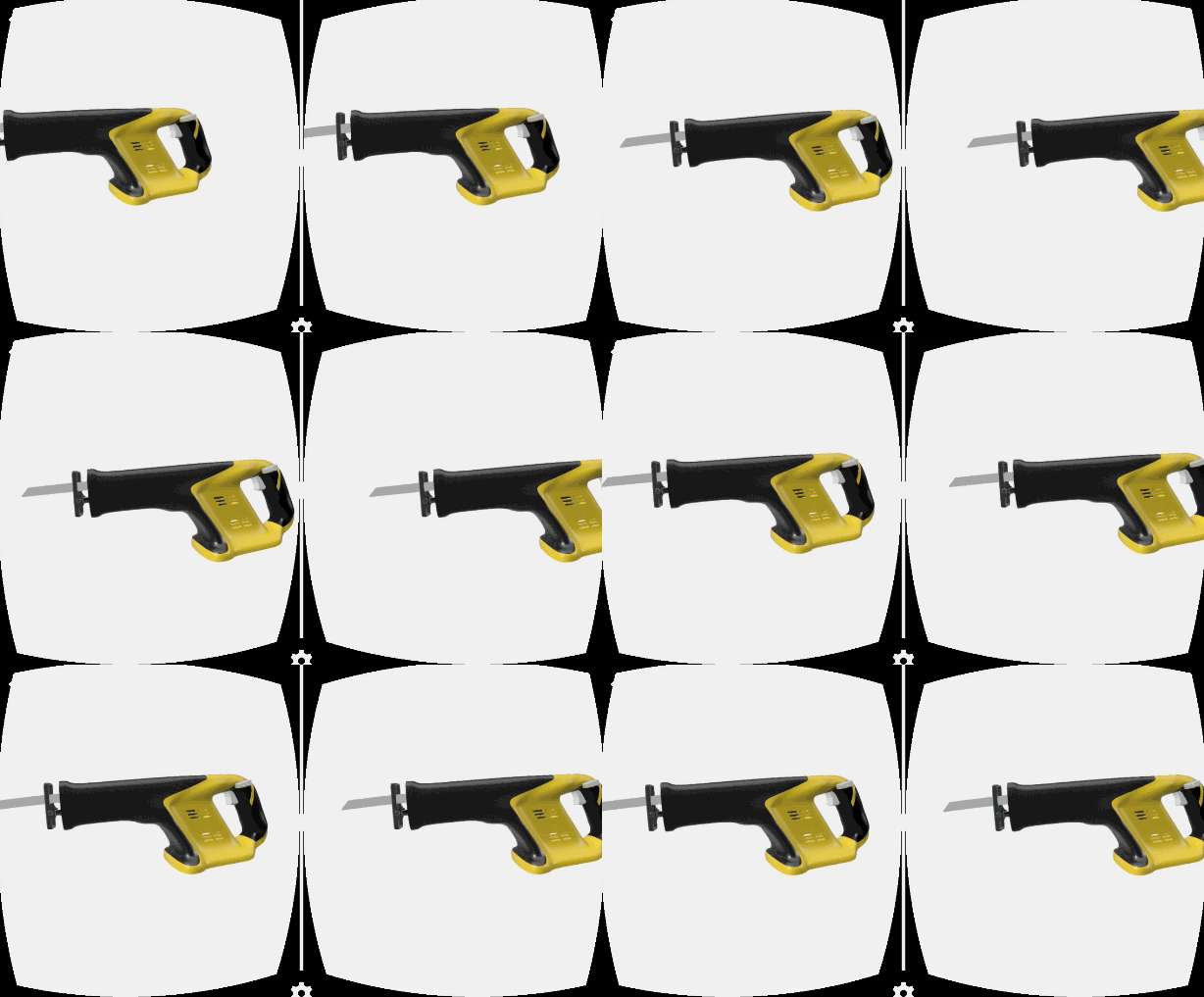
|
Though technically the VR extension can be enabled on any loaded model, the framerate and overall user experience will degrade when visualizing very big models, specially on mobile devices.
Consider using desktop VR solutions for big model VR experiences.
Finally, check out our next new feature, Model Consolidation, which brings performance enhancements that also apply to VR!
Model Consolidation
Example:
var initializerOptions = {
    env: 'AutodeskProduction',
    useConsolidation: true,
    consolidationMemoryLimit: 150 * 1024 * 1024 // 150MB - Optional, defaults to 100 MB
}
Autodesk.Viewing.Initializer( initializerOptions, function() {
    // ...
});
Limitations with model consolidation include:
- It requires a significant amount of extra memory (CPU-side and GPU-side).
- Consolidation will be turned off automatically when playing animations or exploding the model.
- Currently, per-fragment modifications, such as ghosting and theming only work with a simple fallback. We use normal (unoptimized) rendering if any special per-fragment customization is applied.
- Consolidation reduces the granularity of the scene, which conflicts with existing techniques like progressive rendering, fine-grained frustum culling, and sorting (e.g., for transparency). Although we try to achieve a good trade-off here, we cannot preserve everything 100%.
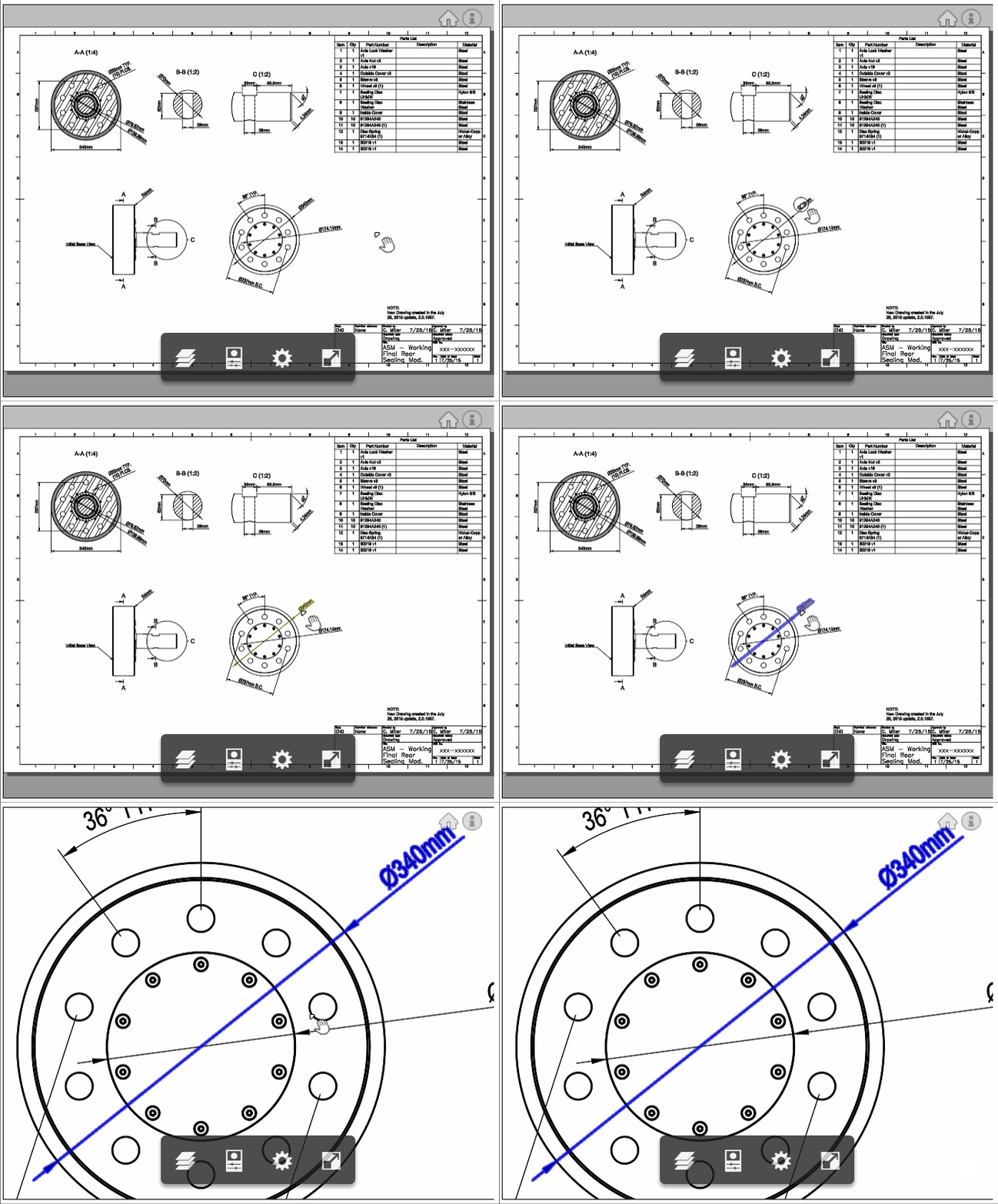
Focus in 2D Models
This feature is now available and can be used by either:
- Double-clicking the element
- Using the keyboard hotkey
F - Using the toolbar button
Focus
| Before | Now |
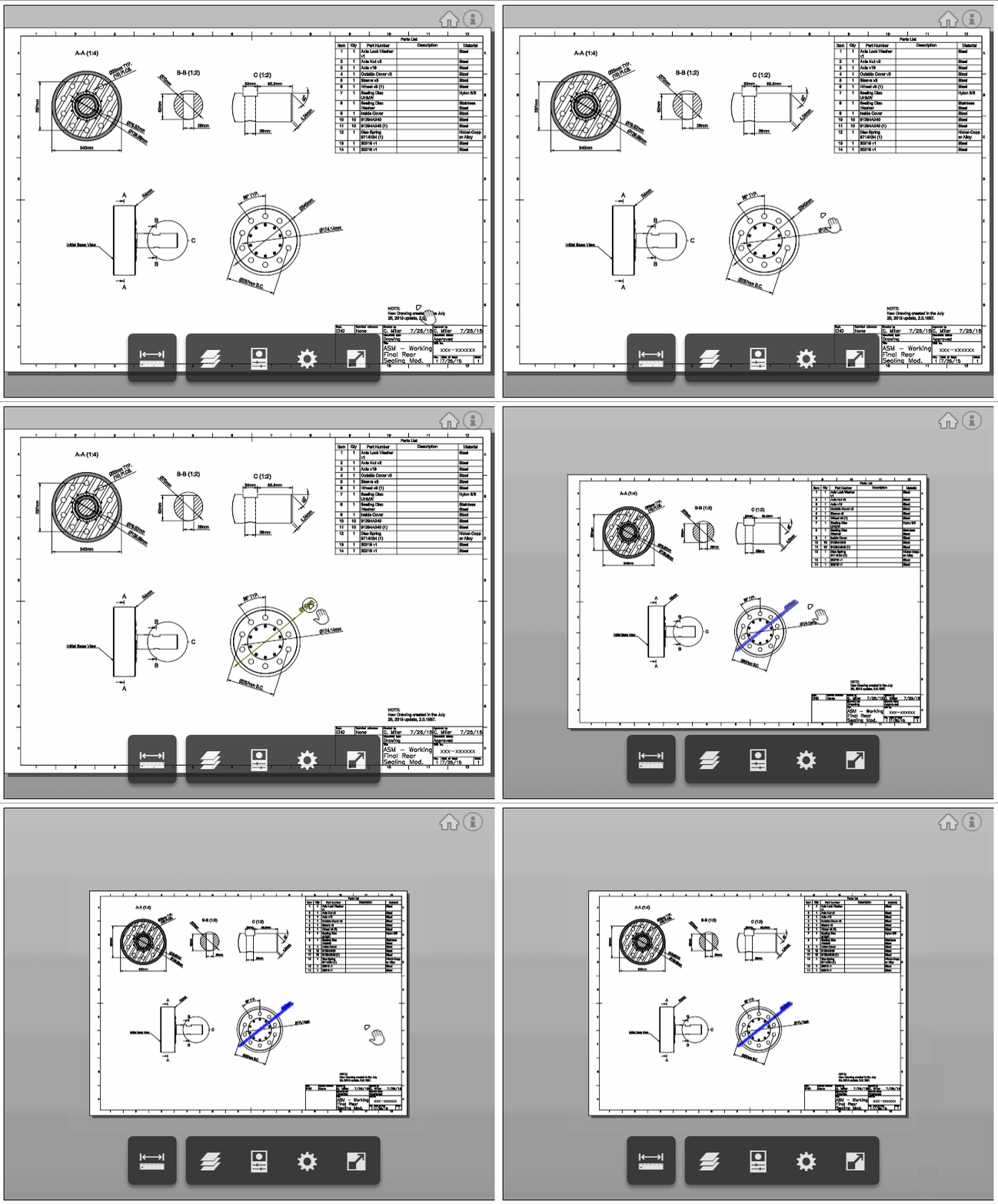
| 
|
Notice that in previous versions, attempting to focus on a 2D element would result in a full-model focus operation.
Fixed
- Fixed issue where texts in a 2D model were drawn as an outline without fill color.
- Focus will now work when loading more than one model into the scene.
- Shift-clicking on empty 3D canvas will no longer clear accumulated selection.
- Fixed Animation UI glitch in IE11.
- Fixed issue in IE11 where the Measure Panel’s
Unit Typedropdown would display “Unknown”. - Fixed issue in IE11 where Setting Panel’s
Reset Settingsbutton would not be displayed.
Version 2.11
Release Date: 2016-09-27
Changed
This release contains no breaking changes.
viewer.getProperties() will now return both attributeName and displayName (if available).
The attributeName can be use as a filter for viewer.search() calls.
Added
Markup Snapping: Extension Autodesk.Viewing.MarkupsCore has been enhanced with snapping functionality when used to markup 2D models.
The feature’s behavior is similar to the snapping currently available in the Autodesk.Measure extension.
While mouse-hovering over geometry, a green indicator will appear over snapped geometry.
Key snapping locations include - the two edge points along a segment - the segment’s mid point - all other points along the segment
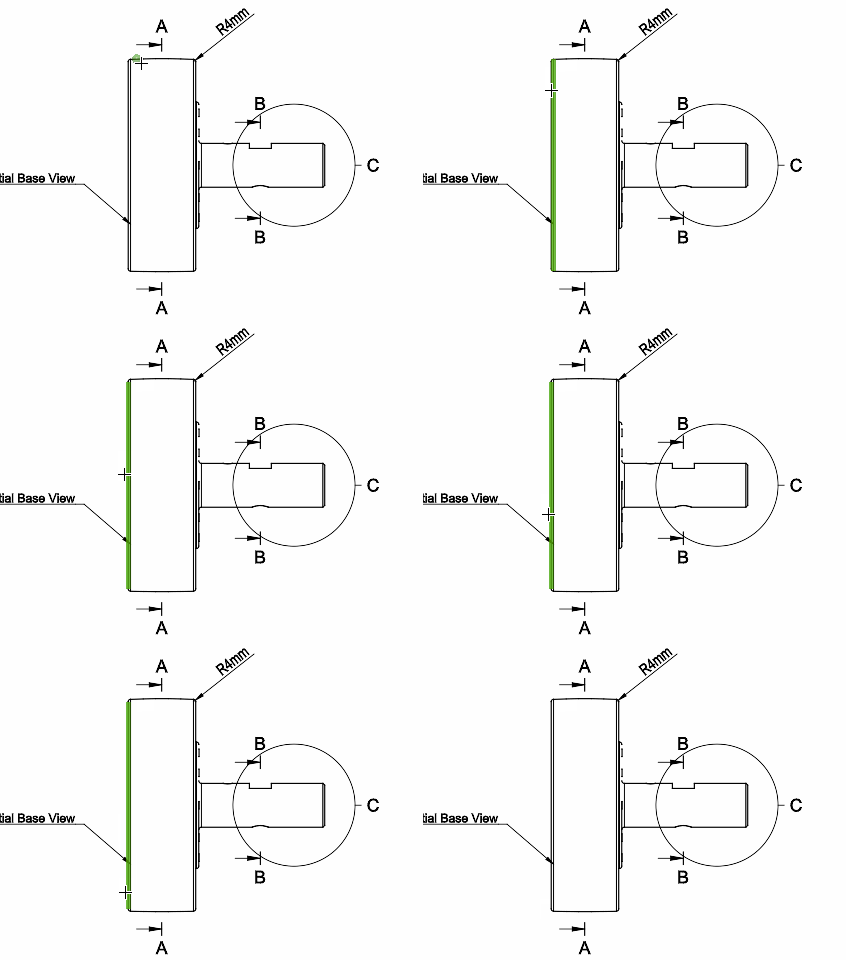
From there, a user can start drawing a markup.
The Arrow markup has been enhanced to be drawn parallel or perpendicular to the segment being snapped.
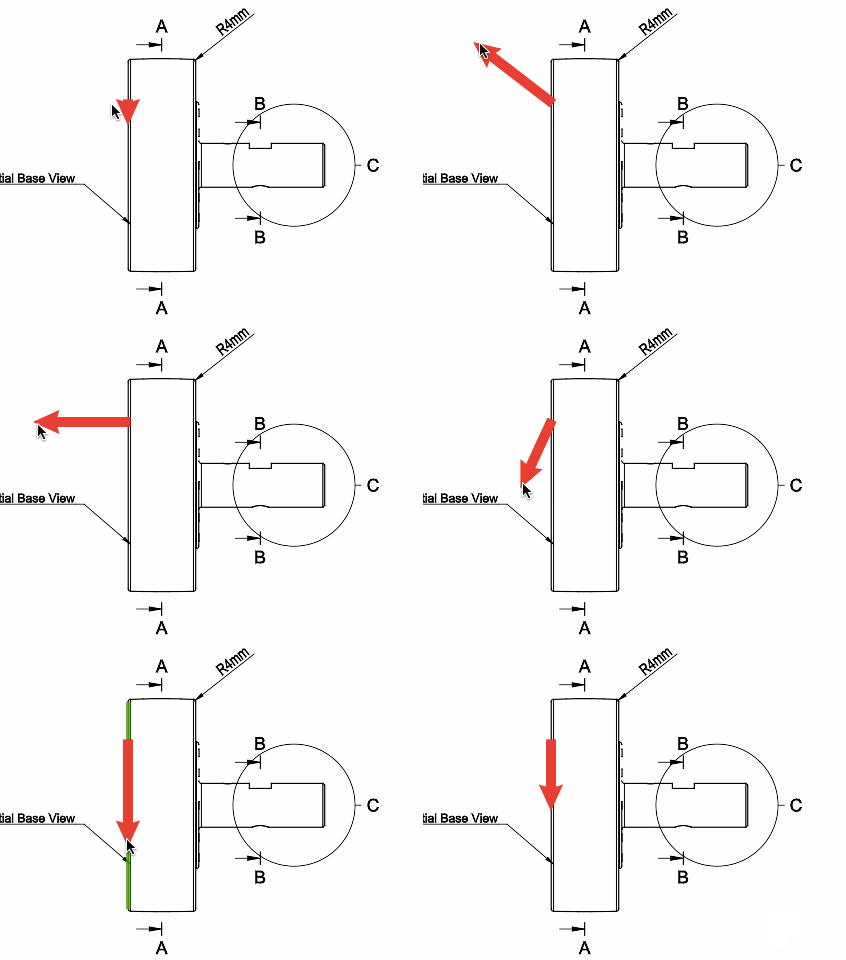
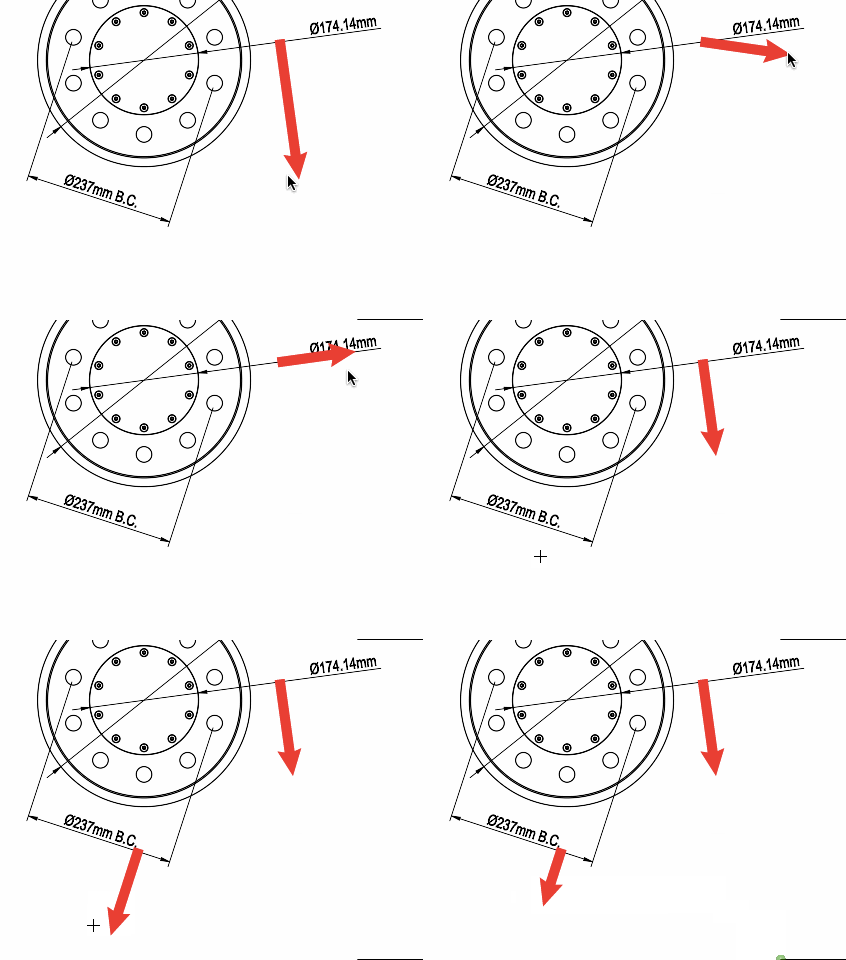
Snapping can be applied to segments with a slope.
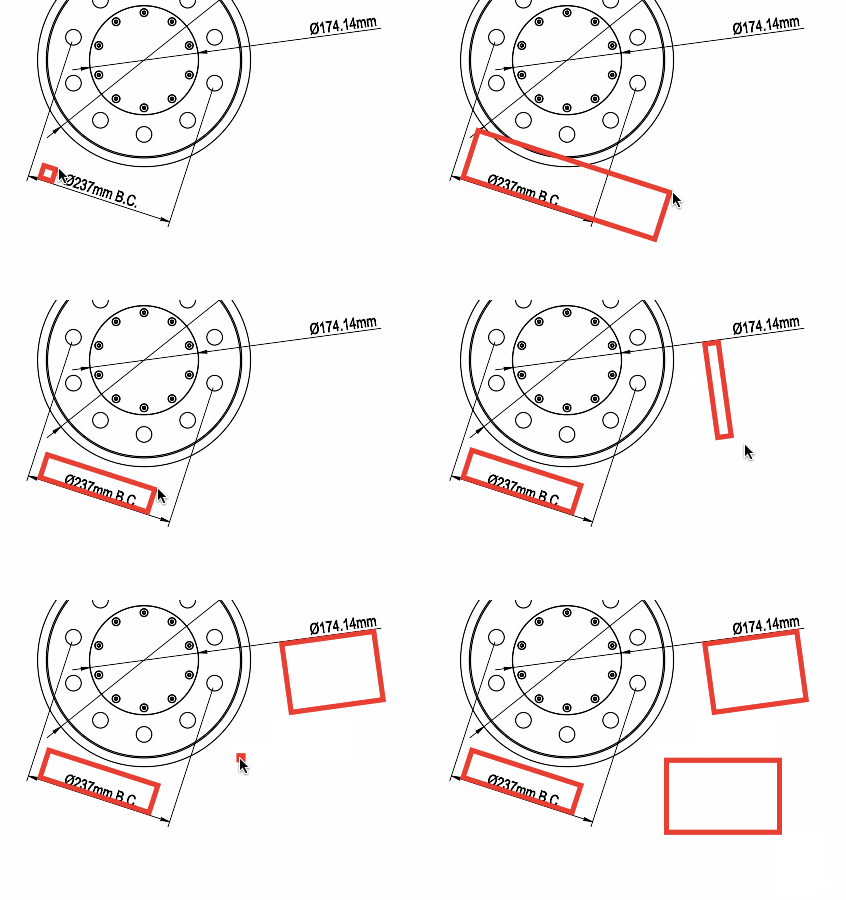
The Rectangle markup has also been enhanced with segment awareness.
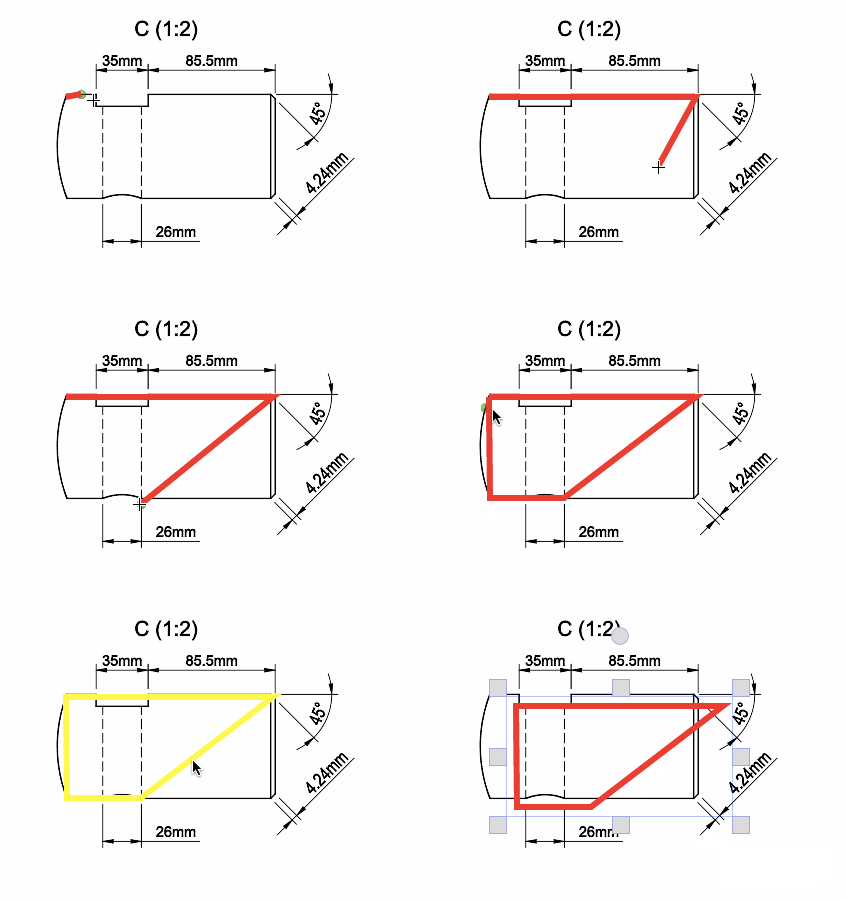
The PolyLine markup also benefits from snapping.
FreeHand markup will not snap to geometry.
Fixed
viewer.restoreState()will no longer re-render the scene when is not necessary.- Fixed issue where hotkeys would no longer work after the Viewer was initialized a second time.
- Settings option Switch sheet color white to black will now work in 2D sheets where it previously didn’t.
Version 2.10
Release Date: 2016-08-17
Changed
- The Toolbar settings button no longer displays a popup on click.
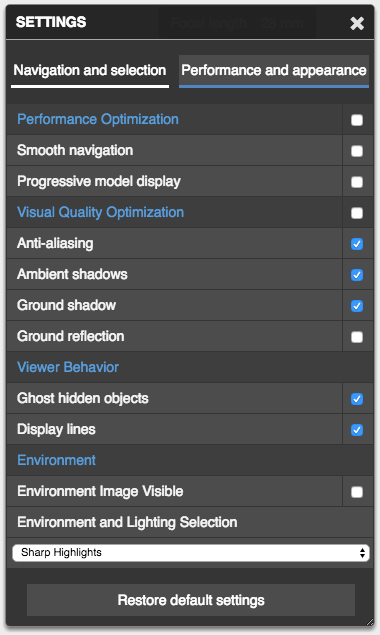
- Background and lighting dropdown and Display lines checkbox are now available in the Performance and Appearance Tab in Settings Panel.
- The Performance and Appearance Tab in Settings Panel has been redesigned:
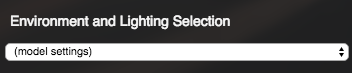
- Models loaded into the scene that specify a variation of an environment and lighting preset will now be displayed in the dropdown as a new entry:
(model settings). This avoids confusing users that switch environments after loading a model that forces the Viewer to use specific render settings.
Added
- New Hyperlink User Experience.
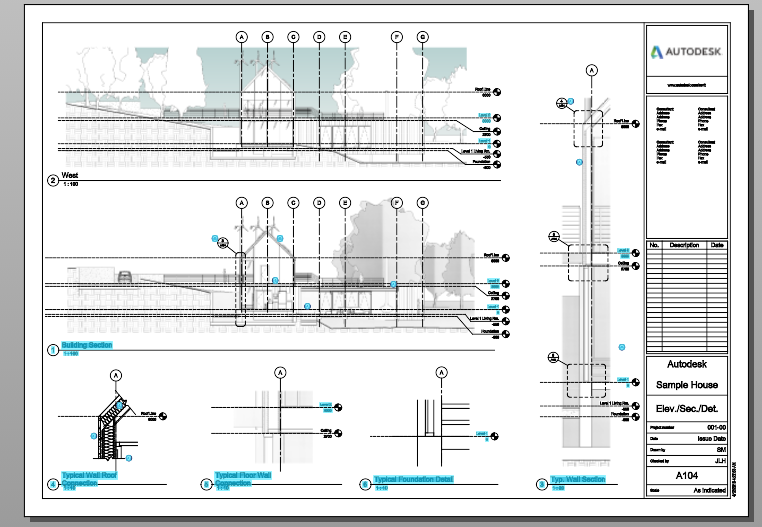
- Geometry tagged for hyperlinking will now receive a specialized visual treatment.
For 2d sheets, geometry that contains hyperlinks will get highlighted in a light blue box.
Clicking on an hyperlink that links to another sheet will present a popup with a thumbnail of the referenced sheet.
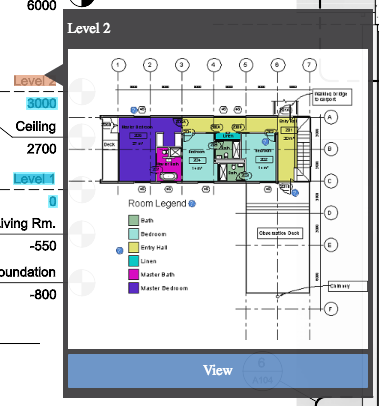
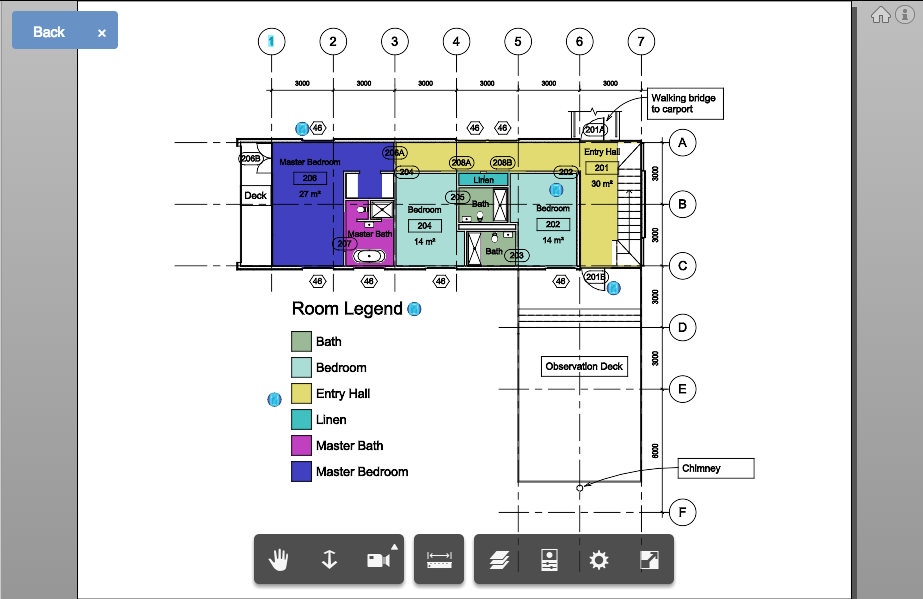
Open the hyperlinked sheet by clicking the View button. The Viewer will unload the current sheet and load the linked one.
When a model gets loaded due to an hyperlink, a Back button will get added to the Viewer’s top left. Click on it to navigate back to the previous sheet.
The button can be dismissed with the x button next to it.
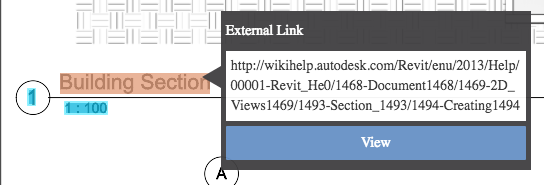
Hyperlinks to external web resources will also show up in the popup. Click on View to have your browser open a new tab to the linked resource.
- New Extension:
Autodesk.InViewerSearch
Extension must be explicitly loaded by developers. Extension will add a button to the toolbar.
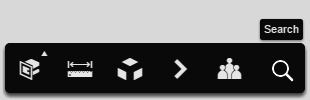
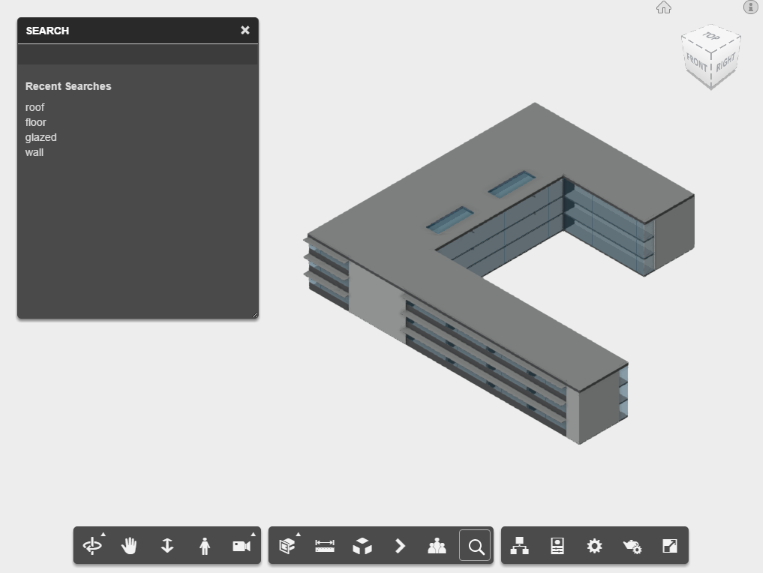
Click on the button to open the Search Panel. The panel may include previously searched strings.
Search results are placed into tabs This View and This Item.
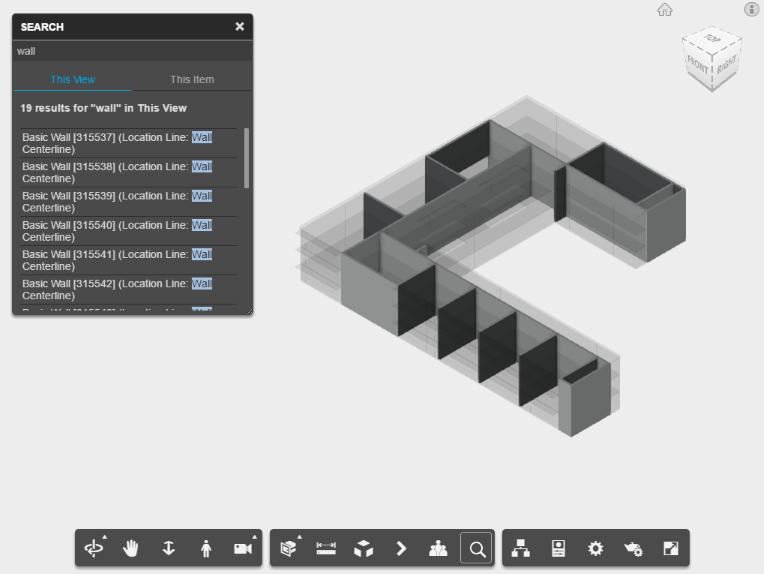
This View refers to the currently loaded model.
This Item will display results across all viewables from the loaded Document (requires usage of ViewingApplication).
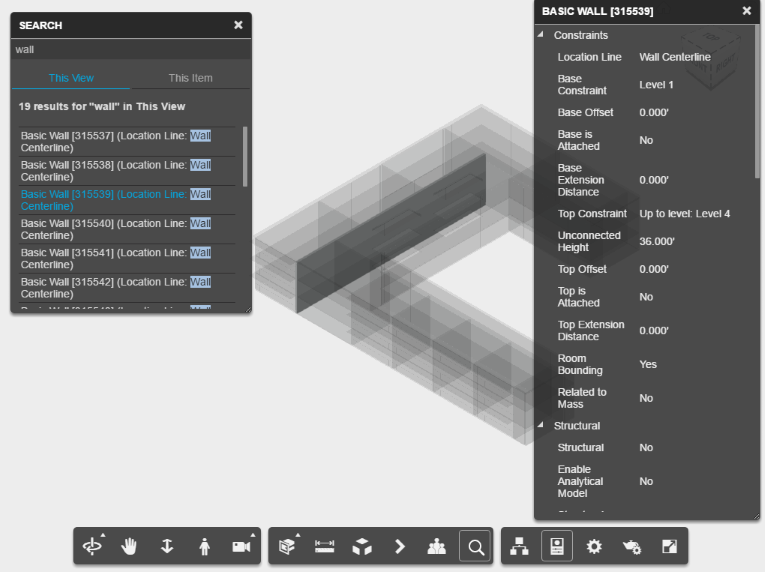
Click on a search result to have its corresponding node isolated in the Viewer. The Properties Panel will show up, as well.
Additional configuration options can be specified through inViewerSearchConfig:
config3d.inViewerSearchConfig = {
    relatedItemsTab:{
        enabled: true,  //if false we hide the tab
        displayName: 'This Item',
        pageSize: 20
    },
    loadedModelTab: {
        enabled: true,  //if false we hide the tab
        displayName: 'This View',
        pageSize: 50
    }
}
config3d needs to be passed into viewerApp.registerViewer.
viewerApp.registerViewer(viewerApp.k3D, Autodesk.Viewing.Private.GuiViewer3D, config3d);
Refer to Basic Viewer Step-by-Step tutorial for more information on viewerApp.registerViewer.
Fixed
- Fix issue where ghosted objects disappeared when changing a setting until some action is performed in the canvas.
- Fix issue where an isolation operation triggered through Model Browser item would fail on some files.
- Fix issue where some model files may never finish loading (the progress bar would never go away).
- Fix issue where the Property Panel would stop working after switching sheets.
- Fix issue where
Autodesk.Viewing.SELECTION_CHANGED_EVENTwould get fired twice after clearing current selection. - Minor text fixes.
Version 2.9
Release Date: 2017-08-10
Changed
- API CHANGE:
viewer.getScreenShot()must always receive the 3rd argument, a callback function, and no longer returns a string. See Fixes section below on why this change was required.
So far, developers would get a url to a non-resized image of the Viewer the following way:
// old way, up until 2.8
var blobUrl = viewer.getScreenShot();
window.open(blobUrl);
Now in 2.9 the same can be achieved as follows:
// new way as of 2.9
var currentWidth = viewer.container.clientWidth;
var currentHeight= viewer.container.clientHeight;
viewer.getScreenShot(currentWidth, currentHeight, onImageReady);
function onImageReady(blobUrl) {
    window.open(blobUrl);
}
Added
- When available, render settings from loaded model will override default and user-defined preferences, in order to provide an initial load that is consistent throughout sessions.
- Developers can bypass this behavior with the following code in an Extension’s
load()method:
this.viewer.prefs.tag('ignore-producer');
- Render settings applied from loaded model file will now have a distinctive appearance in Settings Panel:
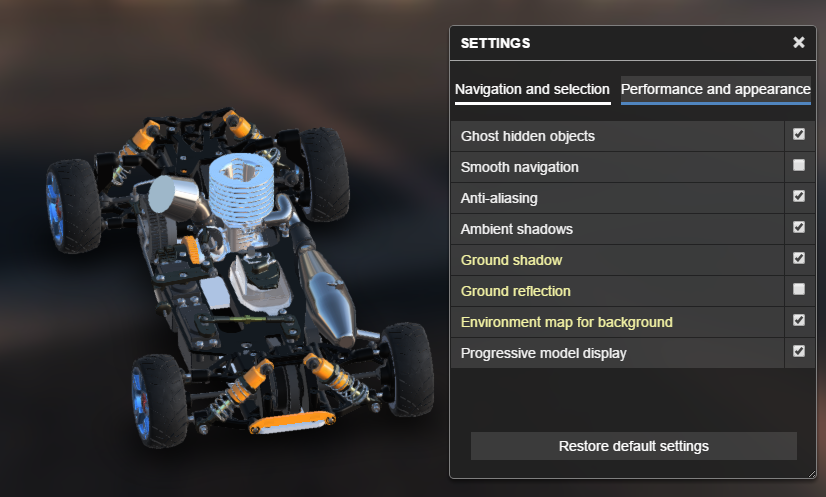
- An error message will be displayed when loading an empty SVF.
- Add extension ZoomWindow, which allows to zoom into a region of the canvas by drawing a rectangular area. Extension is not loaded by default, developers must do so explicitly.
viewer.loadExtension('Autodesk.Viewing.ZoomWindow');
A button will get added to the toolbar when Autodesk.Viewing.ZoomWindow extension is loaded:
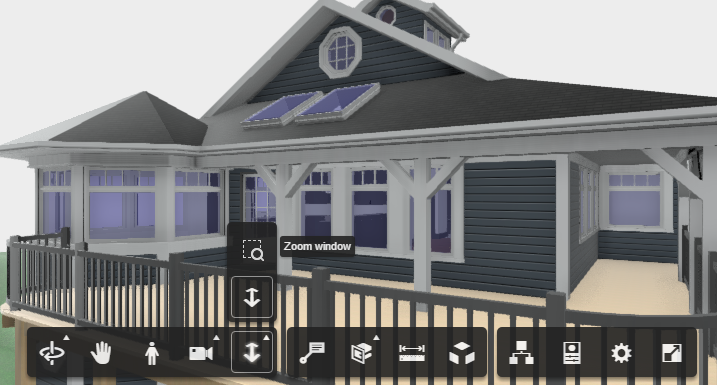
It will allow a user to draw a rectangular region (click, drag, release):
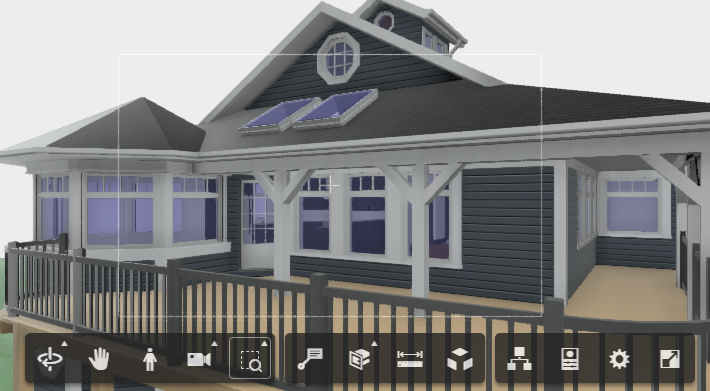
On release, the camera will change focus to the rectangular region drawn:
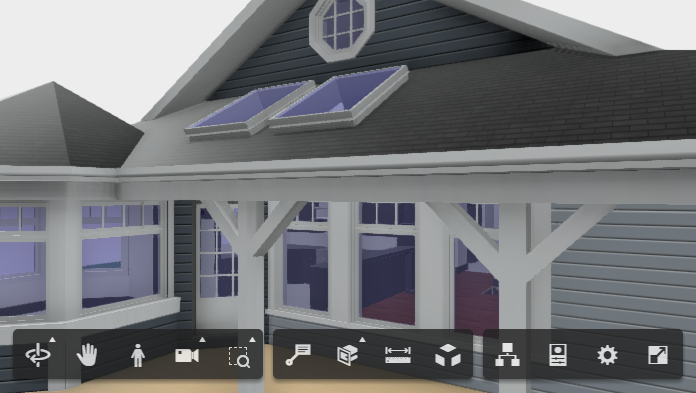
Fixed
- API CHANGE:
viewer.getScreenShot()no longer returns a vertically-flipped image in Safari. - Image Based Lighting (IBL) looks different on load than on selection of same IBL.
- Some models that used to have their Model Browsers empty, will now have it populated.
- Isolation was not reflected in the model browser when isolating before open it.
- Model Properties of Chinese (and other Unicode) characters would render incorrectly.
Version 2.8
Release Date: 2016-06-06
Changed
- None
Added
- Add node coloring APIs. Can be used with 2D and 3D dbIds
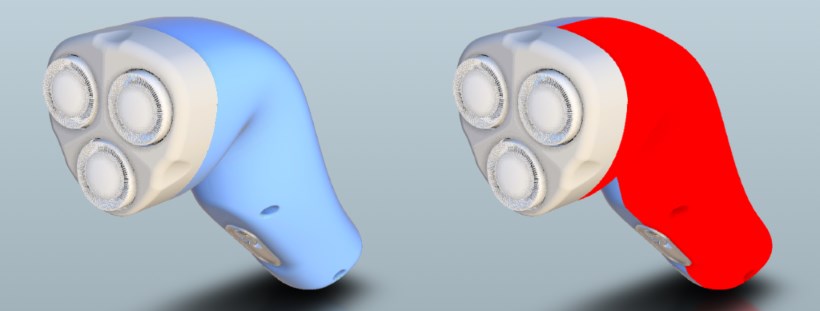
// Set color
var ids = [1,2,3]; // Array of dbIds
var color = new THREE.Vector4(1,0,0,1); // r, g, b, intensity
viewer.setThemingColor(ids, color);

// Reset colors
viewer.clearThemingColors();
- Swap background color of a 2D sheet from white to black; activated in Settings, Performance and appearance Tab
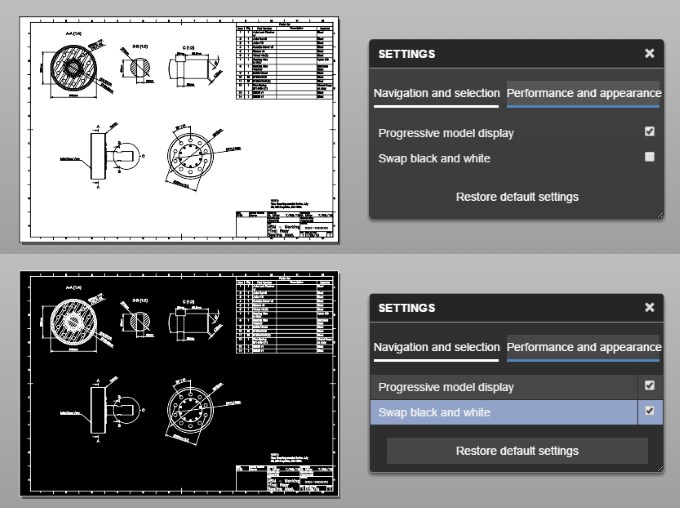
Fixed
- [Mobile] Drop down menu arrow of the viewcube is not visible
- [Mobile] Improved performance when “Smooth Navigation” option is active on devices such as Samsung S5
- Fix issue where Ground shadows were not rendered for a particular combination of settings
- Some arcs were missing in 2D drawings
- IE11: Show/hide this layer didn’t work after you hide then show the layer once
- Property Panel would sometimes not display any data
Version 2.7
Release Date: 2016-04-25
Changed
- API CHANGE: Removed file extensions/MarkupsCore.min.js
- API CHANGE: Removed file extensions/CommentsExt.min.js
- API CHANGE: viewer3D.min.js will now include the content from MarkupsCore.min and CommentsExt.min.js. There is no longer need to download those two files separately.
- POTENTIAL BREAKING CHANGE Avoid ultra-long frames by spreading initialization over several frames – this makes the loading animation smoother and there is no two second frame blockage. In particular, notice that: - UI creation is delayed - extension loading is delayed - ViewCube initialization is delayed - shared buffer initialization is delayed
- WebSocket logger has been turned off
- We now kick off data loading before WebGL initialization, so that data loading happens in parallel with the renderer initialization.
- Hyperlinks pointing to another viewable within the Document will now display the Label instead of the guid whenever possible
- Buttons no longer fire click event when disabled
Added
- Hyperlink support
- Support hosting app to instantiate multiple viewers, each with different ACM namespace
- Poli-Line Markup
- Poli-Cloud Markup
- Measuring time to first pixel
- Add ViewCube API - It is now possible to change camera orientation through code in the same way users are able to by clicking on the ViewCube’s faces, edges and corners.
// format is "[front/back], [top/bottom], [left/right]"
viewer.setViewCube(['front']);
viewer.setViewCube(['top, right']);
viewer.setViewCube(['back, bottom, left']);
- LMV will now only write error logs into the console by default - Developers can customize the error level used by LMV:
Autodesk.Viewing.Initializer( options, function() {
   var avp = Autodesk.Viewing.Private;
   avp.logger.setLevel( avp.LogLevels.NONE );
   // or
   avp.logger.setLevel( avp.LogLevels.DEBUG );
   // avp.LogLevels has additional constants
});
- The ViewCube can now be used when using a Viewer3D instance
- viewerWebView now uses non-UI lmv library (firefly.js instead of viewer3D.js) to reduce memory footprint and javascript parsing time.
- Use cache.manifest in native mobile integration HTML for faster load times.
- viewer.search() will now take into account property database’s display value in addition to the key string.
- Add viewer.model.getDocumentNode() which returns a typed object wrapping manifest definition for the loaded model.
- Increased Markup hit areas for easier mobile usage
Fixed
- Improved Cloud Markup graphics and behaviour
- Fixed Text Markup glitches in Firefox
- Fixed some issues with Markup’s renderToCanvas()
- Fix toolbar alignment when leaving markup mode
- Z depth computation for orthographic view
- Improved Ambient Occlusion (SSAO) on very large models
- Disabled Camera Roll when drawing Markups in mobile
- Improve line selection of 2d models in mobile
- Fixed assert in IE when switching from zoom to pan tool
- First Person tool - MessageBox not showing key control directions
- 2D measure: Fix selection when 2 lines were overlapping the same pixel
- No longer sends ‘fps’ data to ADP before it collects enough samples
- OrbiDollyPanTool is no longer added twice to ToolController’s tool stack
- Performance and Navigation Settings Panel is no longer empty when more than one viewer is present
- The first time an object is selected in the canvas, it was not selected in the model browser
- SAO support in Firefox 45
- Removed warnings due to upgraded ADP 1.0.1 usage
- Ghosted nodes no longer disappear after isolating a node while reflections are active
- Double tap was not recognized as a double click in Firefox when using markups
- Fixed Invalid CSS property declaration in Safari
- Memory management enhancements for Web mobile and Native mobile
- SAO working on iOS / most-android
- Transparent materials
- Fix ACM usage in native iOS integration
- Fusion drawings with animation crash on low end IOS
- Fix an undefined reference problem in model iterator and correct removeOverlayScene on selection2d
Known issues
- As of Chrome 50, multiple WebGL warning are being flushed into the browser’s console. This happens with this version of the viewer, and previous ones as well.
- Drawing an Arrow Markup (or similar) using a finger swipe-up gesture in Firefox for Windows on a Surface Pro 3 triggers a browser-scroll operation instead of actually drawing the markup. We suggest using another browser to work around this limitation