Streams and Sensor Data
Streams in Tandem are used to receive and store timeseries data from various sensors in the “live” building. They are created, classified, and deleted like normal elements in the Tandem database, but they are updated using special “ingestion URLs” that are unique to each stream and can be called easily from outside Tandem to send in new payloads from the sensors. Once the streams are setup, it is expected that they are updated programmatically through that ingestion URL, rather than from direct user interaction.
In this document, we will explore two scenarios:
- The Tandem application is used to create and manage the streams, and the Tandem API is only used to update the streams with new timeseries data from the sensors. This will be the most common case.
- The Tandem API is used to programmatically create and manage the streams, as well as update the timeseries data. Even in this case, there are a few steps that will need to be completed in the Tandem application UI.
NOTE: in this document, we will use the Tandem application, the Postman Collection for the Tandem REST API, and the Tandem Test Bed application to demonstrate how the APIs work. Although every step documented isn’t necessary to achieve the result, showing intermediate results from the Tandem Test Bed app will help you conceptually understand how everything is working. See the following links if you are not already familiar with these tools:
Specific Facility URNs, Default Model URNs, and Stream Keys are used throughout these exercises. These values are specific to your Facility and will change accordingly. When in doubt, you can always use the Tandem Test Bed app to inspect these values and copy them into Postman or into your own code.
Setting up a Stream for incoming data from the Ingestion URL
By default, no streams exist in the database. When we create one, they will be placed in their own “default” model within Tandem. Once created, they behave similar to other Tandem assets in that they need to be Classified and have associated Parameters in order to store the data long-term.
First, let’s create a stream by using the Tandem UI.
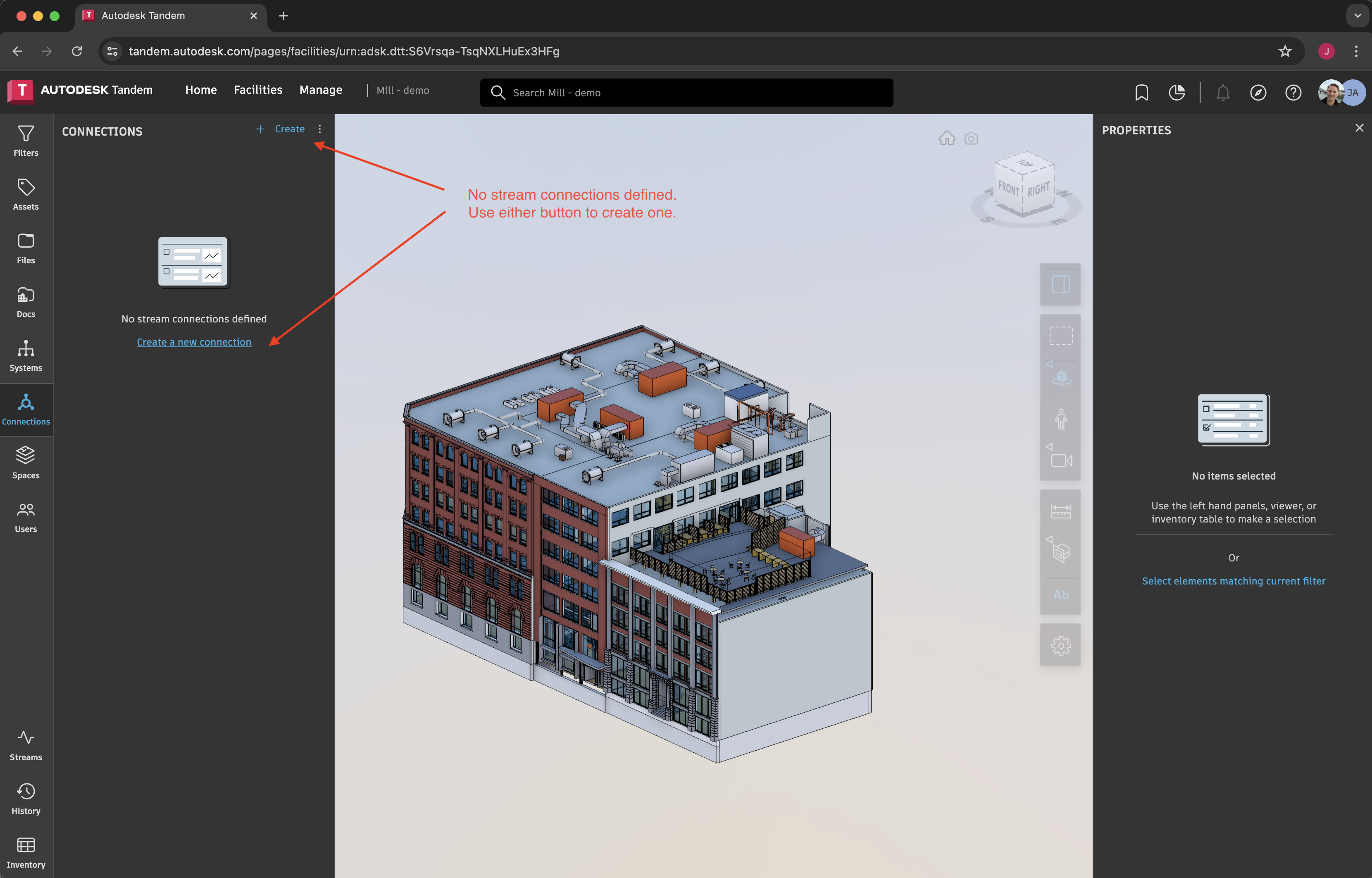
The initial process of creating a Stream only requires a Name. In our case, we have created one called “Test 1”, which will create an un-configured stream and add it to the database.
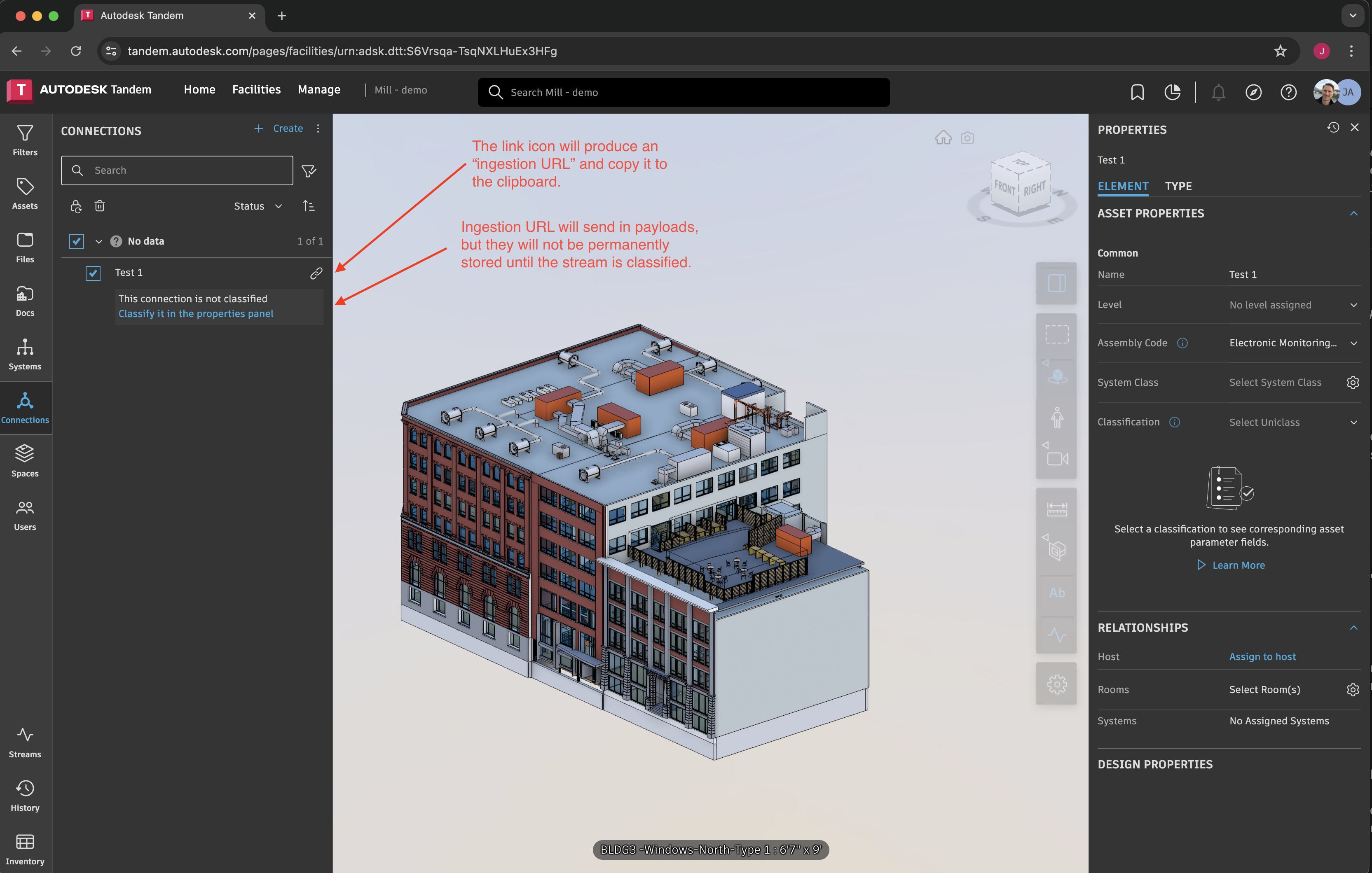
At this point, the stream is functional in that it has an ingestion URL and can receive data from outside of Tandem. This is useful for testing purposes, as we will demonstrate from Postman. Click on the “link” icon in Tandem and the ingestion URL will be copied to the clipboard. Then go to Postman and paste that link in as a new POST request.
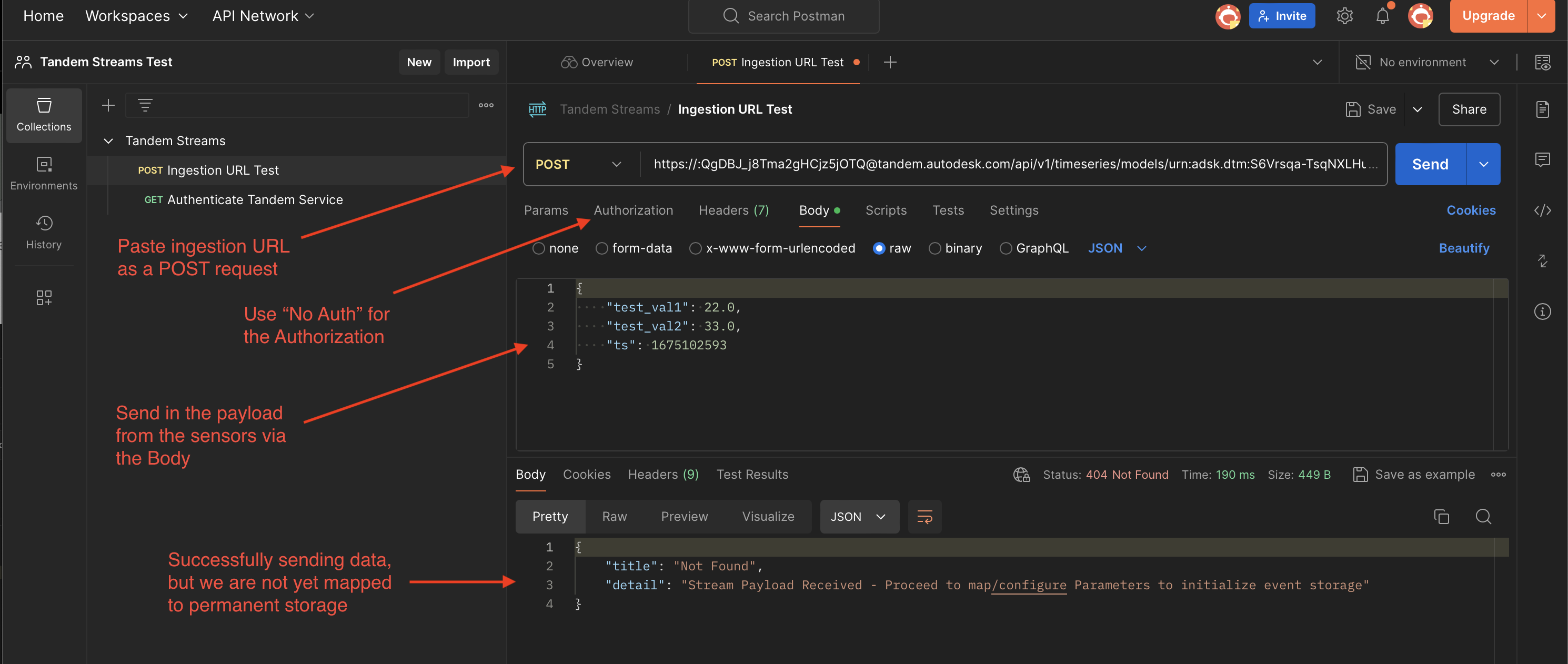
Note that the Authorization for this request is already embedded in the Ingestion URL, so we do not need to authorize like other Tandem REST endpoints. In this test, we make up a payload to send in via the Body of the request. We’ve specified two test values and a timestamp (in the Unix epoch in seconds, simulating what a sensor might produce). If you omit the timestamp, one will get created for you. If you need to manually create timestamps for a test like this, use a website such as: https://www.epochconverter.com. Currently, numbers and strings are supported for stream values.
You can see that the message returned from our test indicates that the payload was received, but there is currently no mapping to long-term storage within the Tandem database.
The payload data passed in through the body of the request can vary based on what the sensor produces. In general, as long as it is a JSON object of some kind, you will have an opportunity to map JSON paths to specific parameters in Tandem using the “Configure Stream Parameters” dialog.
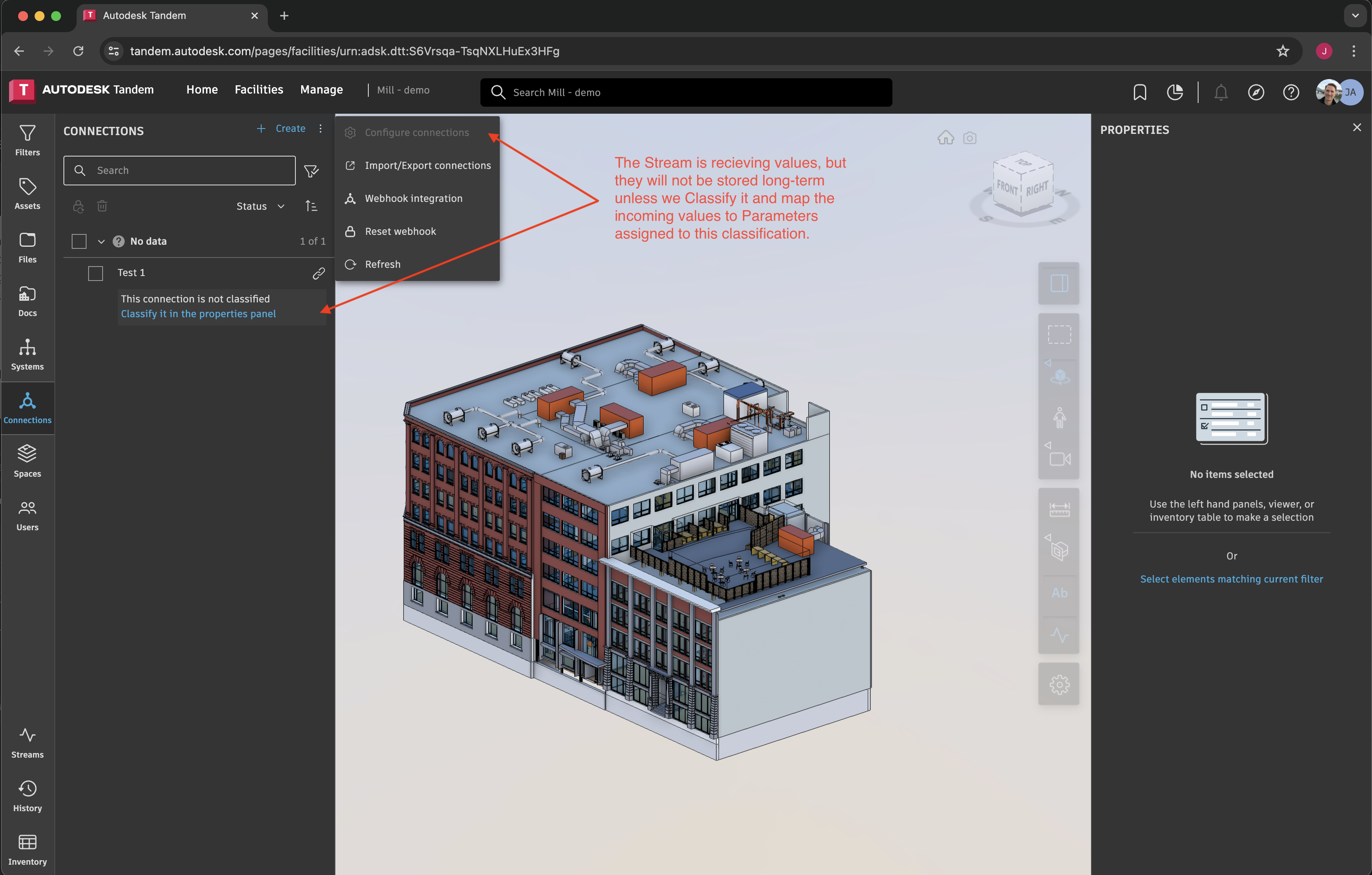
We can see that we are not allowed to configure the incoming data to map into Parameters for long-term storage because we have not classified the stream yet.
Go to the “Manage” page in Tandem and create the Parameters you want to map the incoming values to.
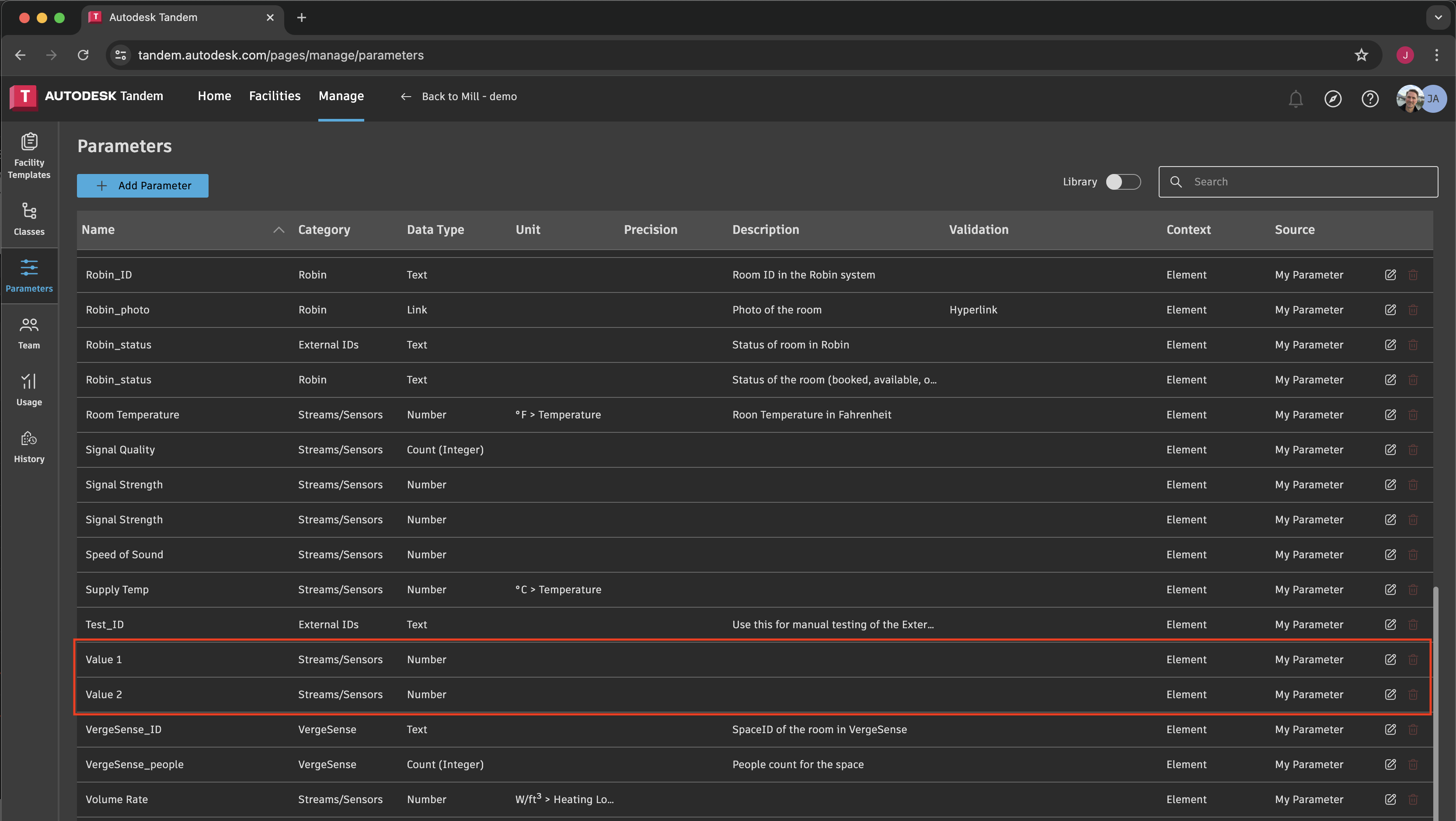
In this case, we have created a simple “Value 1” and “Value 2” parameter of type “Number”. Then go to the “Facility Templates” page and assign these values to a given Classification.
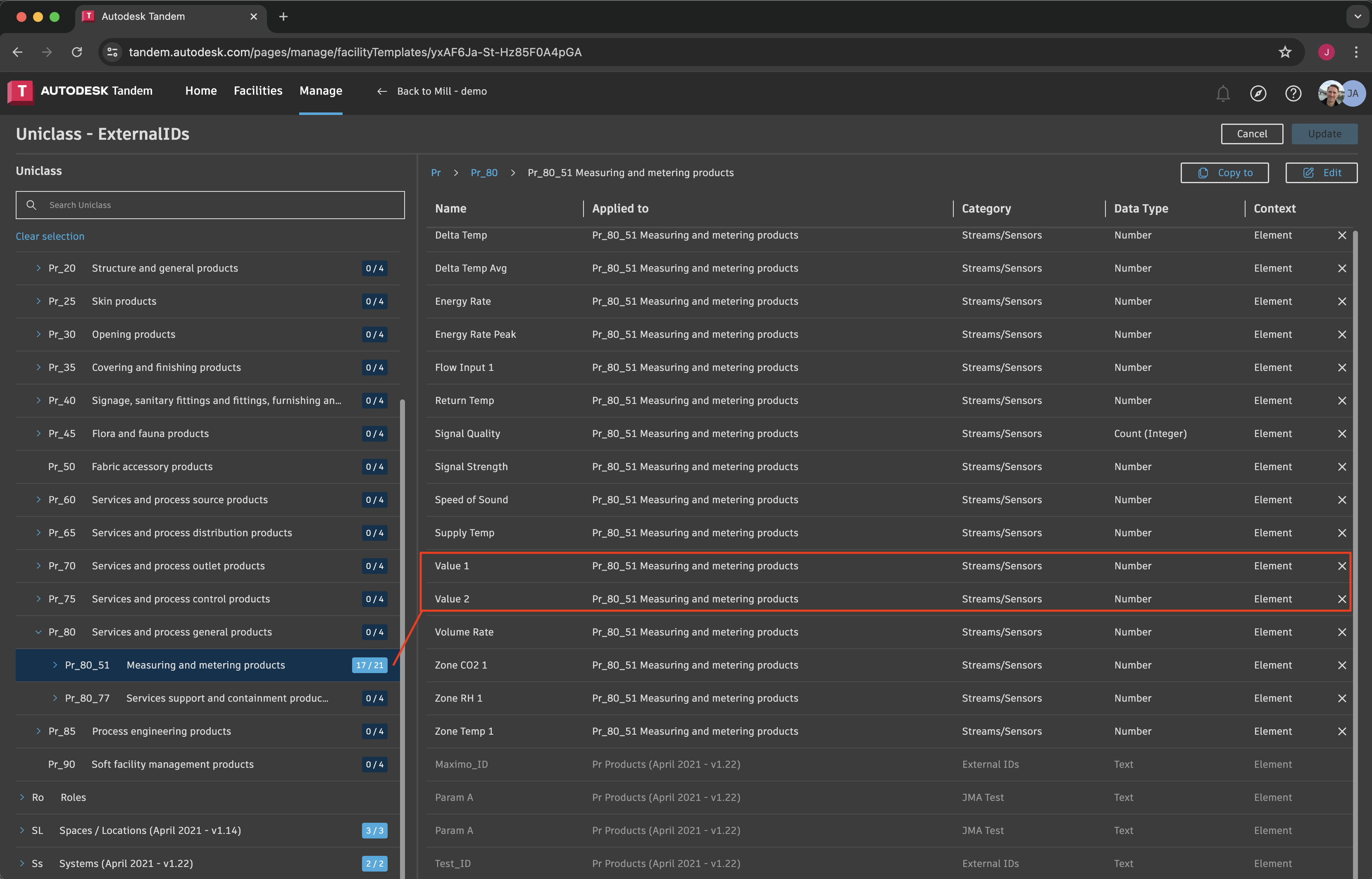
In this case, we have assigned our two Parameters to the Classification “Pr_80_51”.
If you have modified the Facility Template, remember to update when you get back to the Facility (from the Assets page).
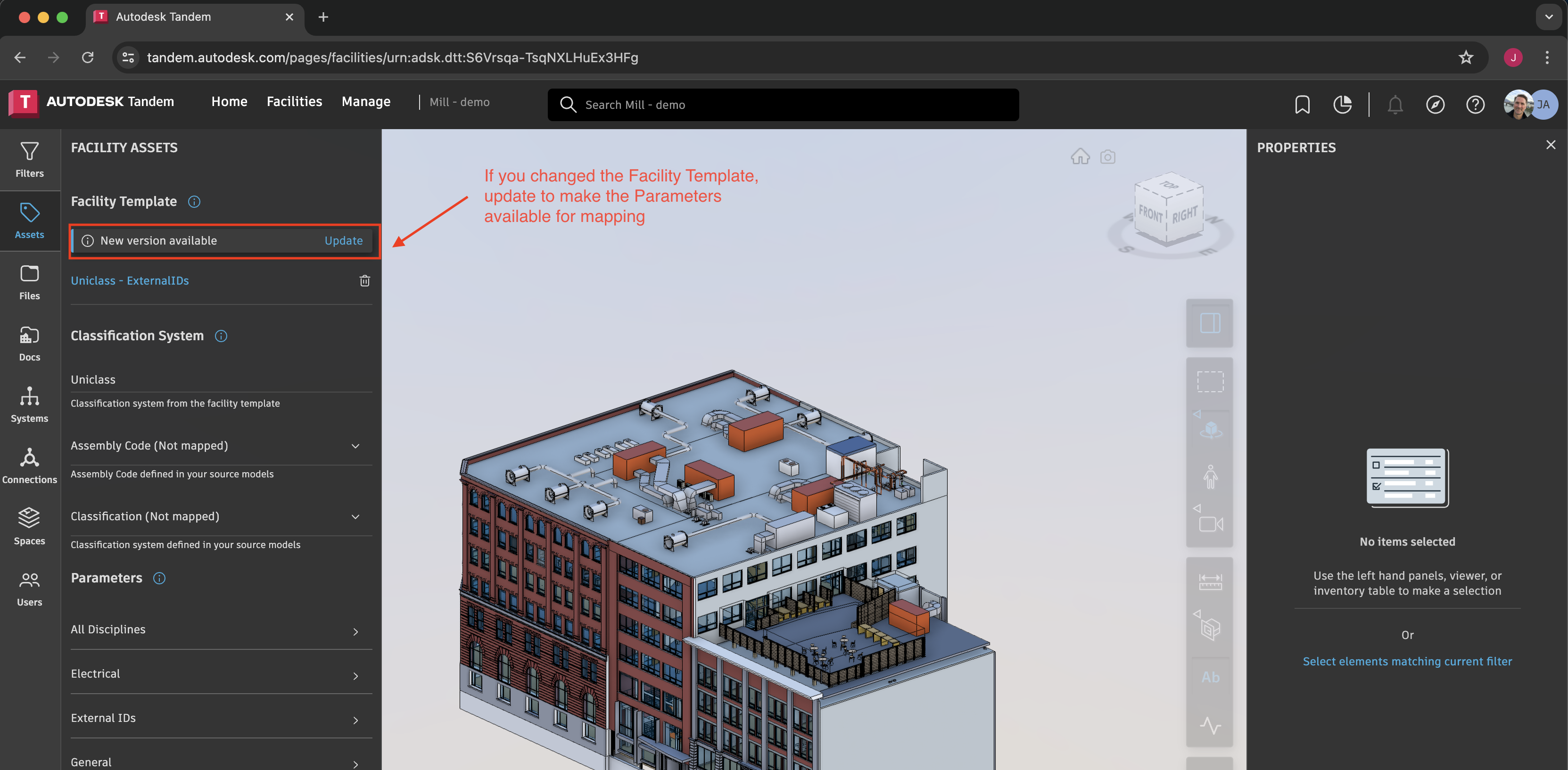
Once our Parameters are successfully in our local copy of the Facility Template, we can classify the stream and map our values.
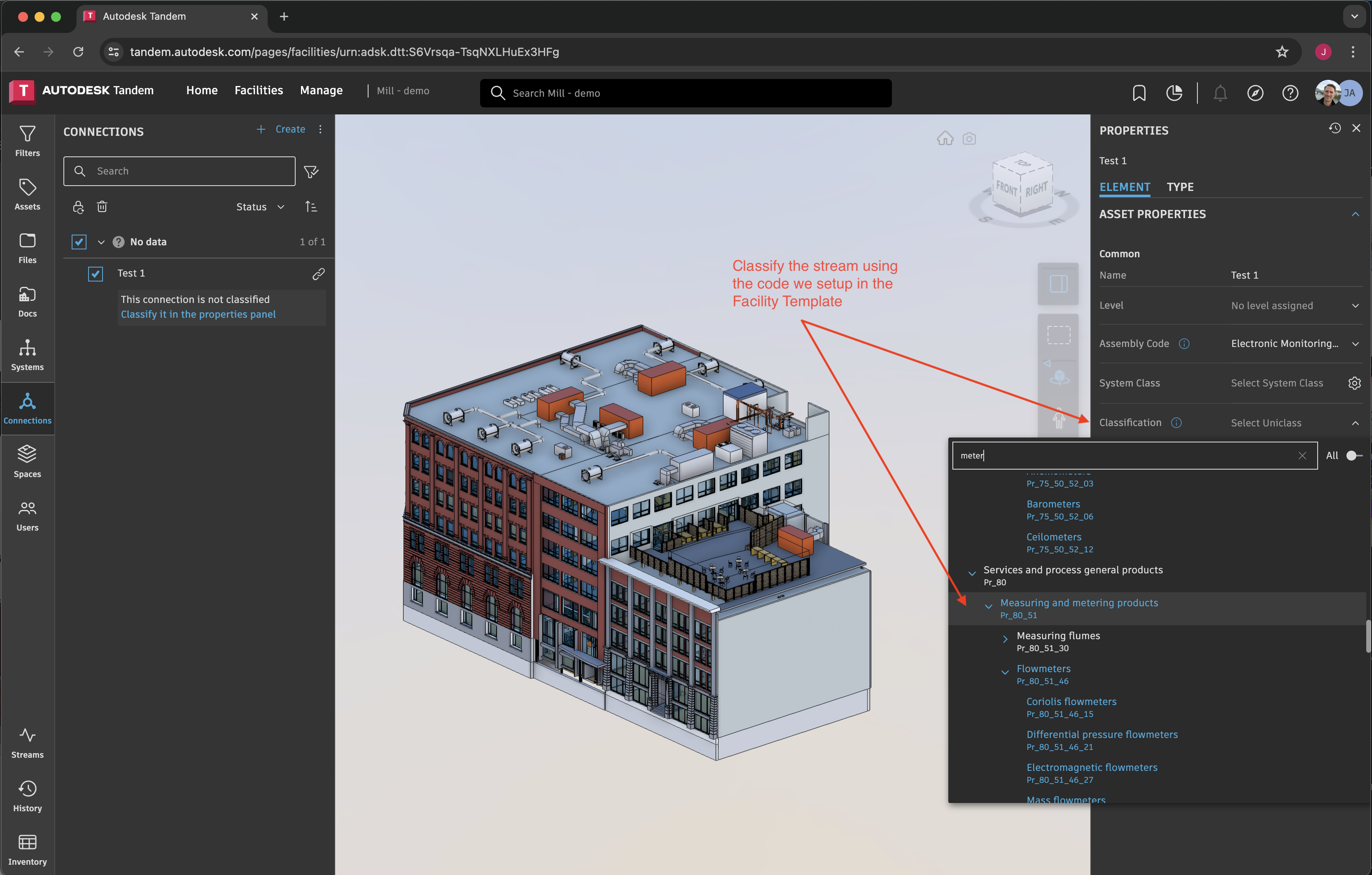
Select the stream and then use the Properties panel to select the classification, just as we would do for any Tandem element. Once classified, we can go back to the “Configure Stream Parameters” dialog and map the incoming JSON object values into long-term storage Parameters.
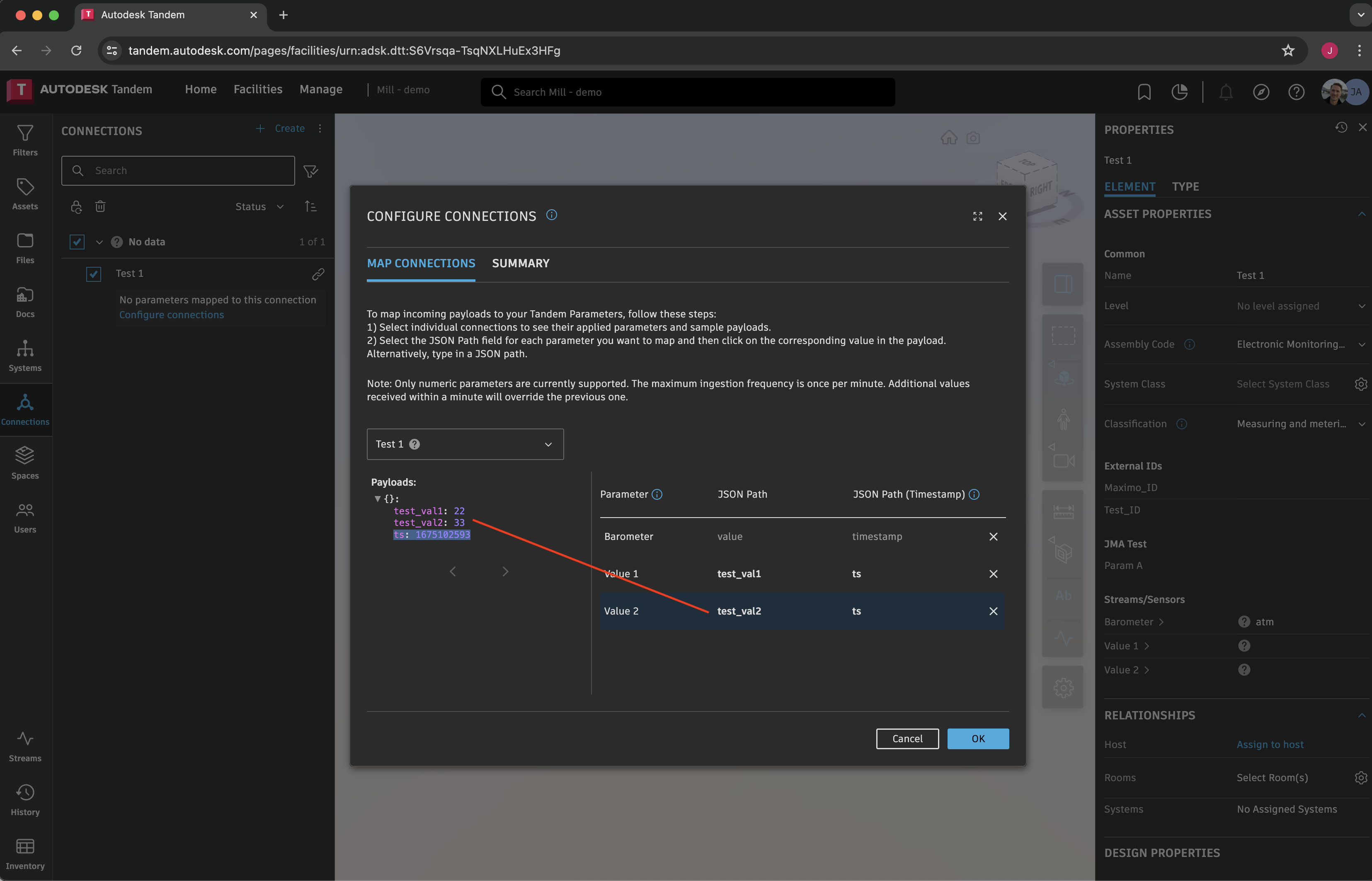
Here we have mapped the incoming “test_val1” to the “Value 1” Parameter, and the incoming “test_val2” to the “Value 2” Parameter, and “ts” to the built-in “Timestamp” value for streams.
NOTE: in this example we specified the incoming timestamp to be seconds in the unix epoch, just to simulate what a sensor might do. However, they will be stored in the Tandem database in milliseconds. Timestamps and timestamp-ranges when using the Tandem API are always specified in milliseconds.
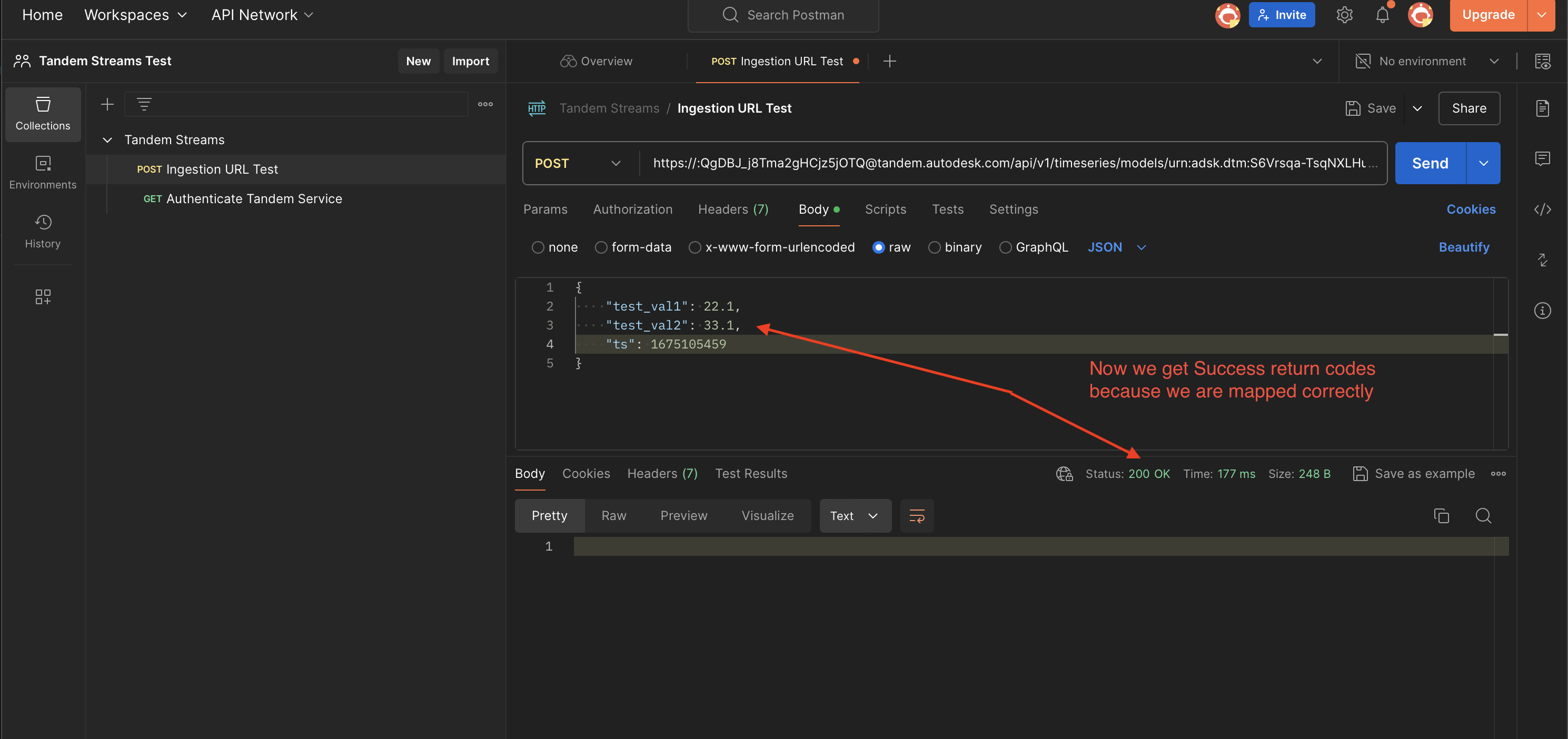
If we go back to Postman and send in new values, we should get successful return status codes because we are now mapped to long-term storage.
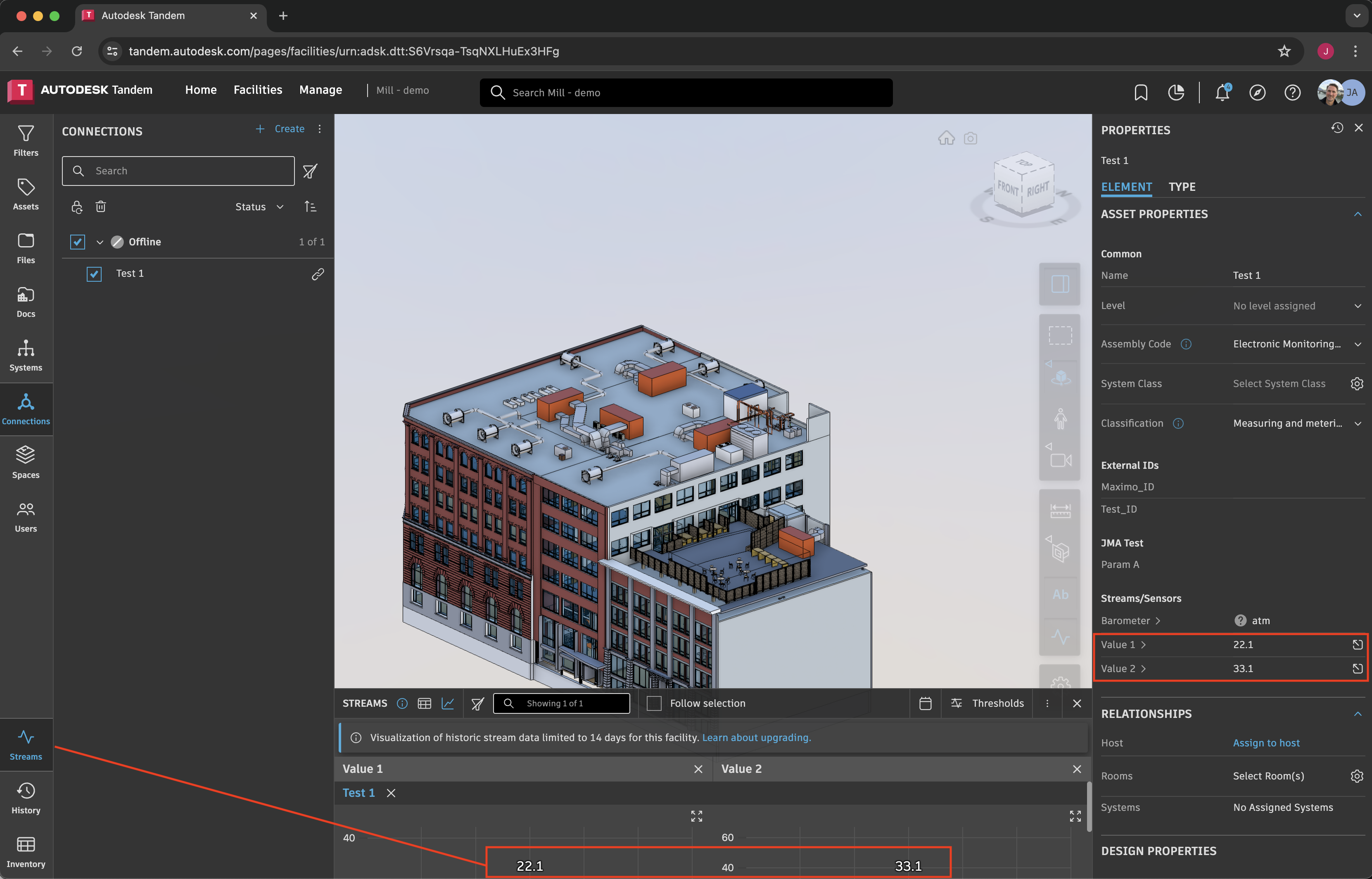
We can see our new values show up in the Tandem UI, mapped to the appropriate Parameters. At this point, our stream is completely setup and will continue to receive and store new payloads via the ingestion URL.
Using the REST APIs to create and manage streams
To demonstrate the REST APIs, we will use a combination of Postman to make the calls to particular endpoints, and the Tandem Test Bed app to observe the results.
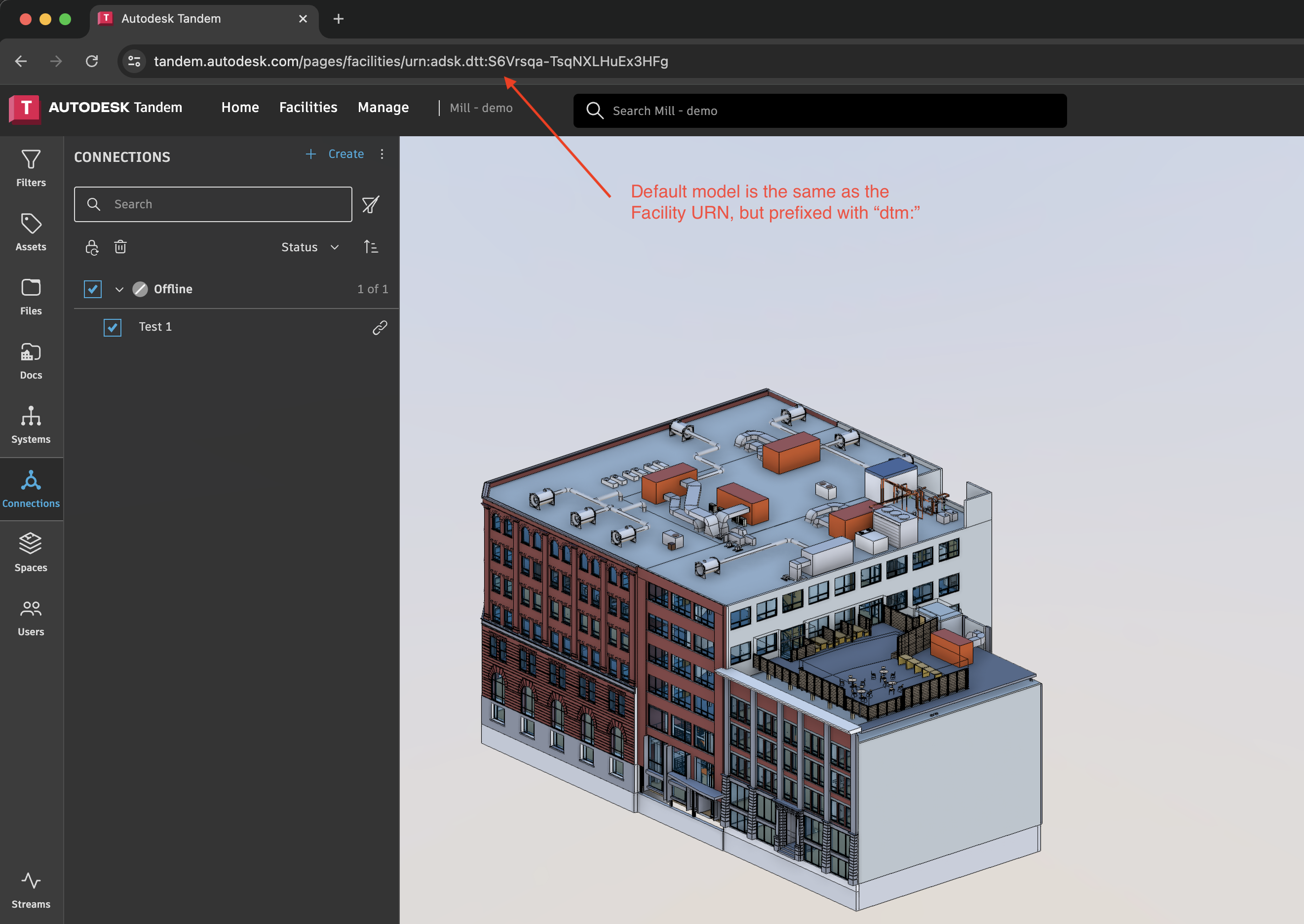
First, some conceptual information about how Streams are handled in the Tandem database. A Facility is composed of several Models, usually imported as individual Revit files. There is no corresponding “source geometry” for the sensors that are connected to Streams. Therefore, they are all placed in a “default model” that is generated automatically by the system. The URN of the default model will match the URN of the Facility (but with a “dtm:” prefix instead of “dtt:)”
We can also see that this information is available programmatically (if necessary). Here is a dump of model data using the “Dump Model Info” stub in the Tandem Test Bed app.
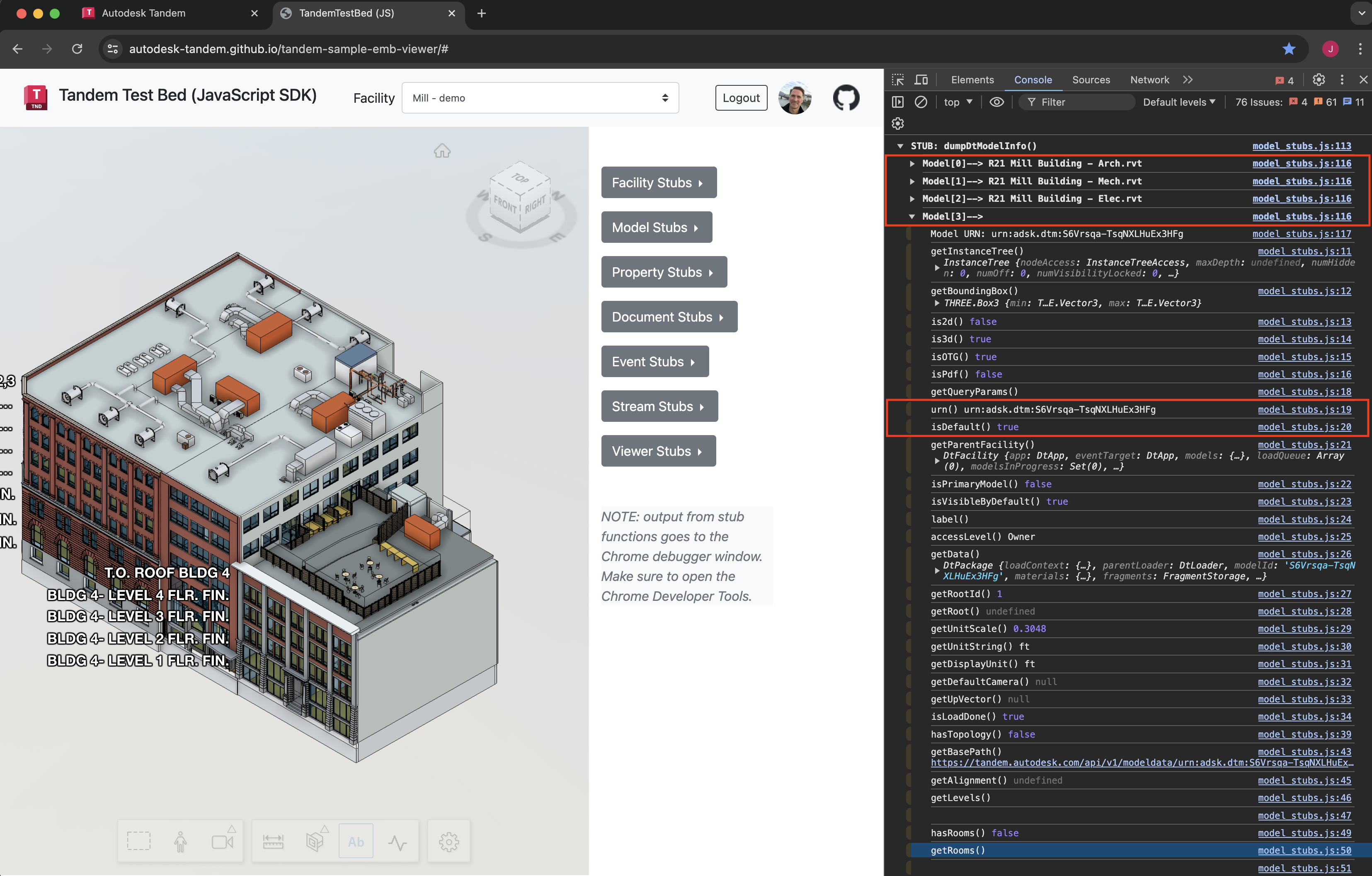
This information about the default model is important to understand because a Stream is represented as a normal element in the Tandem database. It is classified as regular elements are, and it will show up in things like a /scan request. However, they are different in the way you get and set values since a stream represents a collection of events over time. As we will see below, you use the /timeseries endpoints to set and retrieve sensor datapoints over a given time range.
Let’s start by creating a new Stream using the POST create endpoint. In the Postman collection, we see the /create request:
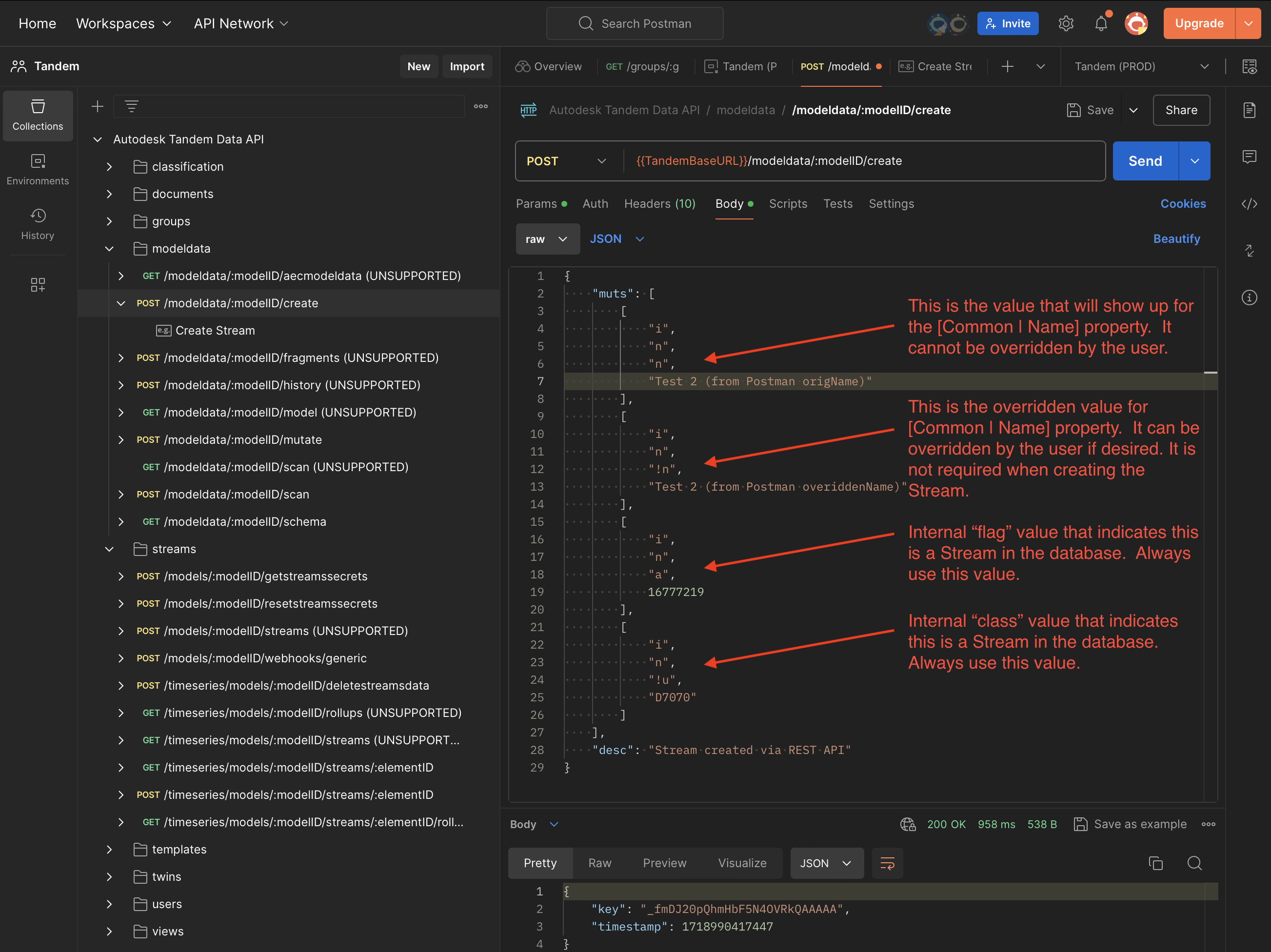
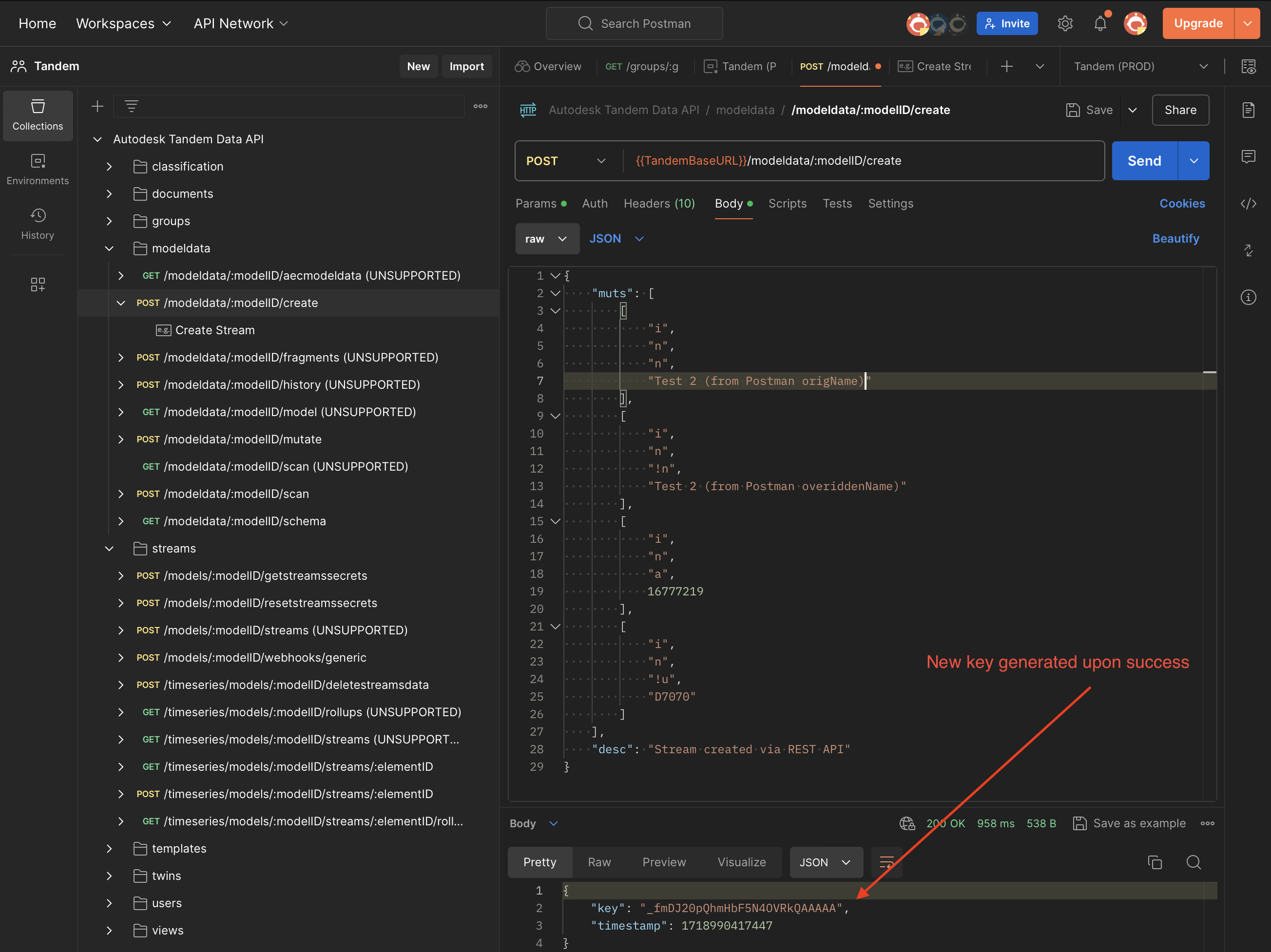
The /create endpoint is very similar to /mutate in that it takes a series of values to update. The obvious difference is that /mutate works on existing elements in the database (things that have a “key” already). In this case, a successful call to /create will return the key of the new element in the database.
If we try to immediately use the newly created stream, we will get an error as shown in the image below. There is one more step before we can push data through the Ingestion URL.
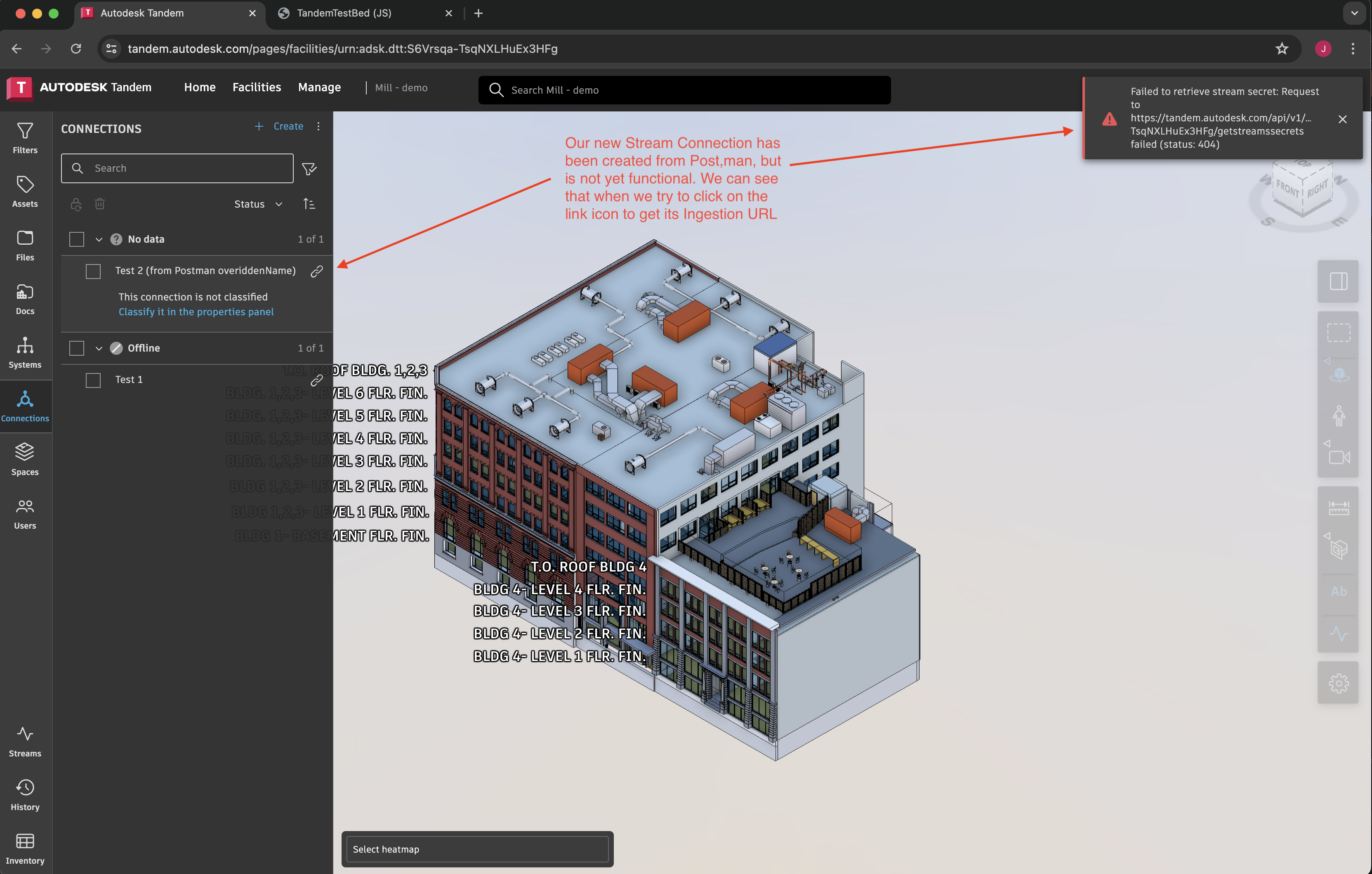
We need to generate a Stream secret to make it functional. We can do this with a call to the POST resetstreamssecrets endpoint, as shown below:
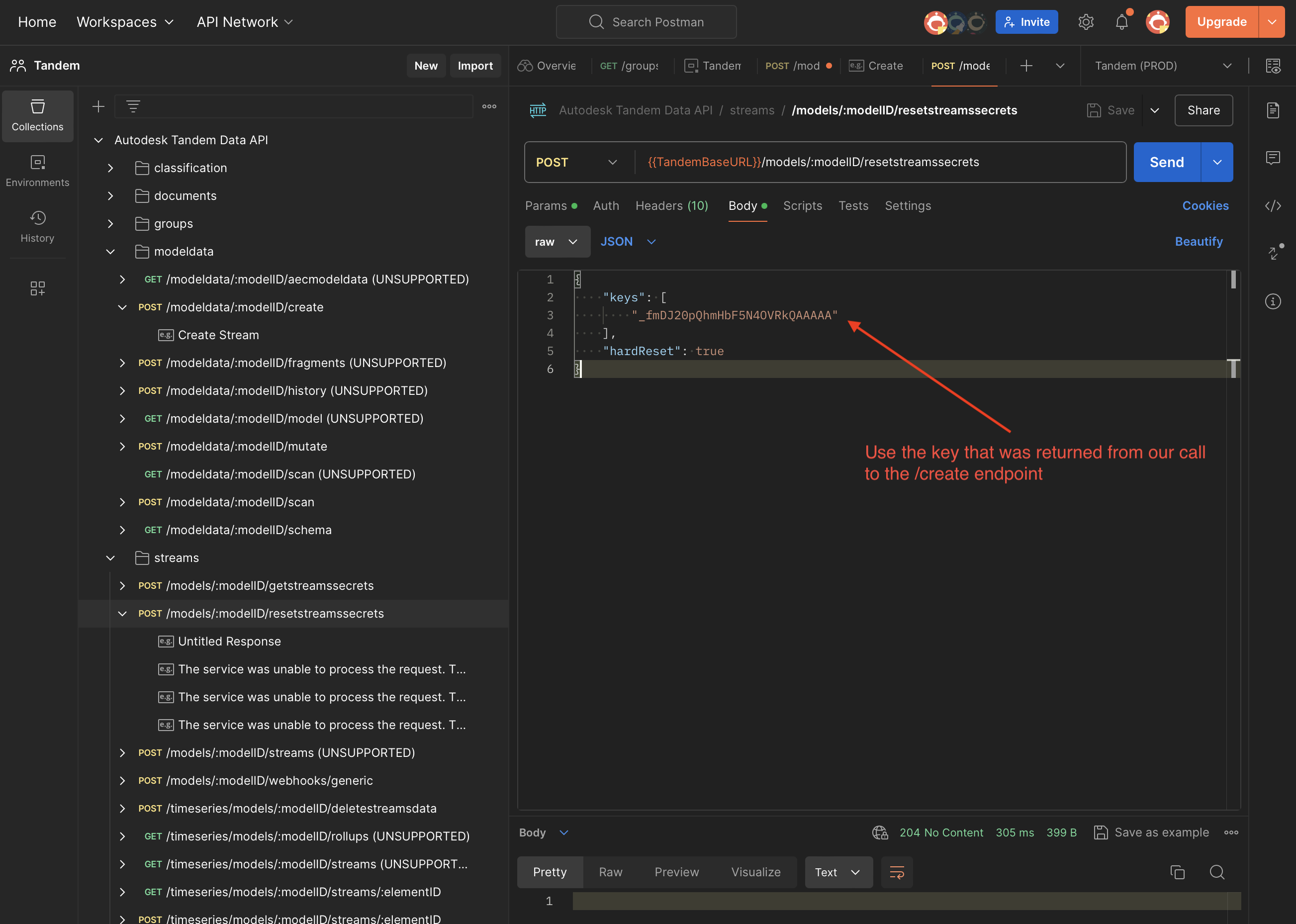
Now, if we return to Tandem and try to request the Ingestion URL, it should succeed.
NOTE: If we ever need to look up the “key” values or any other information about the streams manually, we can use the Tandem Test Bed app, as shown in the following image:
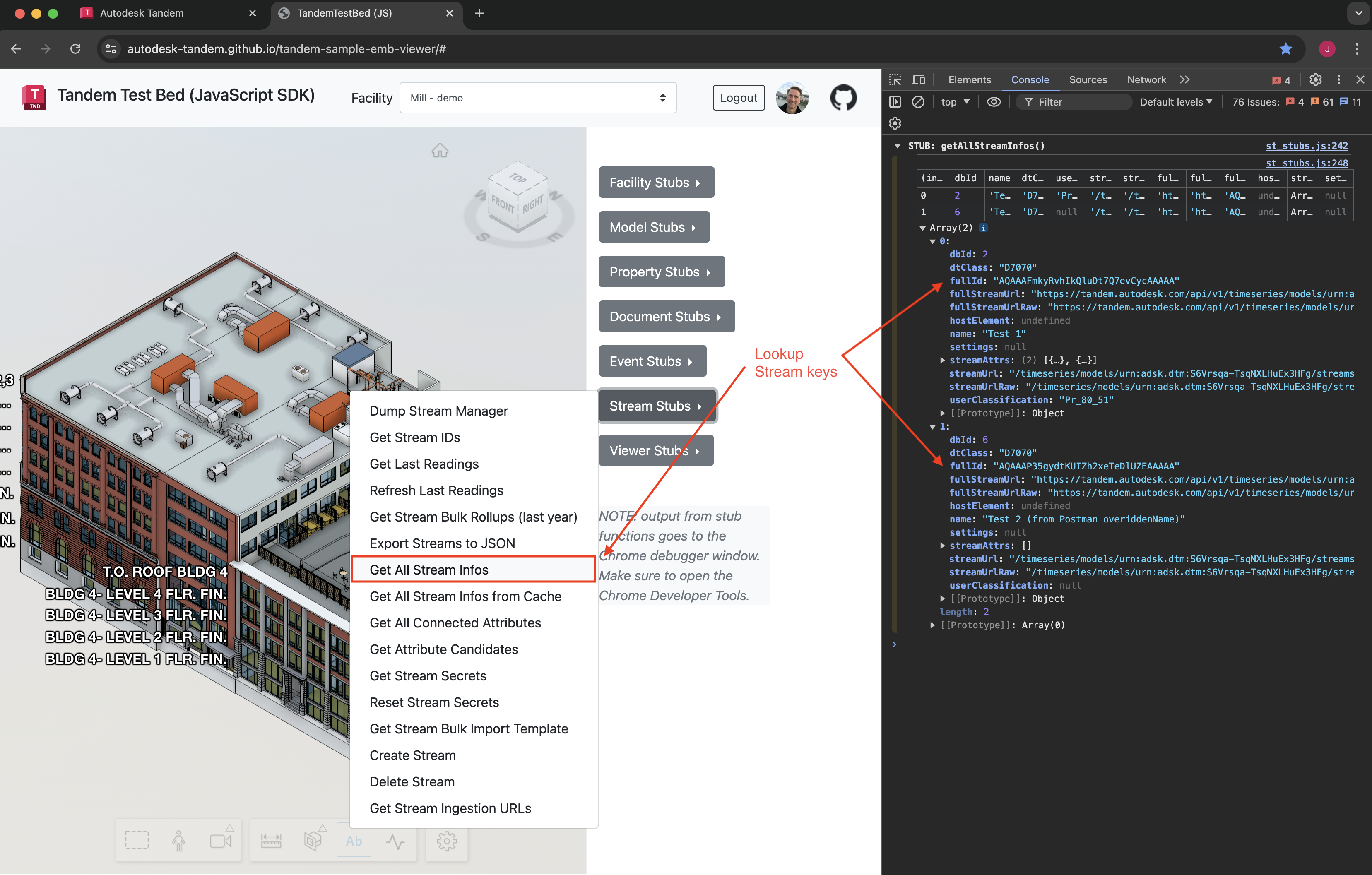
Given the two keys for the Streams we currently have, we can look up the last known values with a call like the following:
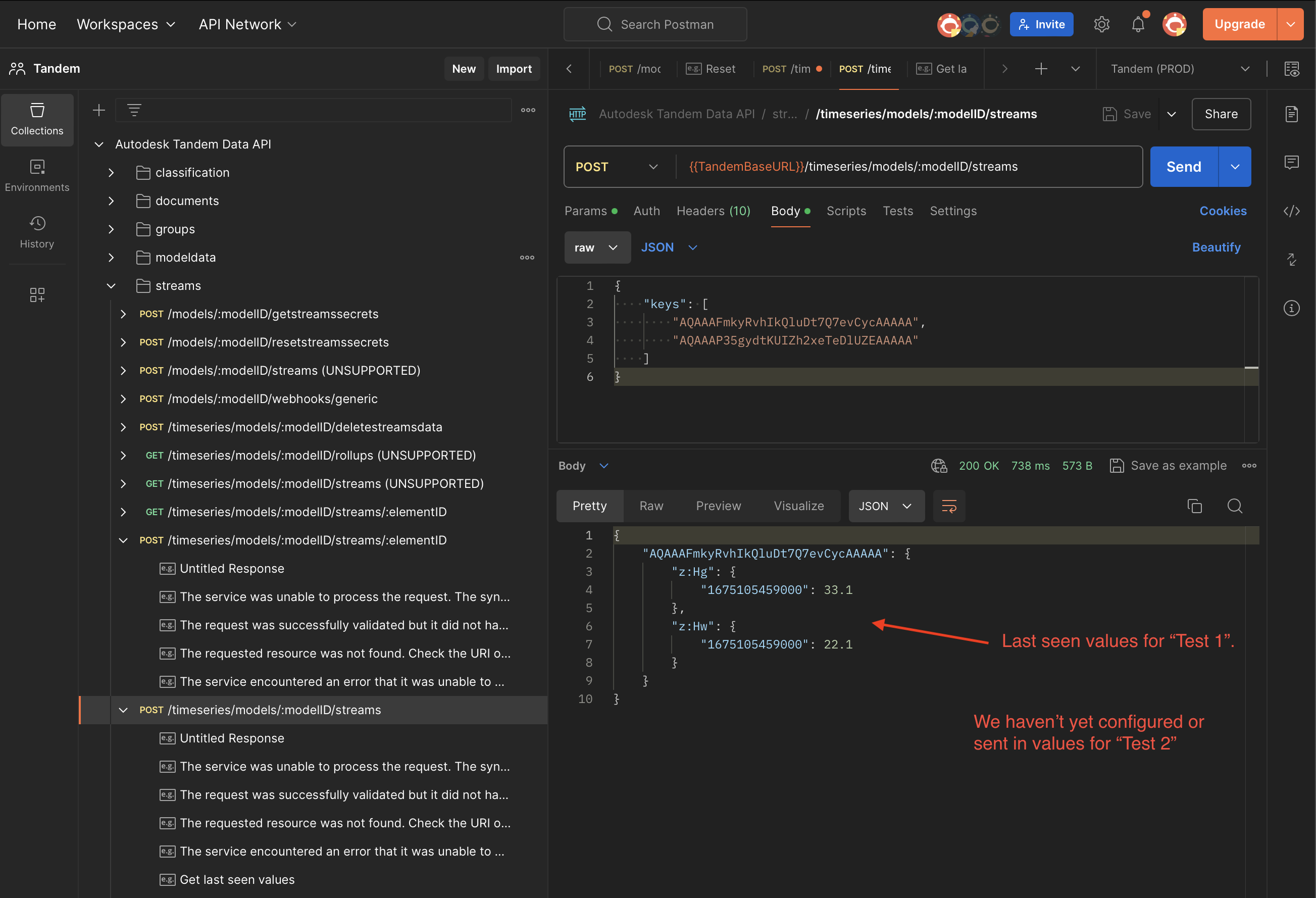
If we want a more detailed query of the Stream values, we can use a call like the following:
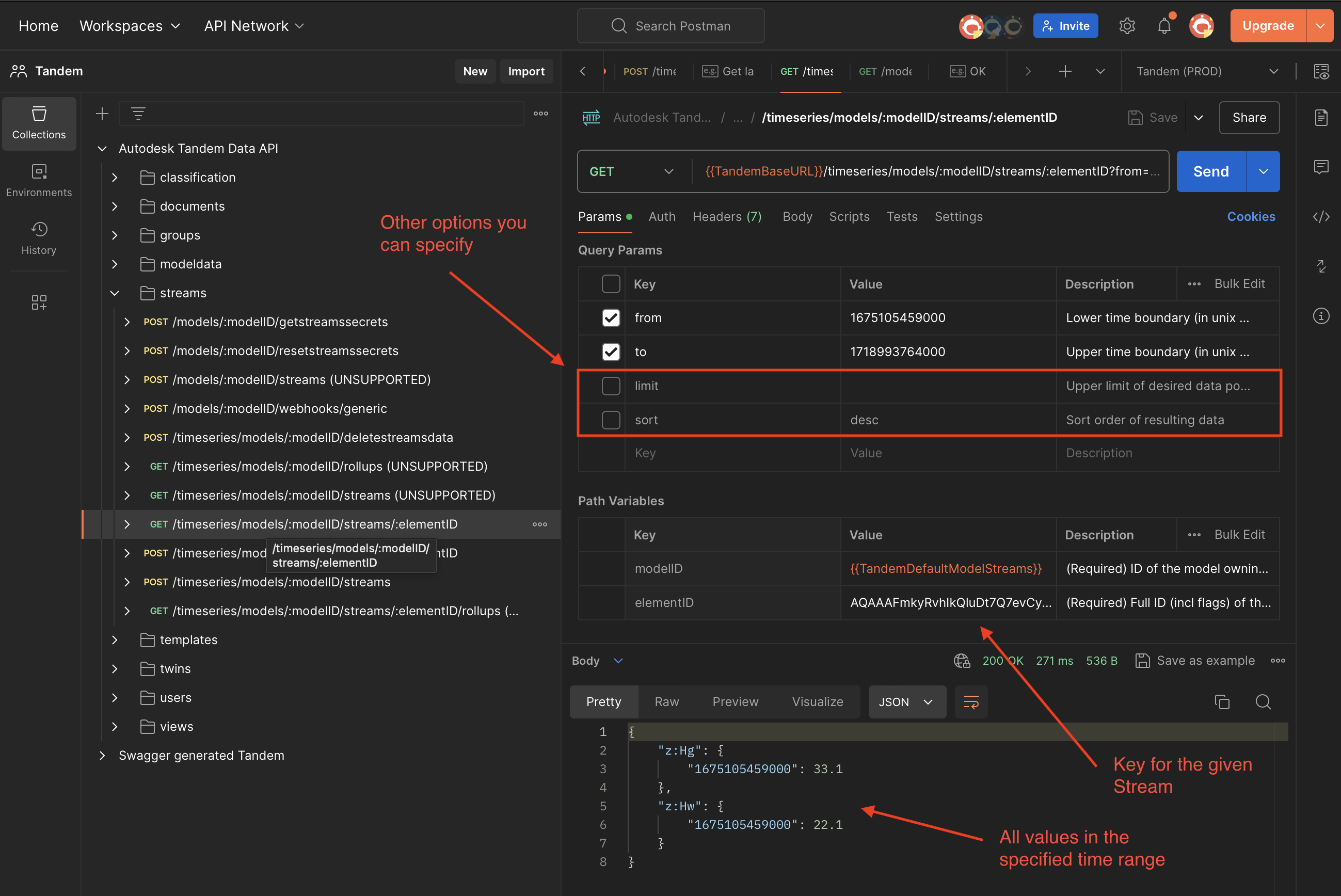
In this example, we have asked for the timeseries values for a specific Stream (indicated by the “elementID”, which is the “key” we have been using). We need to pass in a time range by using millisecond values in the unix epoch. Here we haven’t specified any other options, but we could ask to sort the results, or limit the number of values returned. Use the Postman examples to try different options.
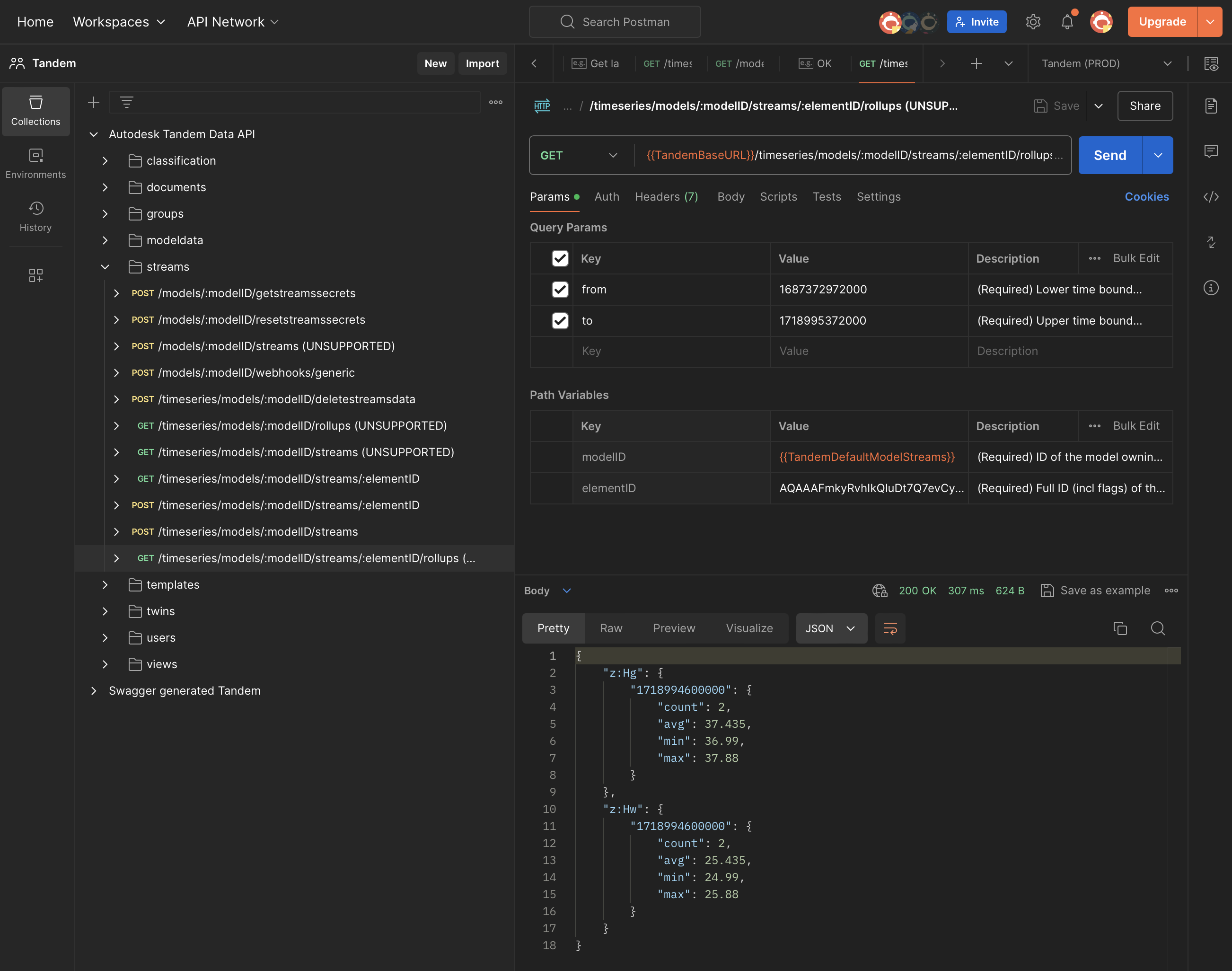
We can also use the /rollups endpoint to get some averages for the timeseries data, as in the following image: