Before You Begin
Before you can create and use a Secure Service Account (SSA), you need an APS account, a developer hub, and a registered app with client credentials.
This guide walks you through each prerequisite step:
- Sign in or create an APS account
- Set up a developer hub
- Register an app
Step 1: Sign in or create an APS account
- Visit the Autodesk Platform Services portal.
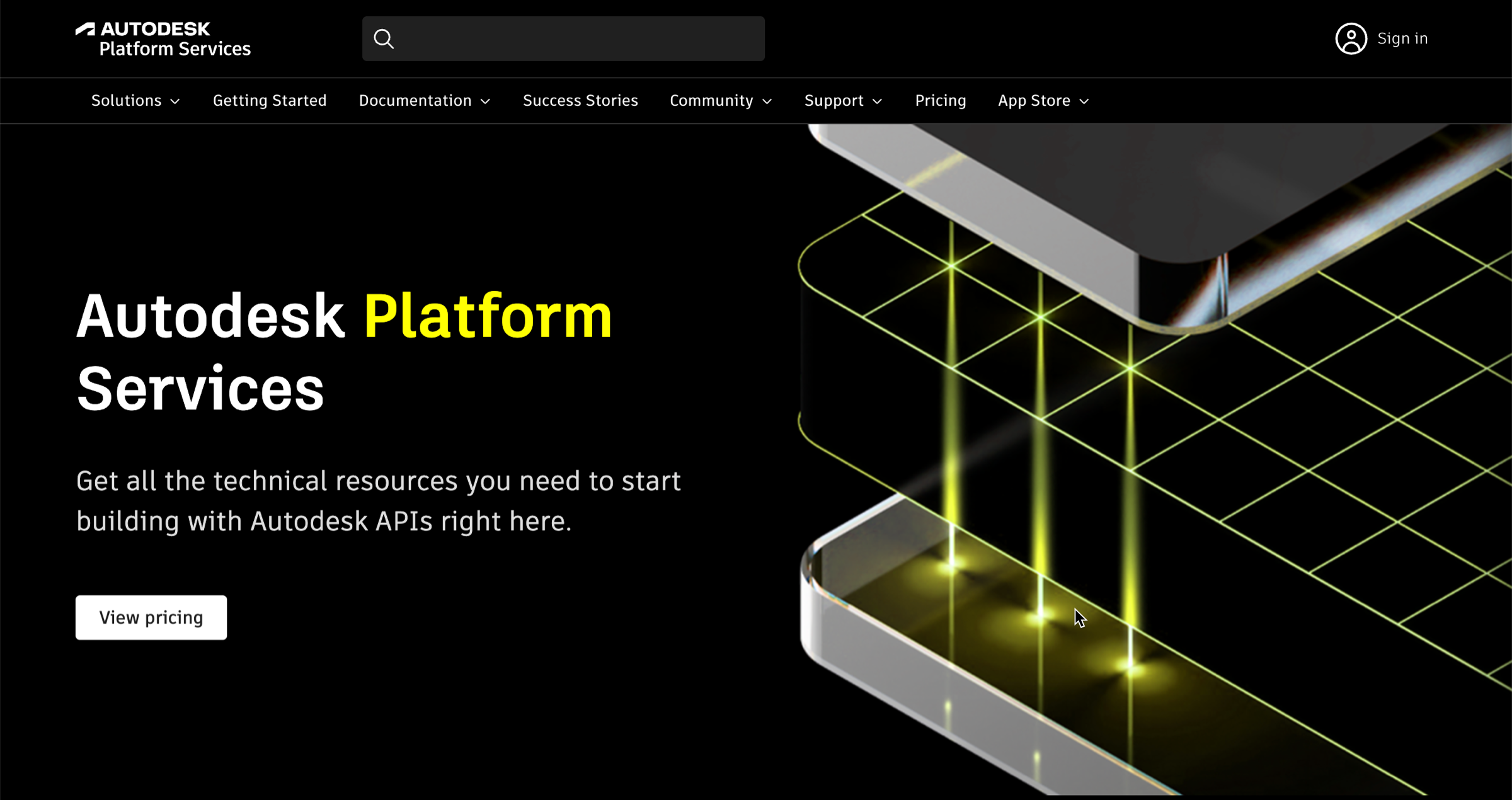
- Click Sign in in the top right corner.
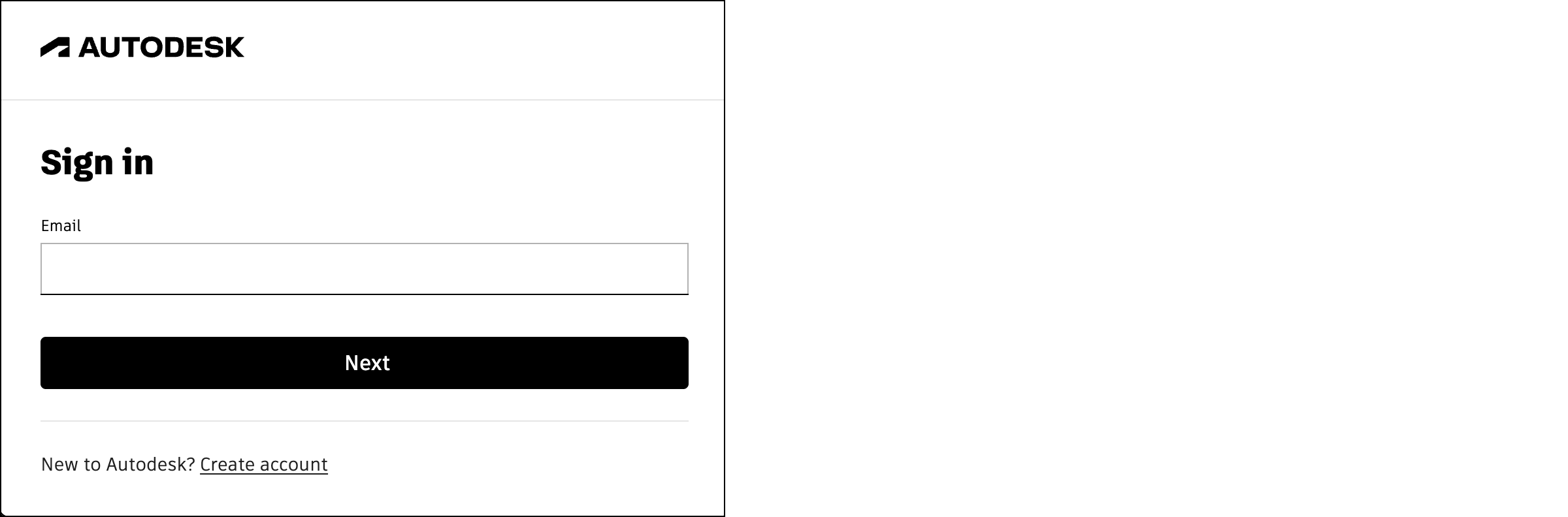
- Sign in with your existing account, or click Create account if you don’t have one.
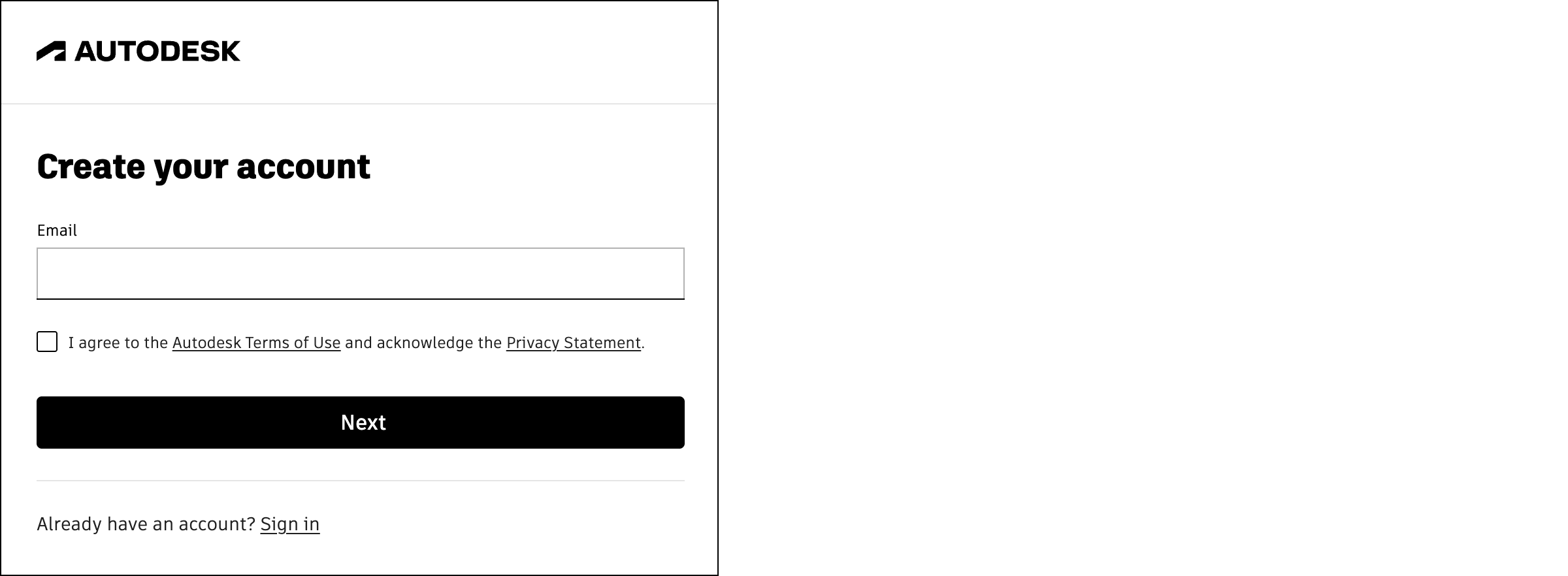
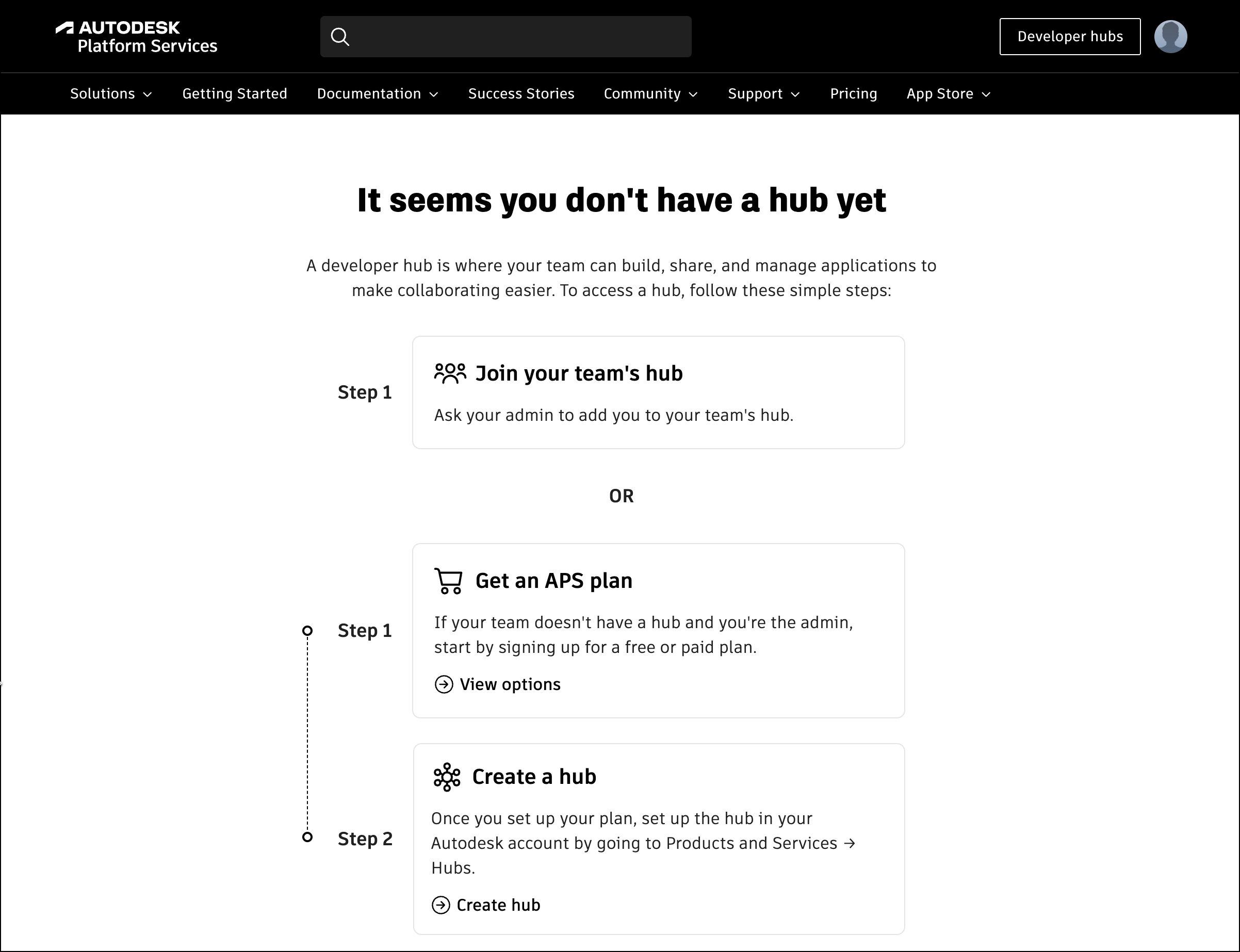
- If creating a new account, follow the on-screen instructions. Once complete, you’ll see a page titled It seems you don’t have a hub yet.
Important: During account setup, you’ll receive a backup code. Save this code securely. It provides one-time access to your account if you’re unable to receive a one-time password.
Step 2: Set up a developer hub
You need to have a developer hub before you can register an app.
What is a developer hub?
A developer hub is a collaboration workspace within which a team can build, share, and manage apps.
If you’re part of a team, your team likely already has a developer hub. Ask your team admin to add you to the developer hub, then skip to Step 3: Register an app.
If your team has subscribed to an APS plan but hasn’t created a developer hub yet, and you’re the team admin, skip to Create a developer hub.
If your team hasn’t subscribed to an APS plan, or you want a developer hub for yourself, follow the steps below.
Get an APS plan
- If you see the It seems you don’t have a hub yet page, click View options in the Get an APS plan card. If not, visit https://www.autodesk.com/products/autodesk-platform-services/overview.
- Scroll to the Autodesk Platform Services cloud APIs section.
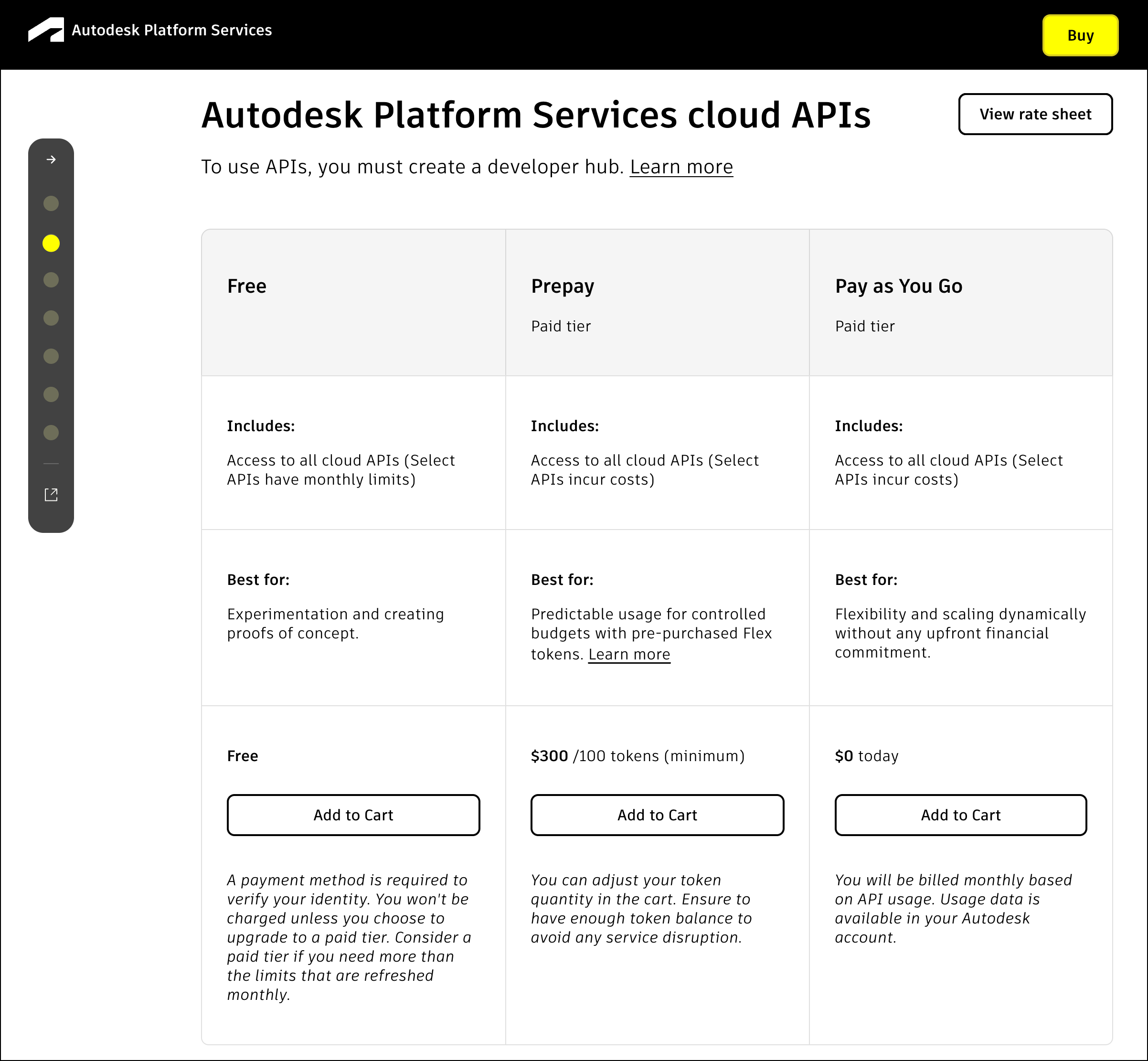
- Select your preferred plan tier.
Tip: The Free tier provides monthly access to APS APIs with usage caps on paid APIs.
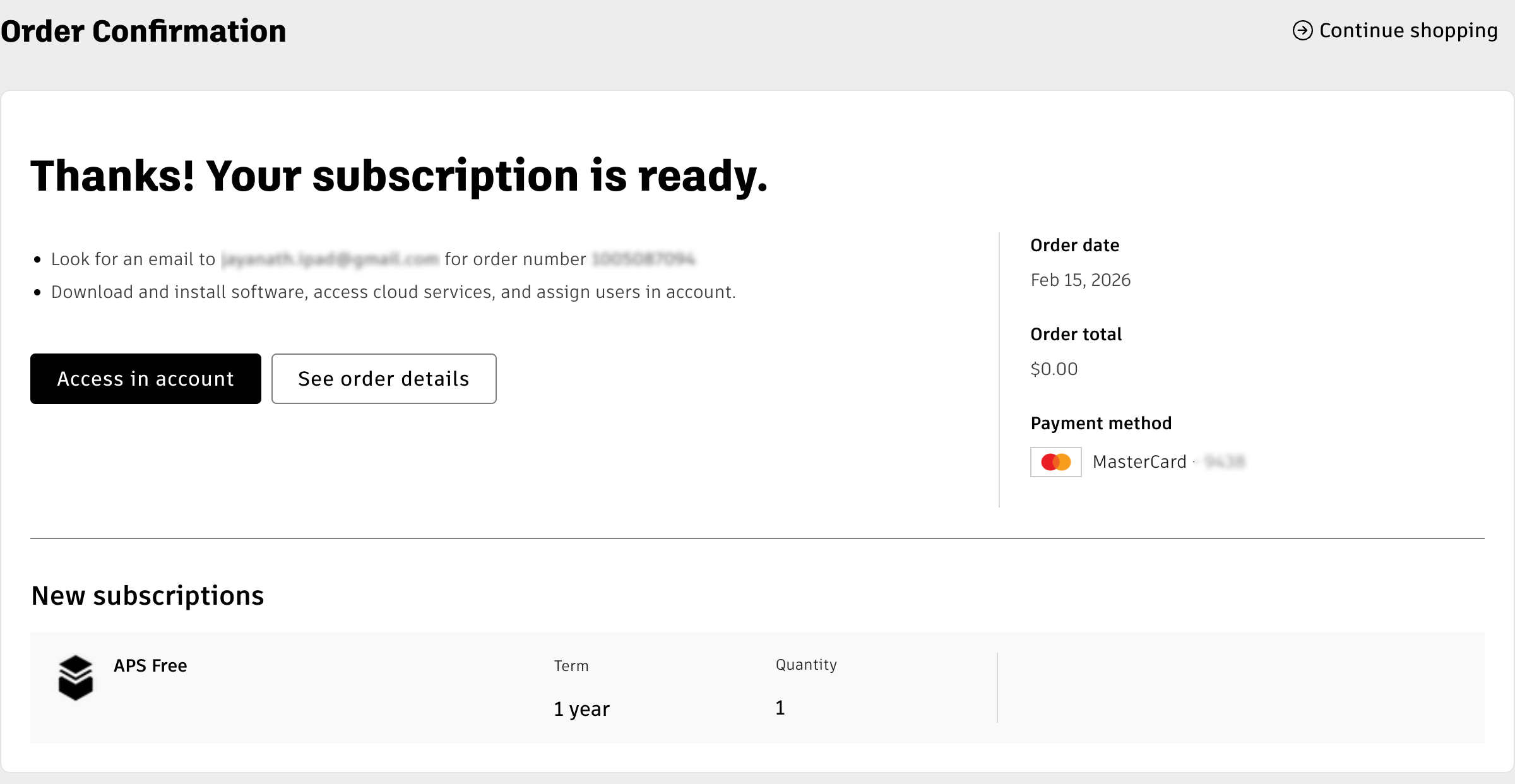
- Follow the on-screen instructions to complete the purchase process. The final screen you should see will be similar to the following:
Create a developer hub
- Visit https://manage.autodesk.com.
- Navigate to Products and Services > Hubs tab.
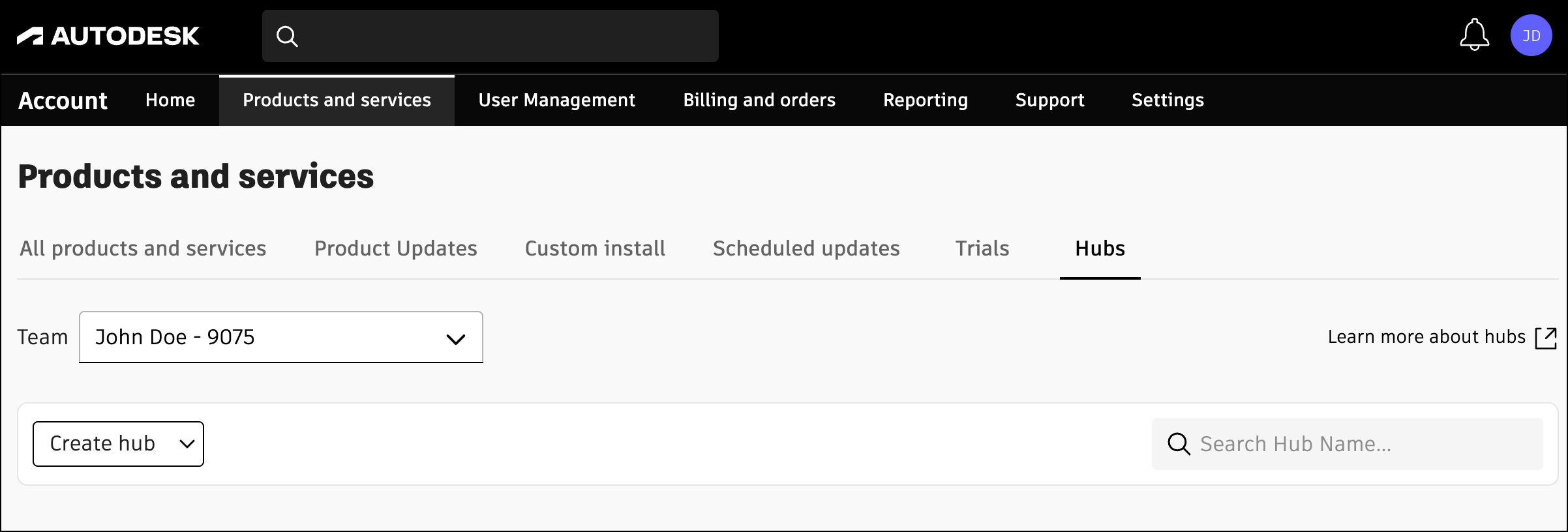
- Click Create hub and:
- Click APS developer hub
- Provide a name for the developer hub and an optional description
- Click Create and Activate
Step 3: Register an app
- Visit https://aps.autodesk.com.
- From your profile menu, navigate to My applications.
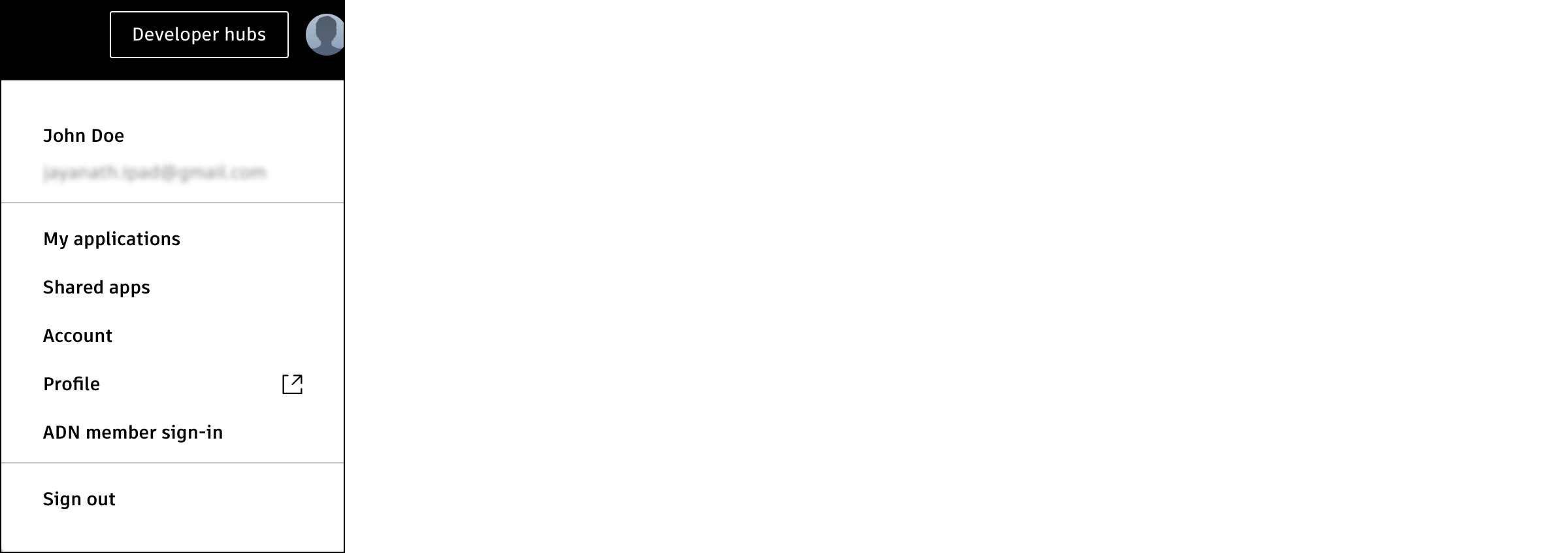
- Select your developer hub from the Developer Hub dropdown.
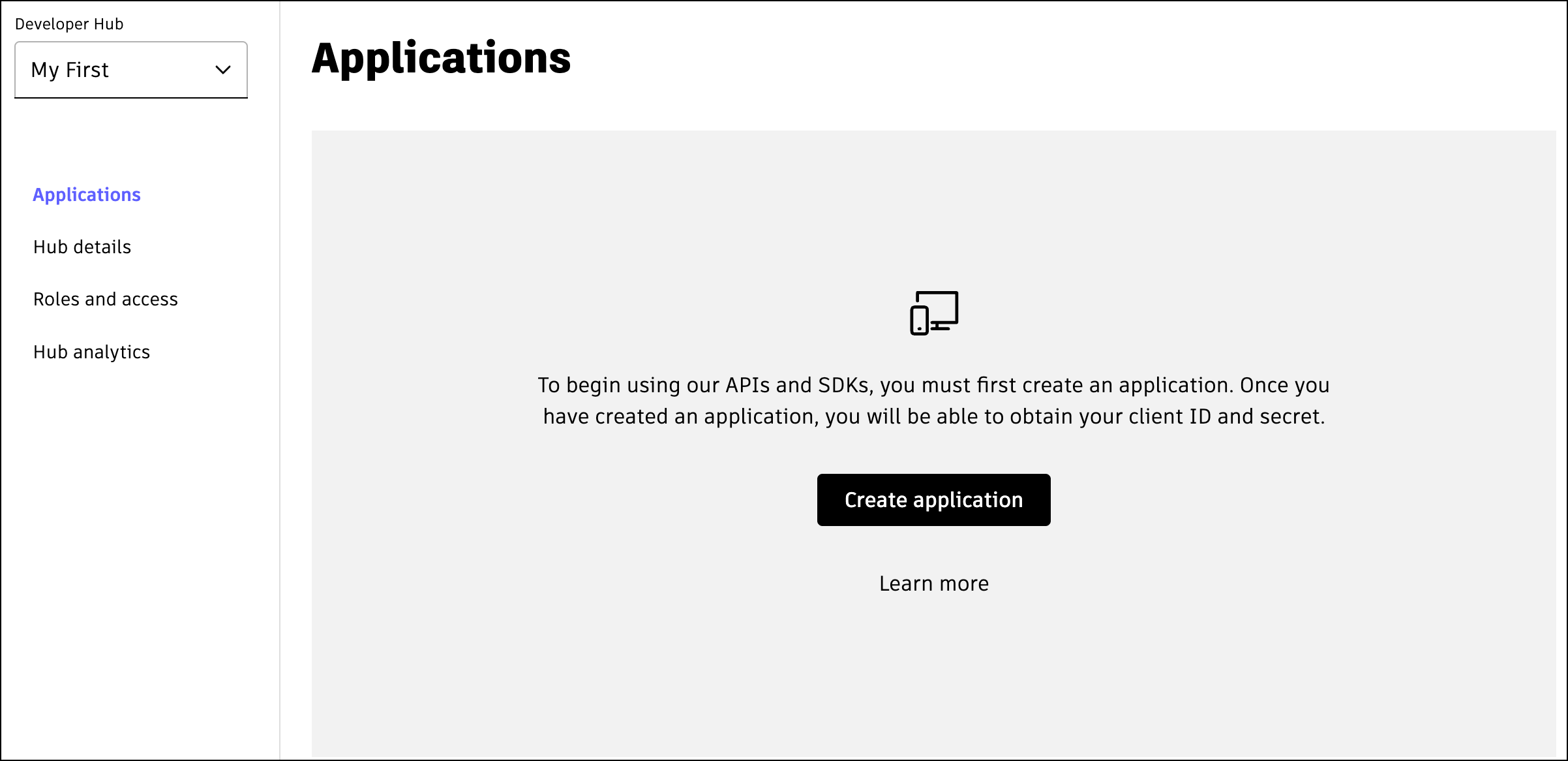
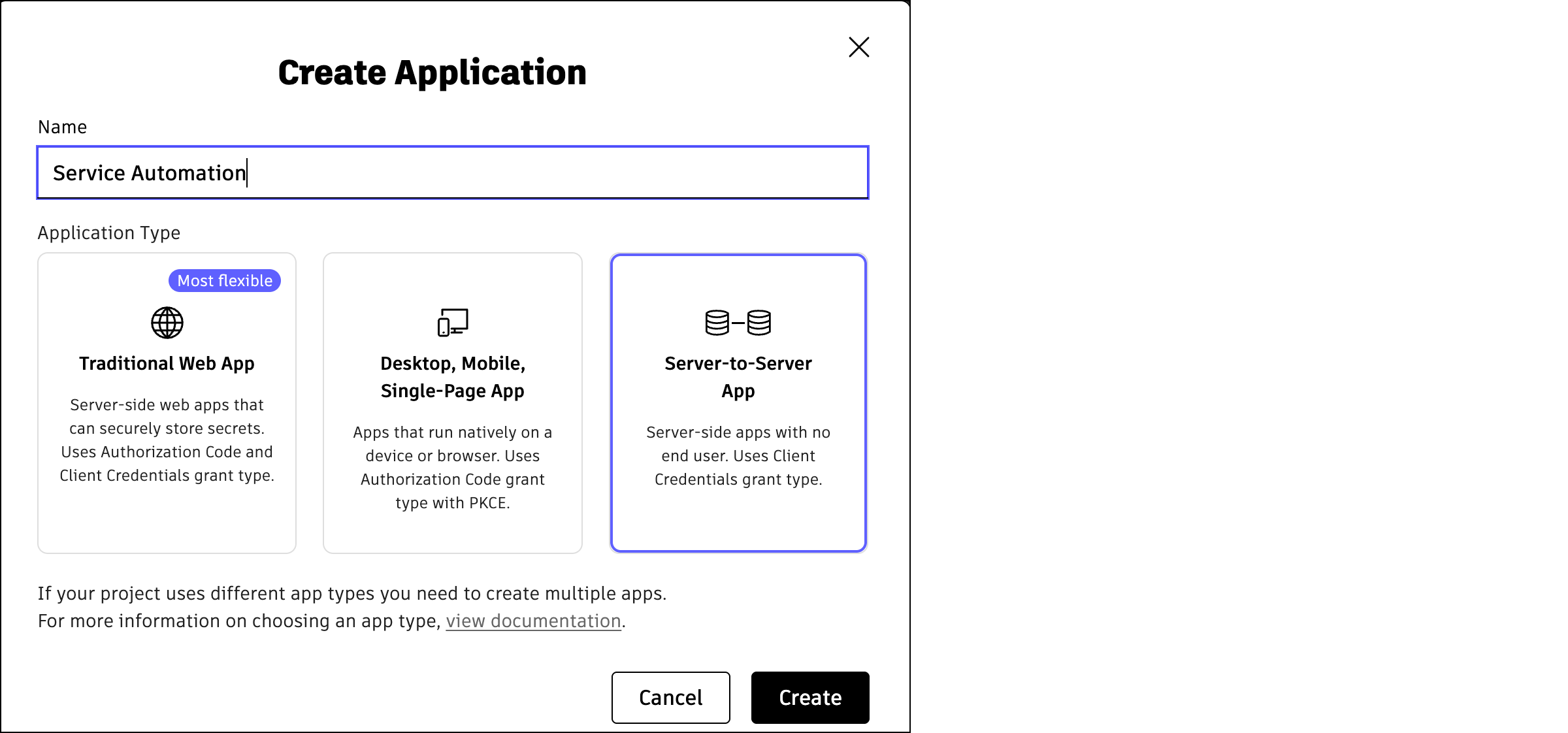
- Create a new app with the following configuration:
- Name: Provide a descriptive name for your app
- Application Type: Select Server-to-Server App
For more information about app types, see Application Types.
- Configure the app settings:
- Description: Enter a short description of the app
- API Access: Select the APIs your app will use
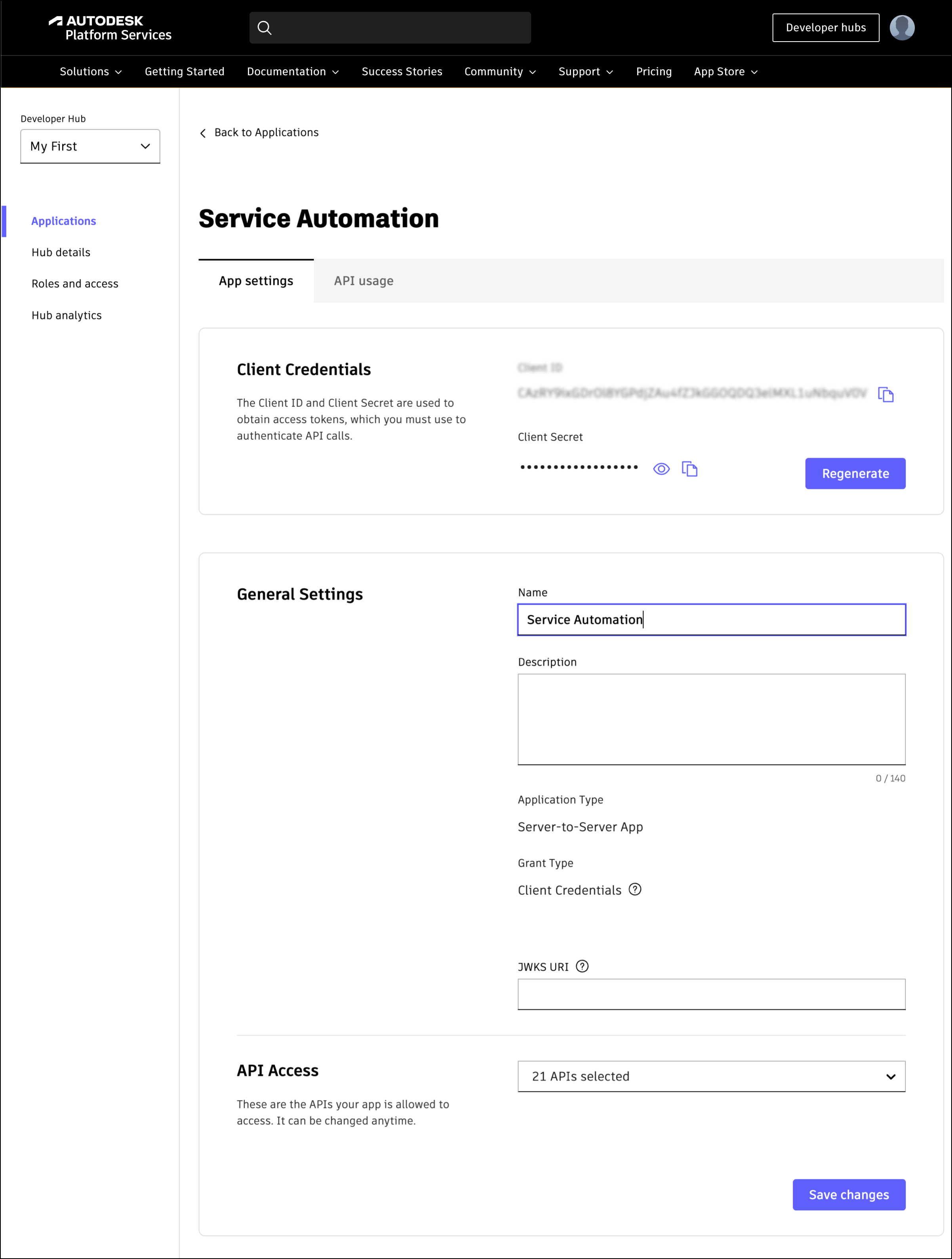
- Save your changes.
Step 4: Save your Client Credentials
Once the app is registered, note down the Client Credentials (Client ID and Client Secret) from App settings. You will need these credentials in the next step.
Warning: Store your Client Secret securely. Never commit it to source control, share it publicly, or include it in client-side code. Consider using a secrets manager for production environments.
Now that you have your Client ID and Client Secret, you’re ready to proceed with the walkthrough.