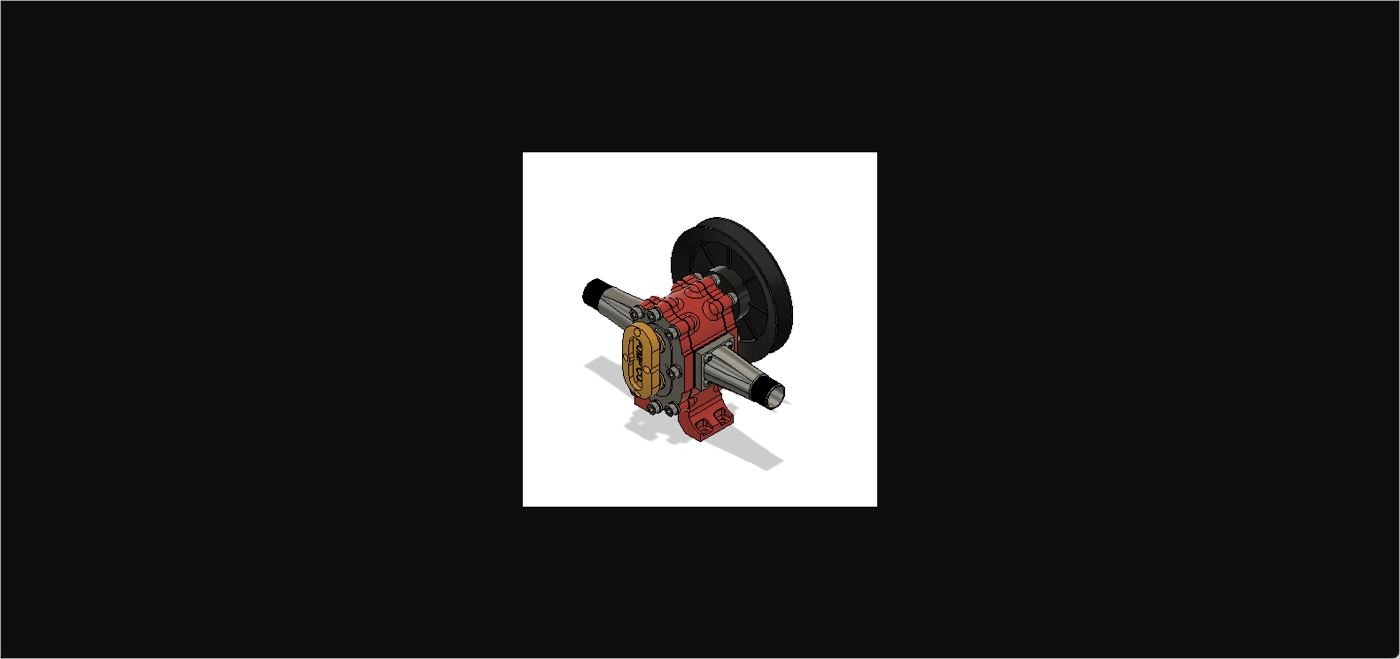
View Thumbnail URL
This topic provides instructions on how to retrieve the following:
- URL of Thumbnail.
- Display URL of Thumbnail.
As a prerequisite for completing the current topic, you need to complete the following tasks:
You will use the following query in this task:
| Type | Operation | Description |
|---|---|---|
| Query | componentVersion | Retrieves an object representing a version of a component. |
Step 1 - Get the URL of the Thumbnail
The componentVersion query returns a ComponentVersion object, which represents the tip version of the component. You extract the URL of the thumbnail by mining the Thumbnail object.
- In Manufacturing Data Model Explorer, enter the following query in the Query pane:
Query
query GetComponentVersion($componentVersionId: ID!) {
    componentVersion(componentVersionId: $componentVersionId) {
        id
        name
        partNumber
        partDescription
        designItemVersion {
            id
            name
            extensionType
        }
        thumbnail {
            status
            signedUrl
        }
        component {
            id
            name
        }
    }
}
Show More - In the Query Variables Pane, enter the value of the
componentVersionId. To know how to obtain thecomponentVersionId(tipRootComponentVersion), refer to Retrieve Items.Query Variables
{ "componentVersionId": "Y29tcH5WQVZNUW1sYmxrZDBtaXJwU0NYMHJ0X0wyQ34zMlBTQ2daMXJLY2V3SHlCN1dkbEZyX2FnYX53RnlaU1BGSmNQY2l3NDdFeTBIemJX" } - Click Play. The field
signedUrlis the URL of a Thumbnail.Response
{
"data": {
    "componentVersion": {
        "id": "Y29tcH5WQVZNUW1sYmxrZDBtaXJwU0NYMHJ0X0wyQ34zMlBTQ2daMXJLY2V3SHlCN1dkbEZyX2FnYX53RnlaU1BGSmNQY2l3NDdFeTBIemJX",
        "name": "3D_Arm_Scan",
        "partNumber": "3D_Arm_Scan",
        "partDescription": "",
        "designItemVersion": {
            "id": "urn:adsk.wipstg:fs.file:vf.2T9wT3rFSZW0SJkfo139PQ?version=1",
            "name": "3D_Arm_Scan",
            "extensionType": "versions:autodesk.fusion360:Design"
        },
        "thumbnail": {
            "status": "SUCCESS",
            "signedUrl": "https://cdn-stg.derivative.autodesk.com/dXJuOmFkc2suZm9yZ2U6bDJhZy5hc3NldDpzdGc6MzJQU0NnWjFyS2Nld0h5QjdXZGxGcl9hZ2E_c25hcHNob3Q9d0Z5WlNQRkpjUGNpdzQ3RXkwSHpiVw/output/NDNlNmMwMDgtNjVmYS00YmEwLWI1OGQtYzRiOTU2Yzc5Y2Rh.png?Policy=eyJTdGF0ZW1lbnQiOiBbeyJSZXNvdXJjZSI6Imh0dHBzOi8vY2RuLXN0Zy5kZXJpdmF0aXZlLmF1dG9kZXNrLmNvbS9kWEp1T21Ga2Myc3VabTl5WjJVNmJESmhaeTVoYzNObGREcHpkR2M2TXpKUVUwTm5XakZ5UzJObGQwaDVRamRYWkd4R2NsOWhaMkVfYzI1aGNITm9iM1E5ZDBaNVdsTlFSa3BqVUdOcGR6UTNSWGt3U0hwaVZ3L291dHB1dC9ORE5sTm1Nd01EZ3ROalZtWVMwMFltRXdMV0kxT0dRdFl6UmlPVFUyWXpjNVkyUmgqIiwiQ29uZGl0aW9uIjp7IkRhdGVMZXNzVGhhbiI6eyJBV1M6RXBvY2hUaW1lIjoxNzE3MzM4OTQ2fX19XX0_&Key-Pair-Id=APKAJVJIJZ6OEYDPJSQA&Signature=EBxsLjd7t-PkKby4IKGSuPeeKim6LnwG90ZmOhQmnyWmpu4LIdUOG6EuFlc30msWqsOvJzE04ZemVf9ryNh6uGElKsEfur64Z6rLg0~igd4MhBJjMKVpciYNd~B6x8a6SoAPozj0pdX-ricwXaF1kS6JxDWphZlPB7aFogDuceNLbKHzXkDQ4P46JuwkYu3Pag33NqdO5U1Vh-9hv9v~xWtK9zlGs5X5OOhWD60ZTXPGOeHw1Fk1mEMs6DFgJ3Xk823cLrhQJNg5FeswhgWHEkETvFCygifvtl~qD7SPdv0pkn5BQLo60690XDMP75X0SDWZ9BKykOjWUto1QFrpIg__"
        },
        "component": {
            "id": "Y29tcH5WQVZNUW1sYmxrZDBtaXJwU0NYMHJ0X0wyQ34zMlBTQ2daMXJLY2V3SHlCN1dkbEZyX2FnYQ",
            "name": "3D_Arm_Scan"
        }
    }
}
}
Show More
Note:
- The status mentioned in the response is the result of the successful execution of the requests. If the requests are not successful, we recommend that you retry executing the queries to get a successful response. For more information about other statuses, see ThumbnailStatusEnum.
- The generated URL is valid for six hours after it is generated.
Step 2 - View the Thumbnail
To view the thumbnail, perform the following actions:
- Start your preferred web browser.
- Browse to the URL of the image that you want to view. In this case, the value of
signedUrl.
After performing the given steps, you should be able to see screen like the following image.