Example: Shadow study
This code for this example is found here and is available to all user in the Forma marketplace.
Motivation
The shadow study extension lets the user select a time range, date and inverval to generate a shadow study consisting of screenshots of the proposal at selected sun positions for the given times. This is a typical workflow for many architects which can be time-consuming to do with traditional tools.
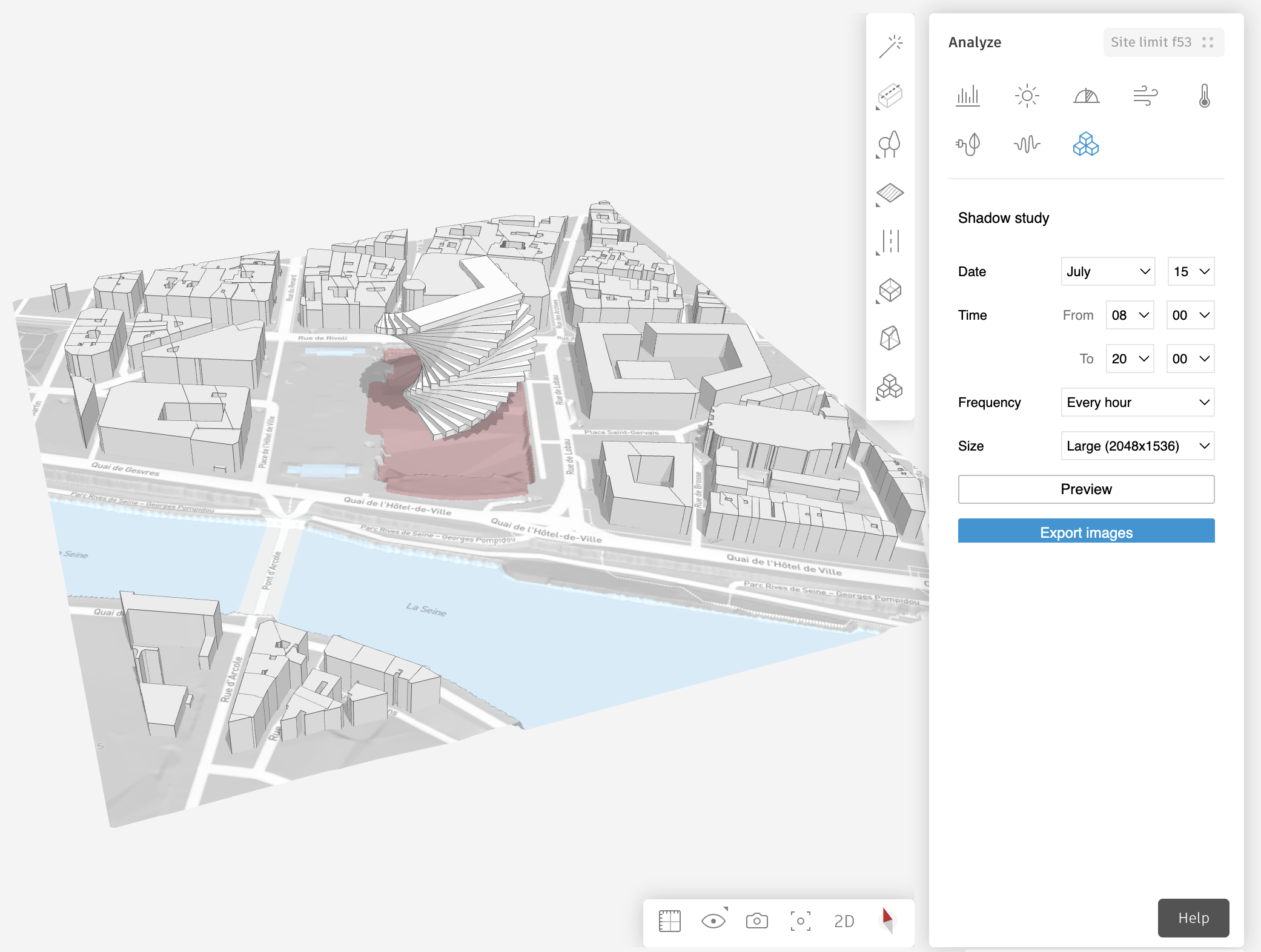
TODO: replace image when proper styling is in place
How does it work
In this section we will exemplify core logic of the extension, but please head over to the repo to get a full overview.
State management and main components
After some imports, the App component is defined:
import {useState} from "preact/hooks";
import DateSelector from "./components/DateSelector";
import {Header} from "./styles";
// ...more imports

export default function App() {
    const [month, setMonth] = useState(6);
    //... more state setup

    return (
        <>
            <Header>Shadow
    study < /Header>
    < DateSelector
    month = {month}
    setMonth = {setMonth}
    day = {day}
    setDay = {setDay}
    />
    //... more components
    < />
)
    ;
}
If you are not accustomed to state management and hooks such as useState, we
recommend looking at the React docs. Here, we are
just initialising the chosen month to June and creating a setter function for
changing it. These state objects can then be passed on to e.g. our
DateSelector component (src/components/DateSelector.tsx) which handles the
first dropdown select in our extension.
Using the Forma Site Design API
Let’s take a look at the PreviewButton component (src/components/PreviewButton.tsx), which loops through the
selected times and shows the user which screenshots would be generated:
import {Forma} from "forma-embedded-view-sdk/auto";

// ... excluded for brevity

export default function PreviewButton(props: PreviewButtonProps) {
    const {month, day, startHour, startMinute, endHour, endMinute, interval} =
        props;

    const onClickPreview = async () => {
        try {
            const currentDate = await Forma.sun.getDate();
            const year = currentDate.getFullYear();
            const startDate = new Date(
                year,
                month,
                day,
                startHour,
                startMinute,
                0,
                0
            );
            const endDate = new Date(year, month, day, endHour, endMinute, 0, 0);

            while (startDate.getTime() <= endDate.getTime()) {
                await Forma.sun.setDate({date: startDate});
                startDate.setTime(startDate.getTime() + interval * 60 * 1000);
                await timeout(500);
            }

            await Forma.sun.setDate({date: currentDate});
        } catch (e) {
            console.log(e);
        }
    };

    return (
        <Row>
            <SecondaryButton category = {"secondary"}
    onClick = {onClickPreview} >
        Preview
        < /SecondaryButton>
        < /Row>
)
    ;
}
The first which happens when the user clicks the Preview button, is that we fetch the currently set date in the Forma scene:
const currentDate = await Forma.sun.getDate();
We want this info in order to reset the scene after the illustration is
complete. It is worth pointing out that most functionality in the SDK is async
and must be awaited or resolved.
We then access the selected start and end times through the props which are
sent into the component. The state of these are handled in the main app as
described above. We loop from the start time to the end time in interval increments, and for each loop cycle:
- update the sun position in the scene using
Forma.sun.setDate() - increment the relevant time by
intervalminutes - wait for half a second to let the user have a good look
When all the selected snapshots have been shown, we set the sun position back to what it was originally:
await Forma.sun.setDate({date: currentDate});
The code employed by the ExportButton component is very similar, but there we
also store the snapshots using Forma.camera.capture() and download a compressed directory using
JSZip. Check it out!