Configuration
In this guide, the options that are configurable in the Integration section on the extension management page are described.
Embedded views
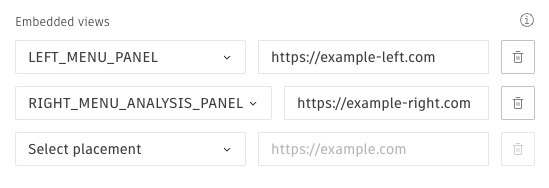
Embedded views in the left and right panel are configured here. Select the appropriate option and specify the URL it should load inside the panel.
Service accounts
A service account allows you to interact with project specific data from outside Forma by using the HTTP API. The client ID must be a client ID for an Autodesk Platform Services application that you have configured.
Read more here.
Endpoints
Here you can add endpoints can be used via invokeEndpoint in the Extension API to call your own service with Forma-specific authentication.
Read more here.
Secret used with endpoints
Adding this secret enable validating that requests to the endpoints configured in the section above are coming from
Forma.
The secret is included in the request header as x-forma-extension-secret.
Bundles
Not relevant for embedded views.