Retrieve Elements by Category and Specific Properties
In this tutorial, you will learn how to retrieve a list of elements in an exchange, filter them based on a category, and retrieve its specific properties.
By the end of this tutorial, you will be able to:
- Retrieve a list of elements of an exchange.
- Filter elements based on a category and retrieve its specific properties.
You will use the following queries in this tutorial:
| Type | Operation | Description |
|---|---|---|
| Query | exchange | Retrieves a list of elements in an Exchange. |
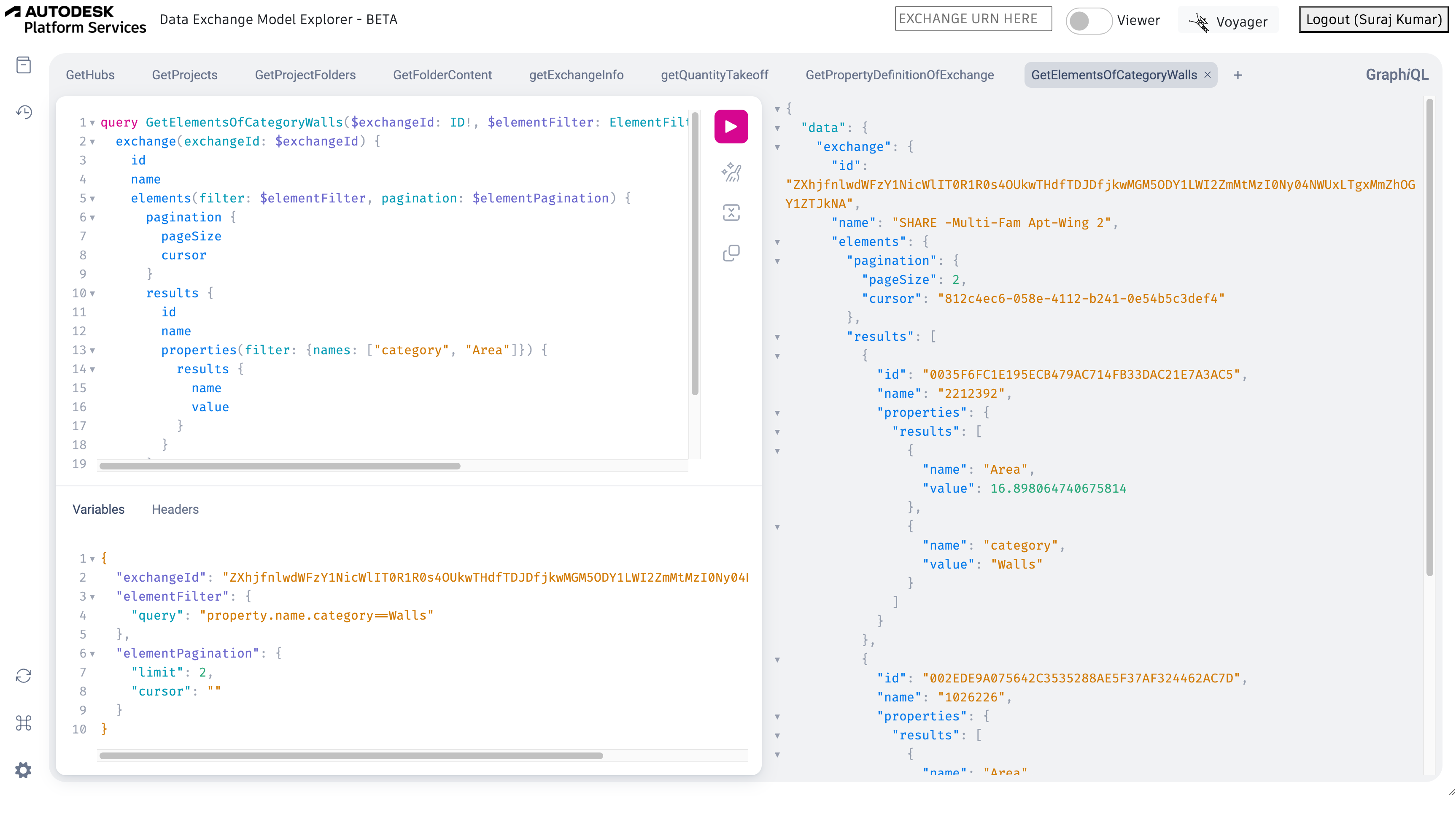
Step 1- Request a list of Elements which belongs to the “Walls” category and return only category and Area property.
The following steps demonstrate how you can run the exchange query to retrieve a list of Elements of an Exchange.
Apply filters on the properties of the elements using PropertyFilterInput which accepts a list of names that you want to filter. The following query uses category and Area as propertyFilters
- Enter the following query in the Query Pane of the Data Exchange Explorer.
Query
query GetElementsOfCategoryWalls(
    $exchangeId: ID!
    $elementFilter: ElementFilterInput
    $elementPagination: PaginationInput
) {
    exchange(exchangeId: $exchangeId) {
        id
        name
        elements(filter: $elementFilter, pagination: $elementPagination) {
            pagination {
                pageSize
                cursor
            }
            results {
                id
                name
                properties(filter: { names: ["category", "Area"] }) {
                    results {
                        name
                        value
                    }
                }
            }
        }
    }
}
Show More - In the Query Variables pane, enter the value of the
exchangeId. To know how to obtain theexchangeId, refer to Navigate to Exchanges within a Folder. AssignelementFilterwith the category of your choice.Note: Refer to the Advanced Filtering Capabilities page to see the list of supported filtering options.
Additionally, set the pagination
limitto any required value. You can traverse to subsequent pages by setting the cursor to the value returned incursorfield in the response.Query Variables
{
    "exchangeId": "ZXhjfnlwdWFzY1NicWlIT0R1R0s4OUkwTHdfTDJDfjkwMGM5ODY1LWI2ZmMtMzI0Ny04NWUxLTgxMmZhOGY1ZTJkNA",
    "elementFilter": {
        "query": "property.name.category==Walls"
    },
    "elementPagination": {
        "limit": 2,
        "cursor": ""
    }
}
Show More - Click Play. A list of
elementsand its specificpropertieslike “category” and “Area” of an exchange is displayed in the response.Response
{
    "data": {
        "exchange": {
            "id": "ZXhjfnlwdWFzY1NicWlIT0R1R0s4OUkwTHdfTDJDfjkwMGM5ODY1LWI2ZmMtMzI0Ny04NWUxLTgxMmZhOGY1ZTJkNA",
            "name": "SHARE -Multi-Fam Apt-Wing 2",
            "elements": {
                "pagination": {
                    "pageSize": 2,
                    "cursor": "812c4ec6-058e-4112-b241-0e54b5c3def4"
                },
                "results": [
                    {
                        "id": "0035F6FC1E195ECB479AC714FB33DAC21E7A3AC5",
                        "name": "2212392",
                        "properties": {
                            "results": [
                                {
                                    "name": "Area",
                                    "value": 16.898064740675814
                                },
                                {
                                    "name": "category",
                                    "value": "Walls"
                                }
                            ]
                        }
                    },
                    {
                        "id": "002EDE9A075642C3535288AE5F37AF324462AC7D",
                        "name": "1026226",
                        "properties": {
                            "results": [
                                {
                                    "name": "Area",
                                    "value": 3.525154240002383
                                },
                                {
                                    "name": "category",
                                    "value": "Walls"
                                }
                            ]
                        }
                    }
                ]
            }
        }
    }
}
Show More
Once the query runs successfully, your explorer should resemble the following image.