Fusion Team Integration
The Fusion Automation API enables access to your personal data and your team’s shared data stored on Fusion Team.
Authentication and Data Access
You can authorize a Fusion WorkItem to access Fusion Team data in several ways. In all cases, the Fusion engine runs with the same data permissions the chosen identity has in the Fusion desktop application, so your script can read, write, and create Fusion data across all teams that identity belongs to.
The table below summarizes the supported combinations of Authorization header and WorkItem body credential:
Option |
OAuth Type |
Required Body Content |
Notes |
Use Case |
|---|---|---|---|---|
| Submit for your activity on behalf of yourself as Fusion user | 2LO | PAT of Fusion user | The owner of the app of the 2LO token must be same as the user that has created the PAT. | Access is needed for a “service user’s” data that is aggregated from customers into one account |
| Submit for your activity using a 3LO token in the body | 2LO | 3LO token of Fusion user | The 3LO token in the body identifies the user; the 2LO token authenticates the caller. | For apps that authenticate to APIs with 2LO but need to access a Fusion user’s data via 3LO. |
| Submit for your activity on behalf of a different Fusion user | 3LO | PAT of Fusion user + Signed Activity ID | 3LO token must be for the same user as the PAT | Access is needed for direct customer data that logs in and allows it |
| Submit for your activity on behalf of a Fusion user (OBO) | 3LO | Signed Activity ID | The 3LO token carries the user identity, so no PAT is needed in the WorkItem body. | Access is needed for direct customer data; preferred over passing a PAT alongside a 3LO token. |
3-legged OAuth Token (Recommended)
A 3-legged OAuth token (3LO) is the recommended way to authorize a Fusion WorkItem. You can supply the 3LO token in one of two places:
- In the Authorization header (OBO). The Fusion engine accesses Fusion Team data on behalf of the user who authorized the token, and no body credential is required. Because 3LO tokens have broad scope, the WorkItem must include a signed
activityId. See Using 3-legged OAuth Tokens for the signing requirement. - In the WorkItem body. Use this when your client submits the WorkItem with a 2-legged token but still needs to act on behalf of a specific Fusion user. The 3LO token is supplied as the
PersonalAccessTokenargument of the WorkItem and identifies the user whose data the WorkItem accesses. TheactivityIdsigning requirement does not apply in this case.
For instructions on obtaining a 3LO token and the required scopes, see Step 1 of the Execute a Fusion Script walkthrough.
Personal Access Token
If you submit a Fusion WorkItem with a 2-legged OAuth token, you can supply a Personal Access Token (PAT) as the PersonalAccessToken argument of the WorkItem. The WorkItem inherits the data permissions of the PAT owner.
To create a PAT, sign in to your Autodesk profile and follow the instructions. Generate the PAT for the product scope “Fusion Automation API” or “Project Alpine”.
Accessing Files
To access an existing file, you need the file’s URN (unique identifier). Here are four ways to obtain a file’s URN:
- Data Management API
Use this Autodesk Platform Services API for unified data access across all Autodesk platforms. For more information, see the documentation.
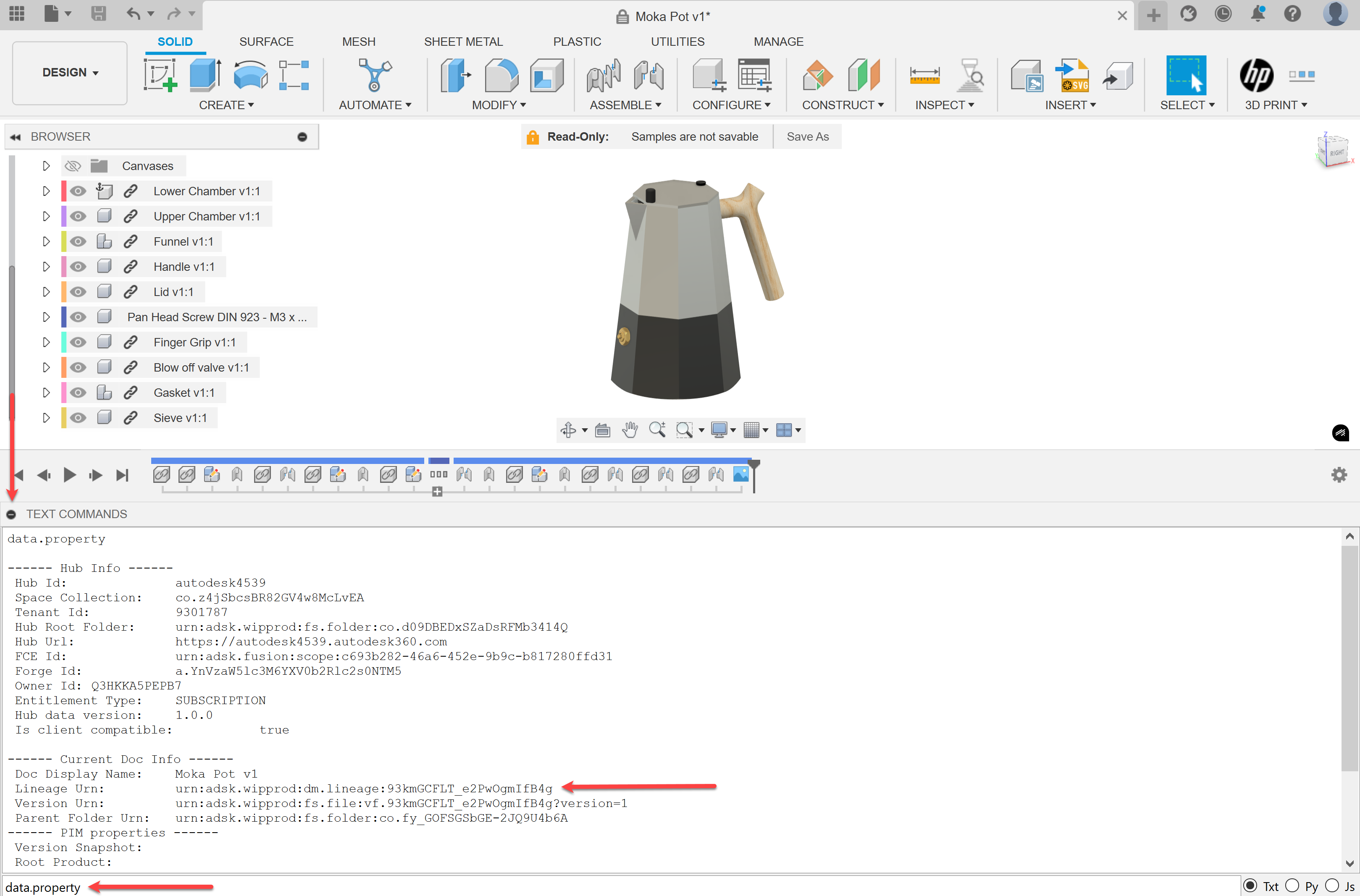
- Fusion Desktop
Navigate to your file and type “data.property” in the Text Command Window. Look for the “Lineage URN” field.
- Fusion Team Web Interface
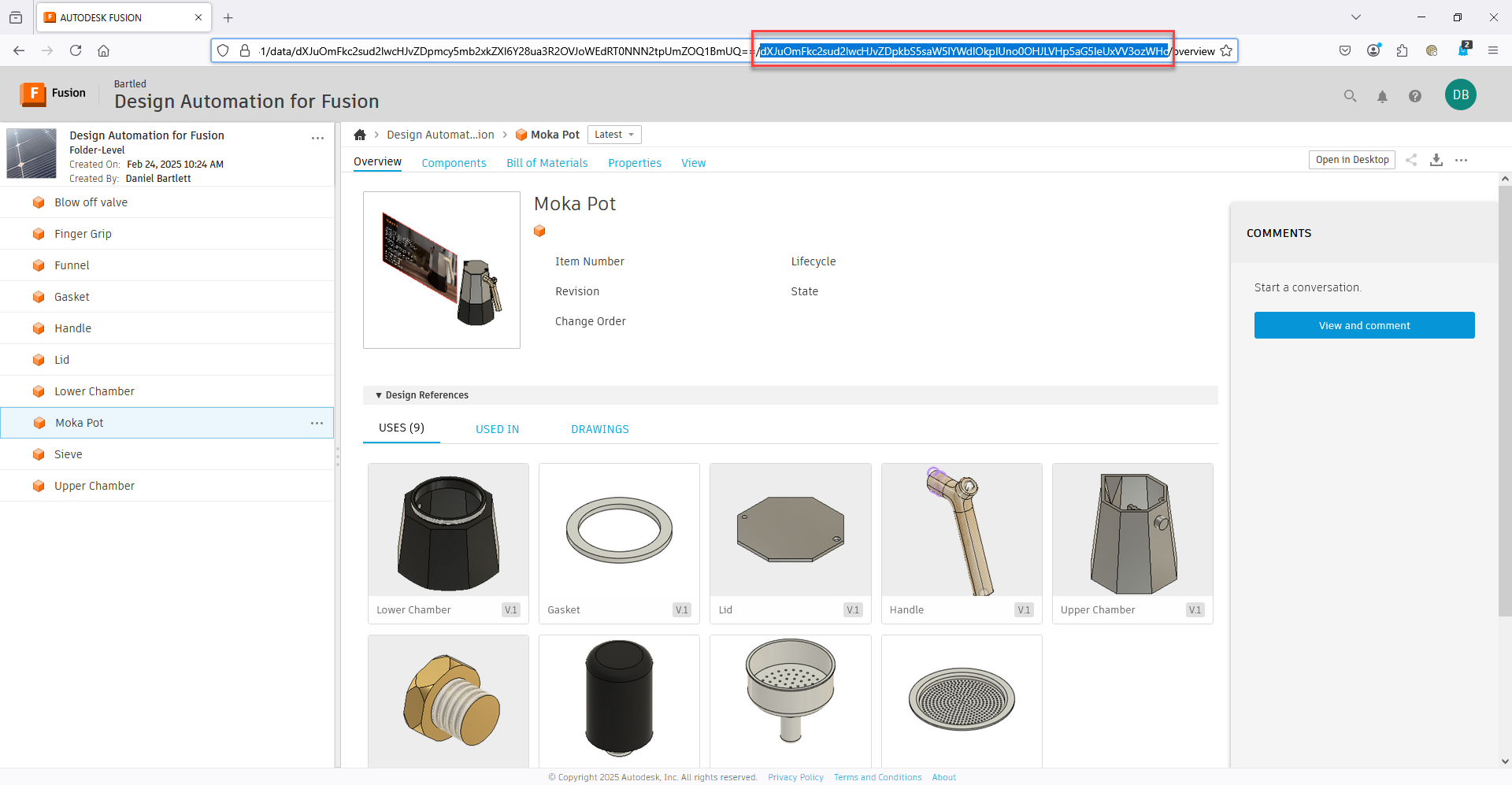
Navigate to the file in your browser. The long string in the address bar is a Base64-encoded URN that you’ll need to decode.
- Within a Script
Use the
idproperty of theDataFileobject to get the URN of the currently active file.