Get Versions of an ElementGroup
In this guide, you will learn how to query the versions of a specific elementGroup using the AEC Data Model Explorer. You will retrieve the version history of an elementGroup, including the version number and creation date.
By the end of this guide, you will be able to:
- Fetch versions for a particular elementGroup.
- Understand the options and fields in the documentation on the elementGroupAtTip query, elementGroup object, and history / versions object.
You will use the following query in this guide:
| Type | Operation | Description |
|---|---|---|
| Query | elementGroupAtTip | Retrieves elementGroup at tip. |
Step 1: Request for a particular ElementGroup
The elementGroupnAtTip query returns a ElementGroup object. The ElementGroup object contains an array of elements objects. For this exercise, we request the name field and the entire history object of the elementGroup.
- In the AEC Data Model Explorer, the query is populated by default in the Query Pane. You can also edit or update the query as per your requirement and run it.
Query
query ($elementGroupId: ID!) {
  elementGroupAtTip(elementGroupId: $elementGroupId) {
    id
    name
    alternativeIdentifiers {
      fileUrn
      fileVersionUrn
    }
    versionHistory {
      versions {
        results {
          versionNumber
          createdOn
        }
      }
    }
  }
}
Show More - In the Query variables pane, set the value of the
elementGroupIdobtained in Navigate to Elementgroups within projects Query Variables
{
    "elementGroupId" : "YWVjZH42SUpGQXdONExWTG5JZXZiQk5GNU1IX0wyQ35yRWRKT0NPcVIwZWt5SkJCWWxSOUVB"
}
- In the Query variables pane, set the value of the
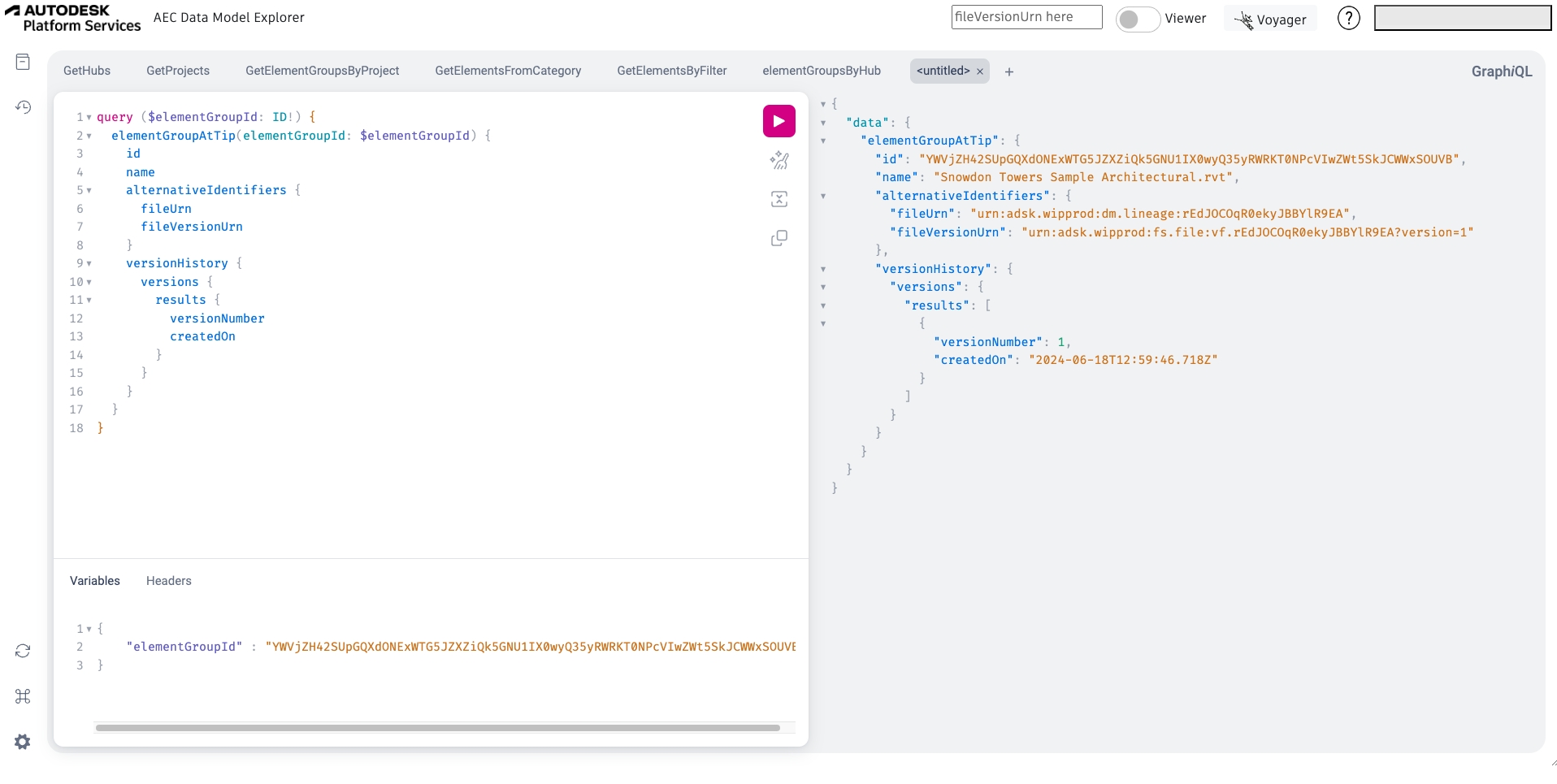
- Click Play. All the previously published versions of that elementGroup will be displayed in the response. The response should be similar to the following code-block:
Response
{
  "data": {
    "elementGroupAtTip": {
      "id": "YWVjZH42SUpGQXdONExWTG5JZXZiQk5GNU1IX0wyQ35yRWRKT0NPcVIwZWt5SkJCWWxSOUVB",
      "name": "Snowdon Towers Sample Architectural.rvt",
      "alternativeIdentifiers": {
        "fileUrn": "urn:adsk.wipprod:dm.lineage:rEdJOCOqR0ekyJBBYlR9EA",
        "fileVersionUrn": "urn:adsk.wipprod:fs.file:vf.rEdJOCOqR0ekyJBBYlR9EA?version=1"
      },
      "versionHistory": {
        "versions": {
          "results": [
            {
              "versionNumber": 1,
              "createdOn": "2024-06-18T12:59:46.718Z"
            }
          ]
        }
      }
    }
  }
}
Show More
After working through the steps mentioned above, you should see a screen similar to the following image: