Get ElementGroups Based on Metadata
In this guide, you will learn how to query hubs based on metadata using RSQL (a query language designed for filtering and querying data) and receive responses from the AEC Data Model server.
By the end of this guide, you will be able to:
- Fetch elementGroups from a hub based on the metadata using AEC Data Model Explorer.
- Use filters on metadata like createdOn or createdBy on elementGroups with greater than or less than operators.
- Understand the options and fields in the documentation on the elementGroupsByHub query and elementGroup object.
You will use the following query in this guide:
| Type | Operation | Description |
|---|---|---|
| Query | elementGroupsByHub | Retrieves elementGroups in the given hub, using additional RSQL filters if provided. |
Step 1: Request ElementGroups by Hub
The elementGroupsByHub query returns an ElementGroups object. While the ElementGroups object has many fields, for this exercise, we will be requesting the id and the name fields only.
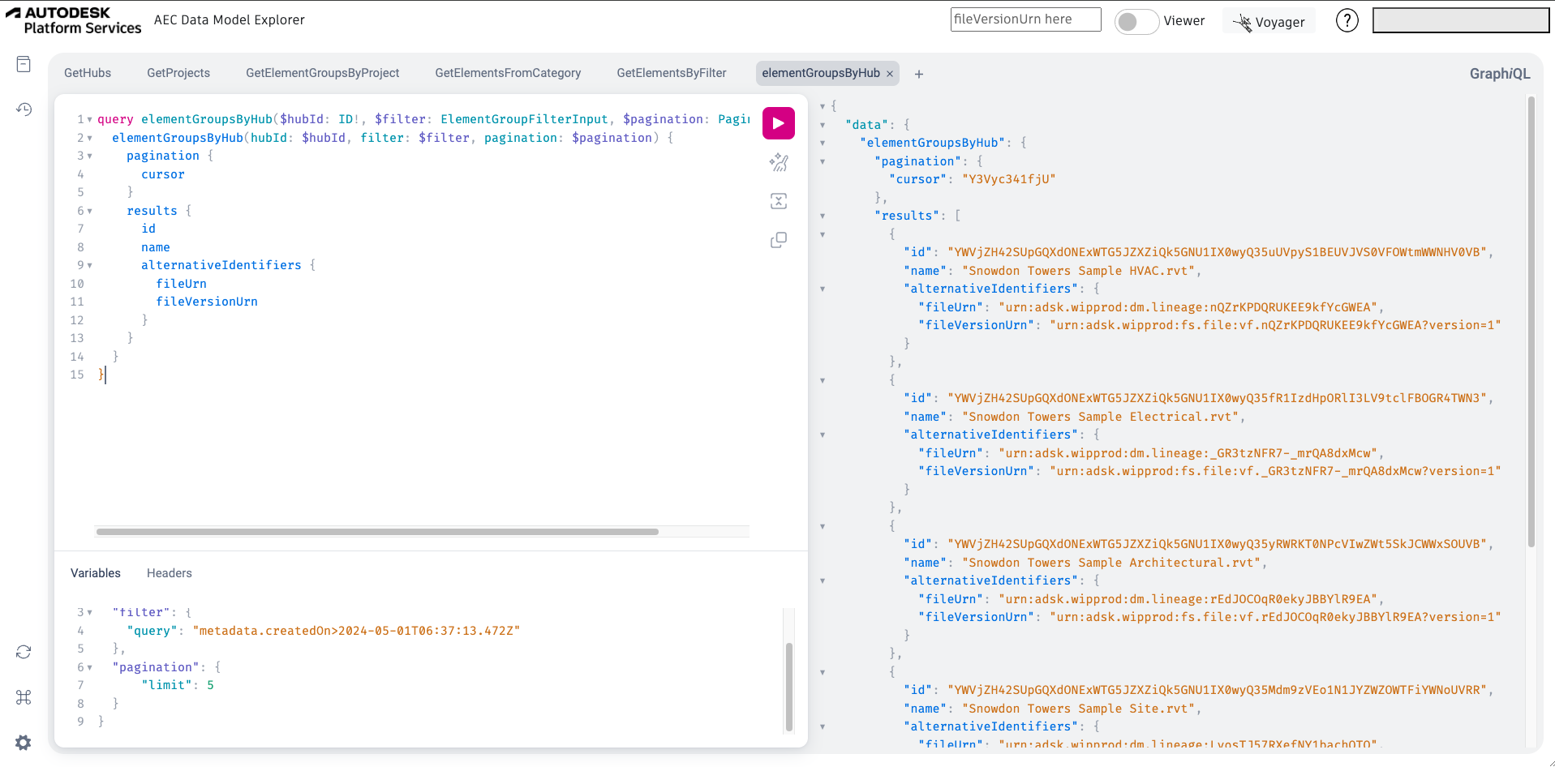
- In AEC Data Model Explorer, the query is populated by default in the Query Pane. You can also edit or update the query as per your requirement and run it.
Query
query elementGroupsByHub($hubId: ID!, $filter: ElementGroupFilterInput, $pagination: PaginationInput) {
  elementGroupsByHub(hubId: $hubId, filter: $filter, pagination: $pagination) {
    pagination {
      cursor
    }
    results {
      id
      name
      alternativeIdentifiers {
        fileUrn
        fileVersionUrn
      }
    }
  }
}
Show More
- In the Query Variables Pane, replace the value of the
hubIdvariable with the hub ID of the project obtained previously in Get Started with AEC Data Model API’ tutorial’s Get Hubs task.- In the Query variables pane, set the metadata filter according to your preferences. This will allow you to query the data that you need.
- In the Query variables pane, set the pagination limit to any required value. For clarity, we are setting the limit value to 5.
Note: For information on the supported metadata filtering options, refer Advanced Filtering Capabilities page.
Query Variables
{
  "hubId": "urn:adsk.ace:prod.scope:dccde3e3-c20c-40d3-a27c-7ac53b051b6e",
  "filter": {
    "query": "metadata.createdOn>2024-05-01T06:37:13.472Z"
  },
  "pagination": {
      "limit": 5
  }
}
Show More
- Click Play. A list of elementGroups that you have access to is displayed in the response section. It should be similar to the following code-block:
Response
{
  "data": {
    "elementGroupsByHub": {
      "pagination": {
        "cursor": "Y3Vyc341fjU"
      },
      "results": [
        {
          "id": "YWVjZH42SUpGQXdONExWTG5JZXZiQk5GNU1IX0wyQ35uUVpyS1BEUVJVS0VFOWtmWWNHV0VB",
          "name": "Snowdon Towers Sample HVAC.rvt",
          "alternativeIdentifiers": {
            "fileUrn": "urn:adsk.wipprod:dm.lineage:nQZrKPDQRUKEE9kfYcGWEA",
            "fileVersionUrn": "urn:adsk.wipprod:fs.file:vf.nQZrKPDQRUKEE9kfYcGWEA?version=1"
          }
        },
        {
          "id": "YWVjZH42SUpGQXdONExWTG5JZXZiQk5GNU1IX0wyQ35fR1IzdHpORlI3LV9tclFBOGR4TWN3",
          "name": "Snowdon Towers Sample Electrical.rvt",
          "alternativeIdentifiers": {
            "fileUrn": "urn:adsk.wipprod:dm.lineage:_GR3tzNFR7-_mrQA8dxMcw",
            "fileVersionUrn": "urn:adsk.wipprod:fs.file:vf._GR3tzNFR7-_mrQA8dxMcw?version=1"
          }
        },
        {
          "id": "YWVjZH42SUpGQXdONExWTG5JZXZiQk5GNU1IX0wyQ35yRWRKT0NPcVIwZWt5SkJCWWxSOUVB",
          "name": "Snowdon Towers Sample Architectural.rvt",
          "alternativeIdentifiers": {
            "fileUrn": "urn:adsk.wipprod:dm.lineage:rEdJOCOqR0ekyJBBYlR9EA",
            "fileVersionUrn": "urn:adsk.wipprod:fs.file:vf.rEdJOCOqR0ekyJBBYlR9EA?version=1"
          }
        },
        {
          "id": "YWVjZH42SUpGQXdONExWTG5JZXZiQk5GNU1IX0wyQ35Mdm9zVEo1N1JYZWZOWTFiYWNoUVRR",
          "name": "Snowdon Towers Sample Site.rvt",
          "alternativeIdentifiers": {
            "fileUrn": "urn:adsk.wipprod:dm.lineage:LvosTJ57RXefNY1bachQTQ",
            "fileVersionUrn": "urn:adsk.wipprod:fs.file:vf.LvosTJ57RXefNY1bachQTQ?version=1"
          }
        },
        {
          "id": "YWVjZH42SUpGQXdONExWTG5JZXZiQk5GNU1IX0wyQ35mV0R1ZkIteVNtcTVGd242RmoxXy1n",
          "name": "Snowdon Towers Sample Facades.rvt",
          "alternativeIdentifiers": {
            "fileUrn": "urn:adsk.wipprod:dm.lineage:fWDufB-ySmq5Fwn6Fj1_-g",
            "fileVersionUrn": "urn:adsk.wipprod:fs.file:vf.fWDufB-ySmq5Fwn6Fj1_-g?version=1"
          }
        }
      ]
    }
  }
}
Show More
Note down the ID of the elementGroup that you wish to use. You will need this ID for the remaining tasks. For illustration, in this tutorial we have used the ID of the elementGroup named Snowdon Towers Sample Architectural.rvt.
After working through the steps mentioned above, you should see a screen similar to the following image: