Window Schedule Sample Workflow
A schedule is typically used to identify, in most cases a chart or table providing descriptions of the windows , doors, finishes, lintels, footings, piers, etc. on a construction project. Let’s take the same sample model and imagine that you would like to build a window schedule. You will need to retrieve properties like panel glazing, glass, frame material, height, width, etc. of all Elementgroups entity instances of category windows.
See this code sample at AEC Data Model Samples git repository
Note: This code sample requires .NET 6.
Before You Begin
- If you do not have an app registered, follow the procedure outlined in Create an App to sign up for an APS account (if required) and obtain a Client ID for your app.
- Make sure that you add the following as the Callback URL: http://localhost:8080/api/auth/callback
- Contact us to enable AEC Data Model API for your app and Forma hub.
- Install .NET 6
- Clone or download the Git Repository. It’s recommended to install GitHub desktop. To clone it via command line, use the following command (Terminal on MacOSX/Linux, Git Shell on Windows):
git clone https://github.com/autodesk-platform-services/aps-aecdatamodel-samples.git
Setting up the Application
Define the following environment variables:

  Mac OSX/Linux (Terminal)

    dotnet restore
    export APS_CLIENT_ID=<<YOUR CLIENT ID FROM DEVELOPER PORTAL>>
    export APS_CLIENT_SECRET=<<YOUR CLIENT SECRET>>
    export APS_CALLBACK_URL=http://localhost:8080/api/auth/callback

  Windows

    dotnet restore
    set APS_CLIENT_ID =<<YOUR CLIENT ID FROM DEVELOPER PORTAL>>
    set APS_CLIENT_SECRET =<<YOUR CLIENT SECRET>>
    set APS_CALLBACK_URL=http://localhost:8080/api/auth/callback
When using Visual Studio Code, you can specify the environment variables listed above in a .env file in this folder, and run and debug the application directly from the editor.
In Microsoft Visual Studio, you can set the variables through Debug > aps-aecdatamodel-samples Properties and add the three Environment variables as follows: APS_CLIENT_ID=<
Running the Sample
To run the sample, you need to execute the following command in the terminal:
dotnet run
Go to http://localhost:8080, and then select Go to sample for Elementgroups Validation Sample Workflow.

Afterwards, you’ll need to login with your Autodesk (Forma) account before proceeding with the next steps.
Workflow Description
- List all hubs
After login (top-right), click on
List Hubsand take note of the hubId (id). See C# code.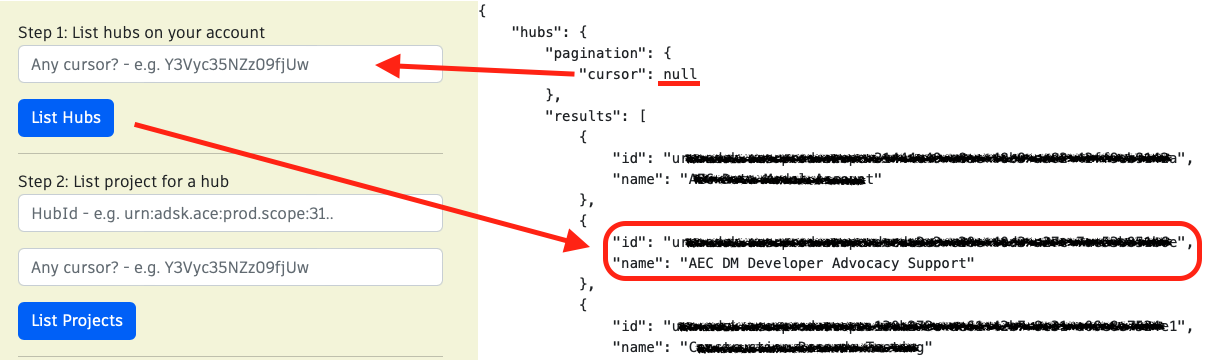
- List all projects
Use the
HubIdfrom step 1 to list all projects and take note of the projectId (id). See C# code.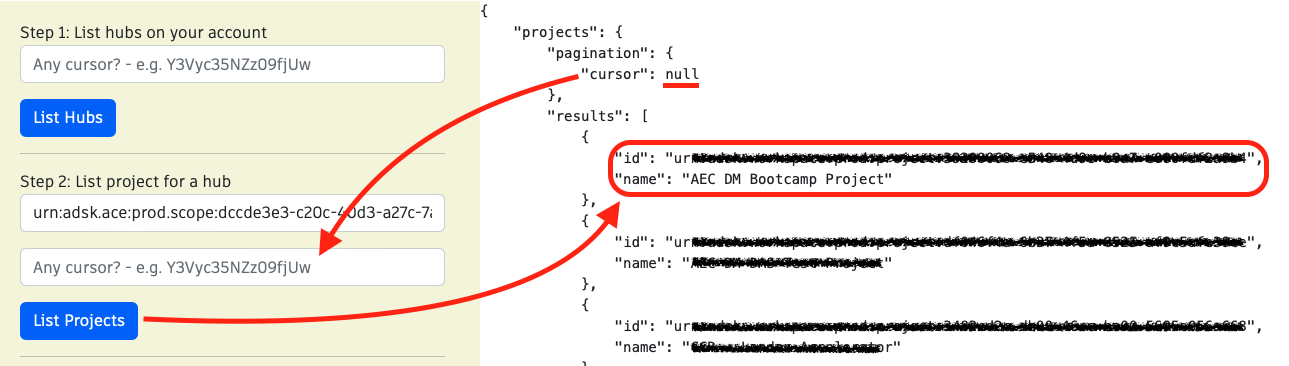
- List all elementgroups in a project
This step uses
projectId. Take note of theelementGroupIdof the desired file (in this image,House.rvt). See C# code.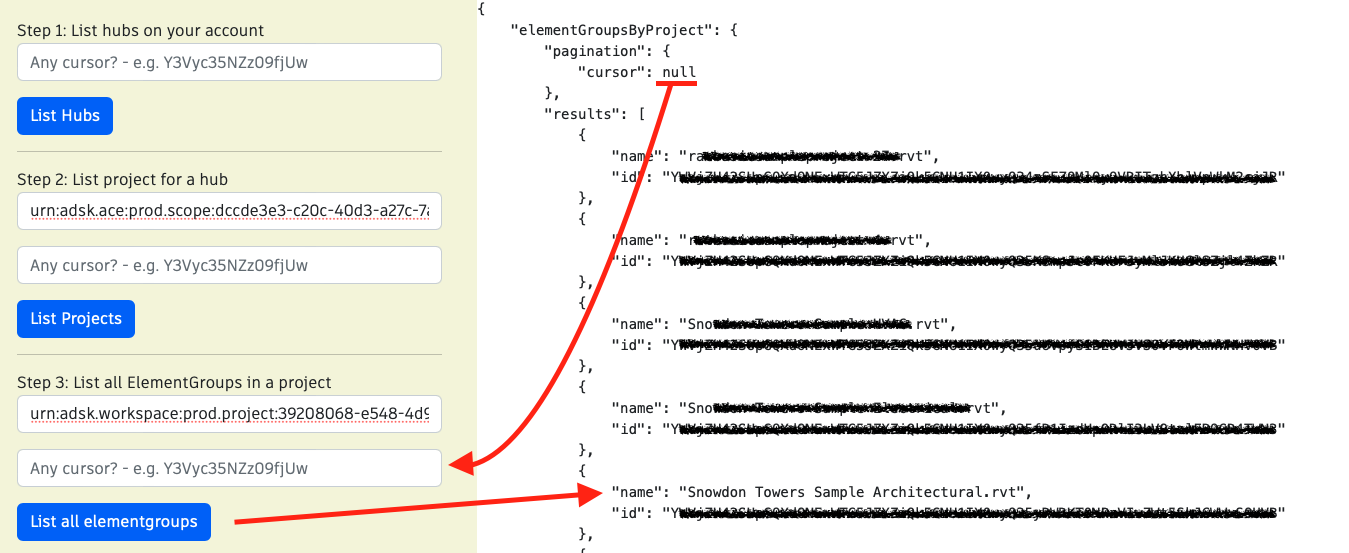
- Generate quantity takeoff
Use the
elementGroupIdfrom step 3. Click on generate schedule. You may adjust hefilterfield. See C# code.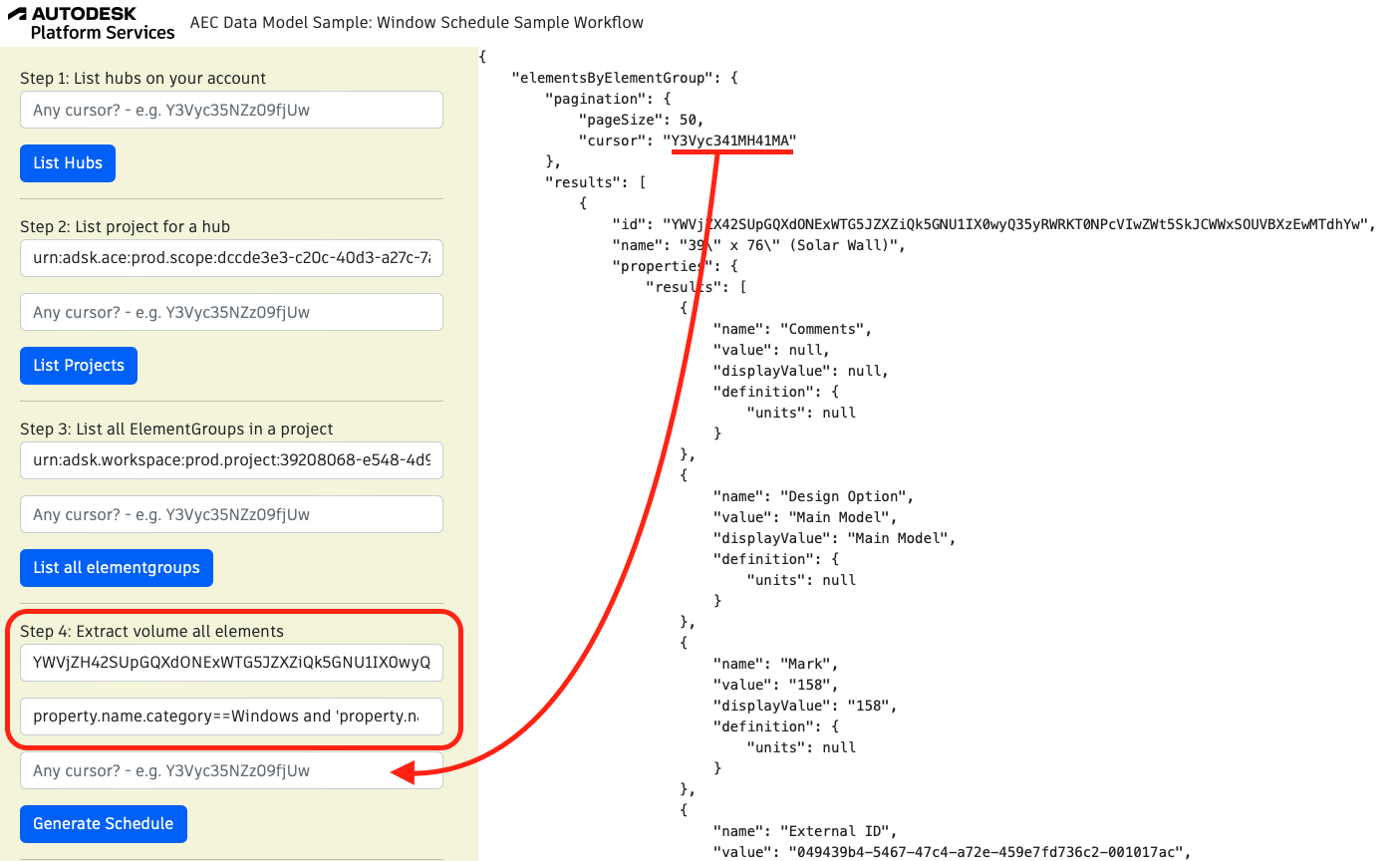
Query used:
 query GetSchedule($elementGroupId: ID!, $elementsfilter: String!){
 elementsByElementGroup(elementGroupId: $elementGroupId,filter: { query: $elementsfilter}){
     pagination{
     pageSize
     cursor
     }
     results{
     id
     name
     properties{
         results{
         name
         value
         displayValue
         propertyDefinition{
             units
         }
         }
     }
     references{
         results{
         name
         value{
             properties{
             results{
                 name
                 value
                 displayValue
                 definition{
                 units{
                     name
                 }
                 }
             }
             }
         }
         }
     }
     }
 }
 }
Show MoreQuery used in case a valid cursor is provided:
 query GetSchedule($elementGroupId: ID!, $elementsfilter: String!){
 elementsByElementGroup(elementGroupId: $elementGroupId,filter: { query: $elementsfilter}, pagination:{cursor:"cursor"}){
     pagination{
     pageSize
     cursor
     }
     results{
     id
     name
     properties{
         results{
         name
         value
         displayValue
         definition{
             units{
             name
             }
         }
         }
     }
     references{
         results{
         name
         value{
             properties{
             results{
                 name
                 value
                 displayValue
                 definition{
                 units{
                     name
                 }
                 }
             }
             }
         }
         }
     }
     }
 }
 }
Show MoreThe variables are the same in both cases:
 {
 elementGroupId = elementGroupId,
 elementsfilter = elementsfilter
 }