Furniture Procurement Dashboard Sample Workflow
Obtaining furniture procurement data can help building managers make more informed decisions about budgeting, maintenance, compliance, and planning, which can ultimately lead to a more efficient and effective use of resources.
To run the sample, please review setup instructions.
Before You Begin
- If you do not have an app registered, follow the procedure outlined in Create an App to sign up for an APS account (if required) and obtain a Client ID for your app.
- Make sure that you add the following as the Callback URL: http://localhost:8080/api/auth/callback
- Contact us to enable AEC Data Model API for your app and Forma hub.
- Install .NET 6
- Clone or download the Git Repository. It’s recommended to install GitHub desktop. To clone it via command line, use the following command (Terminal on MacOSX/Linux, Git Shell on Windows):
git clone https://github.com/autodesk-platform-services/aps-aecdatamodel-samples.git
Setting up the Application
Define the following environment variables:

  Mac OSX/Linux (Terminal)

    dotnet restore
    export APS_CLIENT_ID=<<YOUR CLIENT ID FROM DEVELOPER PORTAL>>
    export APS_CLIENT_SECRET=<<YOUR CLIENT SECRET>>
    export APS_CALLBACK_URL=http://localhost:8080/api/auth/callback

  Windows

    dotnet restore
    set APS_CLIENT_ID =<<YOUR CLIENT ID FROM DEVELOPER PORTAL>>
    set APS_CLIENT_SECRET =<<YOUR CLIENT SECRET>>
    set APS_CALLBACK_URL=http://localhost:8080/api/auth/callback
When using Visual Studio Code, you can specify the environment variables listed above in a .env file in this folder, and run and debug the application directly from the editor.
In Microsoft Visual Studio, you can set the variables through Debug > aps-aecdatamodel-samples Properties and add the three Environment variables as follows: APS_CLIENT_ID=<
Running the Sample
To run the sample, you need to execute the following command in the terminal:
dotnet run
Go to http://localhost:8080, and then select Go to sample for Elementgroups Validation Sample Workflow.

Afterwards, you’ll need to login with your Autodesk (Forma) account before proceeding with the next steps.
Workflow Description
- List all hubs
After login (top-right), click on
List Hubsand take note of the hubId (id). See C# code. In case your hub is not in the first response and you receive a cursor value different thatnull, you can copy and paste this value inside the cursor input and click List Hubs button once more.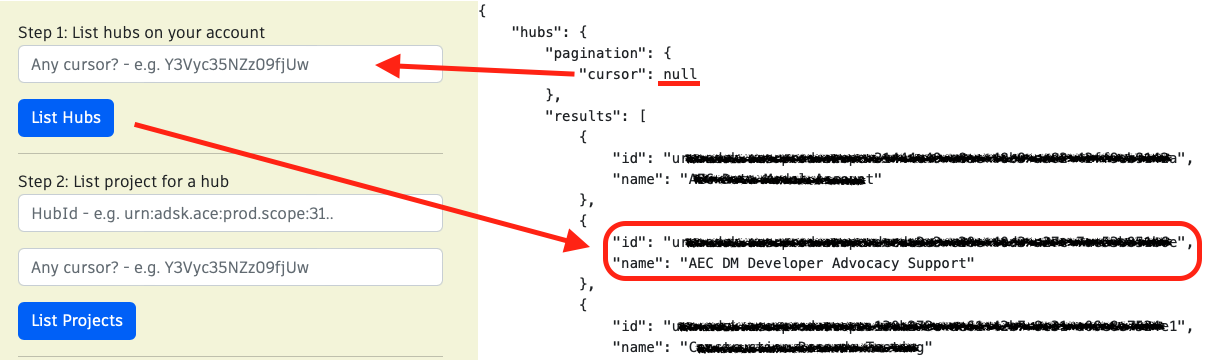
- List all projects
Use the
HubIdfrom step 1 to list all projects and take note of the projectId (id). See C# code. In case your project is not in the first response and you receive a cursor value different thatnull, you can copy and paste this value inside the cursor input and click List Projects button once more.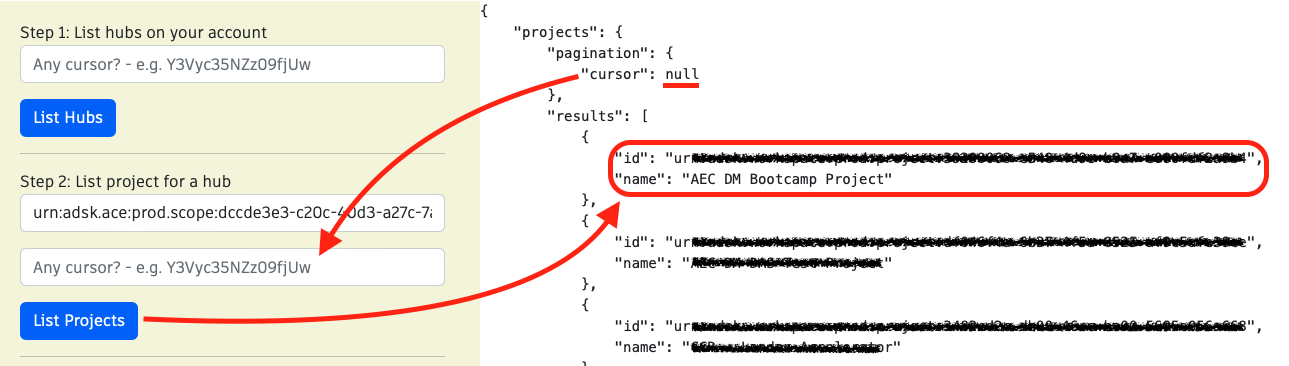
- List all elementgroups in a project
This step uses
projectId. Take note of theelementGroupIdof the desired file (in this image,House.rvt). See C# code. In case your design is not in the first response and you receive a cursor value different thatnull, you can copy and paste this value inside the cursor input and click List all designs button once more.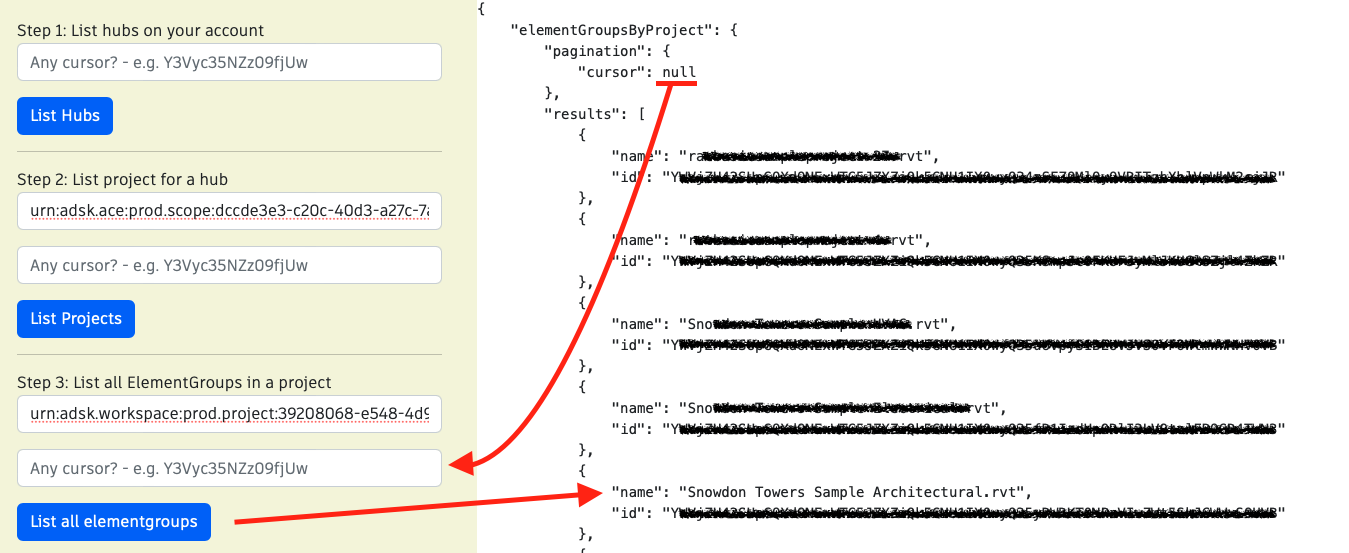
- Generate furniture procurement data in a specific level
Use the
elementGroupIdfrom step 3. Click on generate schedule. You may adjust hefilterfield. See C# code. In case your element is not in the first response and you receive a cursor value different thannull, you can copy and paste this value inside the cursor input and click Generate Procurement button once more.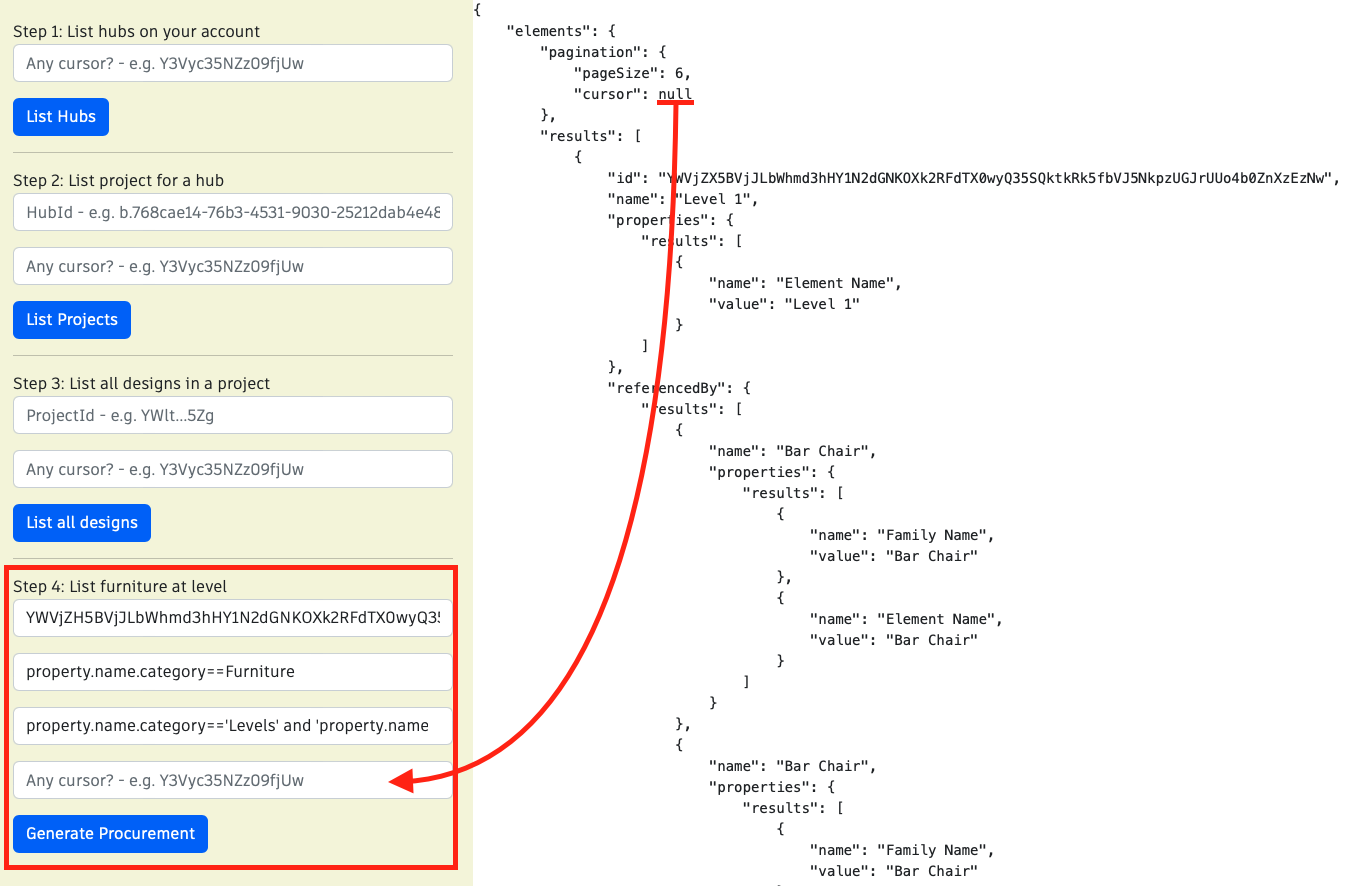
Query used:
 ```
 query GetFurnitureProcurement($elementGroupId: ID!, $elementsfilter: String!, $referencefilter: String!) {
 	elements(elementGroupId: $elementGroupId, filter: { query: $elementsfilter}) {
 		pagination {
 			pageSize
 			cursor
 		}
 		results {
 			id
 			name
 			properties (filter: {names: ["Element Name"]}){
 				results {
 					name
 					value
 				}
 			}
 			referencedBy (name: "Level", filter: { query: $referencefilter}) {
 				results {
 					name
 					properties (filter: {names: [""Family Name"", ""Element Name""]}) {
 						results {
 							name
 							value
 						}
 					}
 				}
 			}
 		}
 	}
 }
 ```
Show MoreQuery used in case a valid cursor is provided:
 ```
 query GetFurnitureProcurement($elementGroupId: ID!, $elementsfilter: String!, $referencefilter: String!) {
 	elements(elementGroupId: $elementGroupId, filter: { query: $elementsfilter}, pagination:{cursor:"cursor string here"}) {
 		pagination {
 			pageSize
 			cursor
 		}
 		results {
 			id
 			name
 			properties (filter: {names: ["Element Name"]}){
 				results {
 					name
 					value
 				}
 			}
 			referencedBy (name: "Level", filter: { query: $referencefilter}) {
 				results {
 					name
 					properties (filter: {names: [""Family Name"", ""Element Name""]}) {
 						results {
 							name
 							value
 						}
 					}
 				}
 			}
 		}
 	}
 }
 ```
Show MoreThe variables are the same in both cases:
 ```
 {
 	elementGroupId = "Your elementGroup ID",
 	elementsfilter = elementsfilter,
 	referencefilter = referencefilter
 }
 ```